
Presentation of the new OVHcloud Console navigation
Take a quick guided tour of the new OVHcloud Console navigation.
Requirements
- Access to the OVHcloud Console
Introduction
Basic navigation comparison
While the Console's look and feel may seem very different from the legacy OVHcloud Control Panel, you can still easily navigate your OVHcloud products and services.
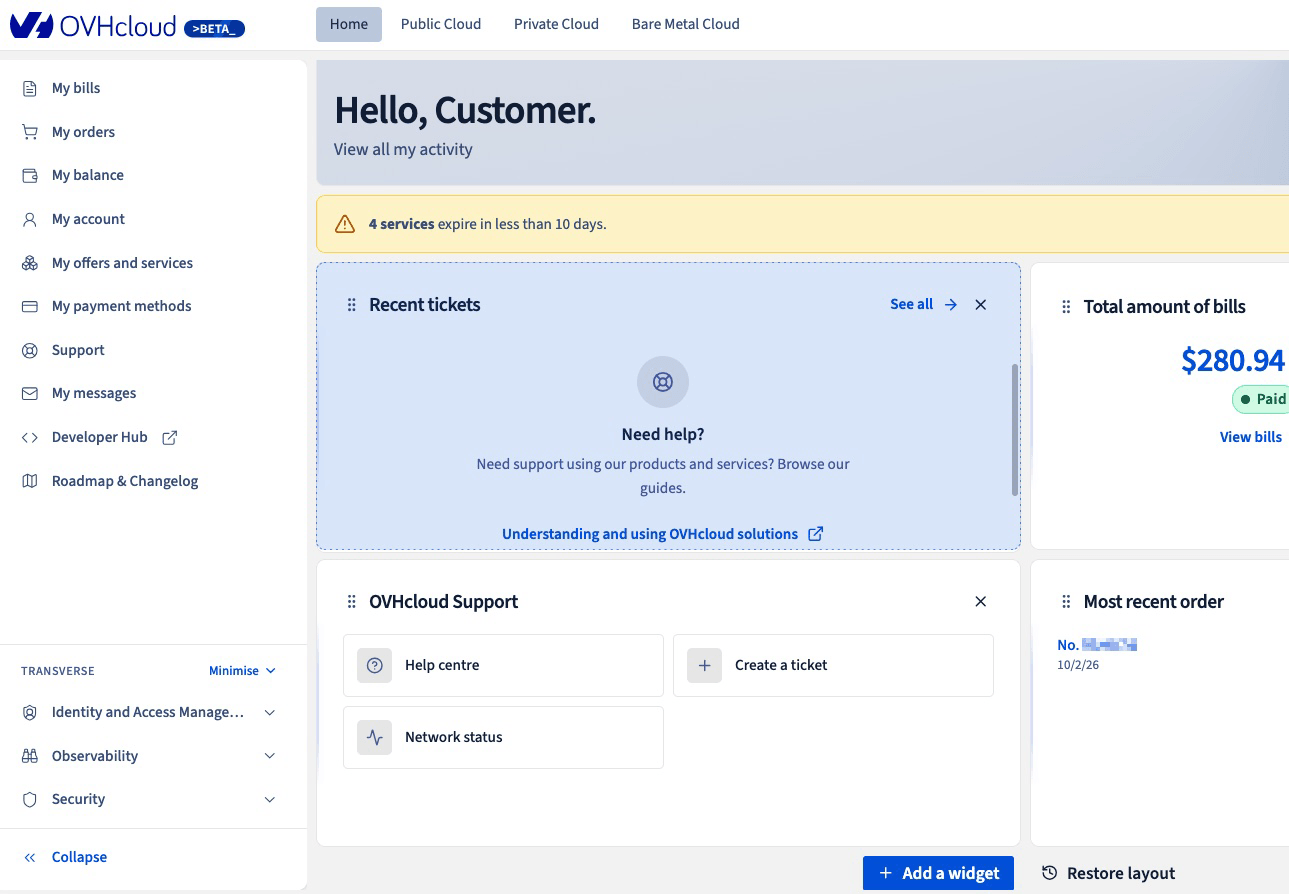
The sections below will show you which aspects of the basic navigation remain the same and which have changed. One exciting new feature on the Home, Public Cloud, Private Cloud, and Bare Metal Cloud pages is widgets. You can add, move, and resize each widget; the Restore layout button will revert the widgets back to the default.
Account navigation
What is the same?
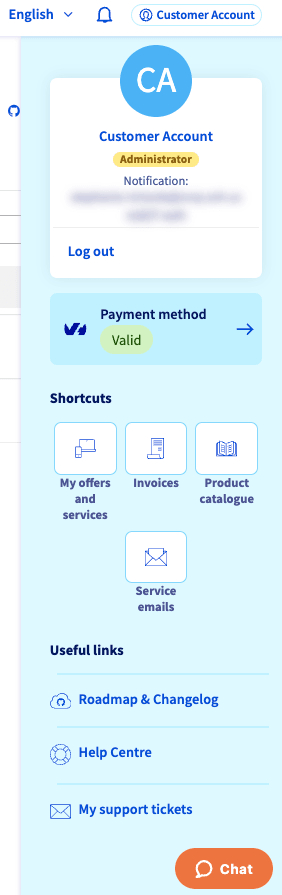
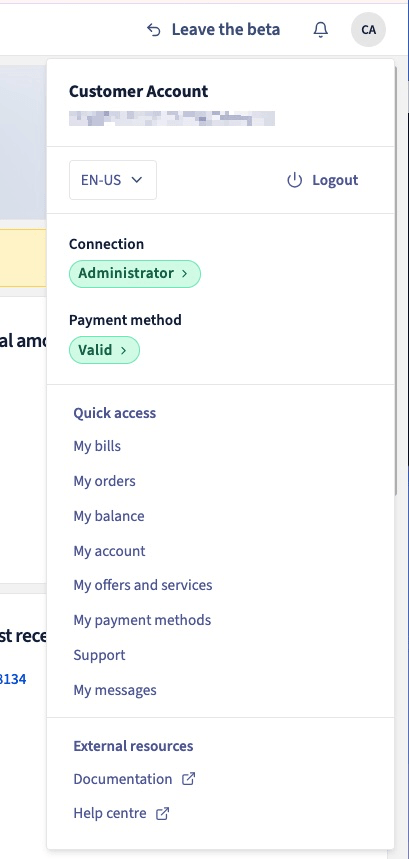
- Accessible from the top-right corner of the screen by clicking on your name.
- Contains links to quickly and conveniently access different areas of your account and some links to external resources.
What is different?
- There are more links in the "Quick access" area.
- The "External resources" links have changed, e.g., Documentation rather than the roadmap, etc.
| Control Panel | Console |
|---|---|
 |  |
Universal navigation
What is the same?
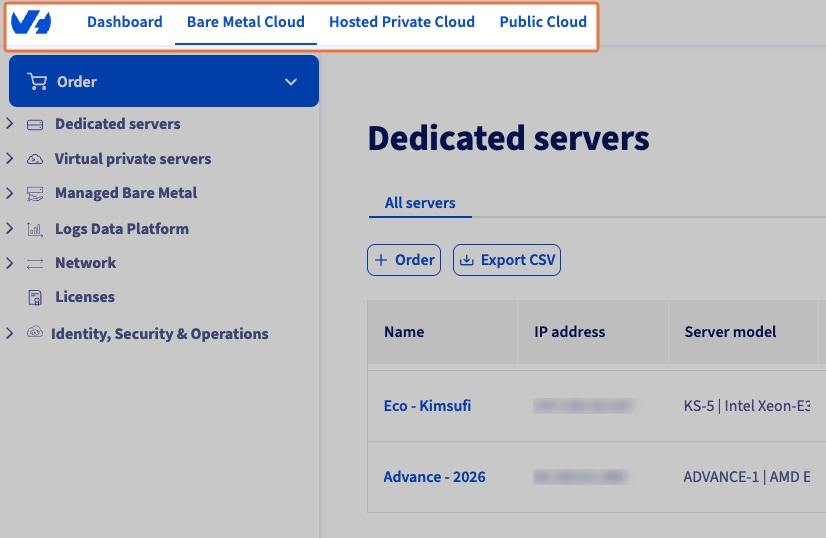
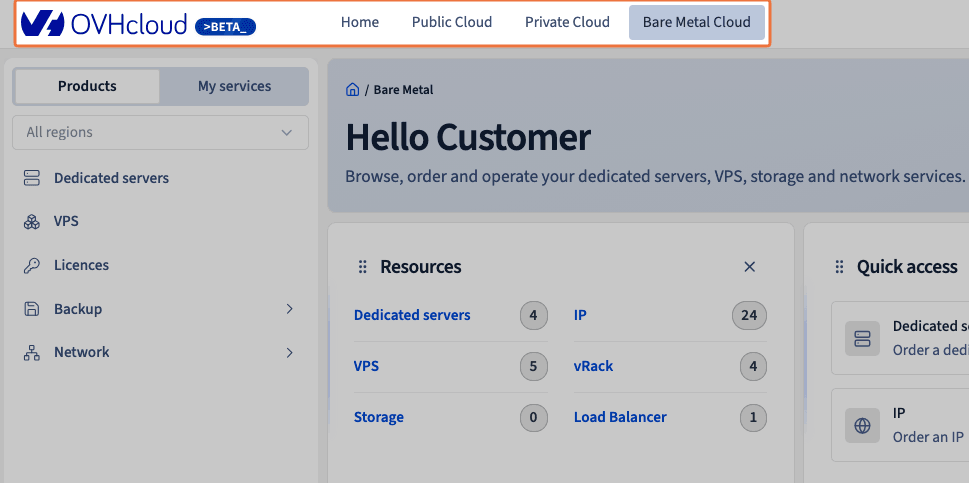
- The location in the top-left corner of the screen.
- The Bare Metal Cloud, Hosted Private Cloud, and Public Cloud universes.
What is different?
- The "Dashboard" landing page has been renamed to "Home" and "Hosted Private Cloud" has been renamed to "Private Cloud."
- Bare Metal Cloud and Public Cloud have swapped positions in the menu.
| Control Panel | Console |
|---|---|
 |  |
Product navigation
What is the same?
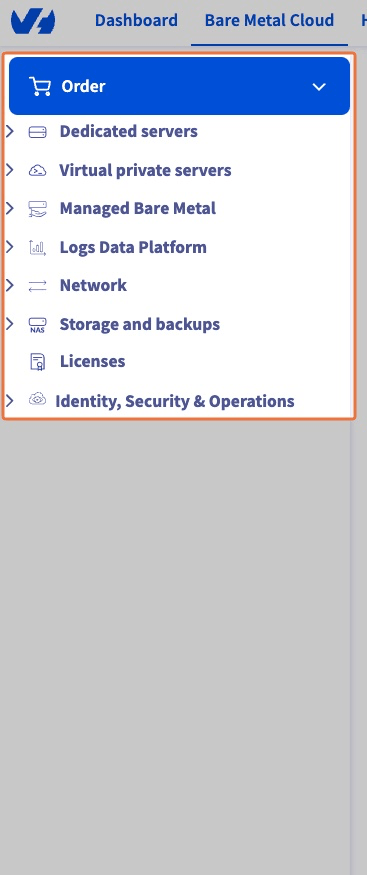
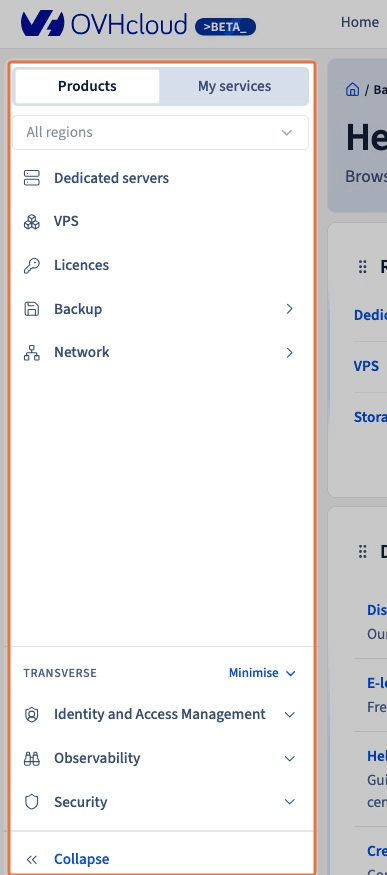
- You can quickly and easily toggle between different products and services in the left-hand menu.
What is different?
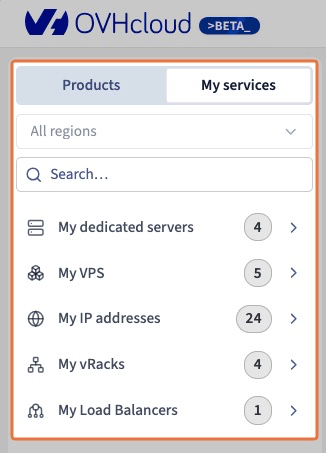
- There are toggles at the top to browse by Product or by service (My services).
- Transversal products, such as Identity and Access Management, are located at the bottom of the panel.
| Control Panel | Console |
|---|---|
 |  |
Service navigation
What is the same?
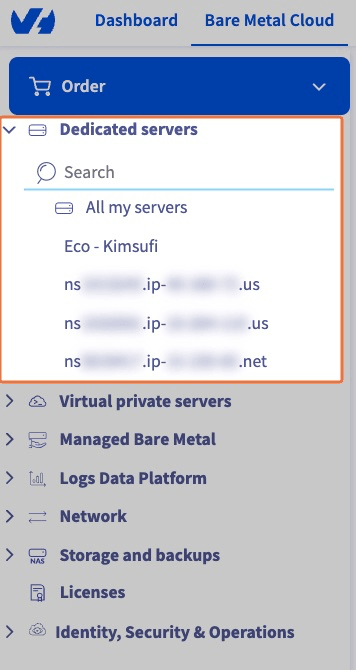
- Once you select a service, you will see a landing page with a summary of your service's details, as well as more tabs and menus to modify your service's configuration.
- Switching between services is still done by clicking in the left-hand navigation menu.
What is different?
- Toggling to
My servicesdisplays the number of each service in your account. - Clicking on a product will list your individual services; i.e., clicking
My dedicated serversdisplays all dedicated servers in your account.
| Control Panel | Console |
|---|---|
 |  |
Quick reference links
Go further
Browse all the Account information guides.
Browse the rest of the OVHcloud US documentation for guides on our other products and services.