
How to add an ARIN organization to an IP in the OVHcloud Control Panel
To learn more about ARIN and what they do for the functionality of the internet, check them out here.
Requirements
- An OVHcloud account
- Access to the OVHcloud Control Panel
Instructions
NOTE: You cannot add an organization to a /32 IP block (a single IP for a product or a single additional IP).
To add an ARIN Organization to an IP address, log in to the OVHcloud Control Panel, select the Bare Metal Cloud tab, and choose the IP section in the left-hand sidebar.
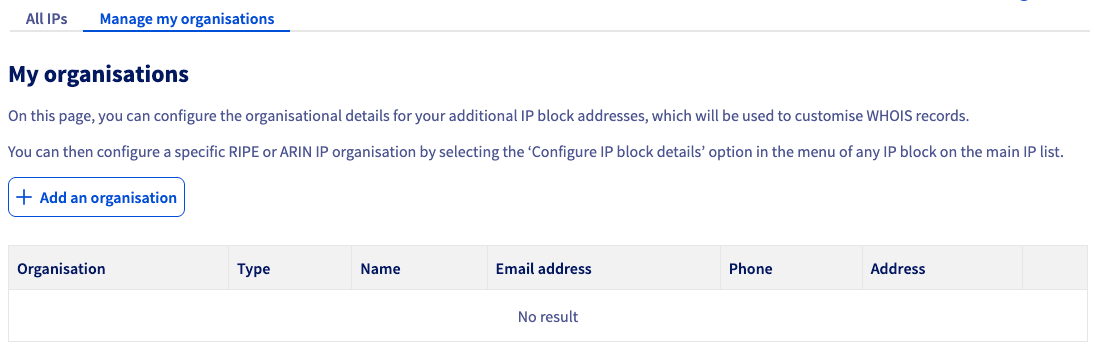
Once the new screen loads, choose the Manage my organisations tab.
Next, click + Add an organisation.
Enter your organization's information in the pop-up window that follows.
Click Confirm to add your organization.
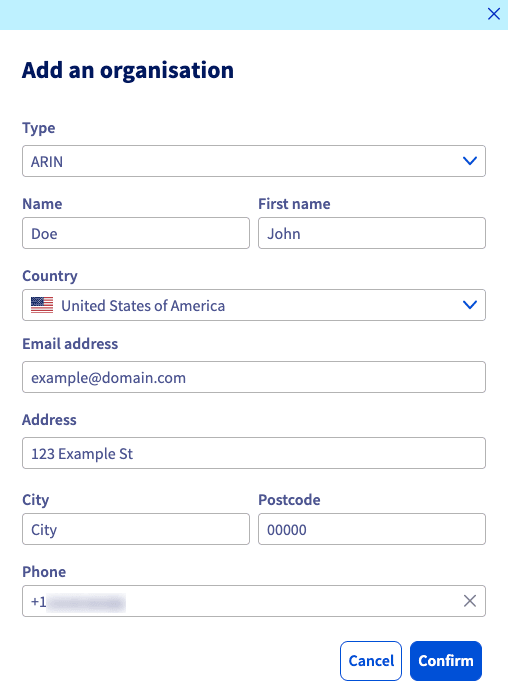
Take note of your newly-created organization ID and allow at least 24 hours for ARIN to be updated.
NOTE: Updating geolocation databases is beyond the control of OVHcloud. It is handled by third-party operators. It can take some time for these databases to be updated.
Go further
Browse all the Additional IP guides.
Browse the rest of the OVHcloud US documentation for guides on our other products and services.
Learn more about Additional IP on the OVHcloud US website.