
VMware Fault Tolerance
The Fault Tolerance (FT) functionality of VMware’s vSphere allows you to protect a virtual machine from hardware failures by cloning the VM on two separate hosts.
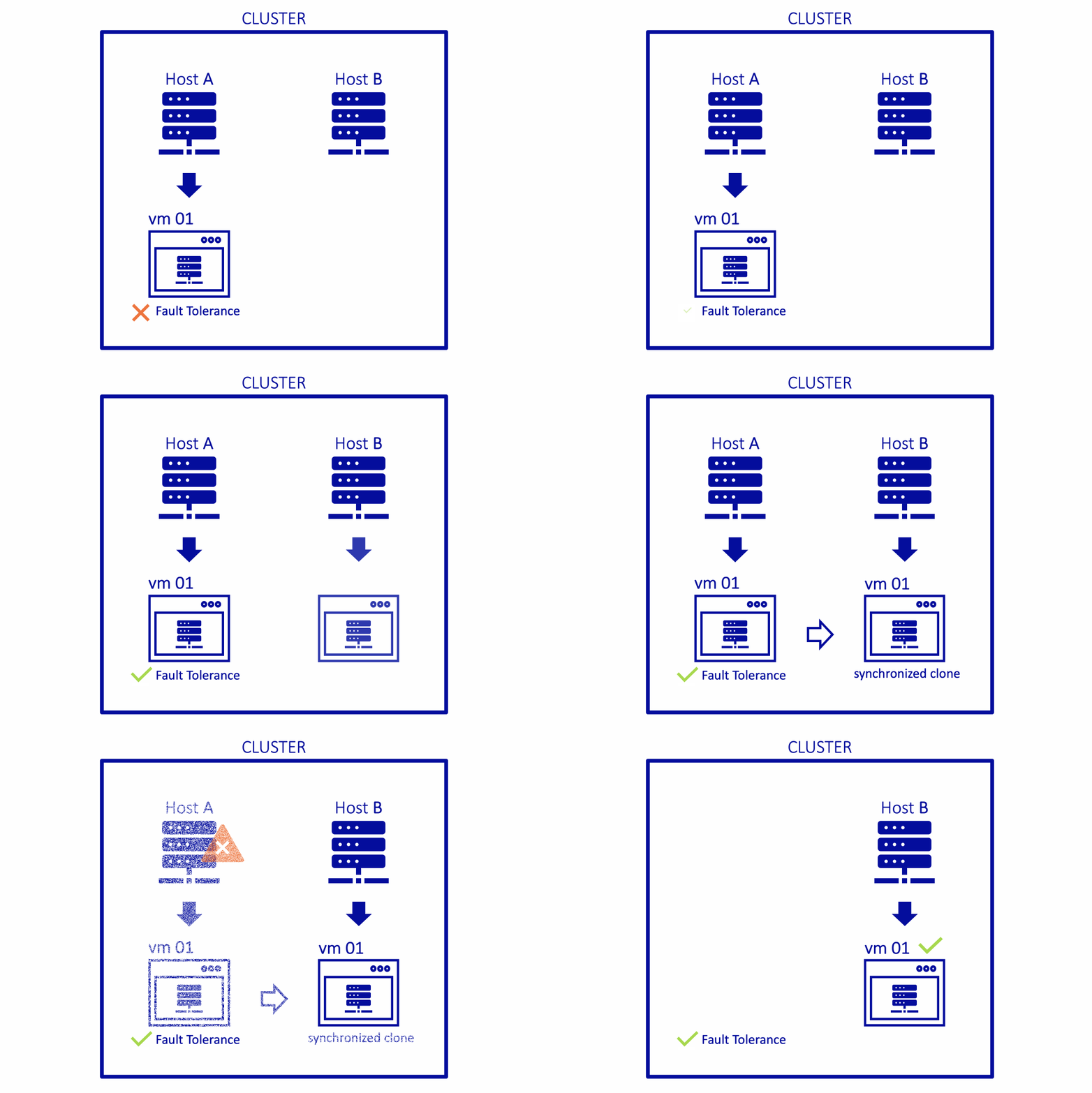
Requirements
- vSphere HA activated
- Resource reservation equal to 100% of memory
- VMware Tools installed
- Same generation processors
- 4 vCPUs maximum
Instructions
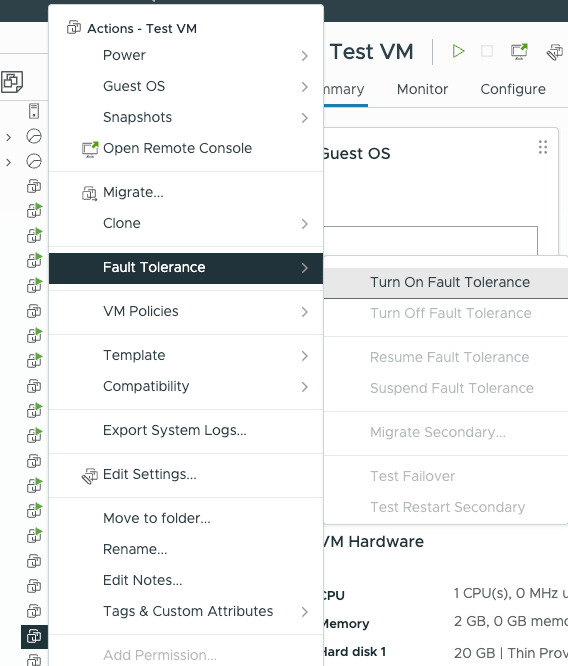
To activate Fault Tolerance, right-click on a VM and click Fault Tolerance and Turn On Fault Tolerance.
A configuration window will open, prompting you to make choices for the secondary VM.
- Select datastores: Select datastores to place the secondary VM disks and configuration files.
- Select host: Select a host for the secondary VM.
- Ready to complete: Review your selections and click
FINISHto turn on fault tolerance.
Your virtual machine is now protected by Fault Tolerance. Its icon will change, and "primary" will be added to its name.
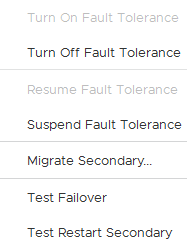
Several operations are now available when you right-click your VM and choose Fault Tolerance.
Go further
Browse all the VMware on OVHcloud guides.
Browse the rest of the OVHcloud US documentation for guides on our other products and services.
Learn more about VMware on OVHcloud on the OVHcloud US website.