
Load balancing methods
The OVHcloud Load Balancer service supports a variety of load balancing algorithms for your services. This setting determines how the OVHcloud Load Balancer distributes incoming client requests among the servers in a farm.
Requirements
- An OVHcloud Load Balancer service in your OVHcloud account
- Access to the OVHcloud Control Panel
- You need to have created a server cluster (farm)
Instructions
Available Load Balancing algorithms
The load balancing setting is applied at the server farm level and defines the method by which client requests are distributed among the servers within that farm.
For an overview of the OVHcloud Load Balancer service components, please refer to our Introduction to the OVHcloud Load Balancer guide.
Modify a server cluster’s load balancing method
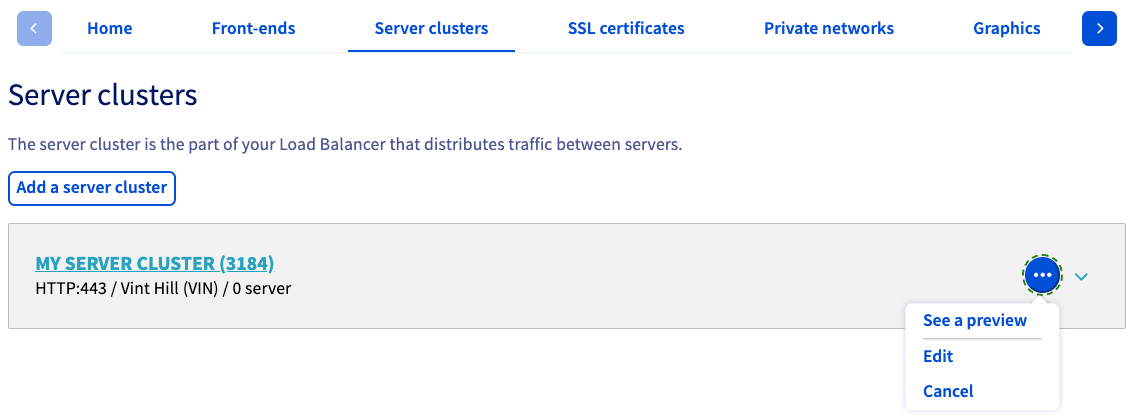
Choose the Server clusters tab. Then click the more options ... button to the right of the cluster you wish to modify. From the drop-down menu, select Edit.
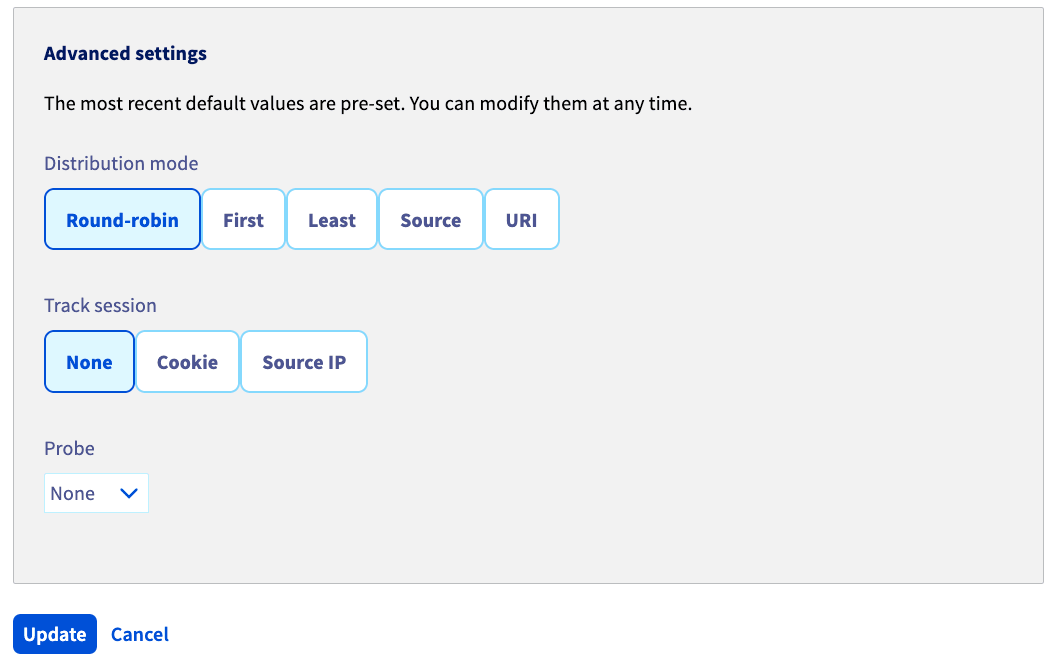
Scroll down to the Advanced settings area, where you can modify your Distribution mode.
Click Update to confirm your selection.
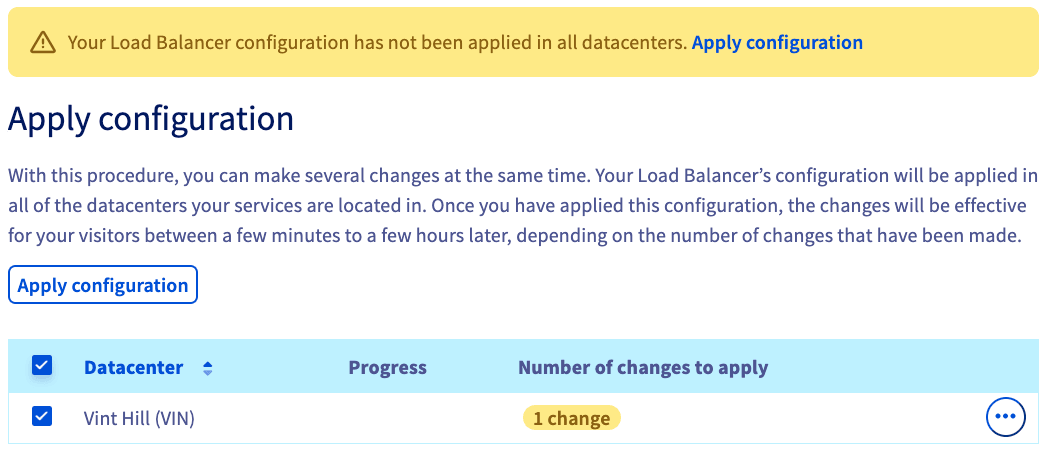
When the Server clusters page reloads, click Apply configuration in the yellow banner.
On the next screen select ☑ your Datacenter and click Apply configuration again.
Go further
Browse all the Load Balancer guides.
Browse the rest of the OVHcloud US documentation for guides on our other products and services.
Learn more about Load Balancer on the OVHcloud US website.