
Object Storage - Use Object Storage with Veeam
NOTE: OVHcloud provides services for which you are responsible for their configuration and management. You are therefore responsible for their proper functioning.
This tutorial is designed to help you as much as possible with common tasks. If you are having difficulty performing these actions, please contact a specialized service provider. OVHcloud cannot provide you with technical support in this regard.
Requirements
- A container
- A user with the required access rights on the container
- Your Object Storage credentials (access_key and secret_access_key).
See our Getting Started with Object Storage guide.
To identify your endpoint corresponding to your storage class, please refer to this guide: Object Storage - Endpoints and geoavailability
Instructions
Adding S3™* Compatible Object Storage
Step 1 - Launch New Object Repository Wizard
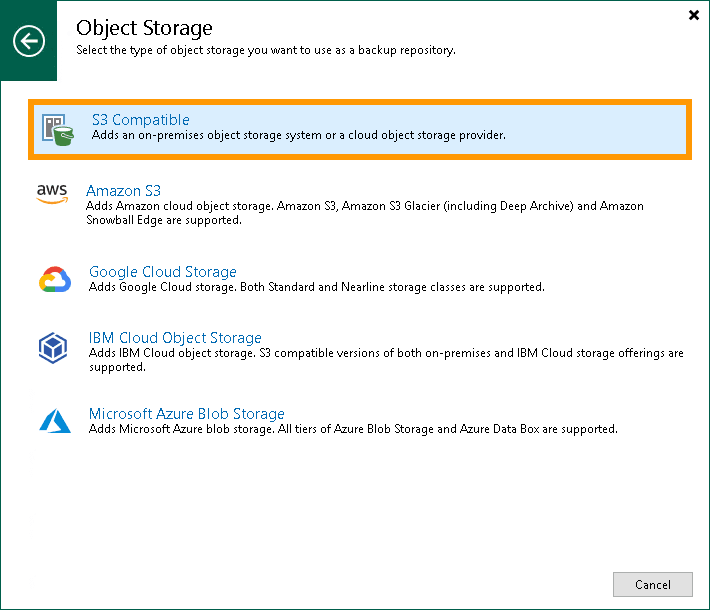
To launch the New Object Repository wizard, do one of the following:
- Open the Backup Infrastructure view. In the inventory pane, select the Backup Repositories node and click
Add Repositoryon the ribbon. In the Add Backup Repository dialog, selectObject Storage>S3 Compatible. - Open the Backup Infrastructure view. In the inventory pane, right-click the Backup Repositories node and select Add Backup Repository. In the Add Backup Repository dialog, select
Object Storage>S3 Compatible.
Step 2 - Specify Object Storage Name
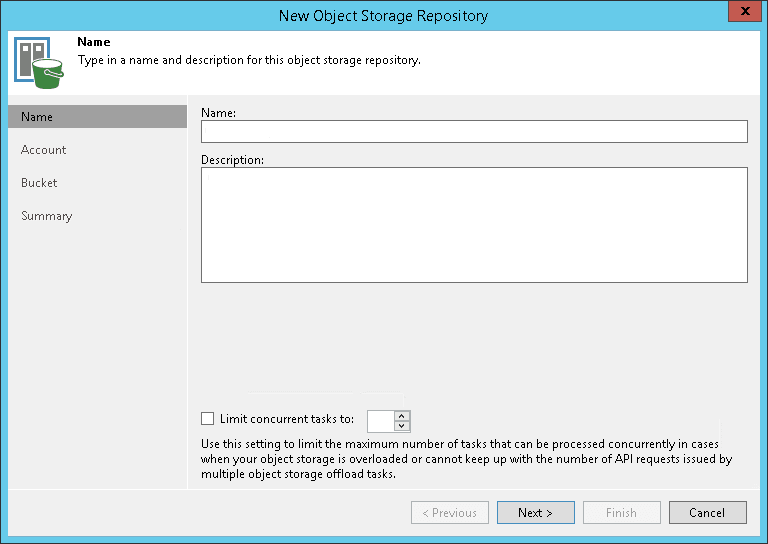
At the Name step of the wizard, specify a name and description for the object storage repository:
- In the Name field, specify a name for the new object storage repository.
- In the Description field, enter an optional description. The default description includes the user who added the object storage repository and the date and time when the object storage repository was added.
If you wish to limit the maximum number of tasks that can be processed at once, select the Limit concurrent tasks to N check box.
Step 3 - Specify Object Storage Account
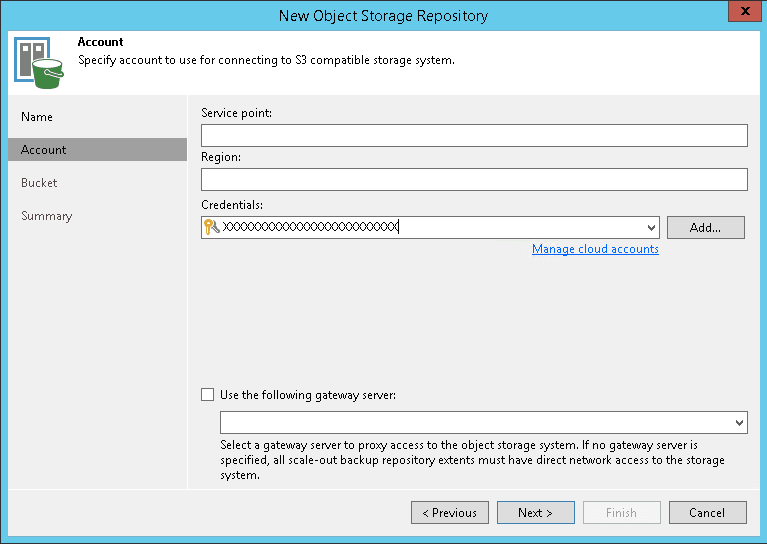
At the Account step of the wizard, specify the connection settings:
- In theService point field, specify an endpoint address of your S3™ Compatible object storage:
https://s3.<region_in_lowercase>.io.cloud.ovh.us. - In the Region field, specify a region:
<region_in_lowercase>. - From the Credentials drop-down list, select user credentials to access your S3™ Compatible object storage.
If you already have a credentials record that was configured in advance, select it from the drop-down list. Otherwise, click Add and provide your access and secret keys. You can also click the Manage cloud accounts link to add, edit, or remove a credentials record.
To use a gateway server, select the Use the following gateway server check box and choose an appropriate server from the list. You may want to use a gateway server, for example, if your organization has NAT or different types of firewalls, and your access to the internet is limited.
You can select any Microsoft Windows or Linux server that is added to your backup infrastructure and has an internet connection. By default, the role of a gateway server is assigned to the machine where Veeam Backup Replication is installed.
If you choose not to use a gateway server, make sure that all scale-out repository extents have direct internet access.
Step 4 - Specify Object Storage Settings
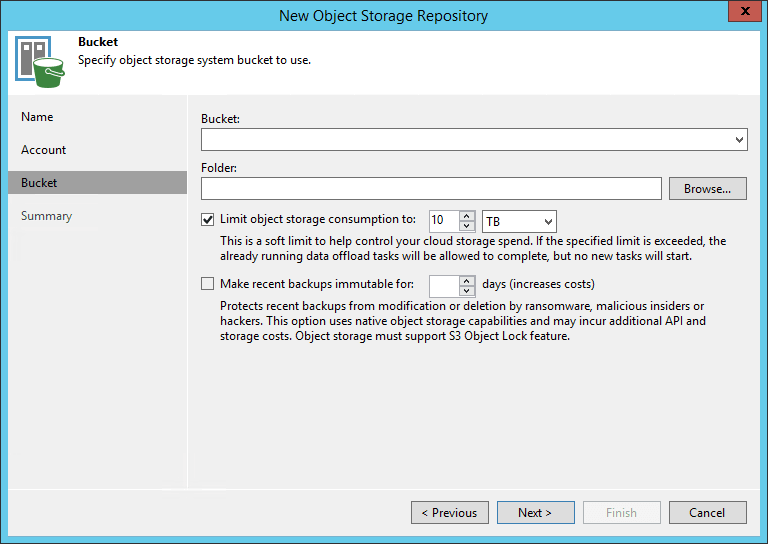
At the Bucket step of the wizard, specify the container and folder that will be used to store data:
- From the Bucket drop-down list, select a container. Make sure that the container where you want to store your backup data was created in advance.
- In the Select Folder field, select a cloud folder to which you want to map your object storage repository.
To select a folder, click Browse and either select an existing folder or create a new one by clickingNew Folder.
To define a soft limit that can be exceeded temporarily for your object storage consumption, select the Limit object storage consumption to check box and provide the value in TB or PB.
Step 5 - Finish working with the wizard
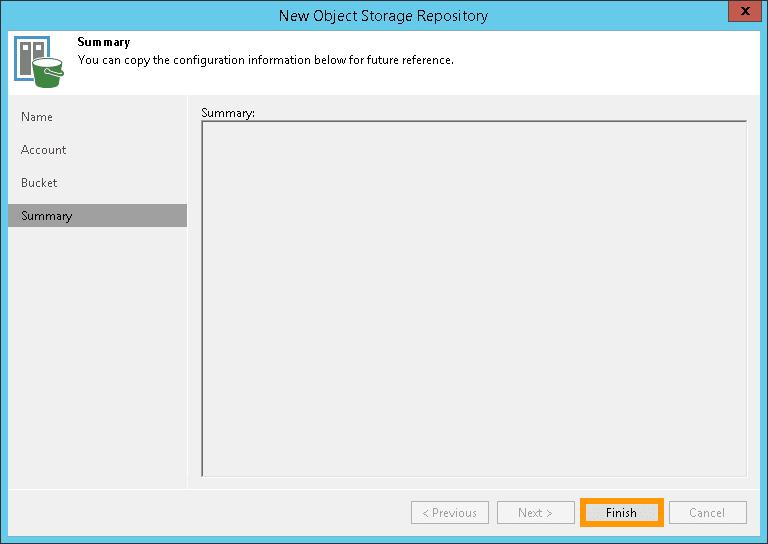
At the Summary step of the wizard, complete the object storage repository configuration:
- Review details of the object storage repository.
- Click
Finishto exit the wizard.
Go further
Browse all the Object Storage (S3™-compatible) guides.
Browse the rest of the OVHcloud US documentation for guides on our other products and services.
Learn more about Object Storage on the OVHcloud US website.
If you need training or technical assistance to implement our solutions, contact your sales representative or click on this link to get a quote and ask our Professional Services experts for a custom analysis of your project.
*S3 is a trademark filed by Amazon Technologies, Inc. OVHcloud's service is not sponsored by, endorsed by, or otherwise affiliated with Amazon Technologies, Inc.