
VPS - Enable Windows boot logs
Windows boot logs allow you to identify the drivers and services loaded during system startup.
They are particularly useful for diagnosing boot issues, blue screens, or system freezes.
Requirements
- An active VPS offer in your OVHcloud Control Panel
Instructions
Enabling Windows boot logs
Windows boot logs can be useful for server error diagnostics.
To enable them, follow the steps below:
-
Connect to your server via a remote desktop or a KVM session.
-
Open the Windows
Startmenu and clickRun.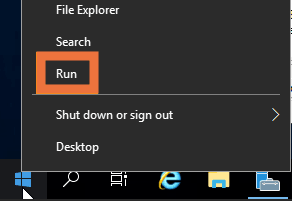
-
Type "msconfig" and click
OK.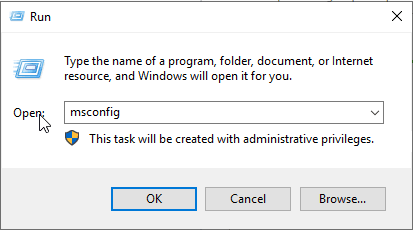
-
In the new window, enable the log option next to
Boot log. Then clickOK.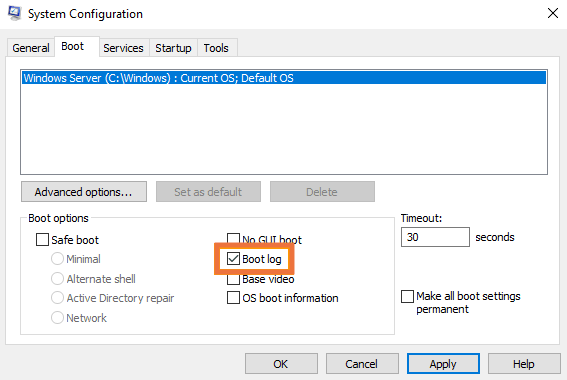
At the next server startup, the logs will be saved in a .txt file. The file path is: C:\Windows\ntbtlog.txt.
To access the log file in rescue mode, follow the instructions in the guide "Enable and use rescue mode on a VPS".
Go further
Change the administrator password on a Windows server
How to recover access to the server if you lose the user password
Browse all the Virtual Private Servers guides.
Browse the rest of the OVHcloud US documentation for guides on our other products and services.
Learn more about VPS on the OVHcloud US website.