
Securing Logs Data Platform's APIs with Tokens
With Logs Data Platform, there are three ways to query your logs.
- The Graylog Web Interface (either for the Gravelines or Beauharnois region)
- The Graylog API (either for the Gravelines or Beauharnois region)
- The OpenSearch API located on port 9200 of your cluster (find its address in the Home Page) against your alias.
So you can pop up a Grafana or even a terminal Dashboard for Graylog.
All these accesses are secured by your username and password. But what if you don't want to put your Logs Data Platform credentials everywhere? You can just use tokens to access all these endpoints and revoke them anytime you want. This tutorial is here to tell you how.
Instructions
Generating tokens using the manager
Log in to the OVHcloud Control Panel and access the Home tab for your LDP service.
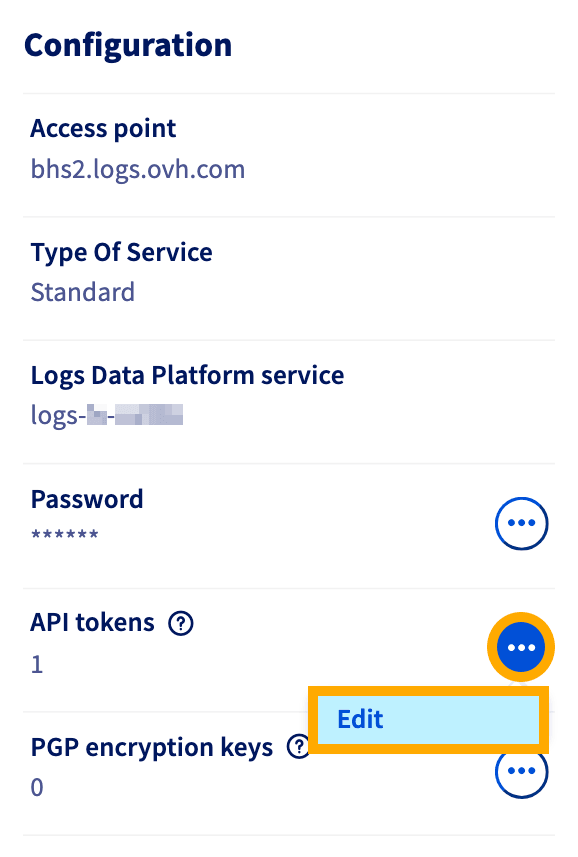
Once there, locate the Configuration panel and the "API tokens" line. Click the more options ... button and select Edit.
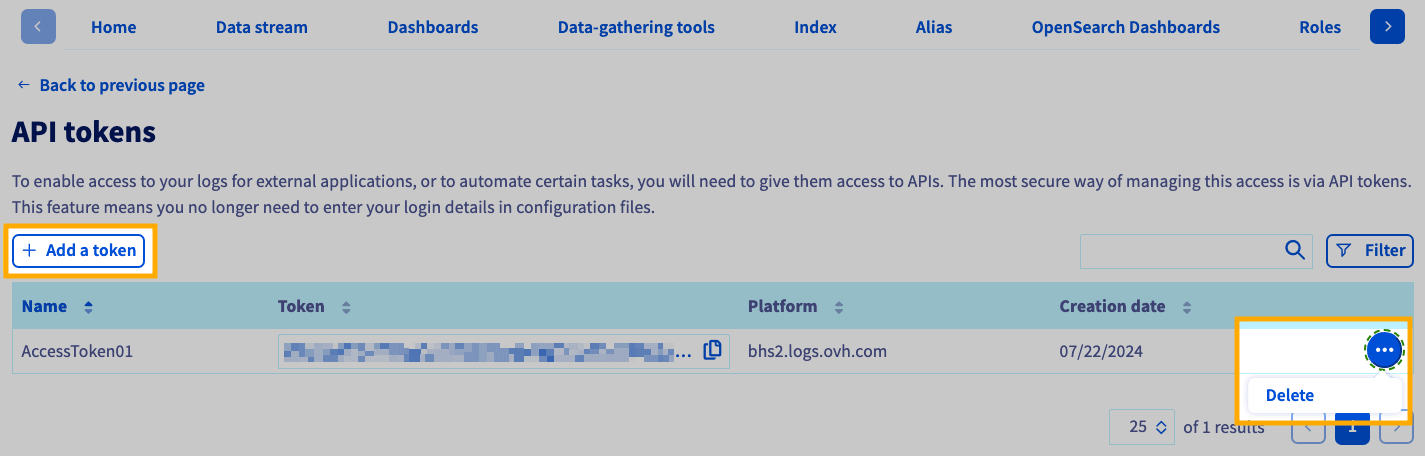
On this page, you will have the ability to create and remove tokens. Note that you cannot modify a token.
Generating tokens with API
One goal with tokens is to automatize API calls. Sometimes you even need to automatize token creation. That's why it is possible to create tokens by using only the OVHcloud APIs. The following steps will show you how to do so.
First, you will have to retrieve the serviceName you want to generate a token for. The API call to get your serviceName is the following:
If you want to know the Logs Data Platform username associated with this serviceName, use the following call:
This call returns the service object of the connected identity.
Parameters:
serviceName: The internal ID of your Logs Data Platform service (string)
Once you have the login you want, use the following call to add a new token:
Parameters:
serviceName: The internal ID of your Logs Data Platform service (string)Request Body:
ClusterId: The cluster ID of your Logs Data Platform service (string)name: The name of your token (string)
Please replace serviceName with your serviceName, and replace name with the name of your choice for your token. This call will give you a taskId. After a few seconds, you can retrieve your tokenId with this call:
Parameters:
serviceName: The internal ID of your Logs Data Platform service (string)
This will give you back the ID of your token. The actual value of the token can be retrieved with this next call:
Parameters:
serviceName: The internal ID of your Logs Data Platform service (string)tokenId: UUID of your token (string)
Here is the final response you will get.
The token value is the value field. That is the field you will need to use the Logs Data Platform Search APIs.
Finally to delete your token, use the following call:
Parameters:
serviceName: The internal ID of your Logs Data Platform service (string)tokenId: UUID of your token (string)
Using your tokens
Using your token is no different than using your credentials. You just have to replace your username with the word token and your password with the token (the opposite works too). For example to issue a search against the Graylog API with the token obtained above, you can do the following:
Note that you have to replace the stream value in the filter parameter by the Graylog ID of your stream. The Graylog ID can be found in the URL of your stream search page in Graylog. This URL has this form:
The value 5ab52dc43ce3010451deacd1 is the Graylog ID of your stream.
To issue a search against the OpenSearch API, you also use the same credentials.
This call will launch a quick search (to retrieve the count and a sample of your documents) against the alias your_alias. Replace the alias by the one you have set up in your Logs Data Platform console. Note that these credentials are usable in place of your account credentials in Grafana (or any tool that supports Basic Authentication with OpenSearch).
The only place you cannot use your token is the Graylog Web Interface.
Go further
Browse all the Logs Data Platform guides.
Browse the rest of the OVHcloud US documentation for guides on our other products and services.
Learn more about Logs Data Platform on the OVHcloud US website.