
Public VCF as-a-Service - Linking a public IP block with vRack
When you order a new Public VCF as-a-Service organization, a vRack and a block of public IP addresses are delivered to you. This IP block is not directly linked to your vRack. You will need to link it manually.
Requirements
- A Public VCF as-a-Service on OVHcloud solution
- Being the technical administrator of the managed VMware vSphere on OVHcloud infrastructure
OVHcloud Control Panel Access
- Direct link: Public VCF as-a-Service
- Navigation path:
Hosted Private Cloud>Public VCF as-a-Service> Select your organization
Instructions
Retrieve the vRack ID
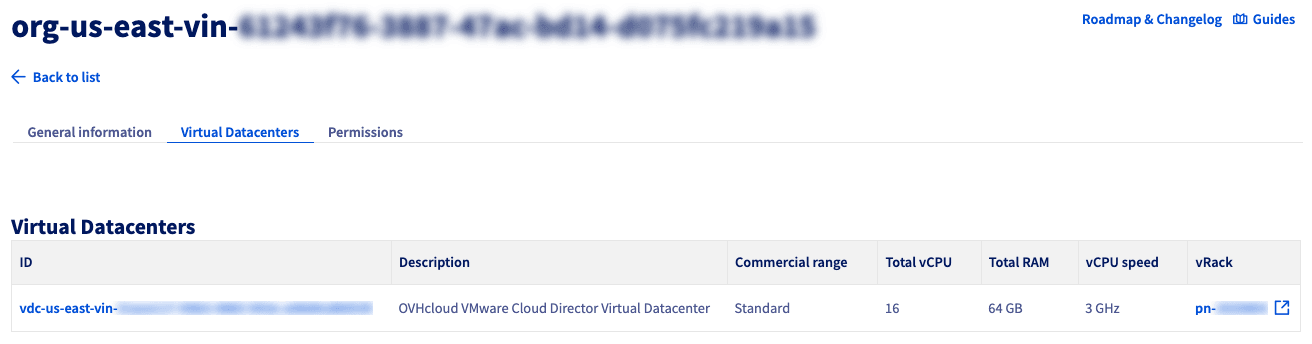
From your VCF as-a-Service organization, select the Virtual Datacenters tab. Locate the vRack associated with your organization; it will appear with an ID in the format pn-xxxxxxx.
Click the name of your vRack.
Add the IP block to the vRack
Select the vRack that you just identified.
Select the IP block to link to your vRack/organization and click Add.
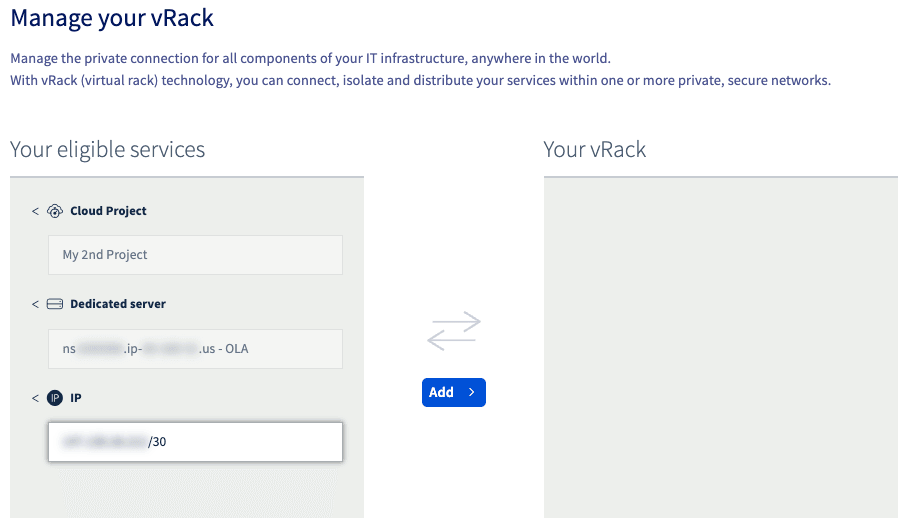
The public IP block is now linked to your vRack.
To make these addresses usable inside your Public VCF as-a-Service environment, you also need to declare the public gateway in VMware Cloud Director (VCD).
Follow the guide Public VCF as-a-Service - Declare the public IP gateway in VCD to complete this step.
Go further
Browse all the Public VCF as-a-Service guides.
Browse the rest of the OVHcloud US documentation for guides on our other products and services.
Learn more about Hosted Private Cloud on the OVHcloud US website.
If you need training or technical assistance to implement our solutions, contact your sales representative or click on this link to get a quote and ask our Professional Services experts for a custom analysis of your project.