
Backing Up a Bare Metal Linux Server with Veeam Enterprise
Learn how to back up your Bare Metal Server using Veeam Backup and Replication (Enterprise).
Whether it is a hardware failure or accidentally deleting an important file, maintaining frequent backups is extremely important and can save you countless hours of unnecessary work.
Requirements
Instructions
Open the Veeam Backup and Replication panel for your backup server.
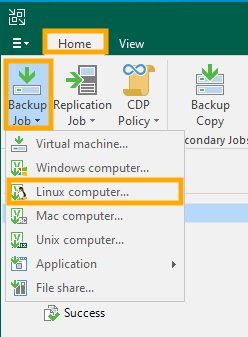
To begin, from the Home tab, click the Backup Job button and select the Linux computer... option to backup.
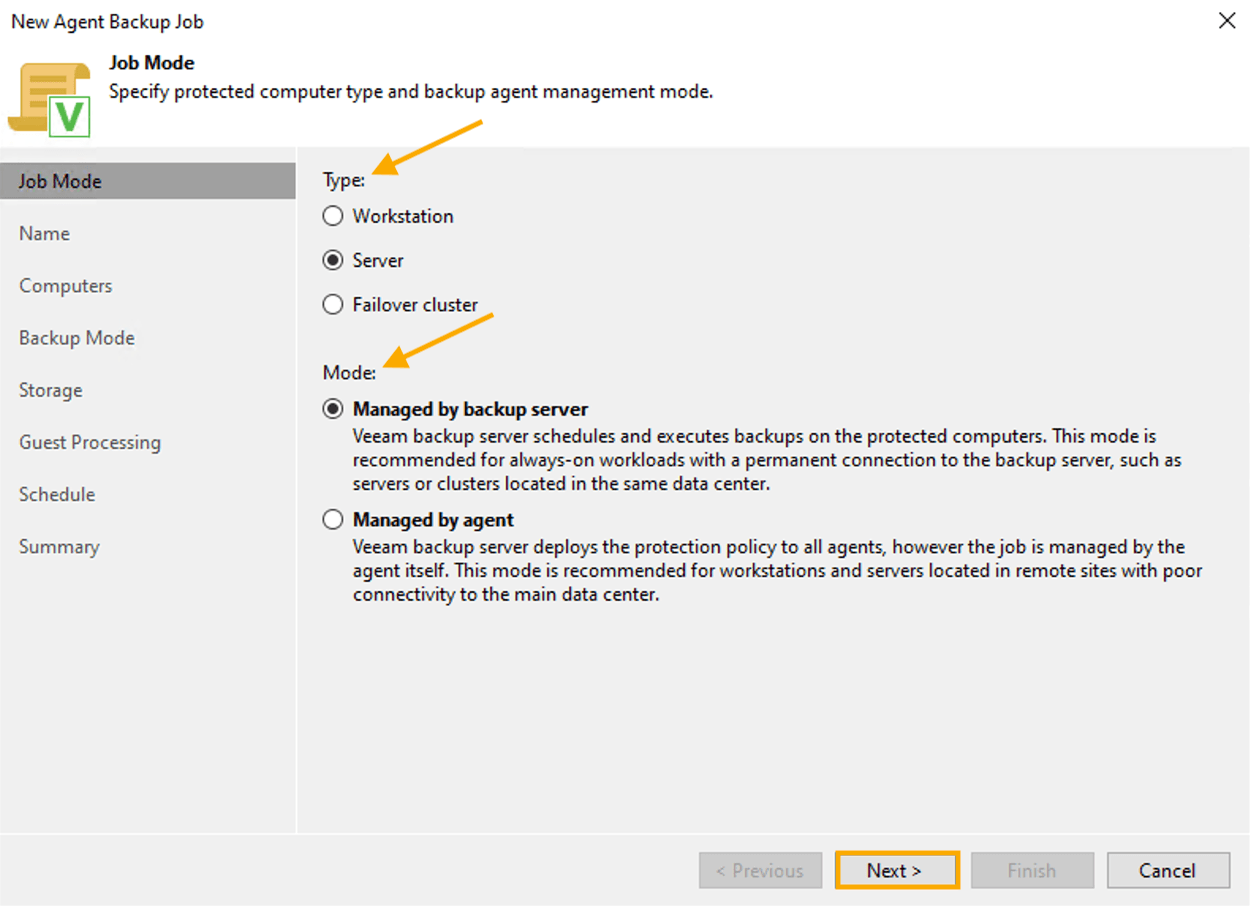
In the Job Mode section, select the server Type and the Mode for backup.
Then, click the Next button.
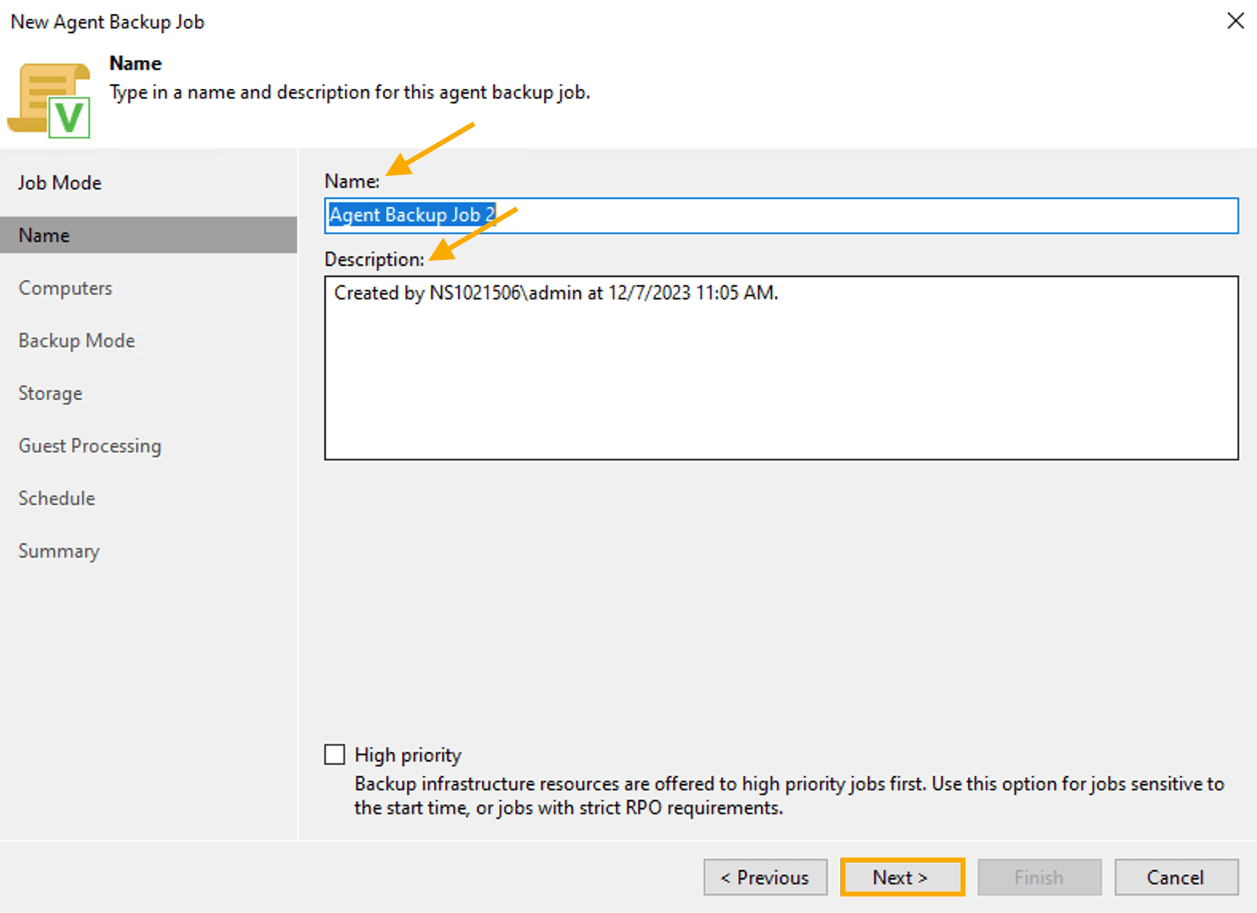
In the Name section, give your backup job a Name and Description.
Then, click the Next button.
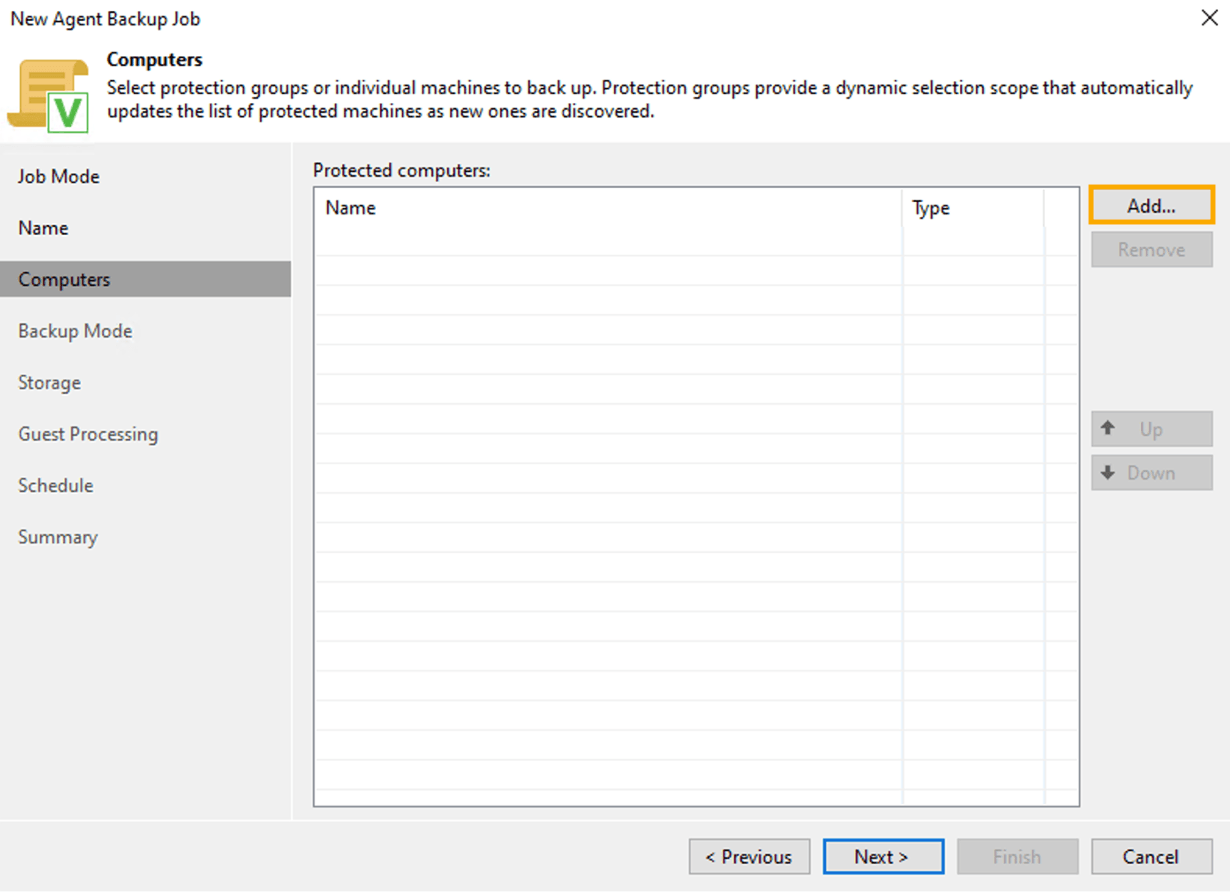
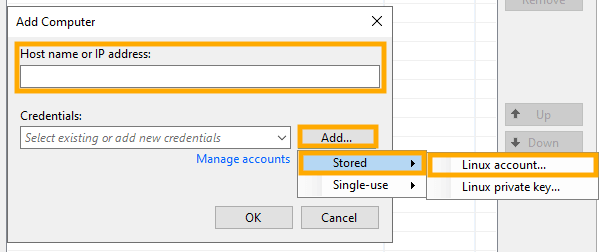
In the Computers section, click the Add... button.
In the Add Computer pop-up, enter the Host name or IP address of the server.
Click the Add... button, select Stored, and then Linux account....
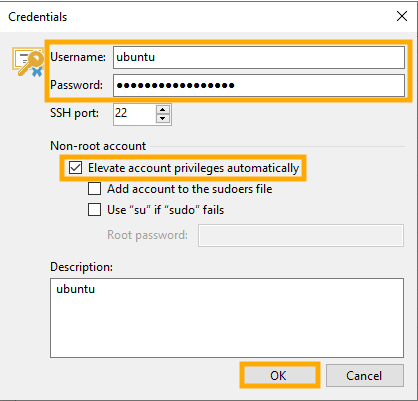
Enter the Username and Password. Select the Elevate account privileges automatically box ☑ and then click OK.
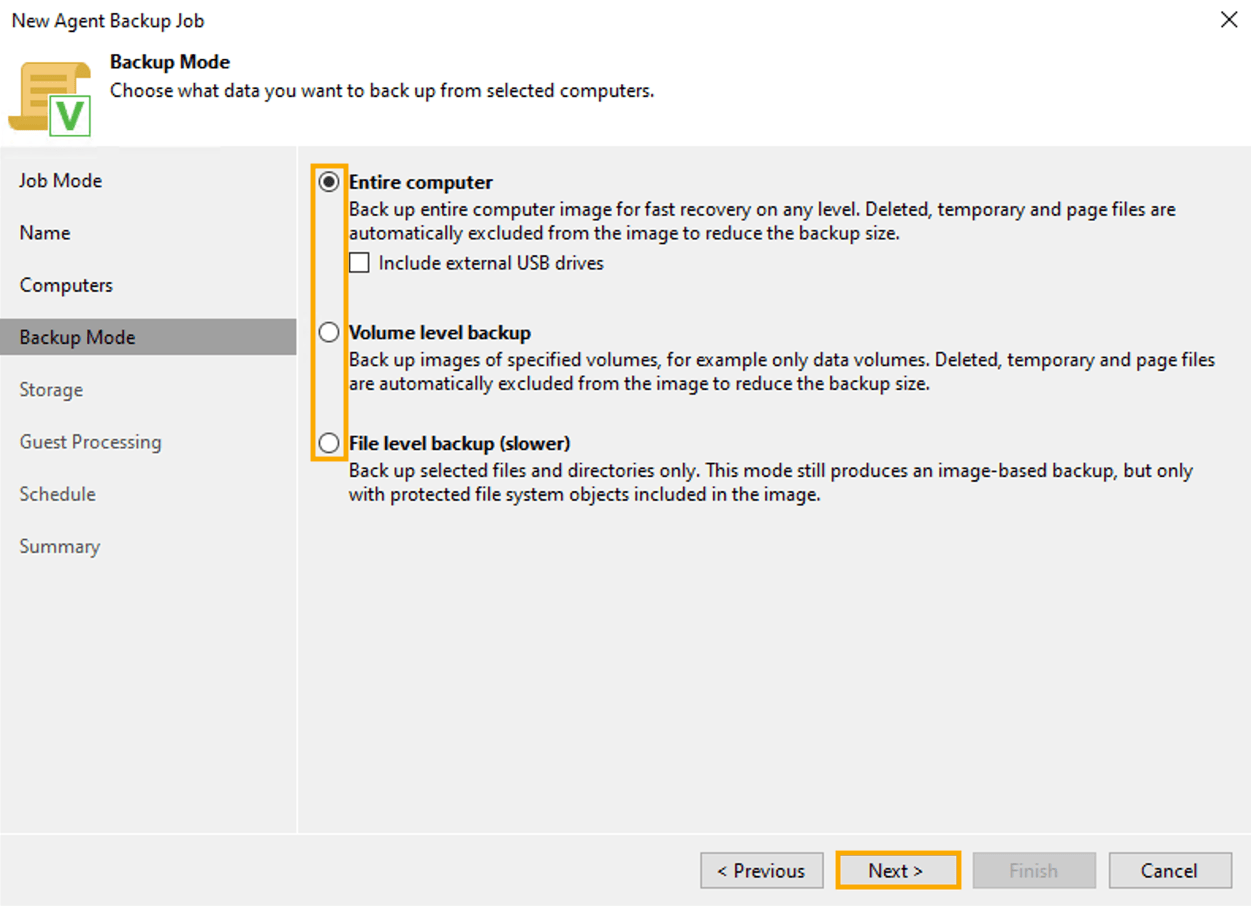
In the Backup Mode section, select the backup mode for this job.
Then, click the Next button.
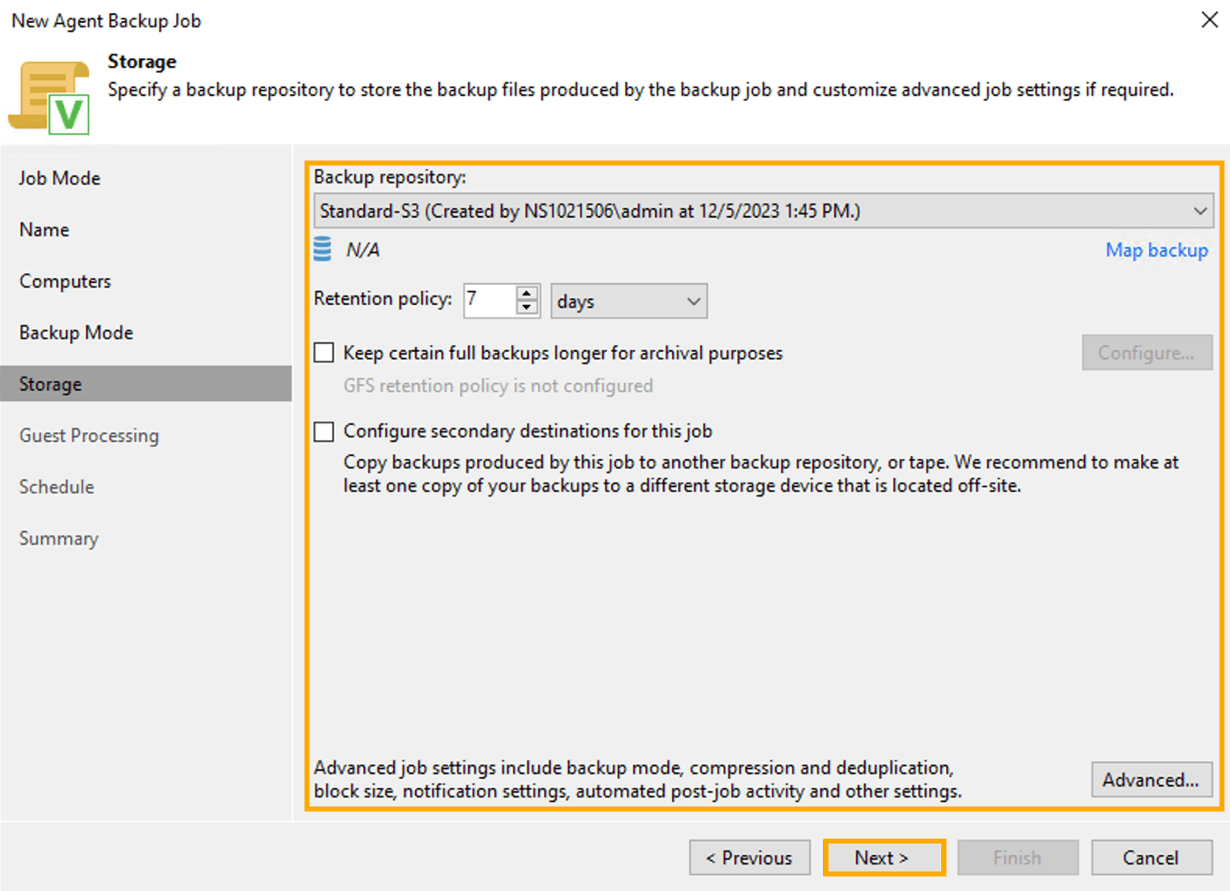
In the Storage section, choose the Backup repository and settings.
Then, click the Next button.
Click the Next button again to skip the Guest Processing section, as no configurations are needed.
In the Schedule section, you can click "Run the job automatically" if you would like to configure the backup job to be reoccurring. For this article, we will be executing the backup manually so we will click the Apply button to proceed.
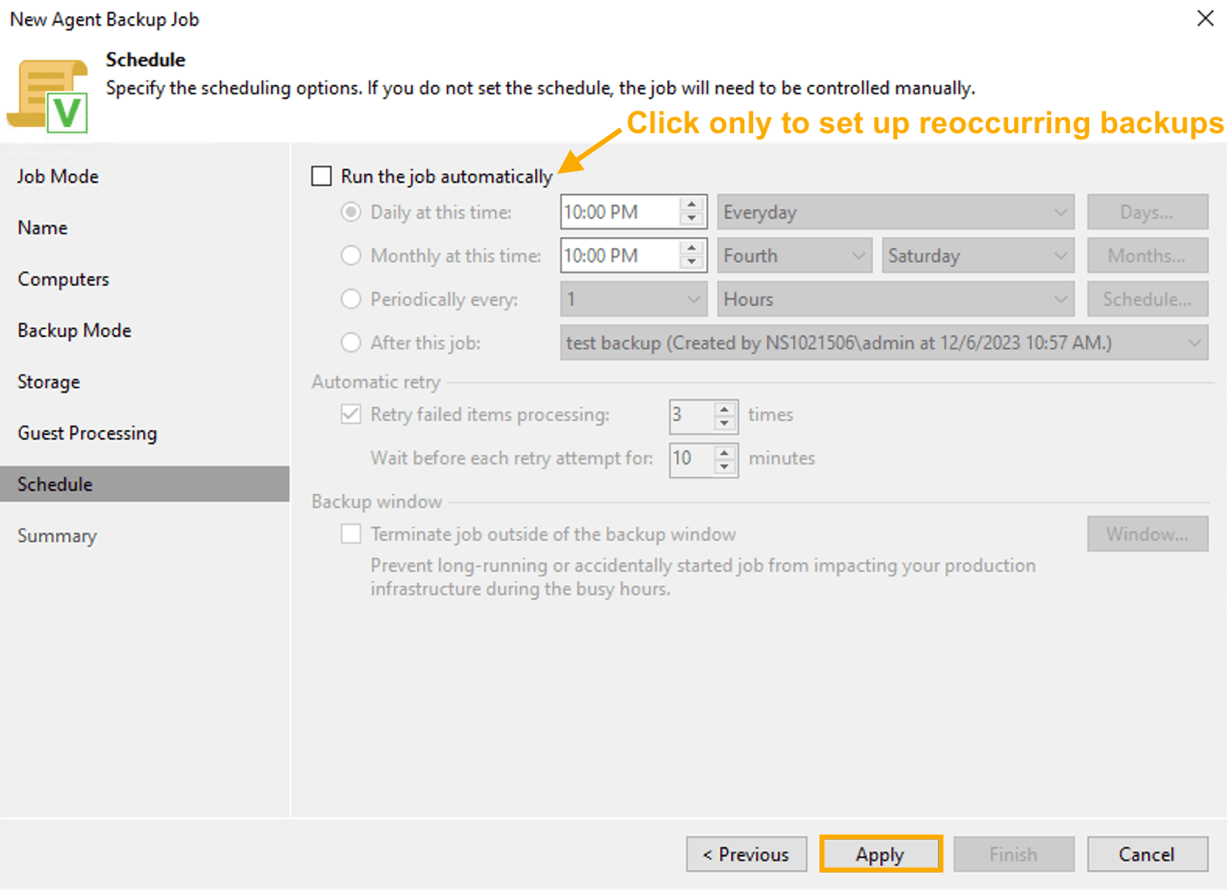
Review the Summary section to ensure that everything is correct.
NOTE: To run the job as soon as you finish setup, select the Run the job when I click Finish checkbox.
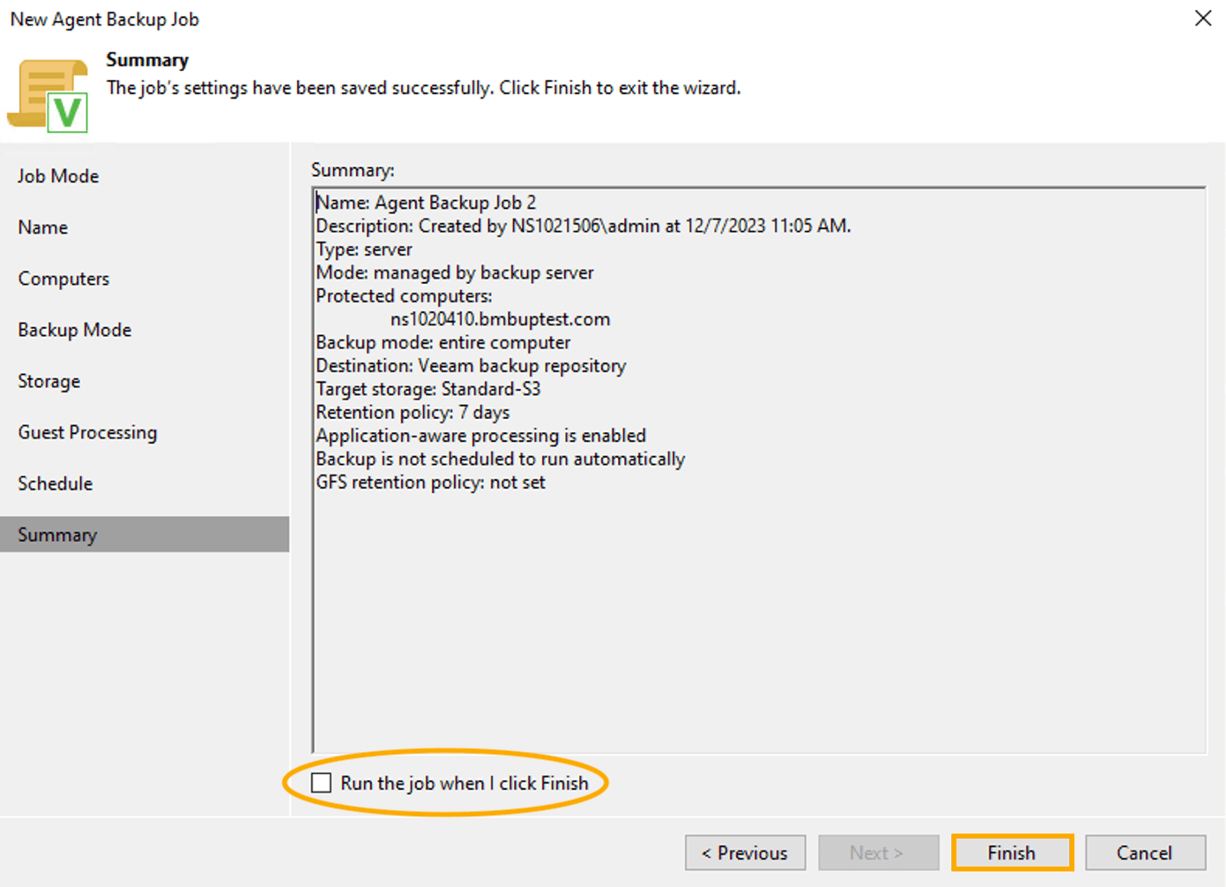
Click the Finish button to conclude setting up the backup job. This will open a new window where you can view the details of the backup being performed.
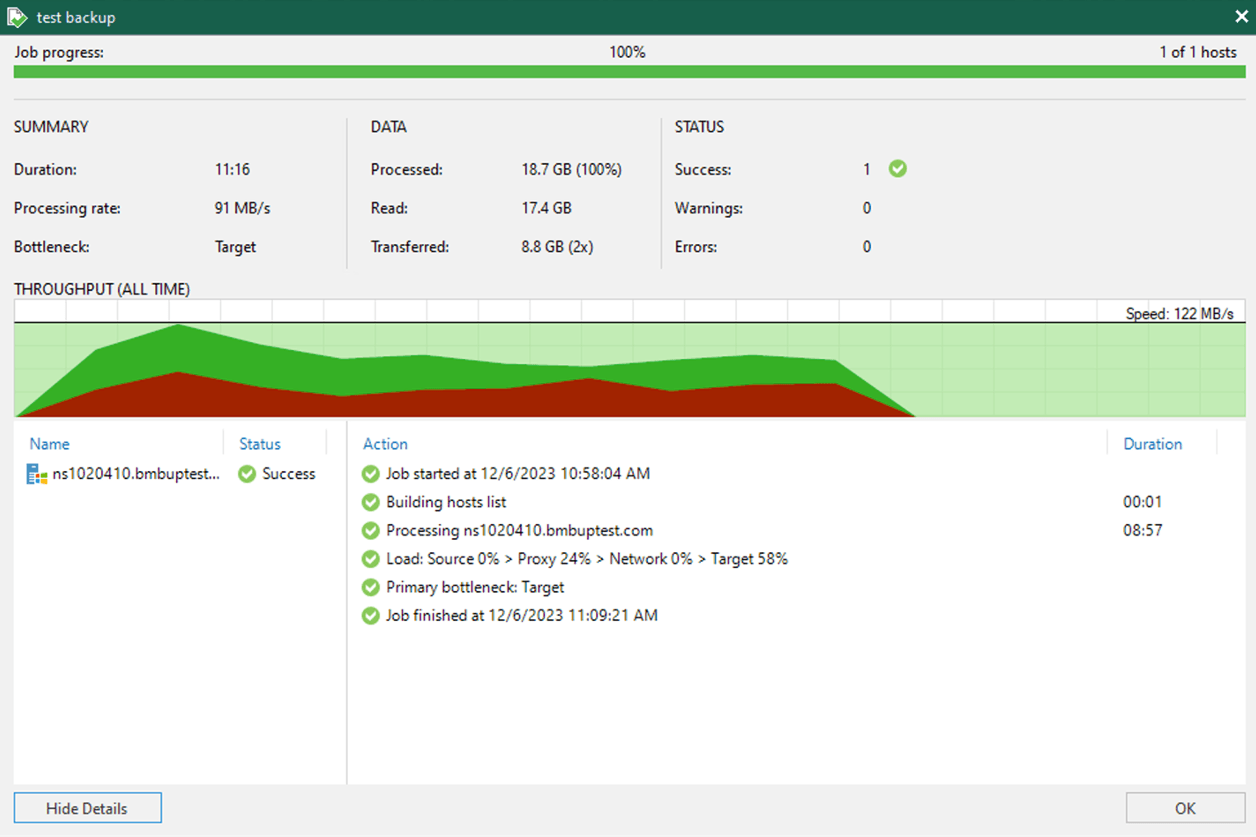
SUCCESS! Once the job is complete, you will have created your backup.
Go further
For information about restoring a Bare Metal Server, please check out our Restoring a Bare Metal Server with Veeam Enterprise article.
Browse all the Dedicated Servers guides.
Browse the rest of the OVHcloud US documentation for guides on our other products and services.
Learn more about Dedicated Servers on the OVHcloud US website.