
Databases & Analytics - How to set up logs forwarding
Cloud Databases and Analytics allow you to send logs of your service to your own Logs Data Platform (LDP) data stream.
Requirements
-
Access to the OVHcloud Control Panel and OVHcloud API
-
A Cloud Database service up and running
InfoWe will use Valkey as the example in this guide.
-
A Logs Data Platform account within this OVHcloud account with at least one destination stream configured
WarningNOTE: If you are not familiar with all the LDP Stream configuration possibilities, create a new one with the default options (indexing and websocket enabled, long-term storage disabled) for this guide.
Instructions
Create your subscription
Logs direct access
From the OVHcloud Control Panel, navigate to your engine via the Public Cloud and Databases (or Data Analysis) menus.
Once there, click the Logs tab.
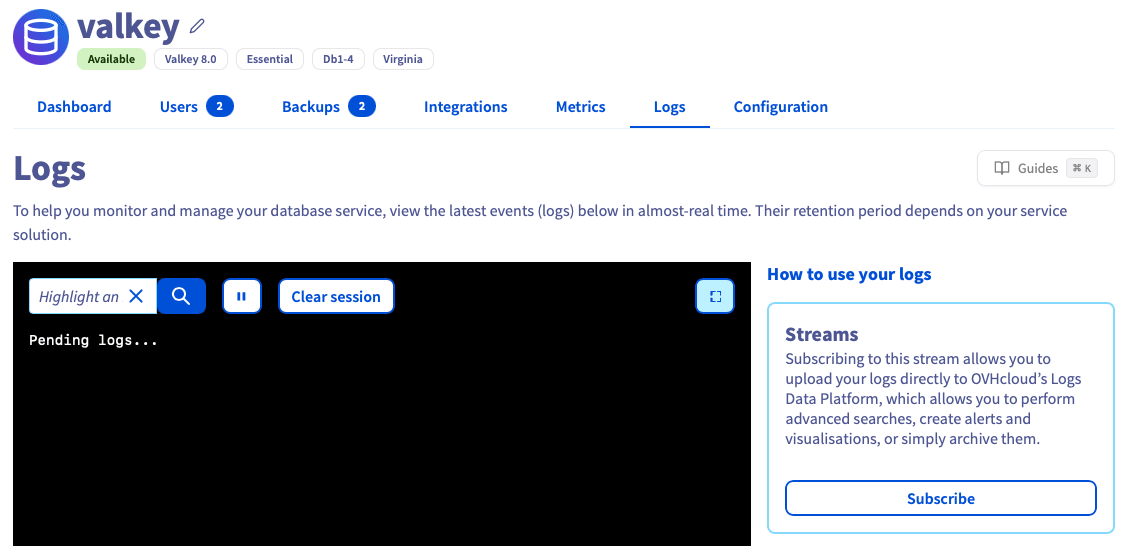
Logs access through LDP
From the Logs tab, you can Subscribe to an LDP data stream. Once the subscription is enabled, all the logs will be pushed to Logs Data Platform to archive generated logs and perform advanced searches, and create alerts or visualizations.
For more information, please refer to our Quick Start for Logs Data Platform guide.
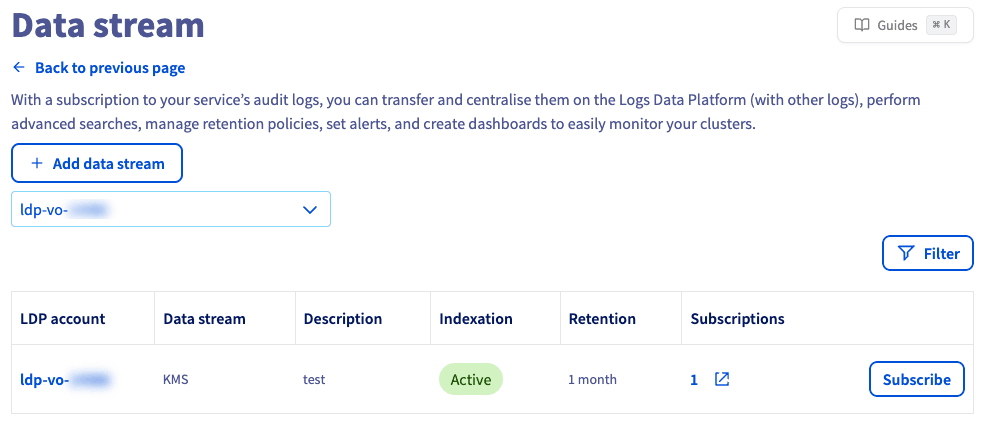
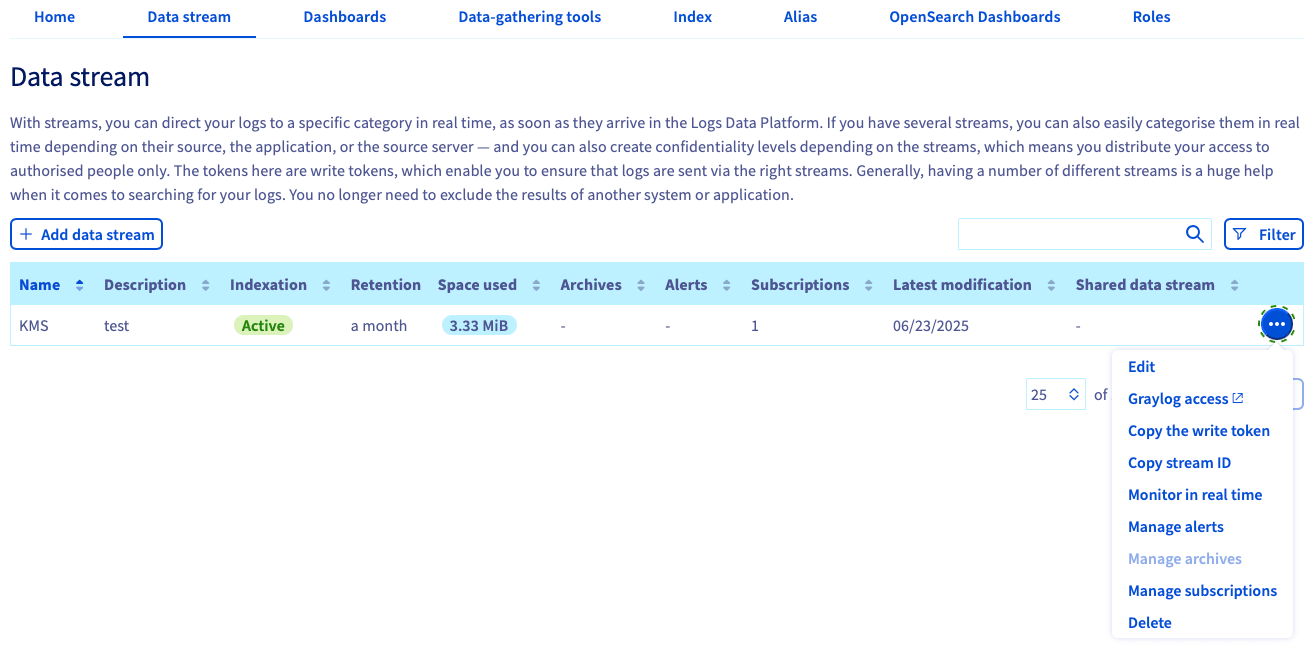
Find logs in Graylog
To find logs of your service in your Graylog stream, you can use the following Graylog queries:
MongoDB®
Query: cluster: "<HostID>"
You can find this HostID in your manager:
- In
Login informationswitch theServicetomongodb - Now you can see the
Hostfield with the format<HostID>.database.cloud.ovh.us
Other Engines
Query: clusterID: "<Engine>-<HostID>"
You can find this HostID in your manager:
- Find the Cluster ID formatted as a UUID (AAAAAAAA-BBBB-CCCC-DDDDDDDDDDDD)
HostIDis the first part of the UUID (AAAAAAAA)
Delete your subscription
Method 1: Unsubscribe
From the OVHcloud Control Panel, navigate to your engine and select the Logs tab.
Click Unsubscribe.

Method 2: Cancel the database service
If you delete your database service, all subscriptions of this service are deleted automatically.
For instructions to cancel a Database or Analytics service, see our Databases & Analytics - FAQ guide.
Go further
Browse all the Databases guides.
Browse the rest of the OVHcloud US documentation for guides on our other products and services.
Learn more about Managed Databases on the OVHcloud US website.
If you need training or technical assistance to implement our solutions, contact your sales representative or click on this link to get a quote and ask our Professional Services experts for a custom analysis of your project.
OVHcloud Managed Databases and Analytics:
- Grafana® is a registered trademark of Grafana Labs and is used with the permission of Grafana Labs. OVH SAS and its subsidiaries are not affiliated with or endorsed by Grafana Labs.
- Kafka® is a registered trademark of The Apache Software Foundation and has been licensed for use by OVHcloud, who has no affiliation with and is not endorsed by The Apache Software Foundation.
- MongoDB® is a registered trademark of MongoDB, Inc.
- MySQL® is a registered trademark of Oracle and/or its affiliates.
- PostgreSQL® is a registered trademark of the PostgreSQL Community Association of Canada.