
How to increase Public Cloud quotas
By default, the Public Cloud projects as well as the resources (RAM, CPU, disk space, number of instances, etc.) you can use are limited for security reasons.
To use additional resources and projects, the quotas need to be increased.
Requirements
- A valid payment method registered in your OVHcloud account
OVHcloud Control Panel Access
- Direct link: Public Cloud Projects
- Navigation path:
Public Cloud> Select your project
Instructions
Increasing your resource quota
Increasing your resource quota manually
This procedure allows you to manually request a quota increase and validate it with an upfront payment (Public Cloud credit).
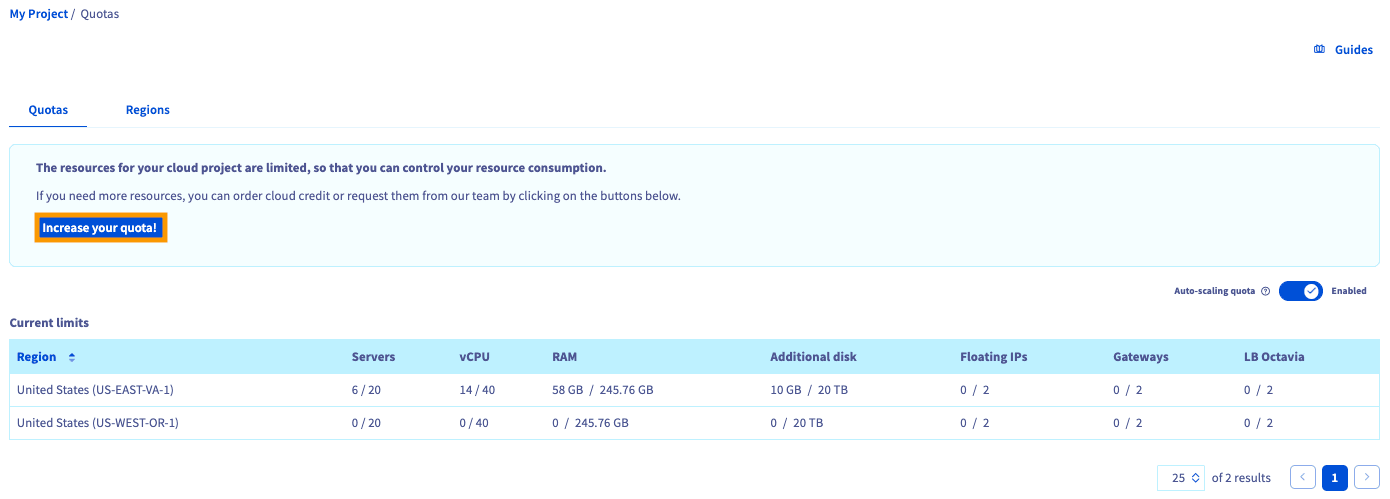
In the left-hand sidebar, click on Quota and Regions.
This page shows a summary of your project's current quotas by region. A warning appears as soon as a resource reaches 80% of its quota.
Click on the Increase your quota! button.
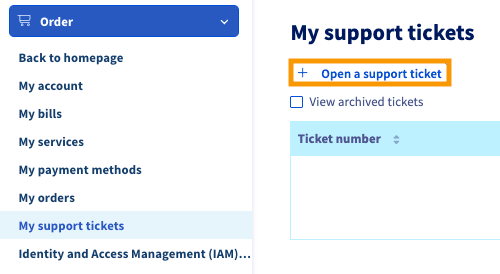
You will be redirected to submit a support ticket. Click the + Open a support ticket button.
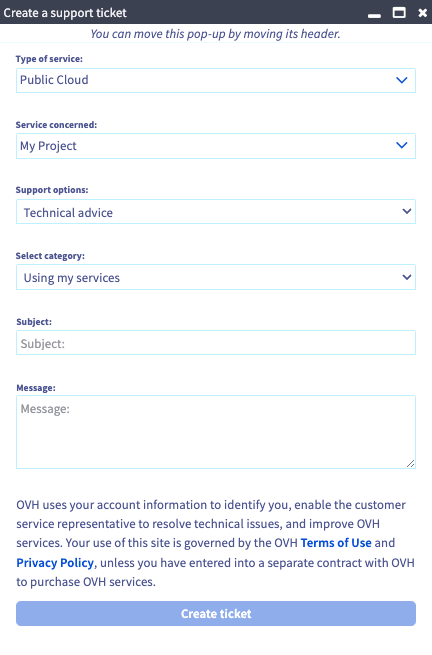
Make the following selections:
- Type of service: Public Cloud
- Service concerned: Your project's name
- Support options: Technical advice
- Select category: Using my services
When you've made your selections, add a subject and message, then click Create ticket.
For a more detailed view of your resources, go to the Horizon interface. Once logged in, click Project and then Overview.
Increasing the quota of your Public Cloud projects
There are two main situations where you may need a quota adjustment:
- Maximum number of projects reached: If you have reached the maximum number of Public Cloud projects allowed in your customer account, and want to create new ones.
- Other types of quota requests: For any other limits (CPU, RAM, storage, etc.) or specific needs related to your Public Cloud projects.
In either case, please submit a request to our support team with as much information as possible, i.e.:
- The type of quota to be increased (number of projects, resources, etc.),
- the intended use and justification for the increase,
- The desired period or duration of the increase.
Quota requests are processed manually by our team. Processing times may vary depending on the complexity of the request. We recommend that you submit your request as soon as possible to avoid any delays in your projects.
Managing your quotas via OVHcloud API
You can use the OVHcloud API to view the current quota, view the allowed quotas, and set the quota using the calls below.
-
List quota:
-
View allowed quotas:
-
Set quota:
For example, if your project is authorized for 20VMs, 50VMs, and 100VMs, you can use the "Set quota" API call to set your quota to any of those options.
Specific quotas and special resources
For certain resources or services, specific quotas may apply. For more information:
S3™* quota: See the official documentation "Object Storage - Technical Limitations".
Managed Kubernetes Service (MKS) quota: See the official documentation "ETCD Quotas, usage, troubleshooting, and errors".
Go further
Browse all the Public Cloud - General information guides.
Browse the rest of the OVHcloud US documentation for guides on our other products and services.
Learn more about Public Cloud on the OVHcloud US website.
*S3 is a trademark filed by Amazon Technologies, Inc. OVHcloud's service is not sponsored by, endorsed by, or otherwise affiliated with Amazon Technologies, Inc.