
How to use OVHcloudShare
Learn how to use OVHcloudShare, some use cases for it, and the different options for sharing files.
OVHcloud is pleased to present OVHcloudShare, a tool used for file sharing that is available to all customers with an OVHcloud US account.
Requirements
Instructions
Logging in
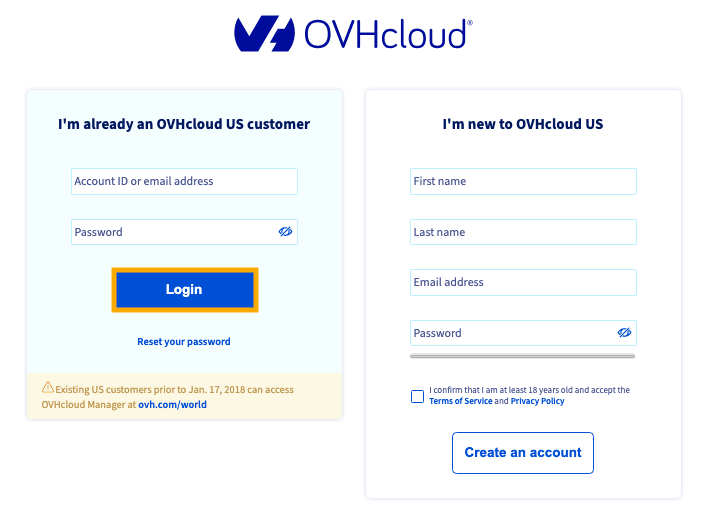
Use the following link to access the OVHcloudShare webpage, enter your OVHcloud account credentials, and click Login.
Terms of service
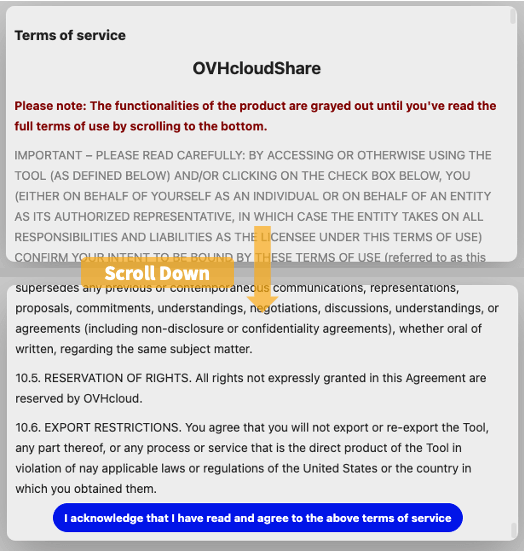
Before using OVHcloudShare, you must accept the Terms of Use by scrolling down and clicking I acknowledge that I have read and agree to the above terms of service.
Uploading Files
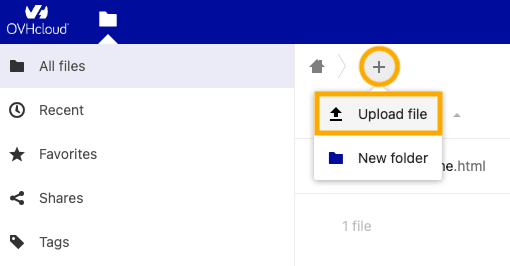
To upload a file, click the + button at the top of the screen and select Upload file from the drop-down menu. You will be prompted to upload the file from your local machine. Once the file has been uploaded, it will appear on your dashboard.
NOTE: Files uploaded to OVHcloudShare will be automatically deleted 30 days after they are first uploaded. Files are limited to 10 GB in size.
Deleting Files
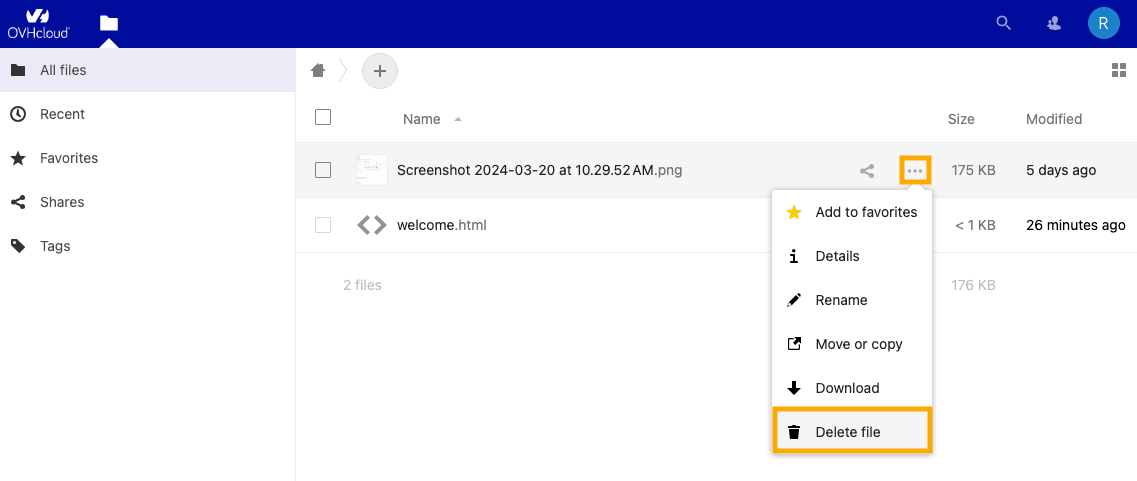
To delete a file, click the more options ... button next to the file in question and select Delete file from the drop-down menu.
NOTE: If you do not delete a file manually, it will automatically be deleted after 30 days.
Go further
Browse all the Account information guides.
Browse the rest of the OVHcloud US documentation for guides on our other products and services.