
Databases & Analytics - Advanced configuration
Learn about the advanced configuration options available for Cloud Databases and Analytics through the OVHcloud Control Panel and via API.
Cloud Databases and Analytics* are managed services, meaning they are not fully configurable. For example, it is not possible to modify pg_hba.conf.
Advanced configuration is available for the following databases and analytics engines:
- Dashboards
- Kafka®
- Kafka® Connect
- MySQL®
- OpenSearch™
- PostgreSQL®
- Valkey
Requirements
- A Public Cloud project in your OVHcloud account
- A Cloud Databases or Analytics* service running in your OVHcloud account (this guide can help you to meet this requirement)
- Access to your OVHcloud Control Panel or the OVHcloud API.
Instructions
NOTE: Please note that changes to the advanced settings apply at the cluster level and therefore to all the services in the cluster.
Depending on the engine, some settings may already be defined.
Once the advanced configuration has been submitted, it is not possible to reset it to initial values. It is only possible to update the values, so we recommend that you take note of the initial values before changing them.
See the Checking section below.
Using the OVHcloud Control Panel
To change the advanced configuration, you first need to log in to your OVHcloud Control Panel. Navigate to the Databases (or Data Streaming or Data Analysis) area via the Public Cloud menu.
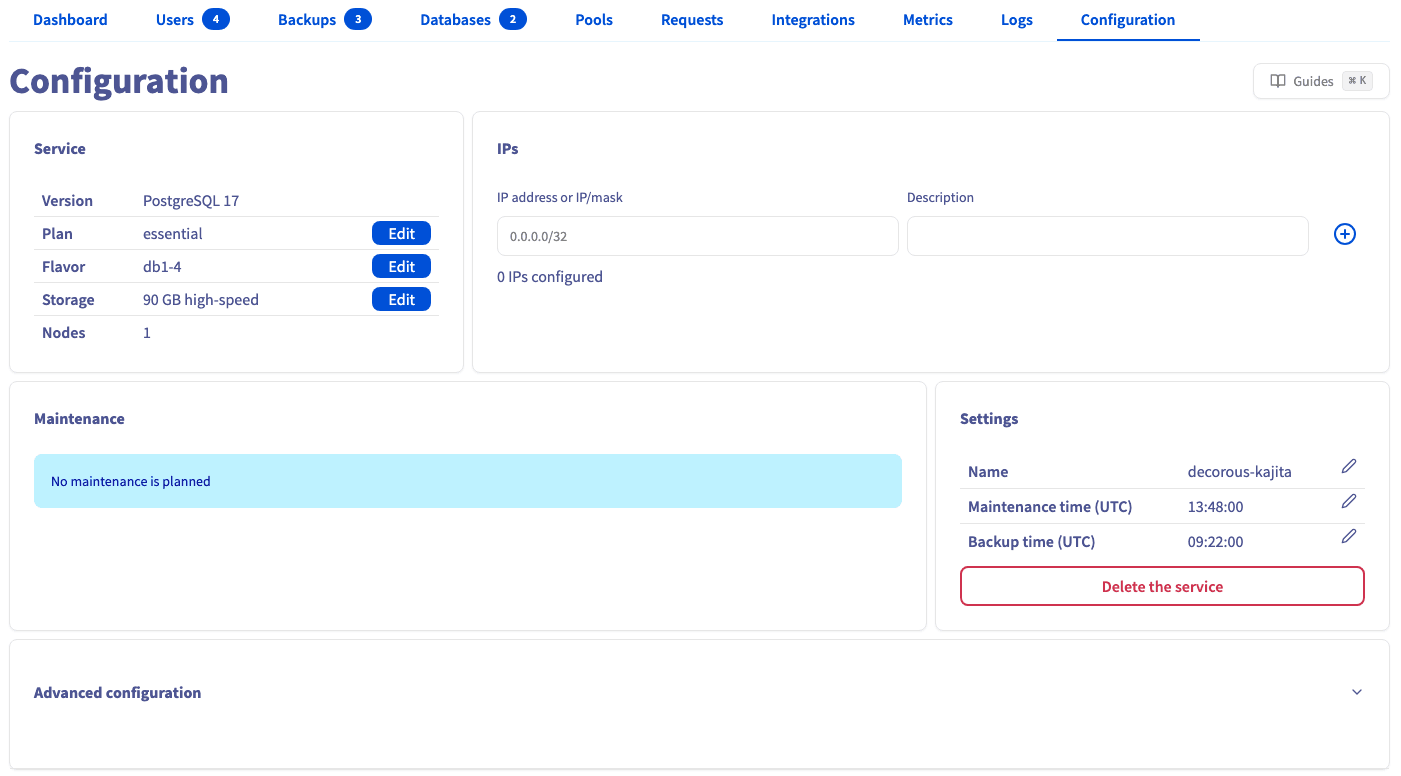
Select your engine instance, then the Advanced configuration tab.
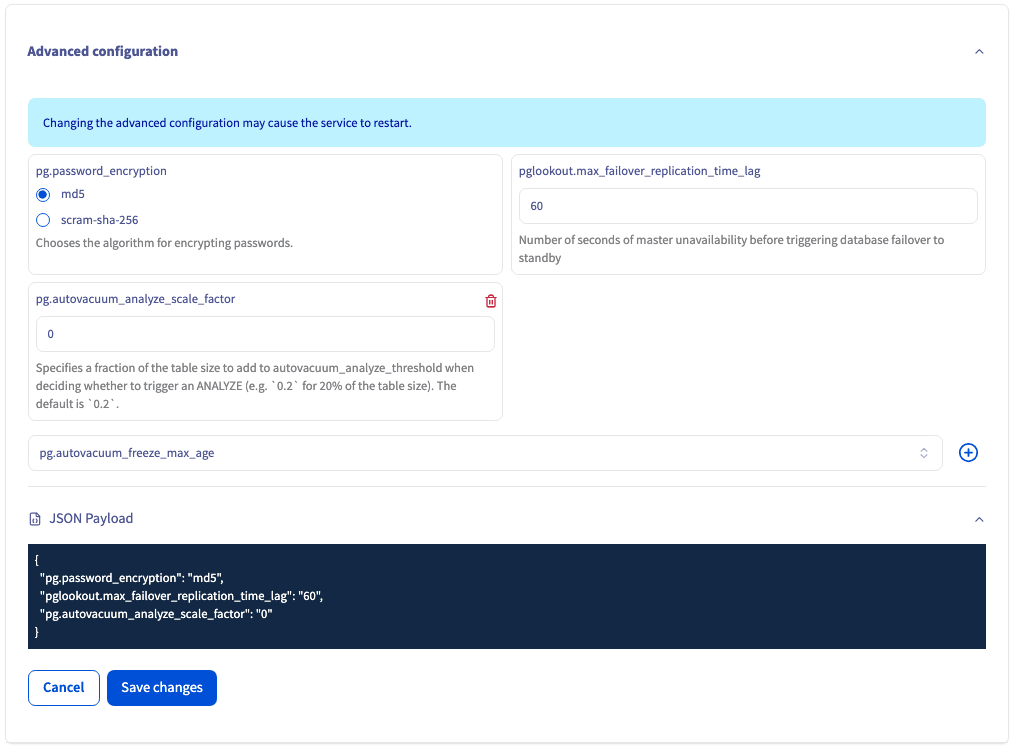
Scroll to the bottom of the page. Select the key of the advanced setting you want to define, click the add + button, and then set its value.
When ready, click Save changes.
Using API
If you are not familiar with using the OVHcloud API, please refer to our guide on First Steps with the OVHcloud API.
Get your service and cluster IDs
You first need to identify the service and the cluster to which you want to apply the changes.
Get the desired service ID
Execute the following API call:
From the resulting list, select and copy the service identifier corresponding to the desired service, also known as serviceName.
Get the desired cluster ID
Open the following API call, paste your service ID into the serviceName input field and click Execute:
From the resulting list, select and copy the clusterId.
Get the existing advanced configuration
Open the following API call, paste the corresponding inputs (serviceName, clusterId), and click Execute:
Advanced configuration settings list
Open the following API call, paste the corresponding inputs (serviceName, clusterId), and click Execute:
Change advanced configuration
Open the following API call and paste the corresponding inputs (serviceName, clusterId):
Now, according to the settings you chose, set the different values into the string arrays, such as in the example below:
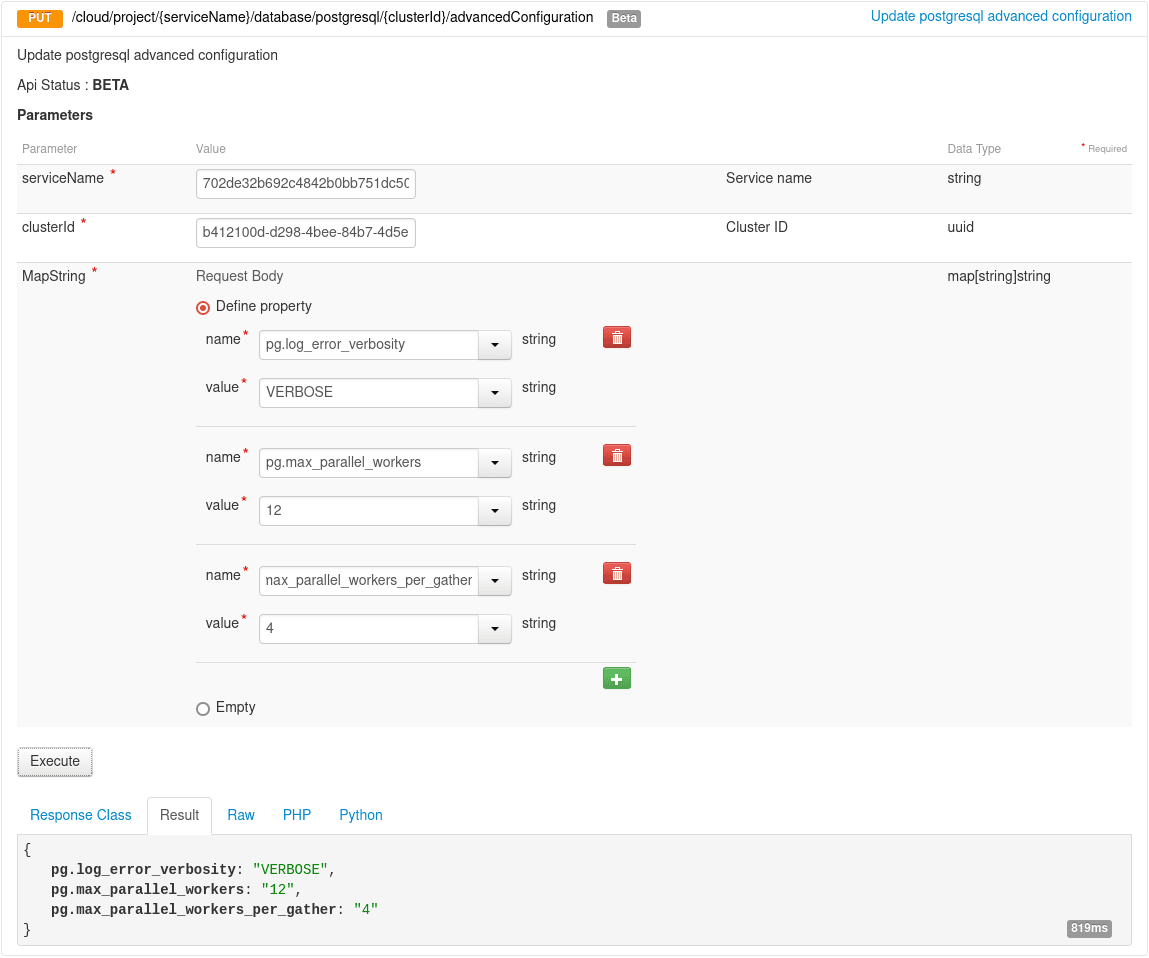
When ready, click on Execute to update the advanced configuration.
Checking
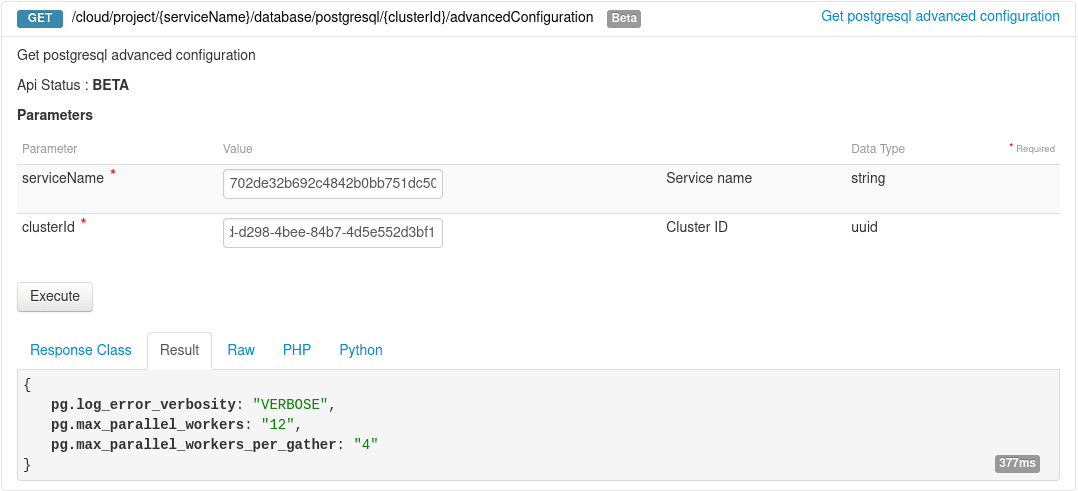
You can check the changes in different ways such as:
Using API
Using pgAdmin
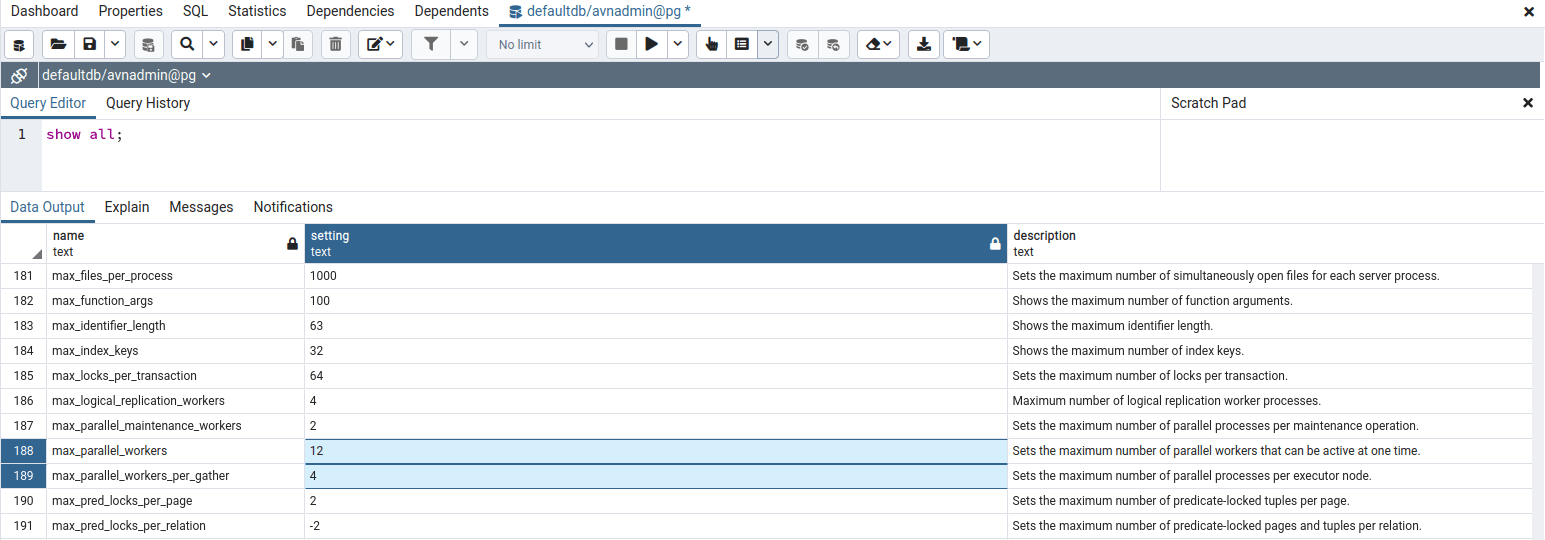
Follow this guide to learn more about pgAdmin.
Go further
Browse all the Databases guides.
Browse the rest of the OVHcloud US documentation for guides on our other products and services.
Learn more about Managed Databases on the OVHcloud US website.
OVHcloud Managed Databases and Analytics:
- Grafana® is a registered trademark of Grafana Labs and is used with the permission of Grafana Labs. OVH SAS and its subsidiaries are not affiliated with or endorsed by Grafana Labs.
- Kafka® is a registered trademark of The Apache Software Foundation and has been licensed for use by OVHcloud, who has no affiliation with and is not endorsed by The Apache Software Foundation.
- MongoDB® is a registered trademark of MongoDB, Inc.
- MySQL® is a registered trademark of Oracle and/or its affiliates.
- PostgreSQL® is a registered trademark of the PostgreSQL Community Association of Canada.