
How to Enable NSX Management Access for a Hosted Private Cloud User via APIs
When a new user is added to the Hosted Private Cloud environment with administrator rights (read/write access to all datacenters), NSX management access is not enabled by default, as shown below.
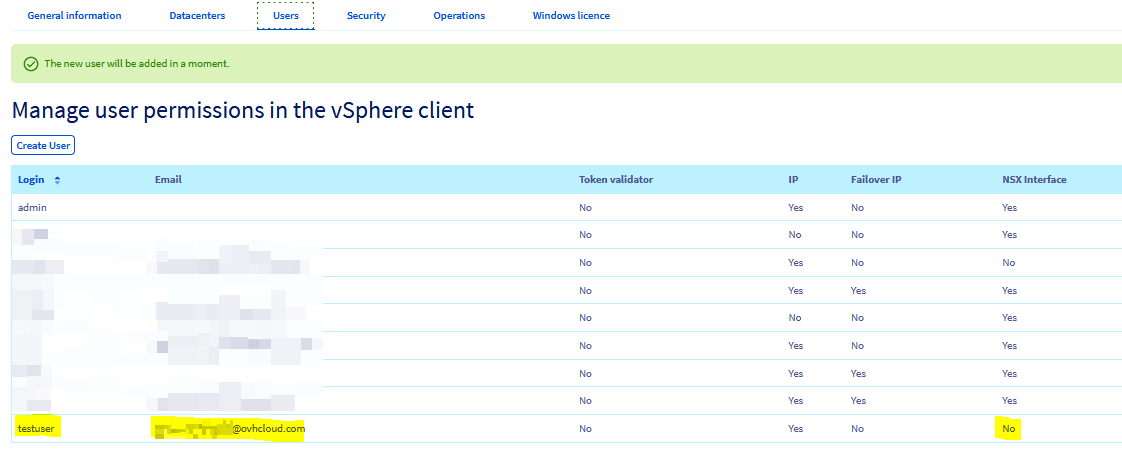
This guide will show you how to use the API call to enable NSX management access.
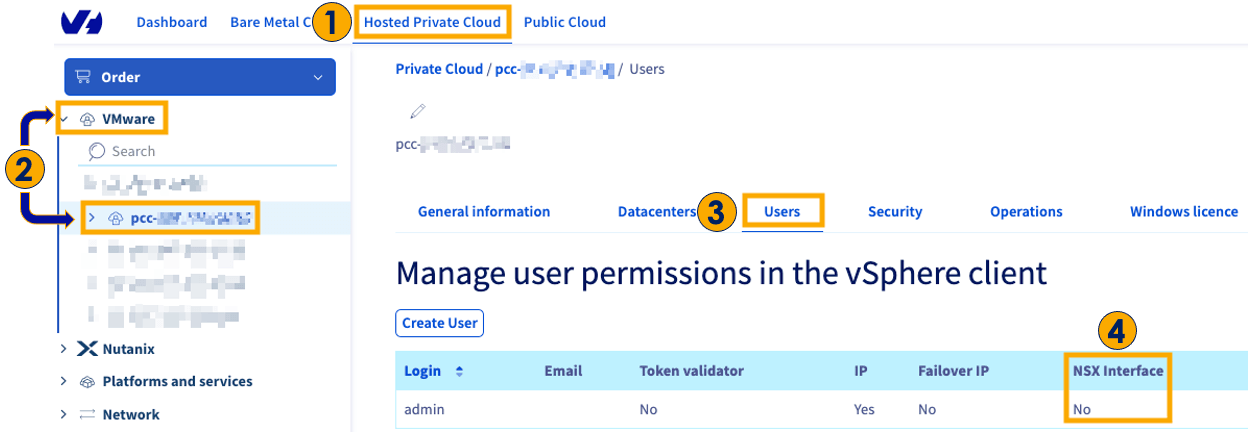
To check the status of NSX management access for your user(s), log in to OVHcloud Control Panel.
- Select
Hosted Private Cloud. - Click
VMwareand select your environment. - Click
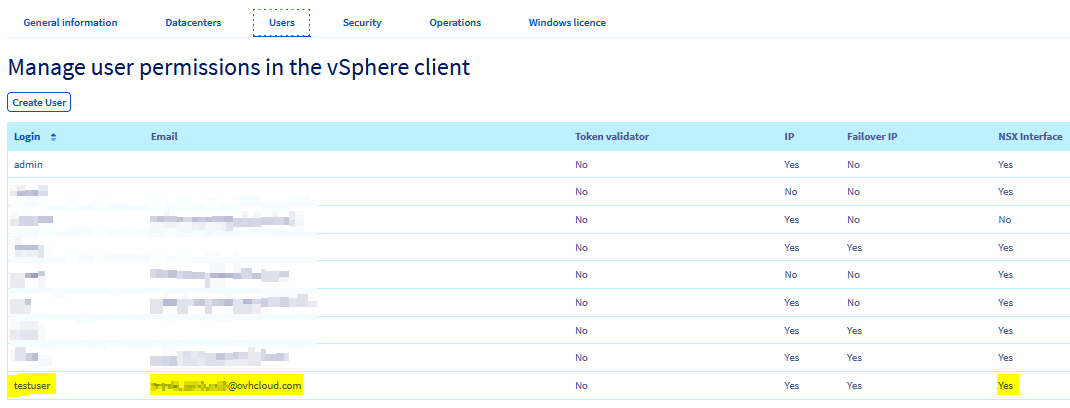
Users. - Check the status for each user in the NSX Interface column.
Instructions
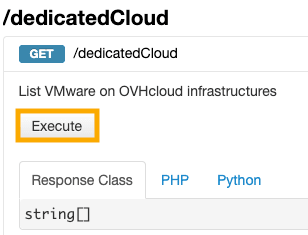
To execute the API call, log in to OVHcloud API using your OVHcloud Control Panel credentials. Open /dedicatedCloud and select
. Click theExecute button.
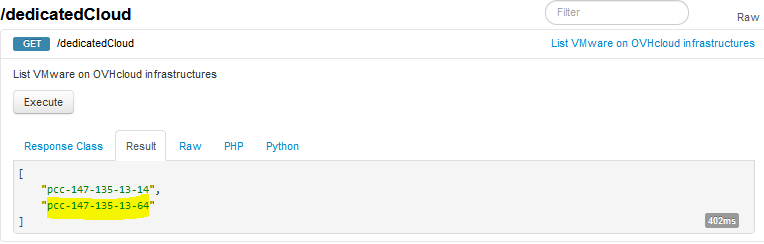
Copy the relevant environment from the response. An example is shown below.
Scroll down and click on
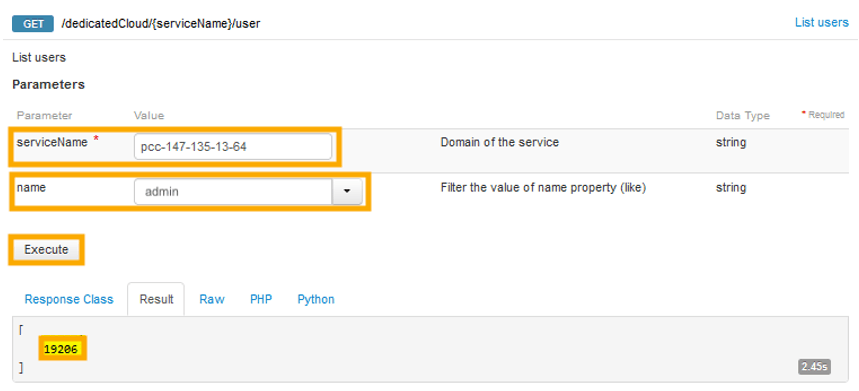
.- Enter the environment name from the previous step into the serviceName field.
- Enter the name of the user (i.e., "admin") whose ID number you need.
- Click on
Executebutton. - Copy the 5-digit user ID from the result.
Select
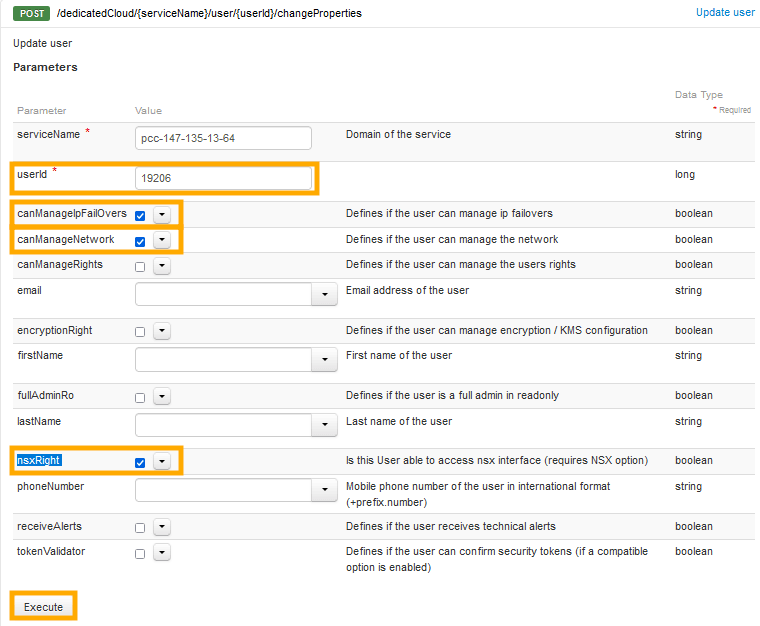
and you can see that the serviceName is already mentioned.- Enter the 5-digit user ID in the userId field.
- Select the rights
checkboxesfor canManageIpFailOvers, canManageNetwork, and nsxRight. - Click on the
Executebutton.
Wait for some time and you can see that the NSX management access has been granted to the user within the OVHcloud Control Panel, as shown below.
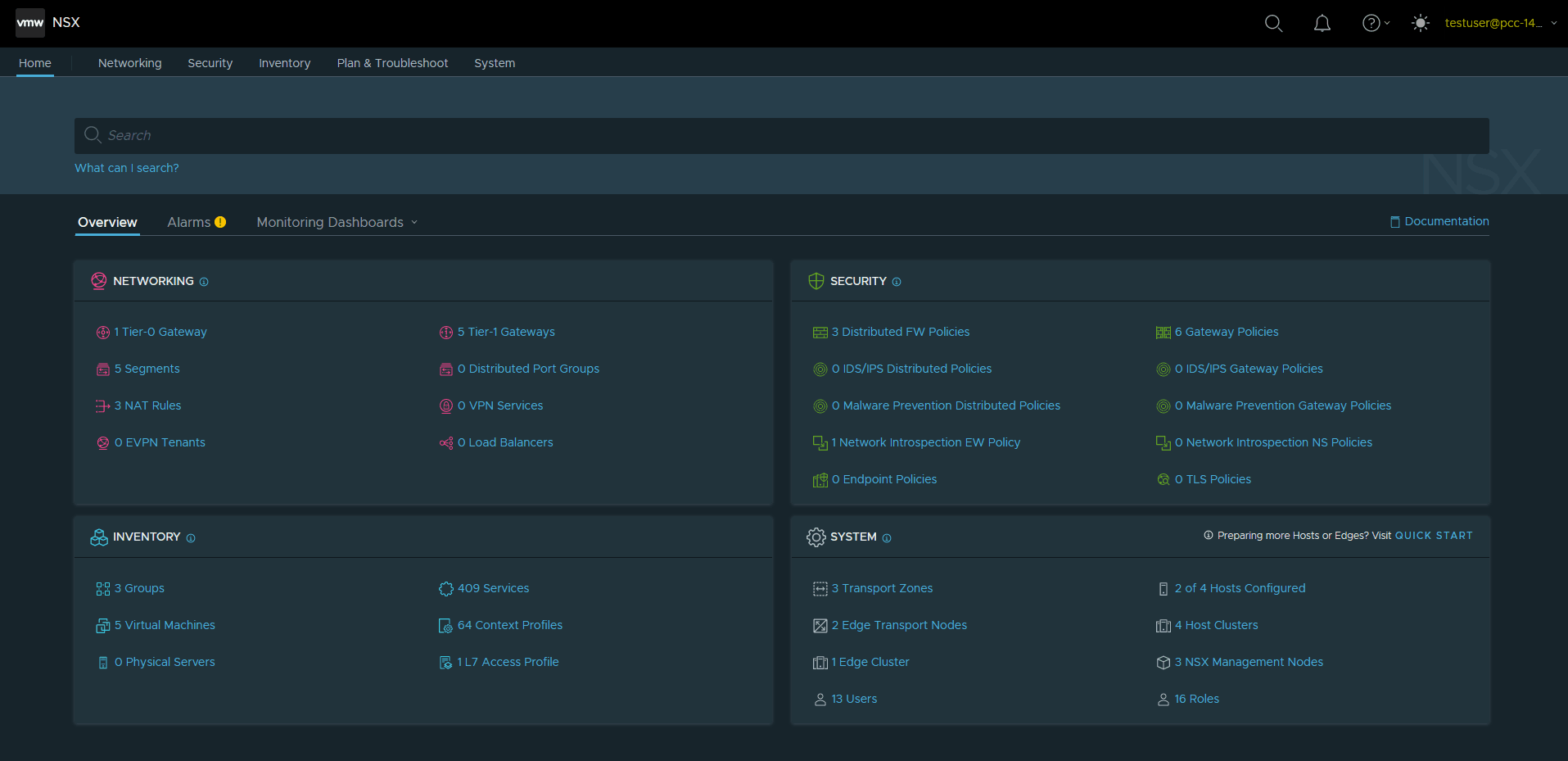
The user can now log in to the NSX-T environment using the following credentials.
- Username: <username>@pcc-XXX-XXX-XX-XX.ovh.us
- Password: <same password used while creating the user>
- URL: https://nsxt.pcc-XXX-XXX-XX-XX.ovh.us
Go further
Browse all the VMware on OVHcloud guides.
Browse the rest of the OVHcloud US documentation for guides on our other products and services.
Learn more about VMware on OVHcloud on the OVHcloud US website.