
Creating, launching, and deleting images in Horizon
Learn the steps for creating, launching, and deleting images in the Horizon interface, which is used to manage OVHcloud services.
You can add custom images via the OpenStack Horizon interface. For example, you can use it to import images from your old virtual machines to the Public Cloud, provided that they are in a compatible format.
NOTE: At this time, this feature is not supported on Local Zones instances.
Requirements
Instructions
From the Horizon interface, make sure that the correct region is selected in the upper-left corner.
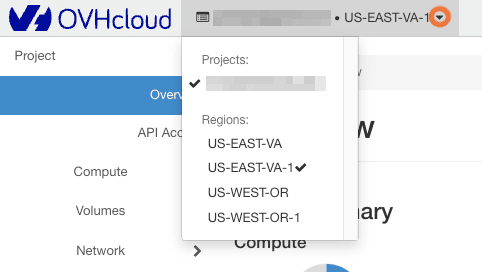
Manage the images
In the left-hand menu, under Compute, select Images.
By default, if no images have been created, the list of default public images appears:
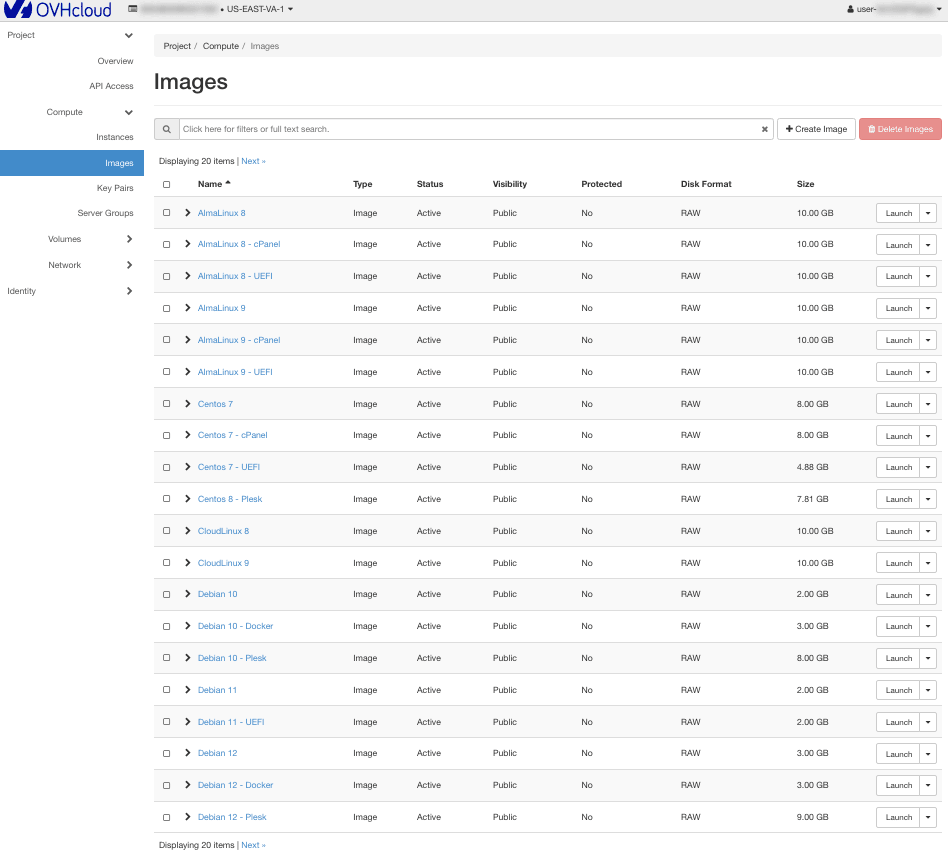
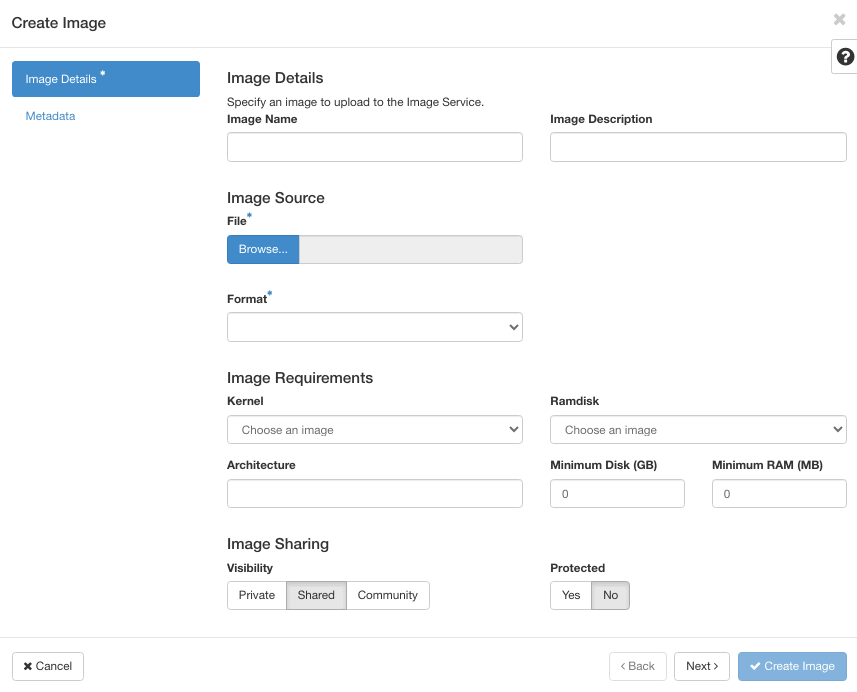
You can then launch an image from a URL, or create a custom image by clicking the + Create Image button, which opens the following menu:
-
Image name (*)
-
Image description
-
Image file (send from your local desktop)
-
Image format (*):
WarningNOTE: If the image you use is not a cloudready image, the installation may fail. This is a known issue in Horizon. Therefore, we recommend using images with the .raw file format. Images in .qcow2 format are also acceptable.
- Architecture: x86_64
- Minimum disk space (in GB): if not specified, the default value will be 0.
- Minimum RAM (in MB): if not specified, the default value will be 0.
You can also define whether the image will be public and whether its deletion will be protected. Once you have confirmed, the image is placed in a queue for creation:
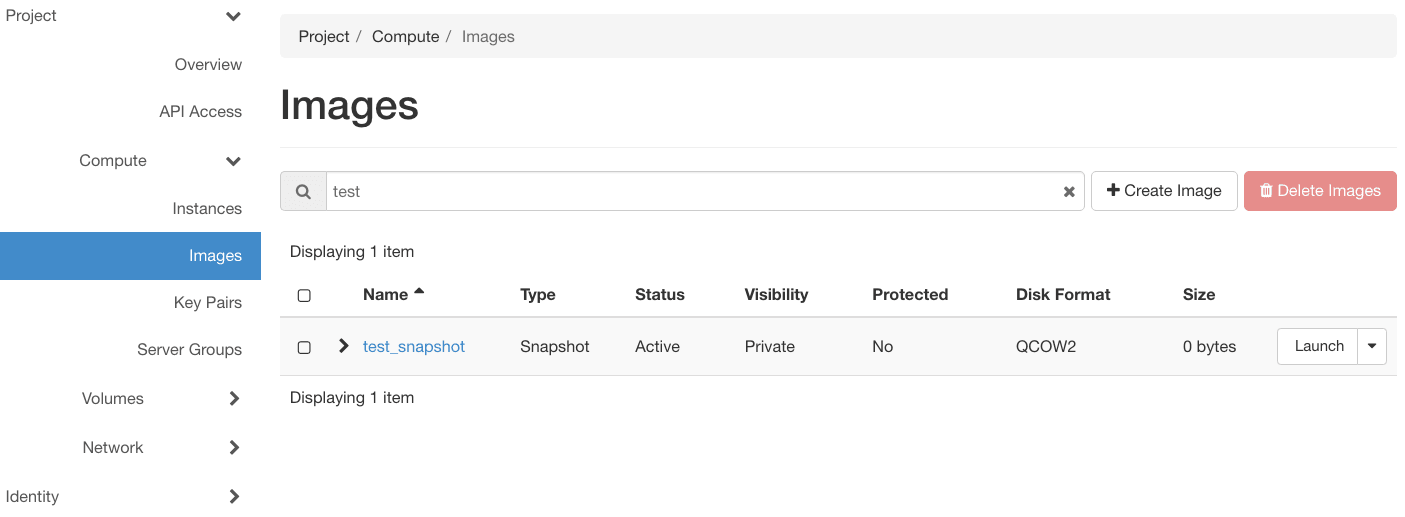
You can click on the image name for details:
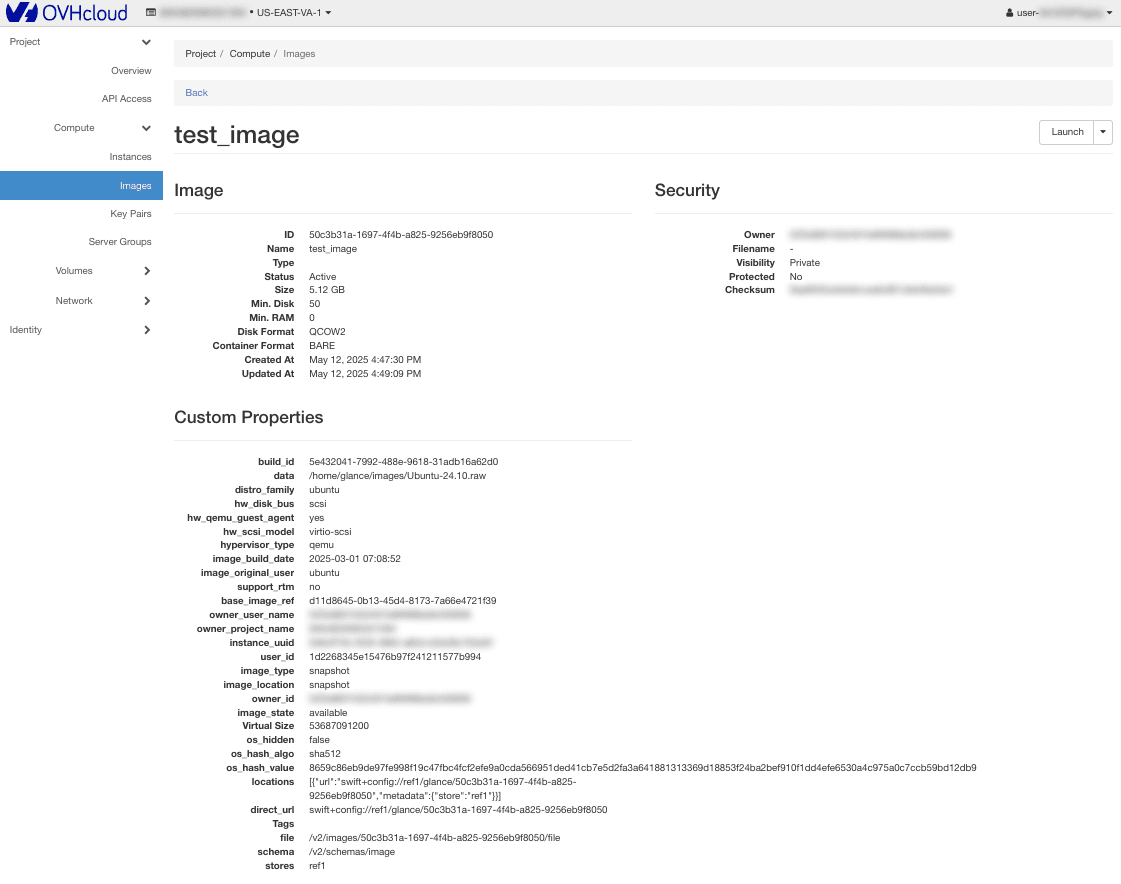
In the Actions column, you can:
-
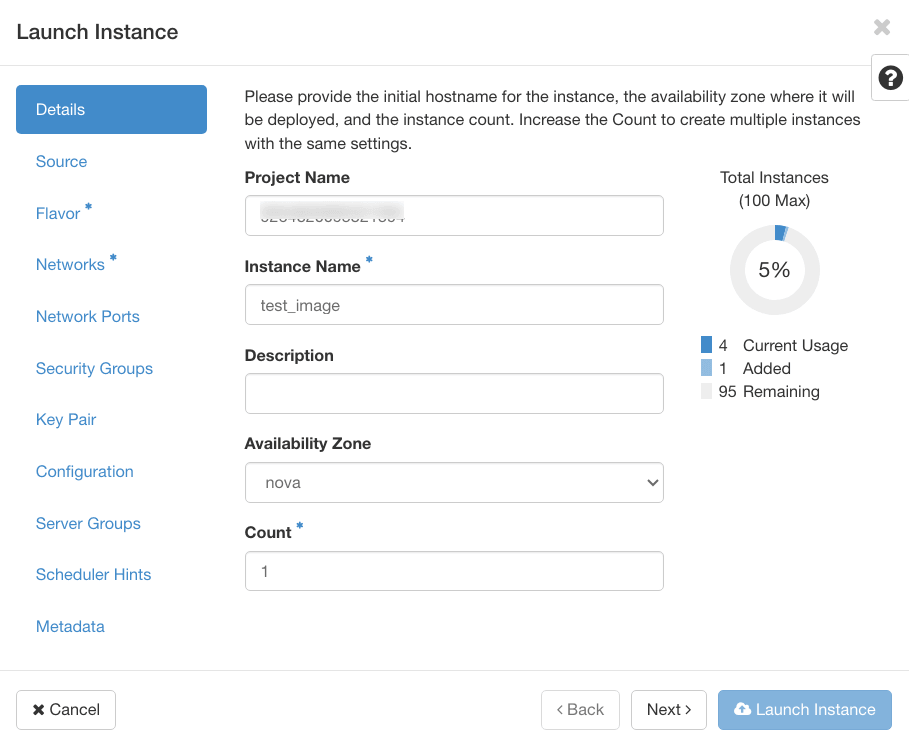
launch the image selected to create an instance - when you do this, the menu appears
- edit the image details (only for images you have created)
- delete the image (only for the images you have created), and you are asked to confirm
Go further
Browse all the Compute guides.
Browse the rest of the OVHcloud US documentation for guides on our other products and services.
Learn more about Public Cloud Compute on the OVHcloud US website.