
How to Configure Veeam Backup & Replication (Enterprise) with Hosted Private Cloud
At OVHcloud, we know how important data is to our customers and business. That is why we go to great lengths to protect your data. With an Enterprise Plus license for Veeam Backup & Replication customers are able to quickly perform backups and easily managed them. In this tutorial, we will cover configuring Veeam Backup & Replication to interact with an HPC (Hosted Private Cloud) environment.
Prerequisites
Topics
Connecting Veeam to vSphere
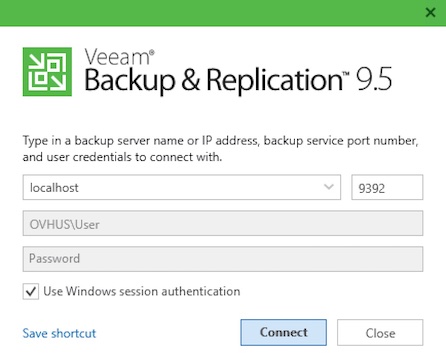
To start, open up the Veeam application and click the Connect button.
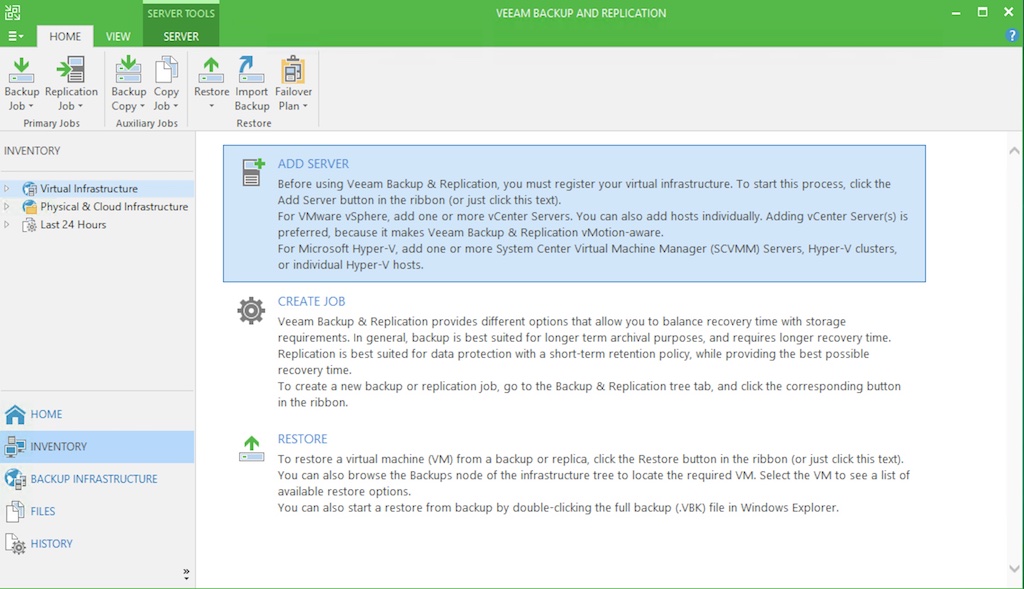
Once connected, select the Virtual Infrastructure option from the"INVENTORY" section and then click the Add Server option.
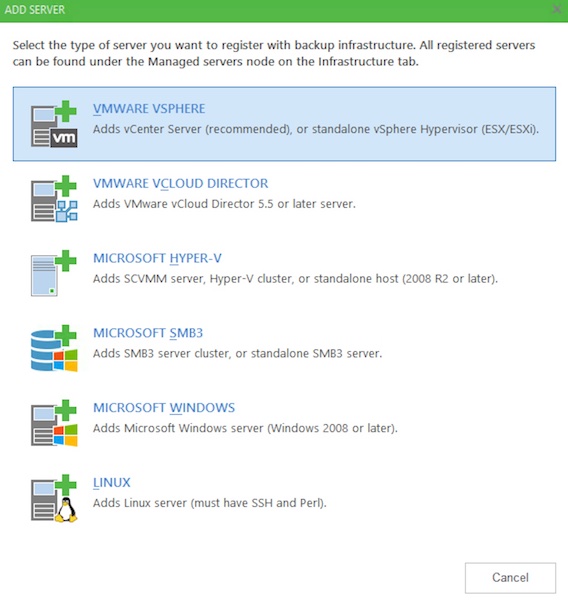
From the "ADD SERVER pop-up window, select the VMWARE VSPHERE option to connect Veeam Backup and Replication to your HPC environment via vSphere.
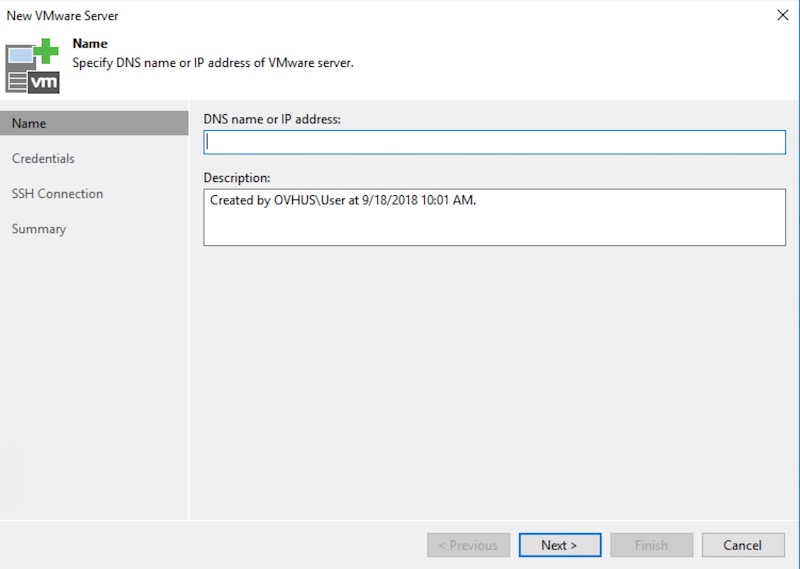
In the first section, "Name", from the "New VMware Server" pop-up window, enter the IP address for your HPC environment and then click the Next button.
In the next session, "Credentials", click the Add... button to enter the login information needed to authenticate to the vSphere Web Client.
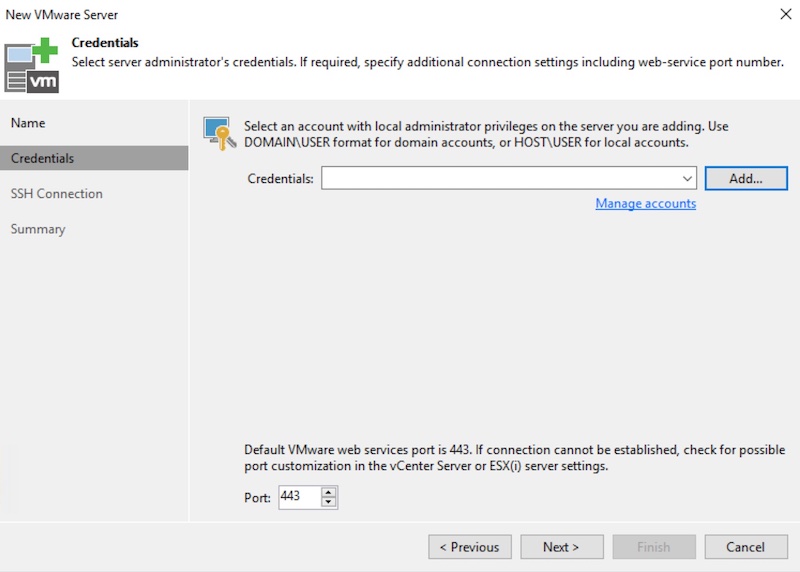
Then, click the Next button.
It will take a moment for Veeam to test the connection, but once it's finished, you have successfully connected Veeam to your HPC environment via vSphere.
Now, let's explore how to define a backup repository.
Adding a Backup Repository
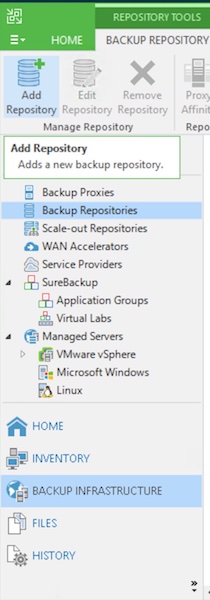
To add a repository, select the BACKUP INFRASTRUCTURE option in the bottom-left corner of the "Veeam Backup and Replication" window. Afterward, select the Backup Repositories option from the left-hand sidebar. Then, at the top of the screen, click the Add Repository button.
In the first section, "Name", from the "New Backup Repository" pop-up window, enter a name and description for your backup repository. Then, click the Next button.
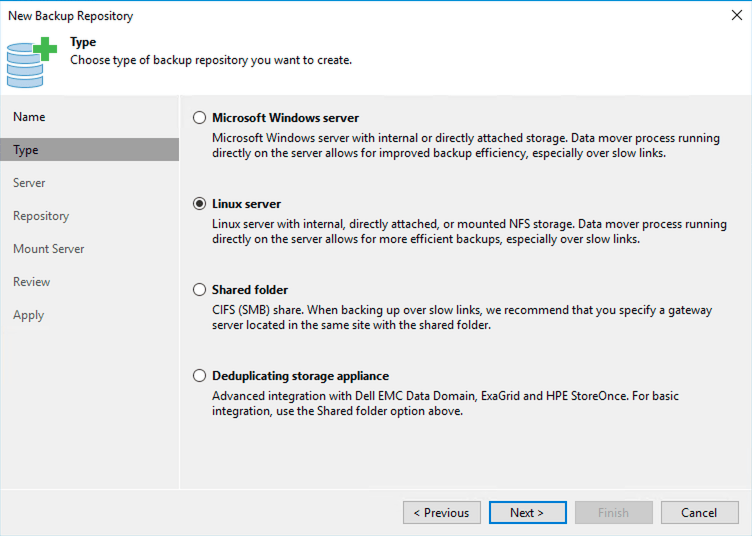
Next, select the type of server that you will be using to store your backups. For the purpose of this article, we are using a Dedicated Server running Linux, therefore we select the Linux server type. Then, click the Next button.
In the next section, "Server", click the Add new... button to access a new pop-up window where you will enter the information required for Veeam to establish a connection with the backup server.
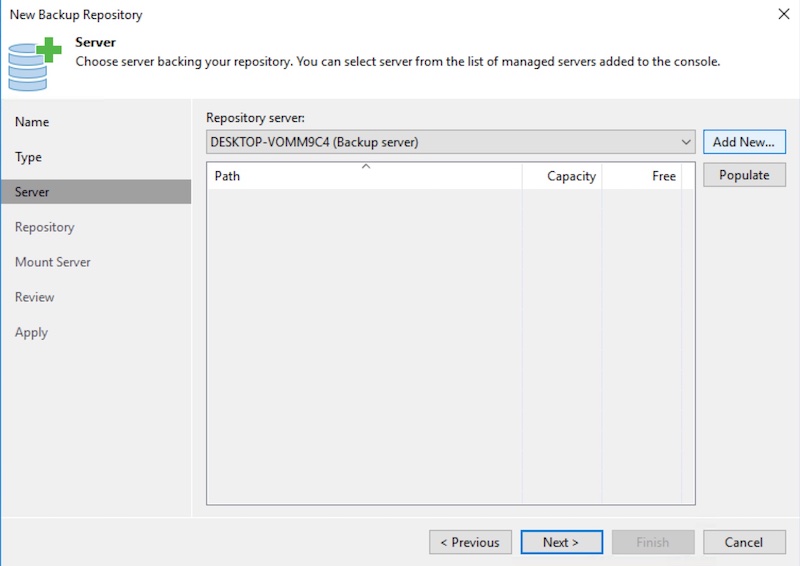
After completing that step, Veeam will validate the information and establish a connection to the backup server.
In the next section, "Repository", click the Browse... button, locate, and then select the desired folder to house the backups.
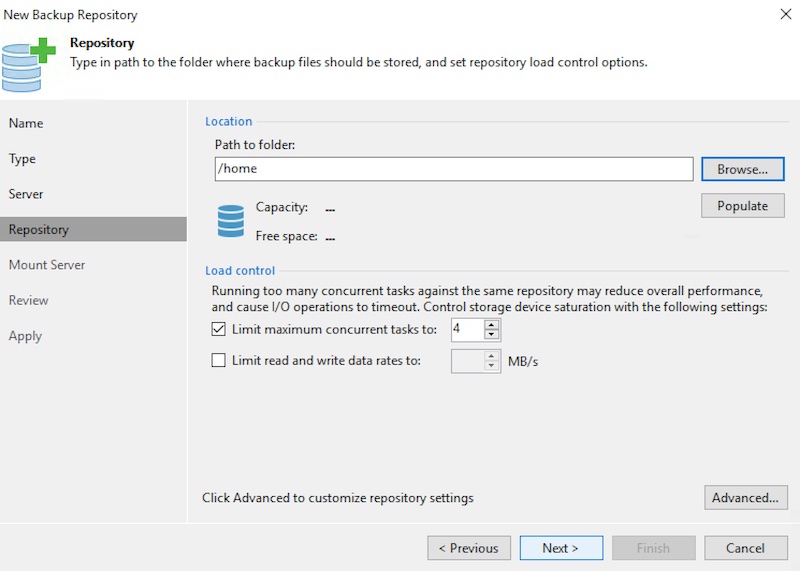
Then, click the Next button.
Proceed through the remaining sections. When you click the Finish button you will have defined a backup repository.
Conclusion
Having read this article, you should have a clear understanding of how to configure Veeam Backup & Replication to communicate with vSphere and how to define a backup repository. For information about backing up a VM, please check out our Backing Up a VM via Veeam Backup & Replication (Enterprise) article.