
How to Restrict Prism Central Web Access
After delivery, Prism Central is accessible on the public Internet. Access restriction to one or more IP addresses can be achieved through the OVHcloud Load Balancer.
This guide explains how to secure access to Prism Central.
Requirements
- A Nutanix cluster in your OVHcloud account
- Access to the OVHcloud Control Panel
Instructions
Step 1: Find the relevant Load Balancer
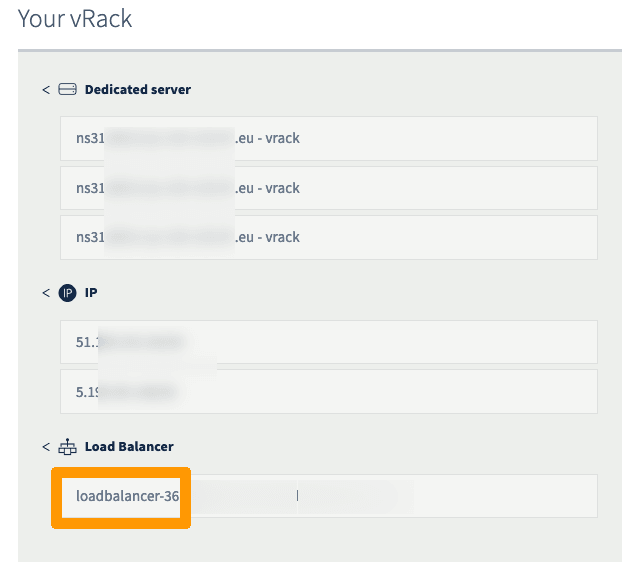
Log in to the OVHcloud Control Panel and open the Nutanix cluster vRack configuration page.
Identify the name of your Load Balancer.
Step 2: Access your Load Balancer front-ends
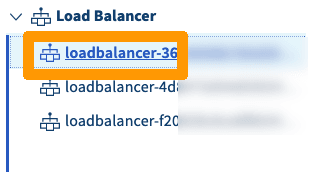
Select your Load Balancer identified in the previous step.
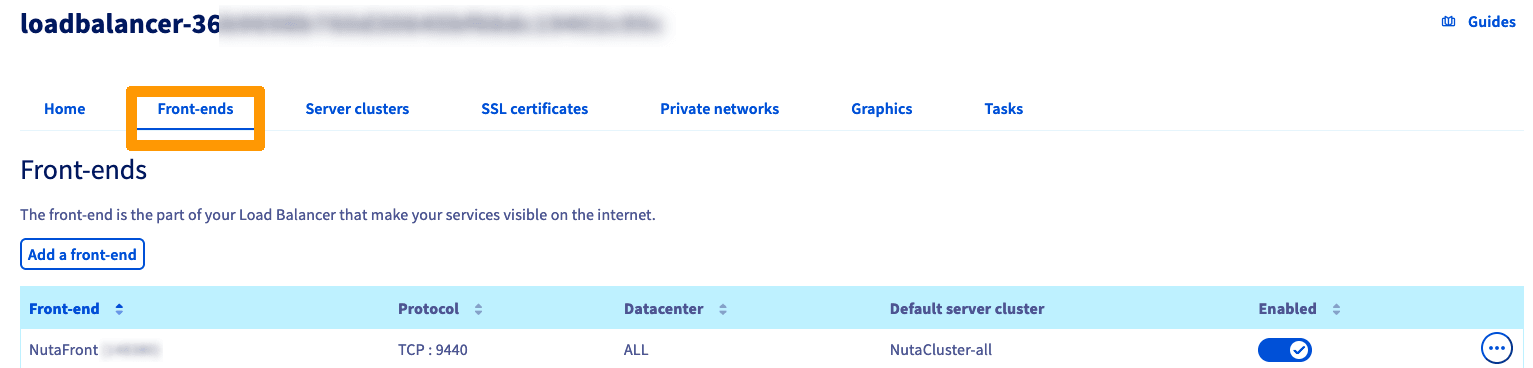
Open the Front-ends tab.
Step 3: Edit the Prism Central front-end
Click on the ... button in the table and select Edit.

Step 4: Add the authorized IPs
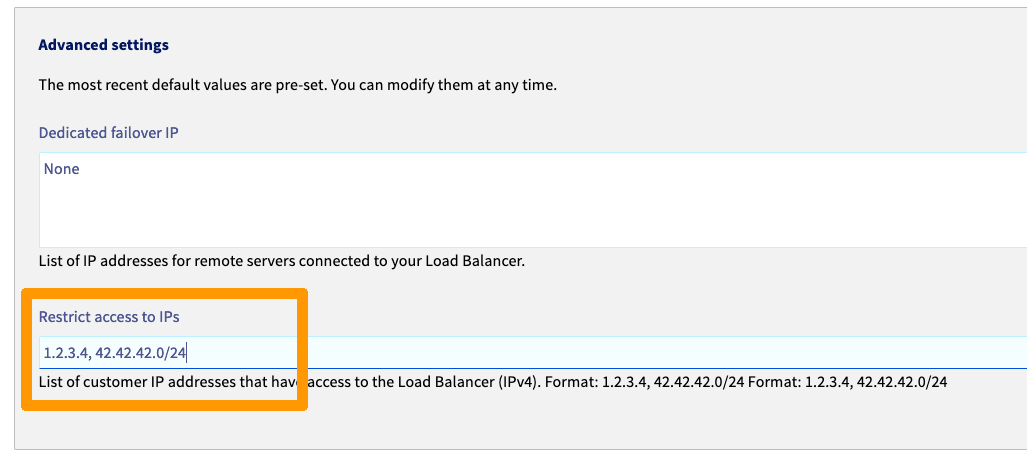
In the advanced settings, you can now add your public ISP IP address or any IP addresses from which access should be granted to Prism Central Web.
Go further
Browse all the Nutanix guides.
Browse the rest of the OVHcloud US documentation for guides on our other products and services.
Learn more about Nutanix on OVHcloud on the OVHcloud US website.