
Managing commitments in the OVHcloud Control Panel
Learn how to start, manage, and cancel service commitments in the OVHcloud Control Panel.
OVHcloud offers you the ability to commit to your Dedicated Servers and VPS products for periods of time, depending on the specific product you purchase. Additionally, you will be able to choose whether to pay monthly or up-front for longer commitments.
NOTE: Any servers from the following families/SKUs are not eligible for commitments: DO, INF, ST, GAM, HG, BV-1, or BV-2.
Topics
- Starting commitments in the OVHcloud Control Panel
- Managing commitments in the OVHcloud Control Panel
- Canceling commitments in the OVHcloud Control Panel
Instructions
NOTE: In this article, we will be using a Dedicated Server. However, the process is the same for VPS.
Starting commitments in the OVHcloud Control Panel
To begin, log in to the OVHcloud Control Panel. Use the left-hand navigation menu to access Bare Metal Cloud and Dedicated servers, or Virtual private servers.
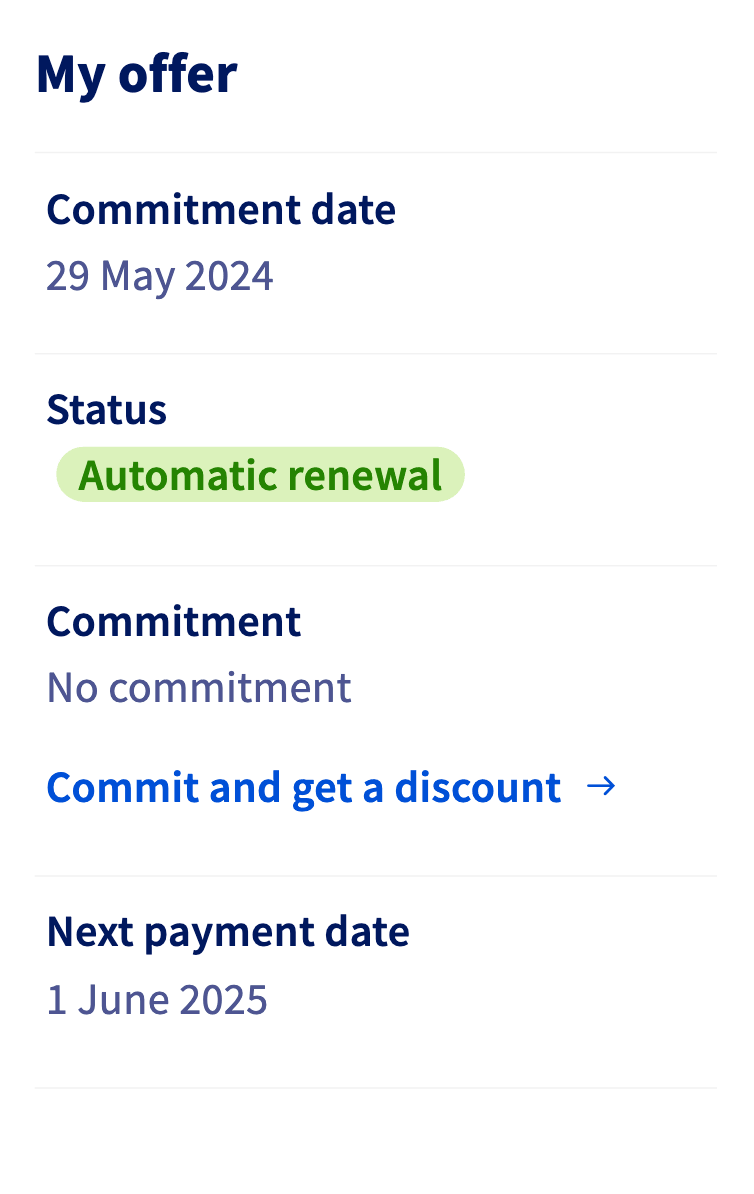
Select the name of your service from the list displayed. Scroll down to the My offer box, click Commit and get a discount → under the "Commitment" area.
If you previously had a commitment on your server, the button will say Re-commit and get a discount →.
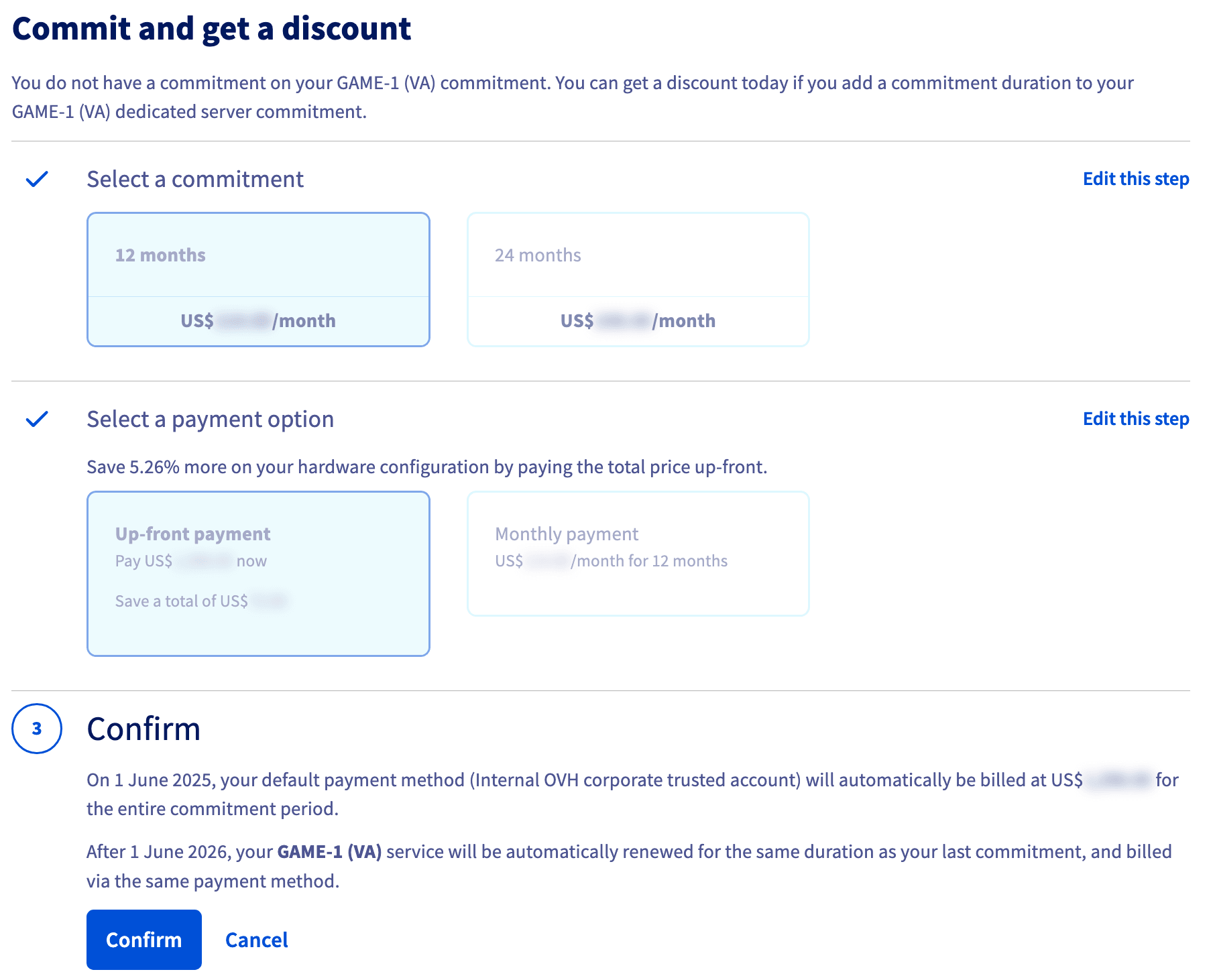
You will be taken to a new page where you can select your commitment.
NOTE:
- Different servers have different options for commitment periods; your options may not match the image below.
- You may choose to commit to a longer term for the discount, but still pay monthly.
- If you do nothing at all, your commitment will automatically renew for the same price and terms.
- Once you have a commitment in place, you can only cancel your commitment early by paying the remainder of what you owe on the commitment. 1
Proceed through the order funnel. Click Confirm to process your commitment.
Once you are finished, your new commitment will begin at your next renewal date. You can view your renewal date in the My offer box on the General information tab.
Managing commitments in the OVHcloud Control Panel
To begin, log in to the OVHcloud Control Panel. Use the left-hand navigation menu to access Bare Metal Cloud and Dedicated servers or Virtual private servers.
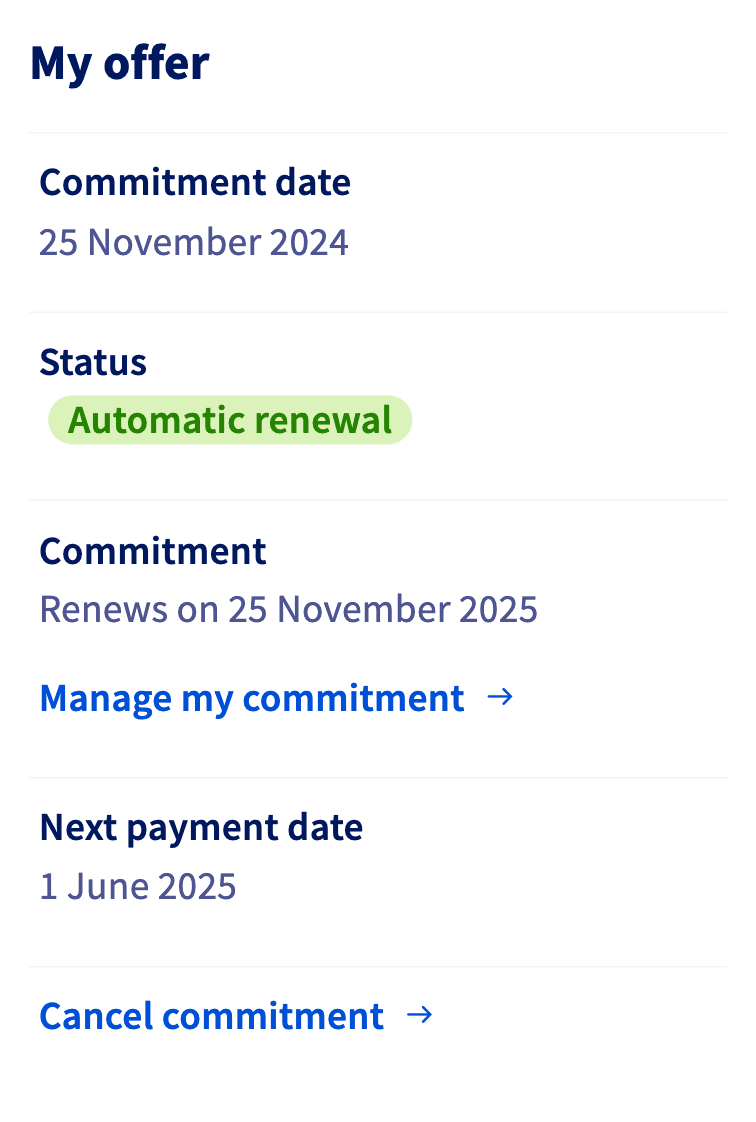
Select the name of your service from the list displayed. Scroll down to the My offer box, click Manage my commitment → under the "Commitment" area.
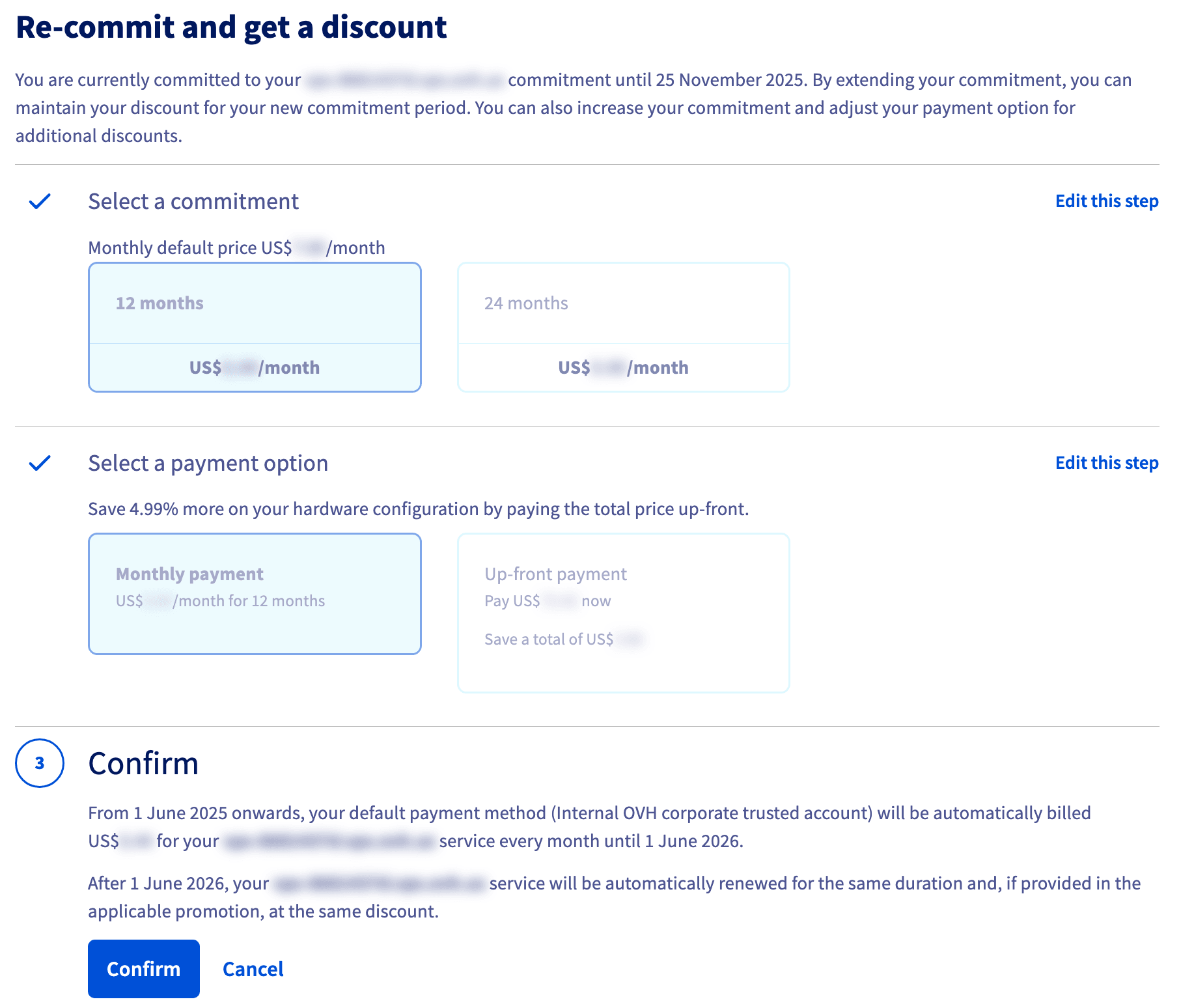
You will be taken to a new page where you can renew your commitment.
NOTE:
- You may only commit for a period that is longer than the remaining time on your current commitment.
- You may choose to commit to a longer term for the discount, but still pay monthly.
- If you do nothing at all, your commitment will automatically renew for the same price and terms.
- Once you have a commitment in place, you can only cancel your commitment early by paying the remainder of what you owe on the commitment. 1
Proceed through the order funnel. Click Confirm to process your commitment.
Canceling commitments in the OVHcloud Control Panel
If you already have a commitment, you have the option of canceling your commitment, which will become effective at the end of the commitment period. See the documentation below, depending on your service:
Go further
Browse all the Managing billing, payments, and services guides.
Browse the rest of the OVHcloud US documentation for guides on our other products and services.
1 Please contact OVHcloud US customer support to cancel a commitment early.