
How to Connect Your VPS to Your Domain Name
One of the most common ways to utilize a VPS is hosting a website. To do so, you'll first need to register a domain name at a registrar (e.g. GoDaddy, NameCheap, etc.). Once you have your domain name and your VPS, you are ready to begin.
Prerequisites
- A Fully-Qualified Domain Name (FQDN)
Topics
Learning About A Records
An A Record is a type of DNS record that maps a domain name to an IPv4 address. This makes it so that a difficult-to-remember IPv4 address (e.g. 203.0.113.1) translates to an easy-to-read, highly marketable domain name (e.g. example.com). You can point multiple A records to the same domain utilizing a different IPv4 address for redundancy or point multiple A records with different domain names to the same IPv4 address.
An A record consists of the following fields
- Name: Subdomain - usually appended with an @
- TTL**:** Time-to-live, the amount of time (in seconds) that the record is cached
- Value/Address: Target IPv4 address of the A record
Now that we have a basic understanding of A records, let's take a look at how to point one to our VPS.
Pointing an A Record to a VPS
To start, log into your registrar's DNS Management section. Locate your A record and point it to the IP of your VPS.
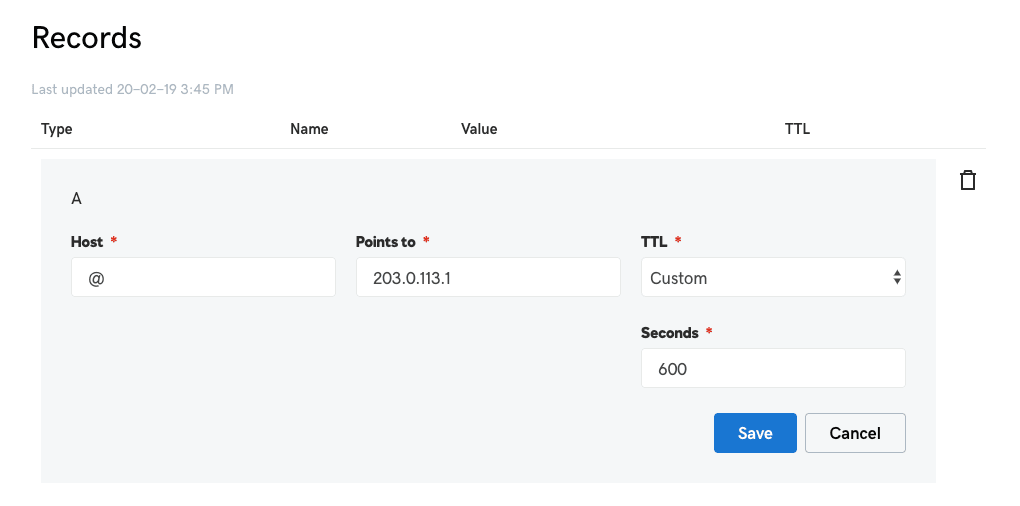
Note: If you have previously pointed the A record to a different host, the propagation time could be subject to the old TTL.
Now let's check to make sure the website is resolving properly.
Checking for Propagation
To check that your website is attached to your VPS, you can do a dig command on your domain name.
You should see the IP address of your VPS in the Answer section of the output
If you don't see the result of your IP address you may have not waited long enough for the TTL. Wait the allotted time set on the TTL and try again.
Conclusion
Having read this article, you should have everything you need to resolve your domain name to your VPS.