
Introduction to the VMware on OVHcloud Control Panel
The OVHcloud Hosted Private Cloud Control Panel enables you to easily manage your Hosted Private Cloud infrastructure.
Requirements
- A VMware on OVHcloud infrastructure
- Access to the OVHcloud Control Panel
Instructions
Topics:
- Accessing your Managed VMware environment
- Exploring the PCC dashboard
- Exploring the datacenter dashboard
Accessing your infrastructure
Log in to the OVHcloud Control Panel, choose the Hosted Private Cloud section, and click the Managed VMware vSphere menu.
Exploring the PCC dashboard
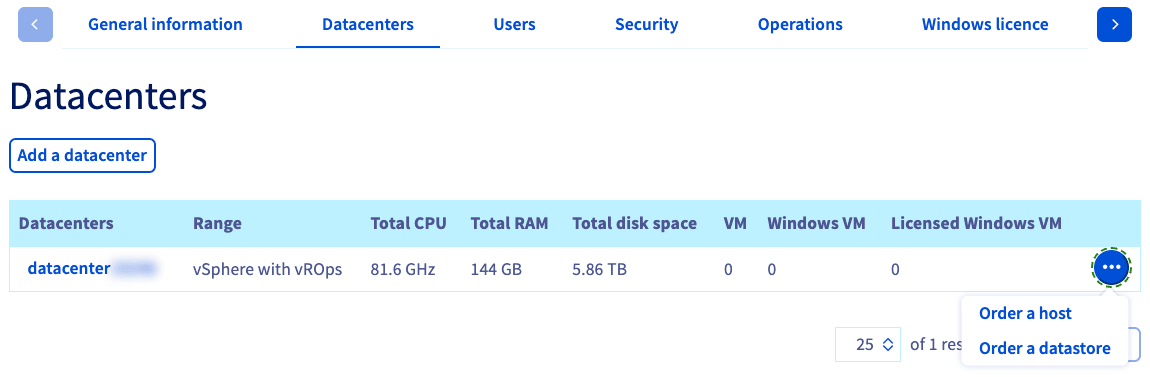
Choose your PCC from the list, and a dashboard will load with the following tabs:
- General information
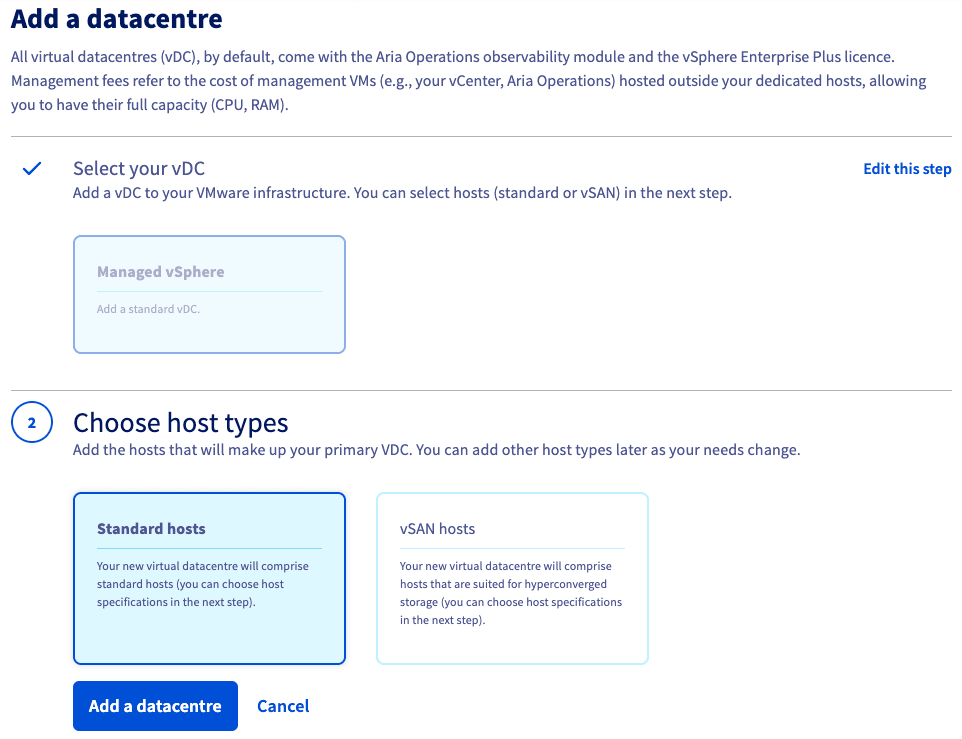
- Datacenters
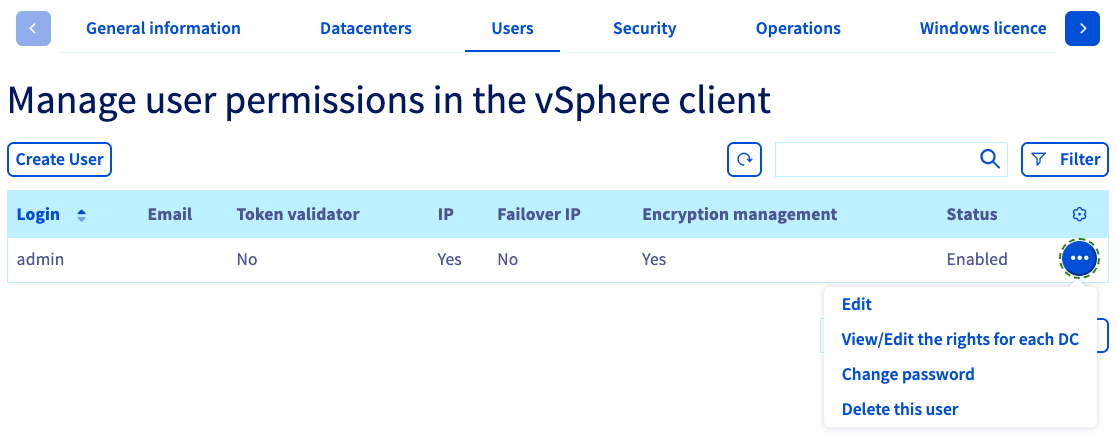
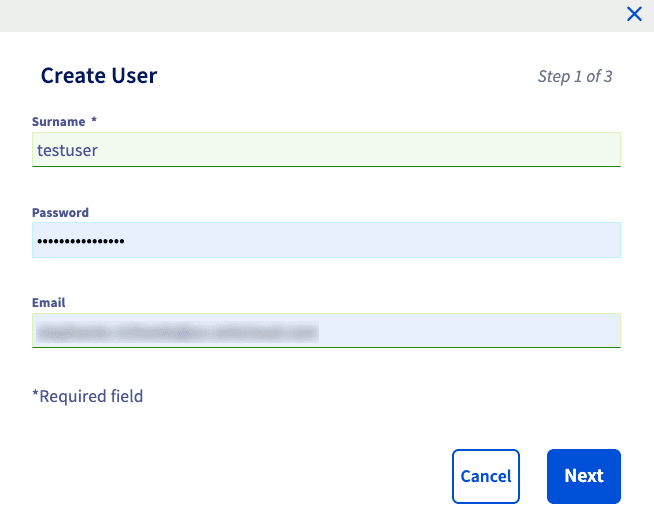
- Users
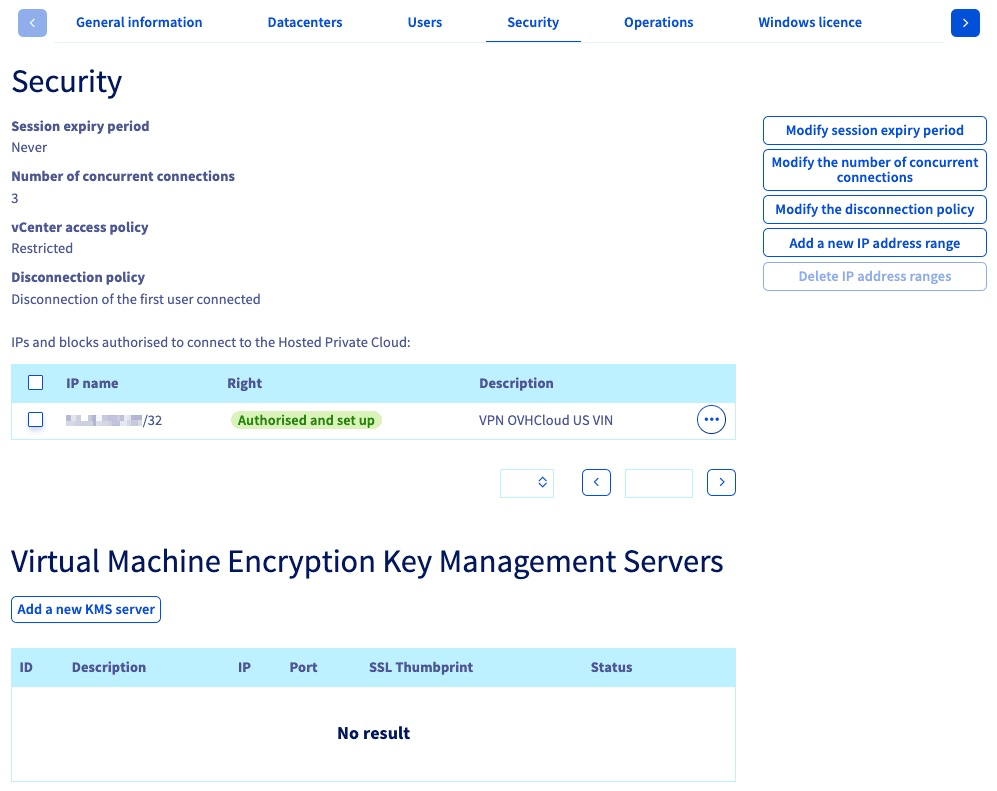
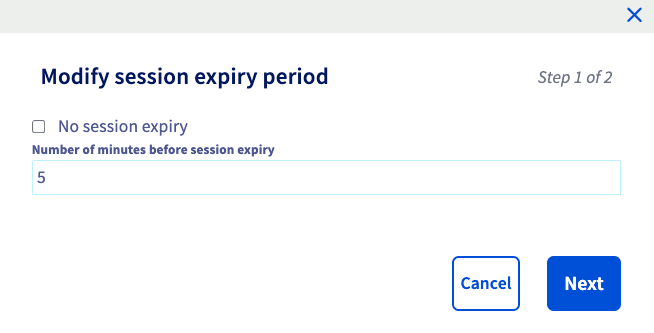
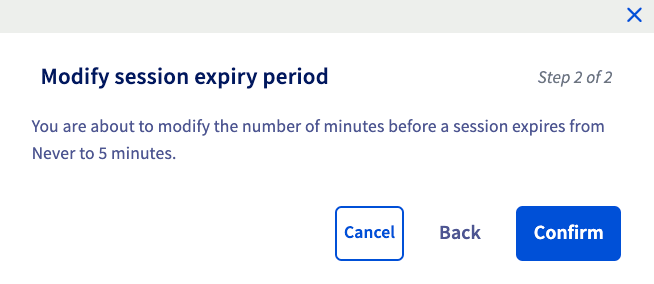
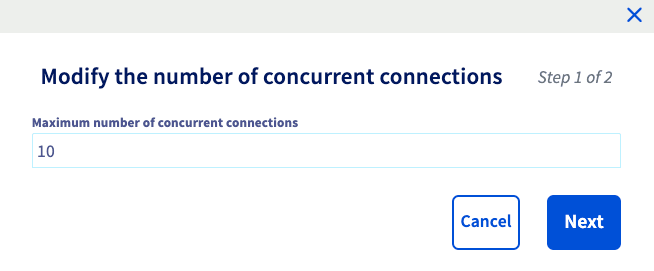
- Security
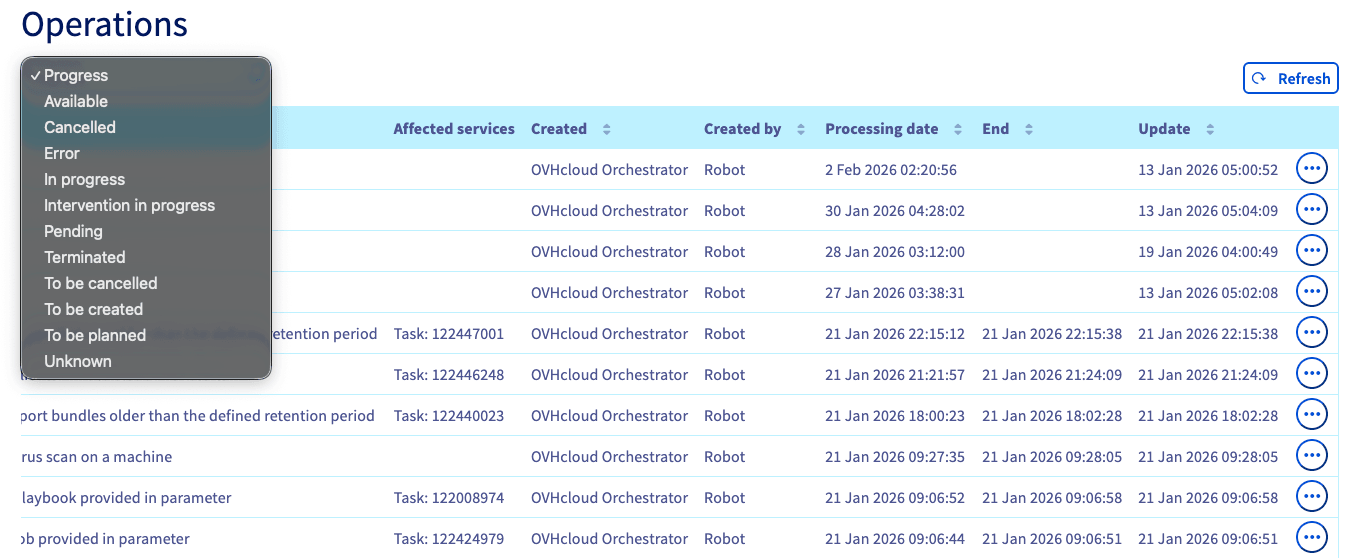
- Operations
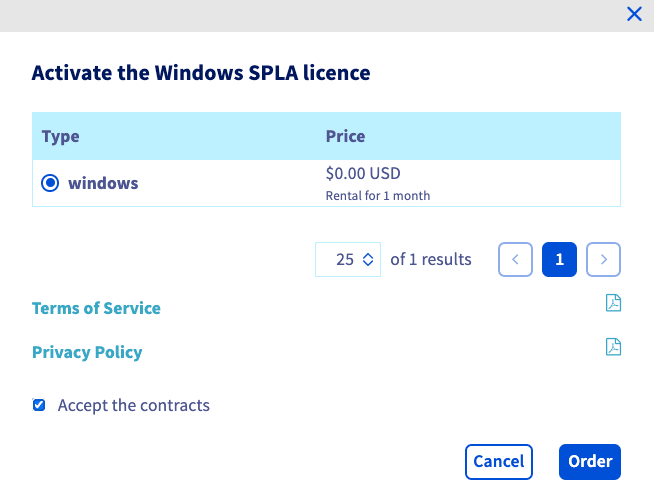
- Windows license
Each of these areas and the actions that can be completed within them are explored in the menu below.
No matter which tab you are on, you can click the pencil icon at the top of the page to change the name of your infrastructure.
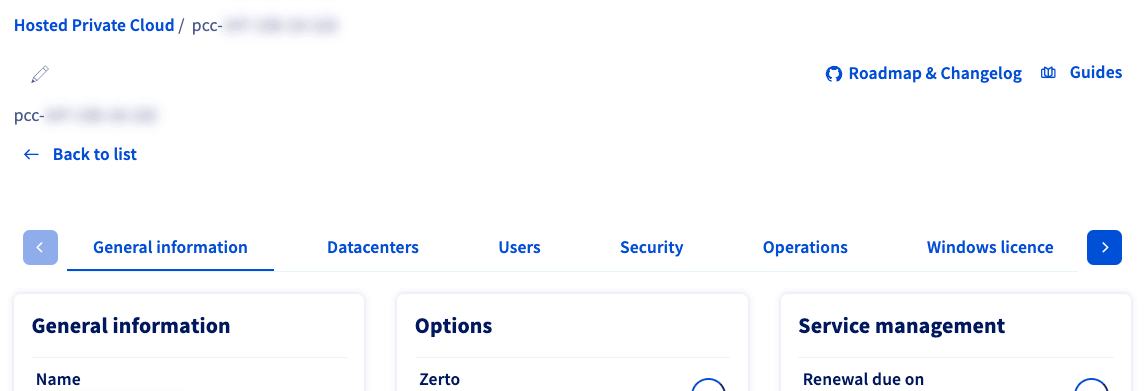
This area provides basic information about your infrastructure, including commercial range, location, regions, and number of datacenters.
The actions you can perform here are listed below. Expand each menu to see further instructions.
Change the description for your infrastructure.
In the General information panel, select the more options ... button next to Description and choose Edit.
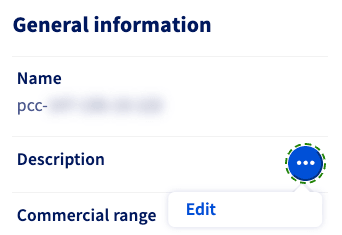
In the pop-up window, add your description and click Edit.
Update your software solution.
In the General information panel, select the more options ... button next to Software solution and choose Install <update details>.
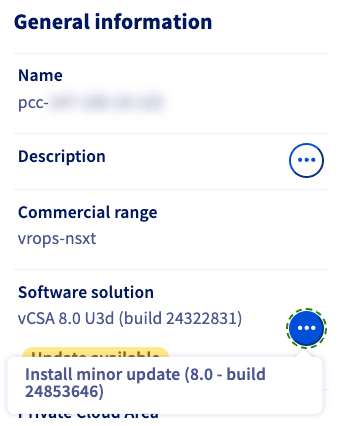
In the pop-up window, review the change and click Schedule the update.
Order or migrate IP blocks.
In the General information panel, select the more options ... button next to Number of IP blocks and choose Order IP blocks.
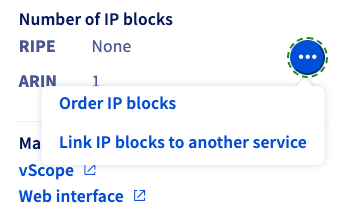
You will be redirected to the IP section of the OVHcloud Control Panel.
If you choose Link IP blocks to another service, a pop-up window will appear where you can migrate an existing block to a different service.
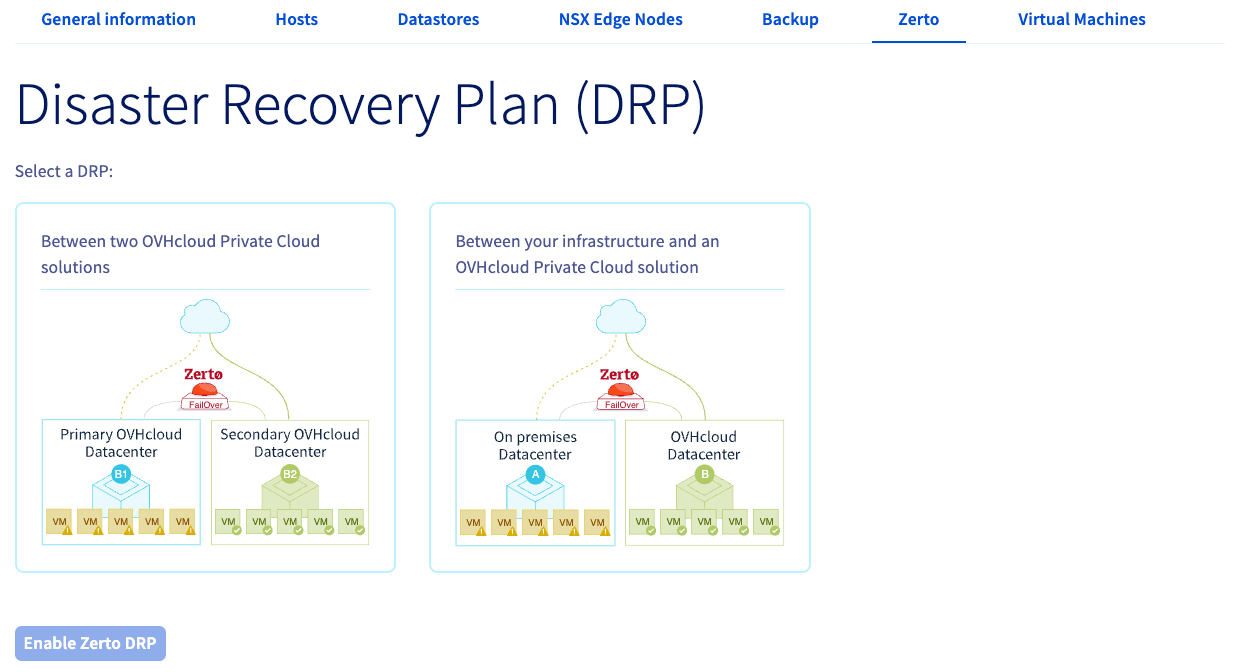
Enable or delete Zerto.
In the Options panel, select the more options ... button next to Zerto and choose Enable.
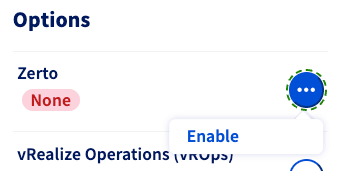
If Zerto is already enabled, the more options ... button will show Delete.
Order a license.
In the Service management panel, select the more options ... button next to Renewal due on and choose Order a license.
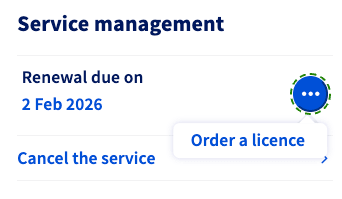
You will be redirected to the Licenses section of the OVHcloud Control Panel to complete this process.
Cancel your service.
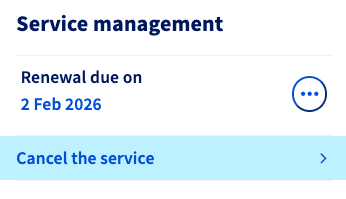
In the Service management panel, select the Cancel the service button.
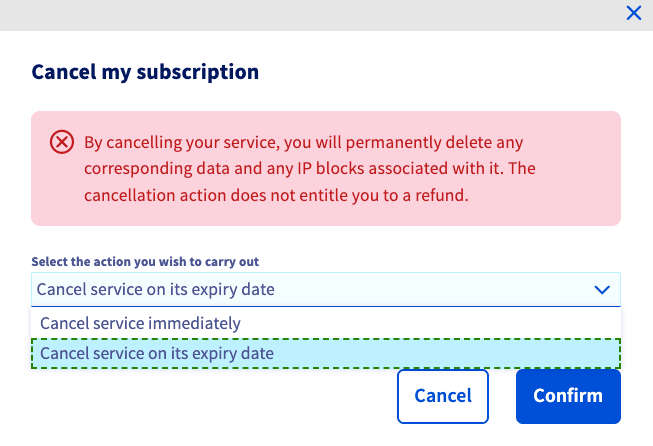
In the pop-up window, select your preference (cancel immediately or cancel at expiry) and click Confirm.

Exploring the datacenter dashboard
Log in to the OVHcloud Control Panel, choose the Hosted Private Cloud section, click the Managed VMware vSphere menu, and select your PCC.
Choose your datacenter from the list, and a dashboard will show the following tabs:
- General information
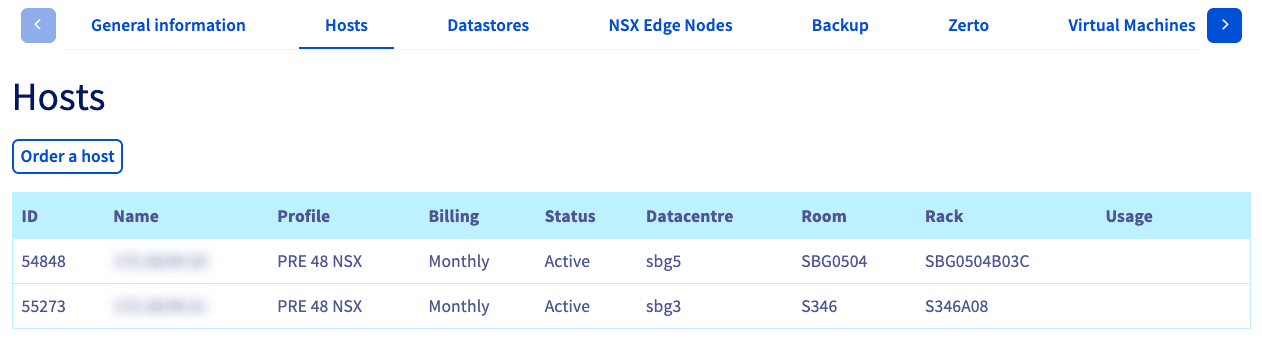
- Hosts
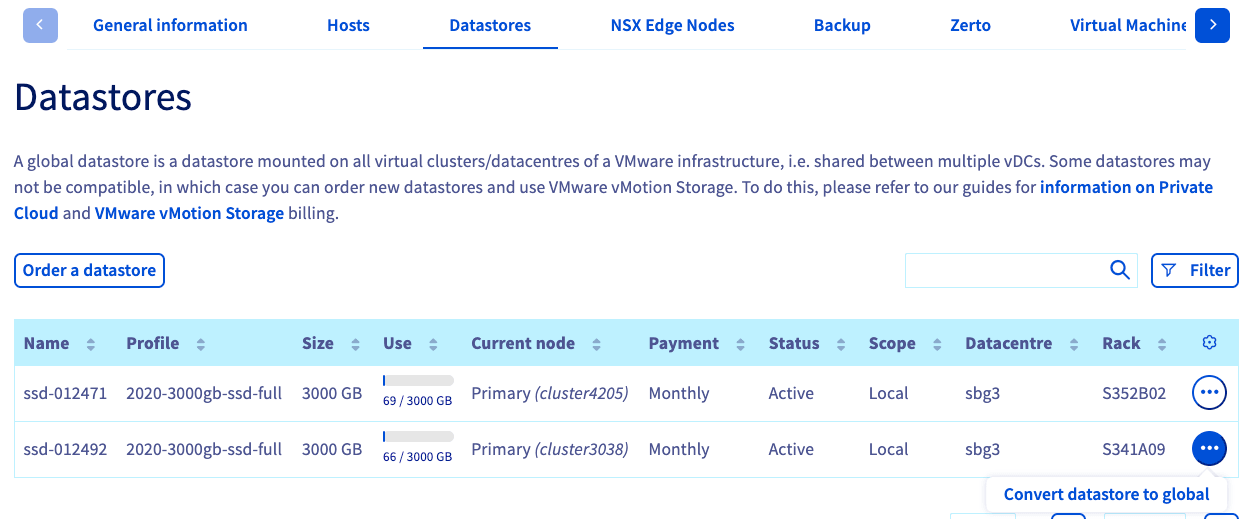
- Datacenters
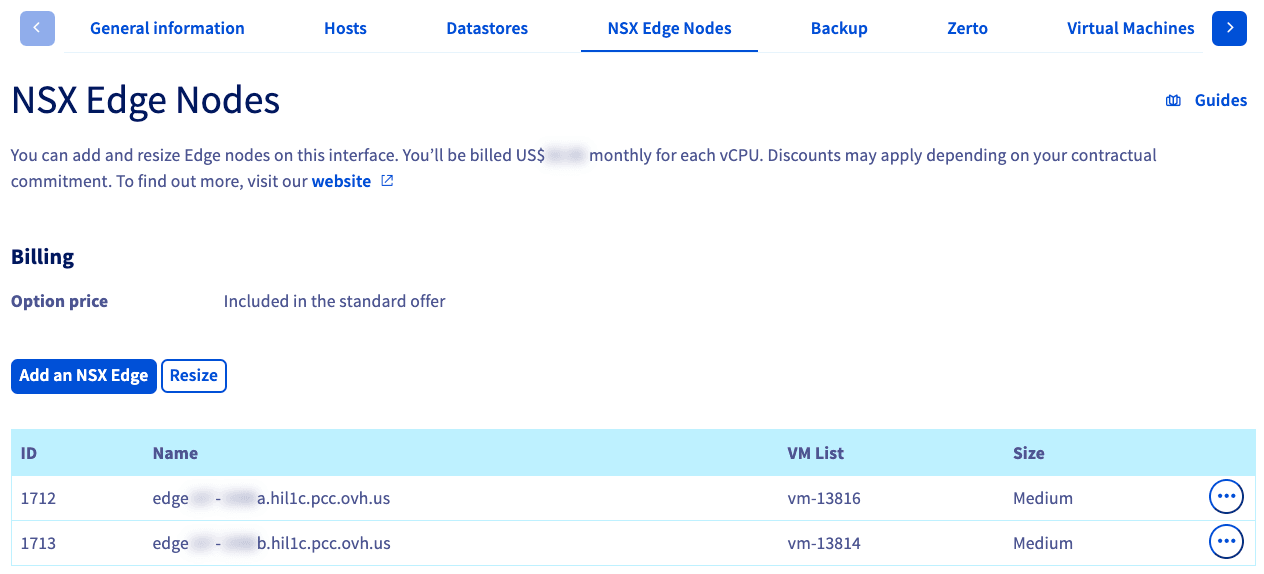
- NSX Edge Nodes (depending on your host profile)
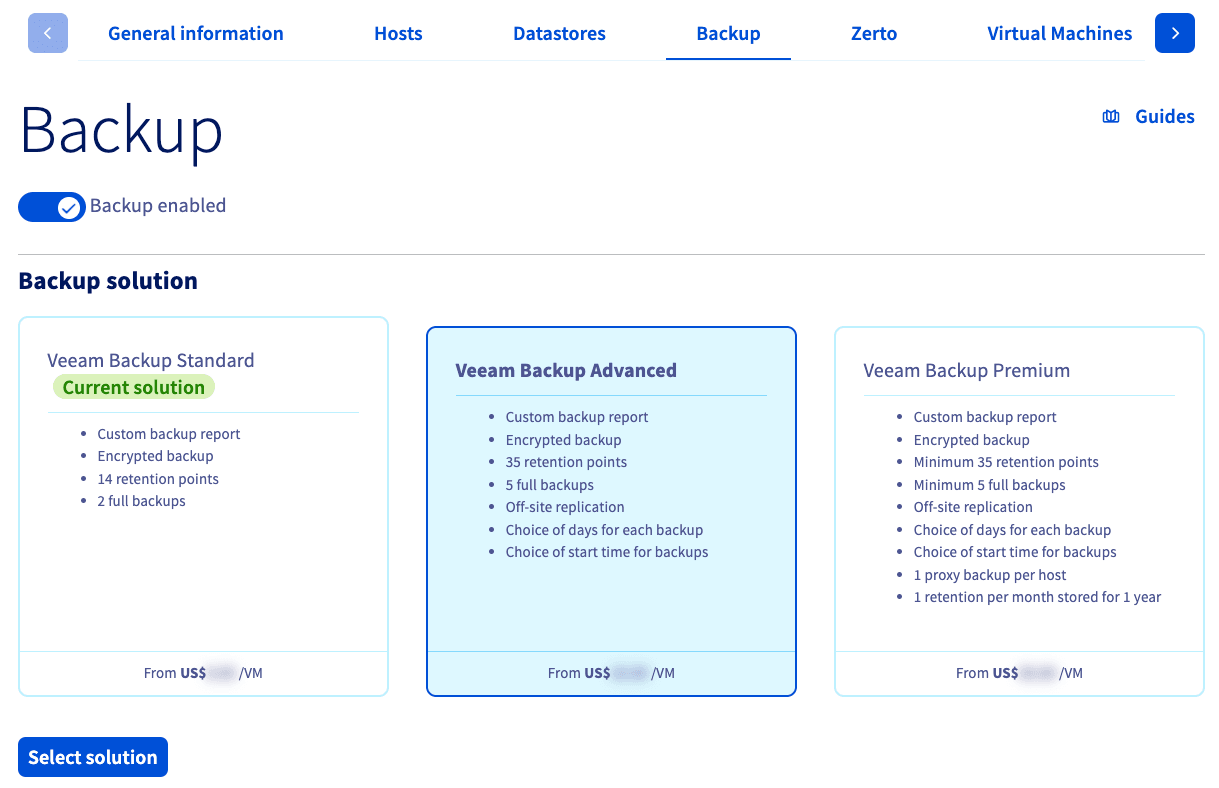
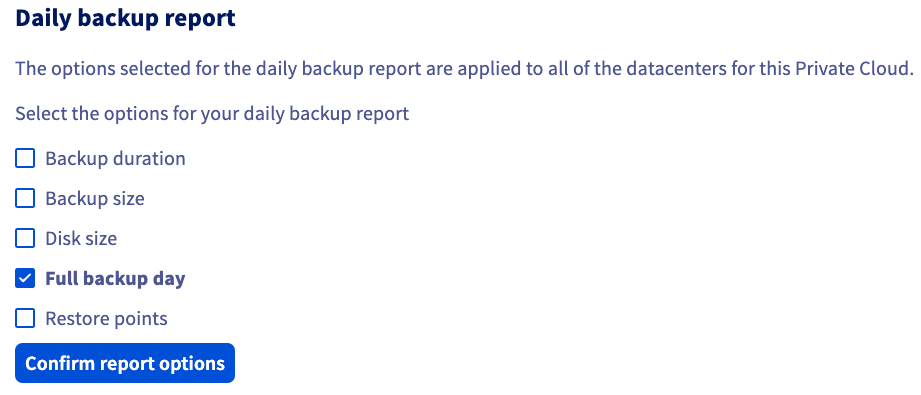
- Backup
- Zerto
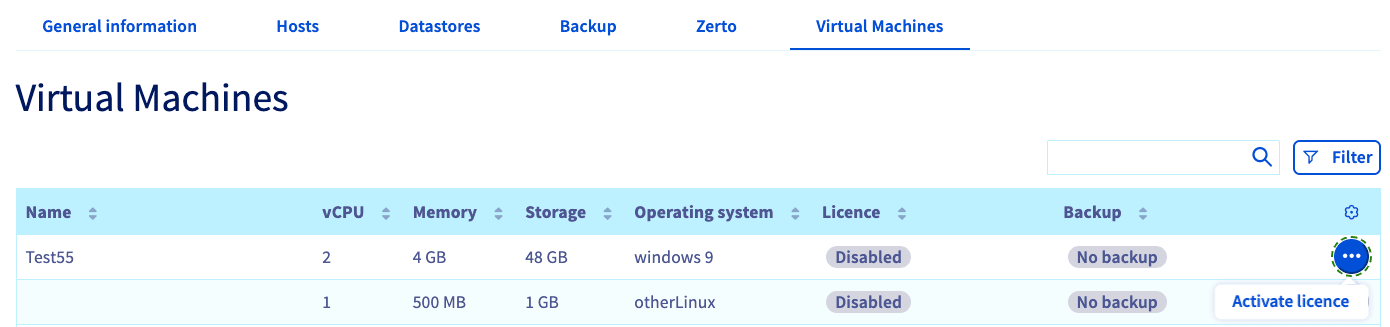
- Virtual Machines
Each of these areas and the actions that can be completed within them are explored in the menu below.
No matter which tab you are on, you can click the pencil icon at the top of the page to change the name of your datacenter.
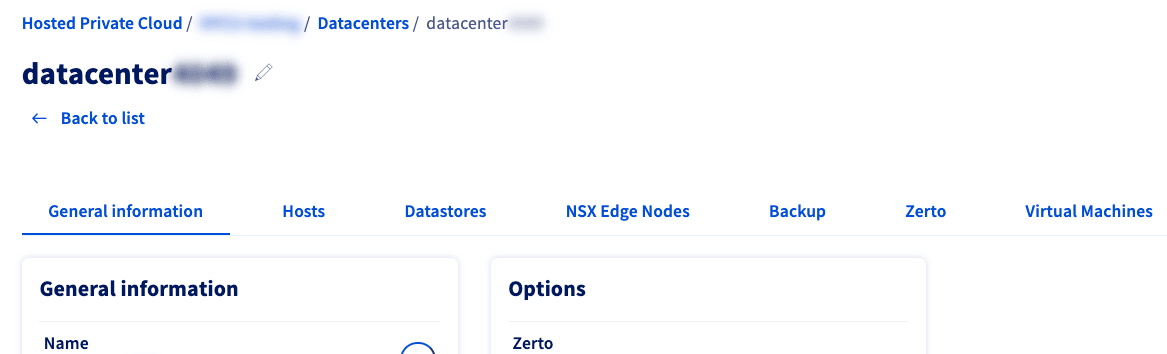
The General information tab provides basic information about your datacenter, such as the name, range, number of hosts and datastores, and links to management interfaces.
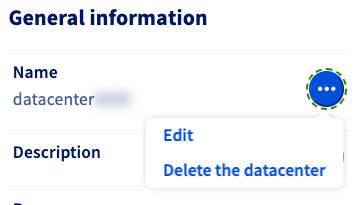
Edit the name of or delete a datacenter.
In the General information panel, click the more options ... button to the right of Name and choose Edit or Delete the datacenter.
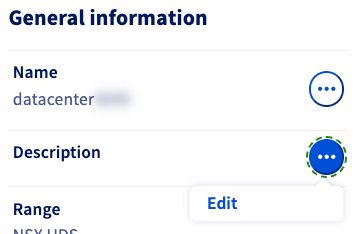
Edit the description of a datacenter.
In the General information panel, click the more options ... button to the right of Description and choose Edit.
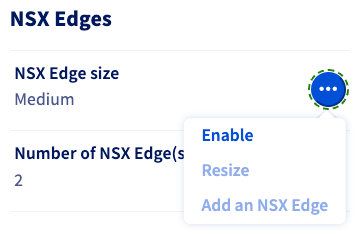
Enable, resize, or add NSX Edge nodes (available depending on environment).
In the NSX Edges panel, click the more options ... button to the right of NSX Edge size and choose Enable, Resize, or Add an NSX Edge.
For more information about managing NSX Edge nodes, please see our Pricing and management of OVHcloud NSX Edges guide.
Go further
Browse all the VMware on OVHcloud guides.
Browse the rest of the OVHcloud US documentation for guides on our other products and services.
Learn more about VMware on OVHcloud on the OVHcloud US website.