
AI Training - Tutorial - Use TensorBoard inside a job
Learn how to launch a TensorBoard with AI Training.
TensorBoard is a tool made by TensorFlow that provides measurements and visualizations needed during the machine learning workflow. It enables tracking experiment metrics like loss and accuracy, visualizing the model graph, projecting embeddings to a lower-dimensional space, and much more.
TensorBoard provides a visual interface:
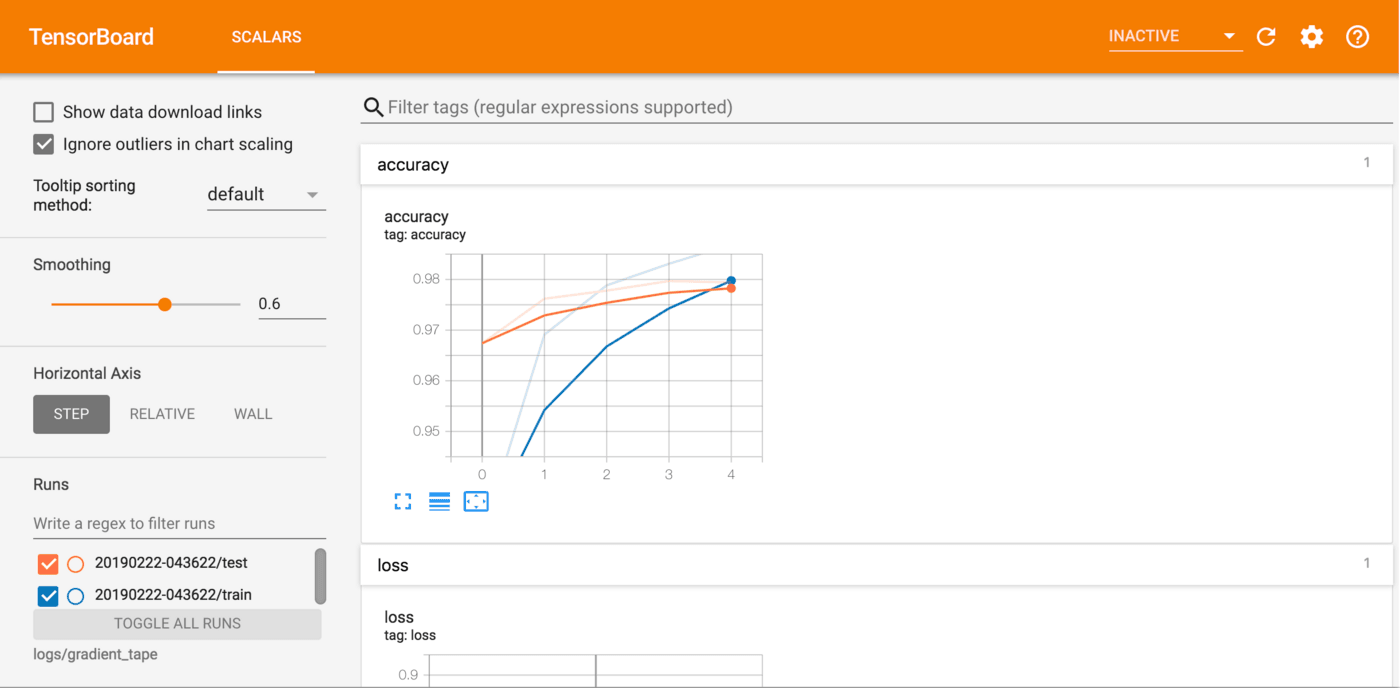
The tutorial presents a simple example of launching TensorBoard in a job.
Requirements
- a working
ovhaiCLI how to install ovhai CLI
Instructions
Have an object store container where your metric logs are saved
First, you must have trained your model and saved your results in an object store container (example: my_tf_metrics located in Vint Hill US-EAST-VA).
Alternatively, you can have a job already RUNNING that is connected to that object store container and is writing metric logs inside it (example: my_tf_metrics@VIN:/runs:RW:cache). In that last case, don't forget the cache parameter indicating that the volume is cached and sharable among jobs. More information about volume configuration in jobs can be found here, and information about volume caching can be found here.
If you want to see an example of how to use TensorBoard to train a model, please refer to this notebook on GitHub.
Launch TensorBoard in a job
To launch TensorBoard in a job, you need to access the ovhai CLI and run this command:
First, set the number of CPUs. For this type of job, you don't necessarily need a lot of resources.
--cpu 1 indicates that you request 1 CPU for that job.
The default port for TensorBoard is 6006.
--default-http-port 6006 indicates that the port to reach the job URL is the 6006.
Connect the volume containing your tensorboard metric logs.
--volume my_tf_metrics@US-EAST-VA:/runs:RO:cache indicates that you are connecting the container my_tf_metrics from Vint Hill (UA-EAST-VA) Object Store into the /runs directory of your job. The read only RO permission is enough because TensorBoard does not need access to write. The container my_tf_metrics@US-EAST-VA should contain your tensorflow metrics.
Specify the tensorboard launch command.
tensorboard --logdir=/runs --bind_all indicates that we want tensoboard to be watching over the /runs directory. Don't forget the --bind_all parameter or you won't be able to access your tensorboard from the public network.
Consider adding the --unsecure-http attribute if you want your application to be reachable without any authentication.
Once the job is running you can access your TensorBoard directly from the job's url.
Go further
To compare AI models based on resource consumption, accuracy, and training time, refer to this tutorial.
Browse all the AI & Machine Learning guides.
Browse the rest of the OVHcloud US documentation for guides on our other products and services.
Learn more about AI & Machine Learning on the OVHcloud US website.
If you need training or technical assistance to implement our solutions, contact your sales representative or click on this link to get a quote and ask our Professional Services experts for a custom analysis of your project.