
Configuring an OVHcloud Load Balancer service with redirects
The OVHcloud Load Balancer acts by default as a proxy. It can also be configured to redirect your customers to a third-party website. This functionality is essential for scenarios such as domain name migration or enforcing the HTTPS version of a website. This is known as HTTP redirection.
Requirements
- An OVHcloud Load Balancer service in your OVHcloud account
- Access to the OVHcloud Control Panel or OVHcloud API
Instructions
Overview
An HTTP redirection is presented as follows:
Custom redirections should have the following form: <scheme>://<net_loc>/<path>;<params>?<query>#<fragment>. You can only specify one redirection per front-end.
Custom redirections can be specified via the OVHcloud Control Panel and API, both on new and existing front-ends.
Adding a custom redirect
Creating a new frontend
You can define custom redirections from the OVHcloud Control Panel by going to the Bare Metal Cloud section, and then Load Balancer.
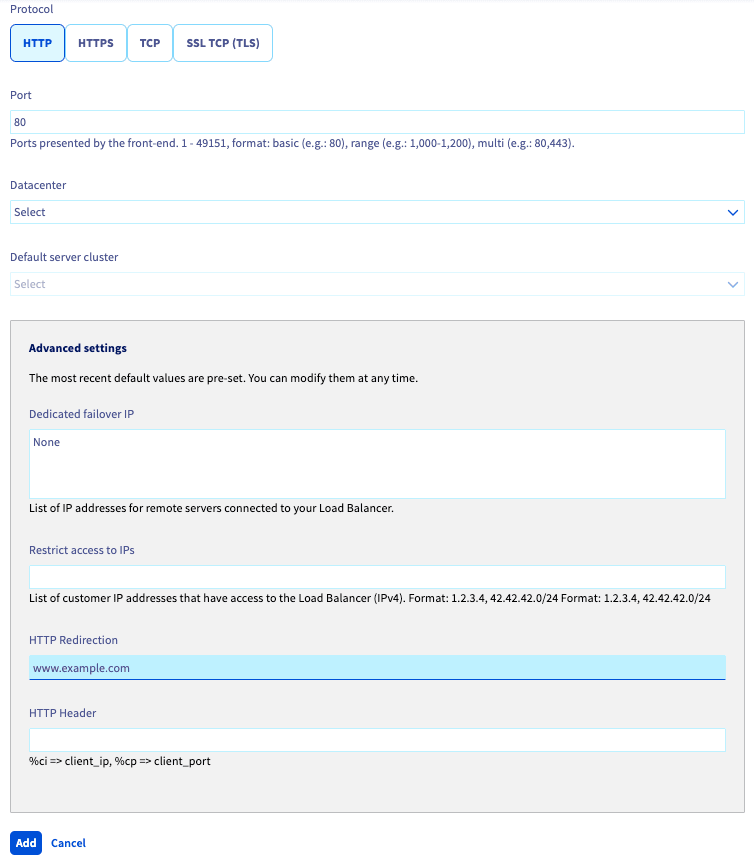
You can follow these instructions to create a new front-end, but take note of the following during the creation:
- Select
HTTPorHTTPSprotocol. - Configure the information as requested. However, please note that there is no need to set a
Default server cluster, as it will not be used. - In the advanced settings, enter the
HTTP redirection.
Once the front-end has been configured, click Add and apply the changes to your Load Balancer configuration.
Updating an existing frontend
You can define custom redirections from the OVHcloud Control Panel by going to the Bare Metal Cloud section, and then Load Balancer.
In the Front-ends tab of the OVHcloud Control Panel, select the front-end you would like to edit. To do this, click the more options ... button, then select Edit in the menu that appears. Please ensure that the front-end you have chosen uses either HTTP or HTTPS protocol.
Complete the configuration if necessary. However, there is no need to specify a Default server cluster, as it will not be used.
In the advanced settings, enter the HTTP redirection.
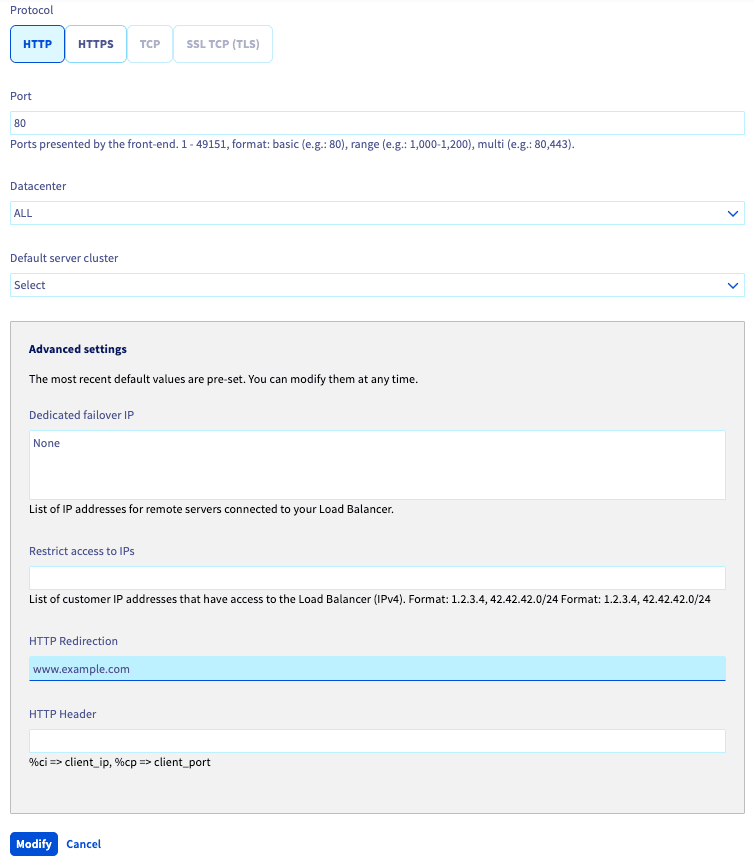
Once the front-end has been configured, click Modify and apply the changes to your Load Balancer configuration.
Applying the changes
There are two ways of applying your configuration via the OVHcloud Control Panel:
-
via the Status panel of the OVHcloud Control Panel, by clicking on your Load Balancer’s more options
...button, then selectingApply configuration.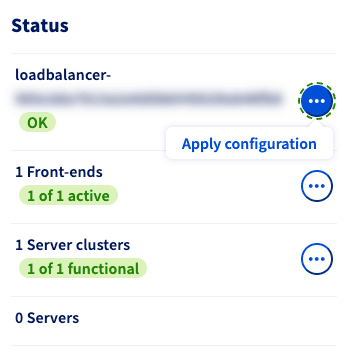
-
via the reminder box in the OVHcloud Control Panel, notifying you that the configuration has not been applied, by clicking
Apply configuration.
Go further
Browse all the Load Balancer guides.
Browse the rest of the OVHcloud US documentation for guides on our other products and services.
Learn more about Load Balancer on the OVHcloud US website.