
OVHcloud Load Balancer - TCP / HTTP / HTTPS logs forwarding
If you would like to find out more about Logs Data Platform before reading this guide, please refer to the Logs Data Platform introduction guide.
To use this feature, you must first make a refresh call via the API to the Load Balancers whose logs you want to collect. This is necessary to ensure that the logging format of the OVHcloud Load Balancer is up to date. You can use the API call below, where serviceName is the internal name of your Load Balancer, which you can find in the Load Balancer management page in the OVHcloud Control Panel or using the dedicated API call.
Glossary
- Logs Data Platform: a fully managed and secured log management platform by OVHcloud. For more information, consult the Logs Data Platform service page.
- Data Stream: a logical partition of logs that you create in an LDP account and which you will use when ingesting, viewing, or querying your logs. Multiple sources can be stored in the same data stream, and it is the unit that can be used to define a log pipeline (retention policy, archiving, live streaming, etc.), access rights, and alert policies.
- Logs forwarding: a feature integrated into an OVHcloud product to ingest the logs of its services into a Data Stream of an LDP account in the same OVHcloud account. This feature must be activated by the customer and per service.
- Logs forwarding Subscription: when enabling the logs forwarding for a given OVHcloud service to a given LDP Data Stream, a Subscription is created and attached to the Data Stream for further management by the customer.
Requirements
- A Logs Data Platform (LDP) account with at least one active Stream configured. This guide will walk you through all the necessary steps: Quick start for Logs Data Platform.
- If you are not familiar with all the LDP Stream configuration possibilities, simply create a new one with the default options (indexing & websocket enabled, long-term storage disabled) for this guide.
- An up-and-running OVHcloud Load Balancer.
- Both the LDP account and the OVHcloud Load Balancer account must belong to the same OVHcloud account.
Concepts & limits
NOTE: To date, the logs of the UDP listeners are not forwarded.
What are the logs of an OVHcloud Load Balancer?
The forwarded logs are generated by HAProxy (the open-source component used for load balancing).
Log content for TCP-based listeners: TCP, HTTP
Additional content for HTTP listeners
Instructions
Note that the forwarding activation is free of charge, but you will be charged for the usage of the Logs Data Platform service as per the standard price plan. For LDP pricing, refer to this page.
Enabling Load Balancer Log Forwarding
Via the OVHcloud Control Panel
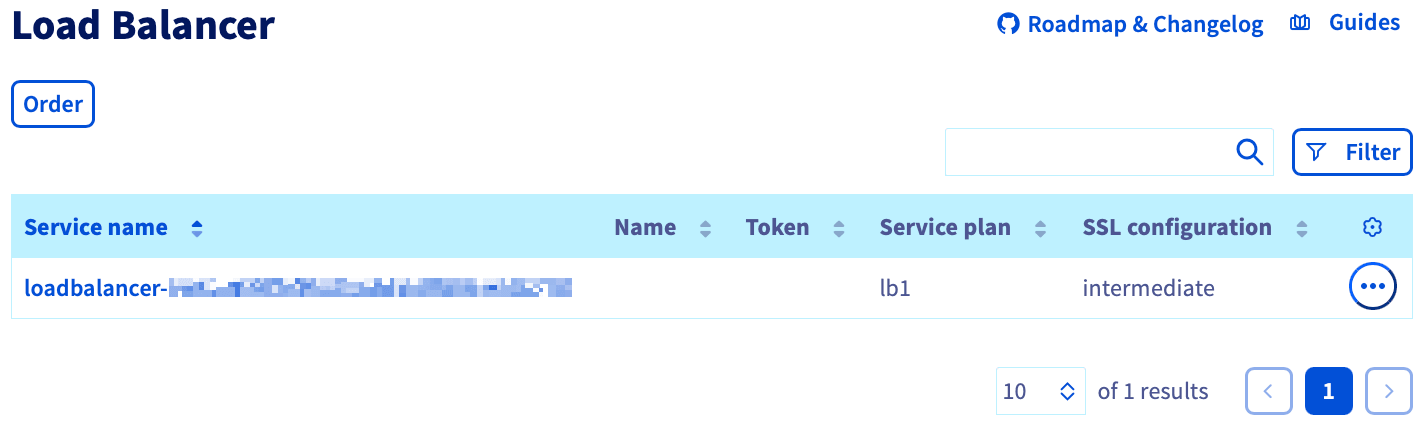
From the OVHcloud Control Panel, navigate to and click on your Load Balancer service name via the Network and Load Balancer menus.
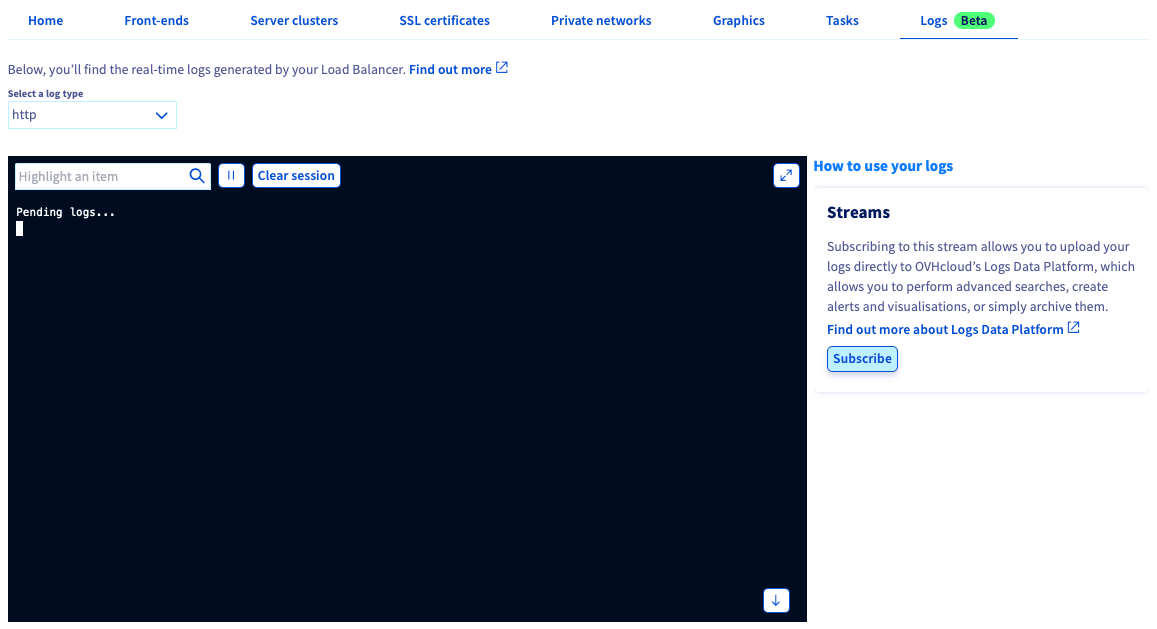
Choose the Logs tab and click the Subscribe on the right-hand side of the screen.
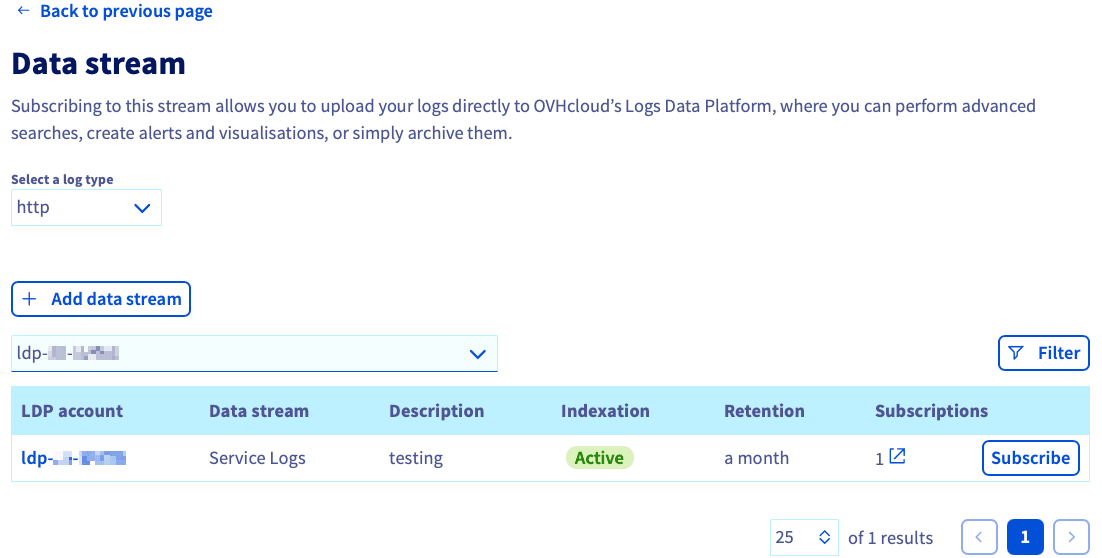
Select a log type and the Logs Data Platform service to which you wish to push logs.
How to use OVHcloud Load Balancer logs?
Now that your logs are ingested and stored in your Logs Data Platform data stream, you can query your logs and build dashboards to have a graphical representation of your logs using the web-based UI of Graylog.
- In the OVHcloud Control Panel, retrieve the LDP username (ex: logs-xxxx) and its password in your Logs Data Platform account home page. You can refer to the Quick start guide for Logs Data Platform.
- Open the Graylog web UI. You can retrieve the link on your account home page or using your Access point, depending on your account region (for example: Gravelines region is https://gra1.logs.ovh.com/).
- Log in to Graylog using your Logs Data Platform Username and Password.
- Search through your logs across the data stream of your Logs Data Platform account. You can refer to Graylog writing search queries documentation for details on search syntax.
Refer to the following documentation: Logs Data Platform - Visualizing, querying and exploiting your logs for more details about how to use your logs with Logs Data Platform, including how to:
- setup alerts
- view the logs in real time through a WebSocket
- build visualization with OpenSearch Dashboards
- integrate with OpenSearch API
- connect with Grafana
How to manage your subscriptions?
At any time, you can retrieve the subscriptions attached to your Logs Data Platform data stream and choose to disable the forwarding by cancelling your subscription on your stream, so that your Logs Data Platform stream no longer receives your audit logs.
Note that this does not delete the logs stored before the subscription was cancelled, as the data stored in a log stream is immutable unless you delete the entire stream.
Via the OVHcloud Control Panel
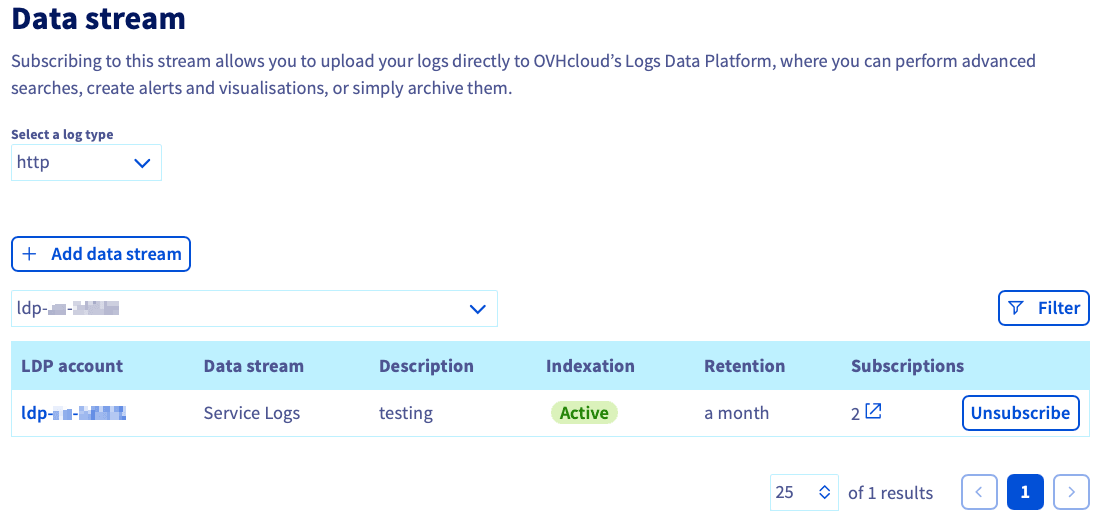
To delete your subscription, simply click the Unsubscribe button to the right of your stream.
Go further
If you need training or technical assistance to implement our solutions, contact your sales representative or click on this link to get a quote and ask our Professional Services experts for a custom analysis of your project.