
Adding an IP block
Requirements
- Be the administrative contact of your VMware on OVHcloud infrastructure to receive login credentials.
- Have a user account with access to vSphere (created in the OVHcloud Control Panel).
OVHcloud Control Panel Access
- Direct link: VMware vSphere
- Navigation path:
Hosted Private Cloud>Managed VMware vSphere> Select your vSphere service
Instructions
Order an IP block
From the OVHcloud Control Panel, open the Network section in the left-hand navigation menu and then click IP. On the following screen, click + Order IPs.
-
Select IPv4 as the address version.
-
Choose your Hosted Private Cloud (VMware) environment in the dropdown menu.
-
Choose the size of your IP block.
InfoAs a reminder, here is a table listing the number of IPs present in a block, and the number of usable IPs.
Please feel free to refer to our guide on the OVHcloud Network plugin to learn which IPs are reserved for your block and how they are used.
There is a one-time setup fee for an IP block, payable before delivery.
Once you have confirmed the final step, you will receive the purchase order for your IP block. If everything looks correct in the purchase order, you will simply need to pay the total using one of the payment methods listed at the bottom of the page, and your order will then be delivered.
Migrate an IP block between two Hosted Private Cloud solutions
To migrate an IP block, you will need to move the blocks manually via the OVHcloud APIv6.
Use the following API call:
You will need to fill in the fields as follows:
- ip: IP block with the /mask
- nexthop “newPrimaryIp” (case-sensitive)
- to: Target Hosted Private Cloud in the following form: pcc-XXX-XXX-XXX-XXX
The result should look like this:
If you need to detach the IP block, you can use the following API call to move the IP into the "IP parking" section:
NOTE: This call cuts the network on the VMs that use the IPs concerned.
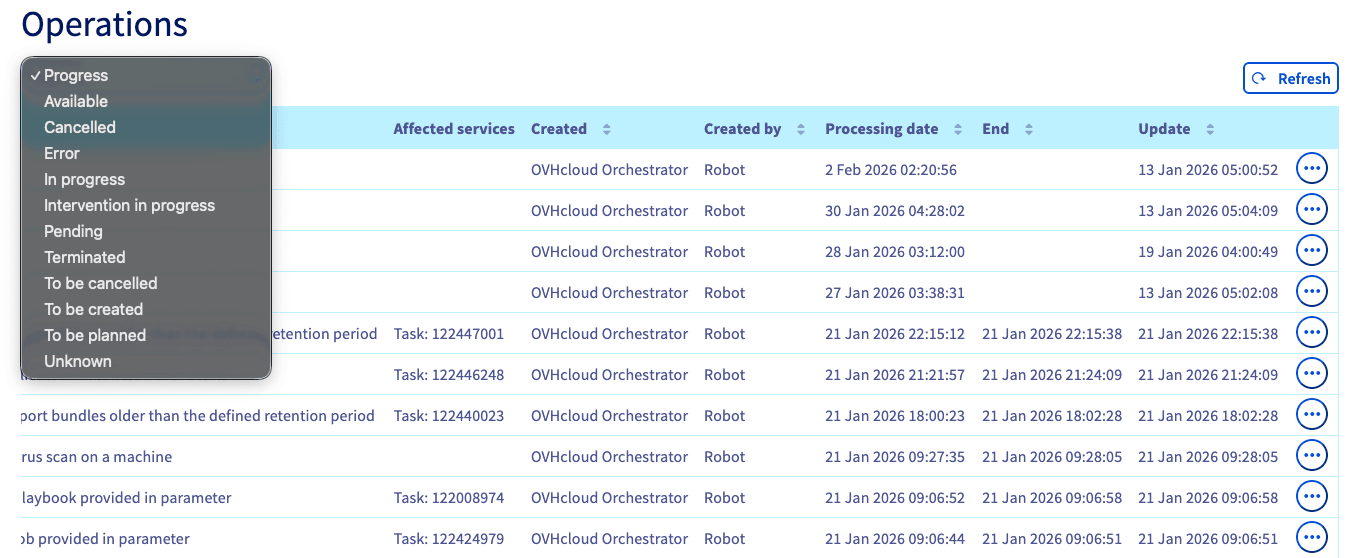
You can track the movement of your IP block in your VMware vSphere environment via the Operations tab.
The operation reference will be “removeIpRipeBlock”.
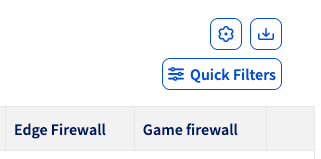
The IP section, you can use the Quick Filters button to Show IP addresses on Parking (unused) only.
Go further
Browse all the VMware on OVHcloud guides.
Browse the rest of the OVHcloud US documentation for guides on our other products and services.
Learn more about VMware on OVHcloud on the OVHcloud US website.