
Getting started with Cloud Archive Storage
The Public Cloud Archive offer is an unlimited storage solution with simple billing tailored to your needs. There are many types of object containers:
- For static hosting (static website).
- For private hosting (e.g., storage of personal data).
- For public hosting (to store everything that is accessible to the public).
- For cold storage (archiving).
Requirements
- Access to the OVHcloud Control Panel
- A Public Cloud project in your account
Instructions
Creating a Public Cloud Archive container
From the OVHcloud Control Panel, navigate to the Cloud Archive section via the Public Cloud menu.
Click Create an archive container (or + Create an archive container if this is not your first container).
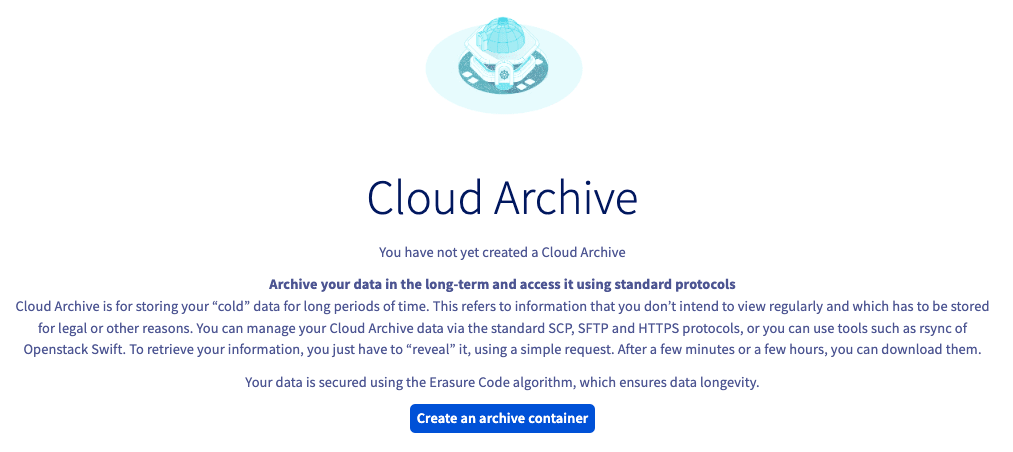
Select the region for your container and then click Next:
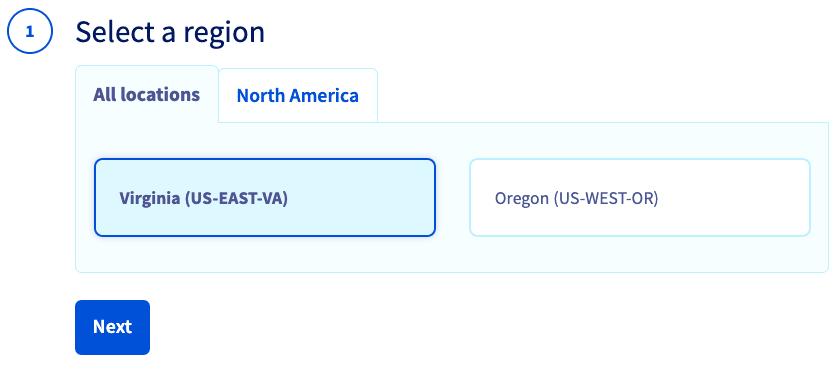
Name your container, then click Create the container:
NOTE: If you want to link your container to a domain name, your container name must not contain the following characters:
- [ . ]
- [ _ ]
- And you must not use capital letters.
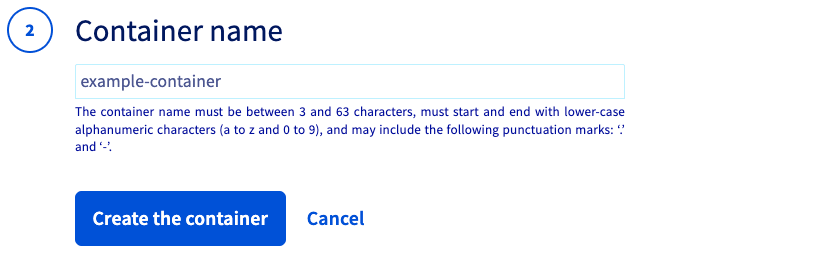
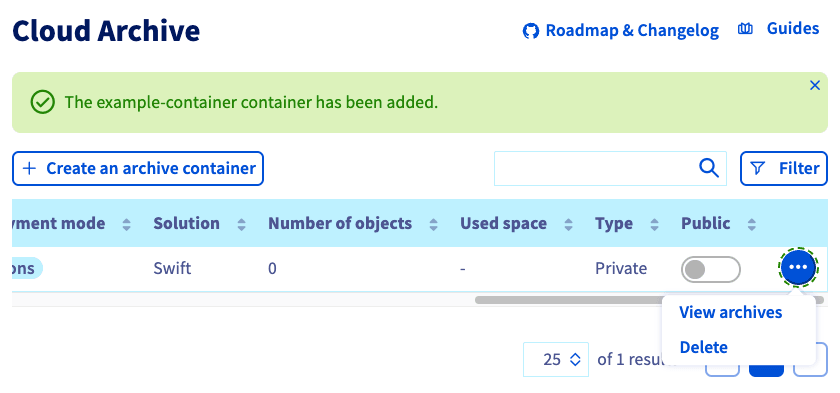
Managing and canceling your container
Once your container is created, you can manage or cancel your container by clicking the more options ... button to the right of your container.
Go further
Browse all the Object Storage (S3™-compatible) guides.
Browse the rest of the OVHcloud US documentation for guides on our other products and services.
Learn more about Object Storage on the OVHcloud US website.