
Finding the serial number of a hard disk
To minimize the chance of human error during hard disk replacements, we ask our customers to provide the serial number of the disk they want to replace.
Requirements
- A dedicated server
- Administrative (sudo) access to the server via SSH
Instructions
For an NVMe disk, place the server in rescue mode and use the nvme-cli tool installed by default.
Retrieve a disk's serial number (Software RAID)
To retrieve your hard drive's serial number with a software RAID configuration, you can simply use:
The device is detected by the OS (e.g., /dev/sda, /dev/sdb, etc.).
Retrieve a disk's serial number (NVMe disks)
For NVMe disks, it will be necessary to use the command:
You can then see the serial numbers of your NVMe disks (nvme0 and nvme1).
Retrieve a disk's serial number (Windows)
For Dedicated Servers with Windows Server installed, Windows PowerShell can be used to view the serial number on your devices.
To open Windows PowerShell, click the magnifying glass icon on the bottom-left of the Windows home screen. Type "powershell" into the search bar and select Windows PowerShell.
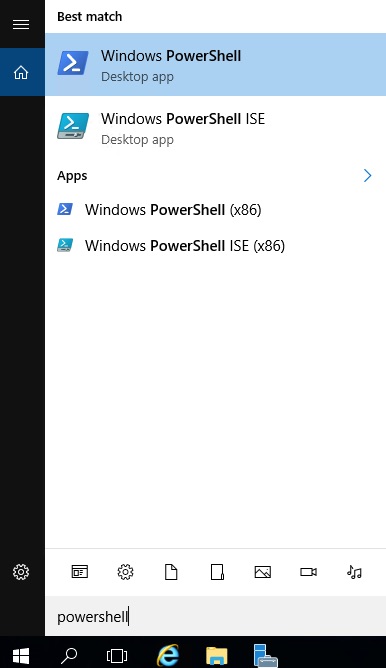
In PowerShell, enter the following command:
Depending on the drive type (HDD, NVMe, SSD), the serial number is collected in a different property of the command. The DeviceId property will identify the disk position
Usually (with possible exceptions):
- SATA HDDs use
SerialNumber - NVMe drives use
AdapterSerialNumber - SATA SSDs use either of the above.
Here is a sample output on a Dedicated Server with two HDD storage devices, but this will also work with NVMe storage devices:
Retrieve a disk's serial number (Hardware RAID)
For an in-depth look at these commands and how to test your hard disks, refer to this guide (LSI raid controller).
MegaRaid Controller
Step 1: Recover RAID sets
You can find the serial number using the smartctl command. However, before executing this command, you will need to find out how many RAID sets (or Virtual Drives) your server contains.
You can retrieve this information by using the following command:
In this example, there are two RAID configurations on the server (Adapter 0 and Adapter 1). These should be mapped to /dev/sda and /dev/sdb.
Step 2: Recover disk information
Next, you will need to gather the physical disk information using the following command:
Step 3: Recover the serial number
The Device ID and Adapter ID will be used to tell smartctl which disk to look for in which RAID array.
The command should look like this:
The RAID Device ID will be displayed as follows: /dev/sda = 1st RAID, /dev/sdb = 2nd RAID, etc.
In some situations, you may receive this output:
/dev/sda [megaraid_disk_00] [SAT]: Device open changed type from 'megaraid' to 'sat'
You must then replace megaraid with sat+megaraid:
smartctl -d sat+megaraid,N -a /dev/sdX | grep Serial
Retrieve a disk's serial number (LSI RAID Controller)
LSI RAID controller uses a module called sg-map, which maps devices in /dev/sgX (X being the number defining the device).
You can refer to this guide (LSI raid controller) to find which hard drive relates to a designated sg device.
Once you have found the sg device related to the hard disk you want to query, use the following command:
The sg device number will be displayed as follows: /dev/sg0, /dev/sg1, etc.
Go further
Browse all the Dedicated Servers guides.
Browse the rest of the OVHcloud US documentation for guides on our other products and services.
Learn more about Dedicated Servers on the OVHcloud US website.