
Configuring OVHcloud Link Aggregation in the OVHcloud Control Panel
OVHcloud Link Aggregation (OLA) technology is designed by our teams to increase your server’s availability and boost the efficiency of your network connections. In just a few clicks, you can aggregate your network cards and make your network links redundant. This means that if one link goes down, traffic is automatically redirected to another available link.
Aggregation is based on IEEE 802.3ad, Link Aggregation Control Protocol (LACP) technology.
Requirements
- A dedicated server from the Advance, Scale, or High Grade ranges in your OVHcloud account
- Access to the OVHcloud Control Panel
- An Operating System / Hypervisor that supports the 802.3ad aggregation protocol (LACP)
Instructions
NOTE: OLA is configured on all network interfaces. They will form a “private aggregation”.
After implementing OLA, the public IP address will no longer be accessible.
Configuring OLA in the OVHcloud Control Panel
To start configuring OLA, log in to the OVHcloud Control Panel and choose the Bare Metal Cloud section. Click Dedicated Servers, then select your server from the list.
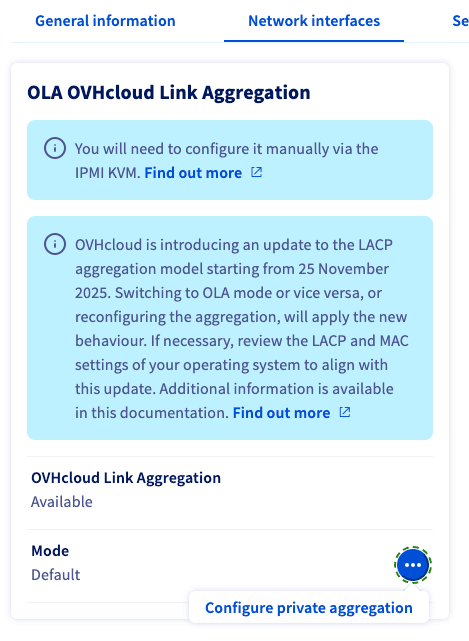
In the tab Network interfaces, click the more options ... button to the right of "Mode" in the OLA OVHcloud Link Aggregation panel. Next, click Configure private aggregation.
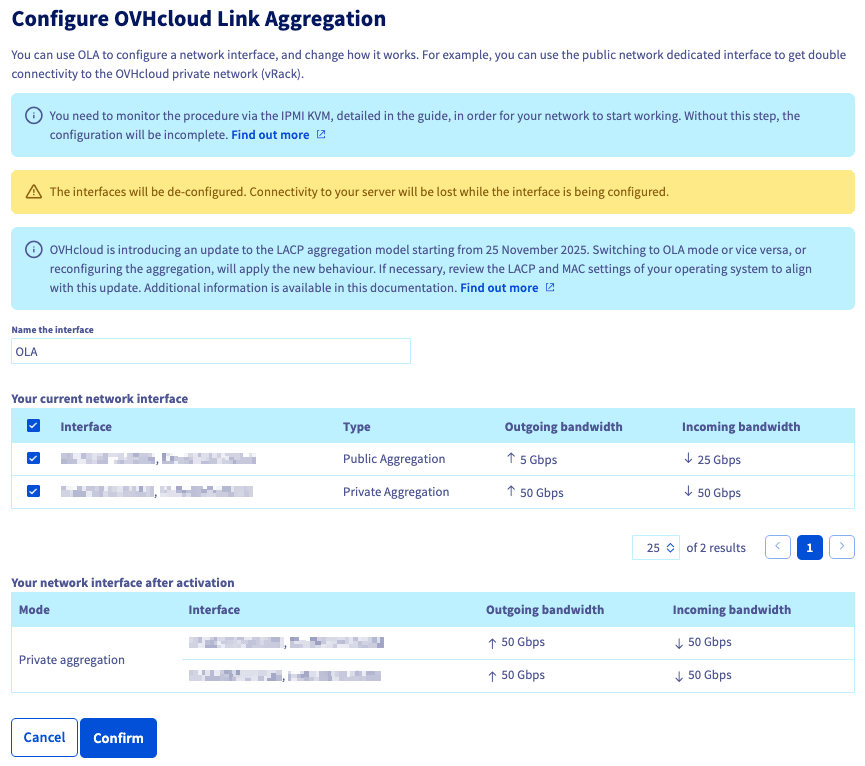
Make sure that both your interfaces, or interface groups, are selected and give the OLA a name. Click Confirm when your checks are complete.
The process may take a few minutes. Once it is complete, the next step is to configure the interfaces in your operating system via a NIC link or NIC team. For the method to use, refer to the following guides for the most popular operating systems:
- How to Configure Your NIC for OVHcloud Link Aggregation in Debian 9+
- How to Configure Your NIC for OVHcloud Link Aggregation in Windows Server 2019
Restoring OLA to default values
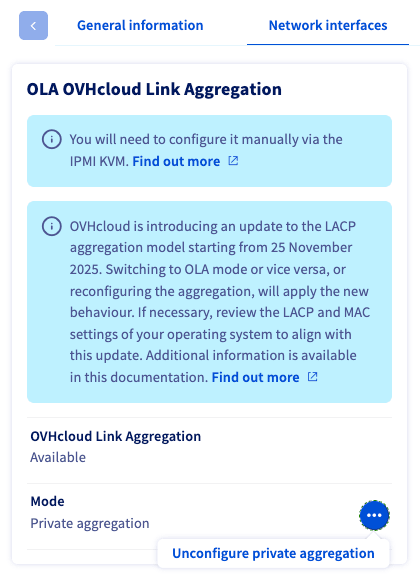
To restore OLA to the default values, click the more options ... button to the right of "Mode" in the OLA OVHcloud Link Aggregation panel. Then click Unconfigure private aggregation.
Click Confirm in the pop-up menu.
The process may take a few minutes.
Go further
How to configure OVHcloud Link Aggregation in Debian 9 to 11
How to configure OVHcloud Link Aggregation in Windows Server 2019
How to configure Link Aggregation with LACP in Debian 12 or Ubuntu 24.04
How to configure OVHcloud Link Aggregation in SLES 15
Browse all the Dedicated Servers guides.
Browse the rest of the OVHcloud US documentation for guides on our other products and services.
Learn more about Dedicated Servers on the OVHcloud US website.