
How to assign a tag to a Bare Metal server
Learn how to create, assign, and delete tags for each dedicated server from the OVHcloud Control Panel.
Tags are labels that can be attributed to your resources, allowing you to organize and manage them more efficiently.
Each tag consists of two parts:
- Key: Represents an attribute or category.
- Value: Corresponds to the information associated with that key.
For example, you can categorize your resources by site, service, or even security level. Using tags can make it easier to search, organize your resources, manage associated costs, and apply policies with the desired granularity.
Requirements
- A dedicated server in your OVHcloud account
- Access to the OVHcloud Control Panel
Instructions
Assign a tag to a dedicated server via the OVHcloud Control Panel
To tag a server:
- Log in to your OVHcloud Control Panel.
- Go to the
Bare Metal Cloudsection. - Click
Dedicated serversand select your server from the list.
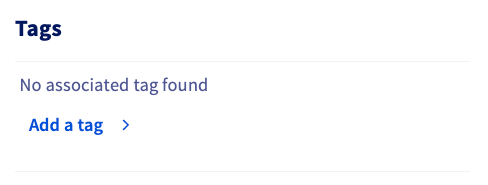
From the General information tab, scroll down to the Tags panel and click Add a tag.
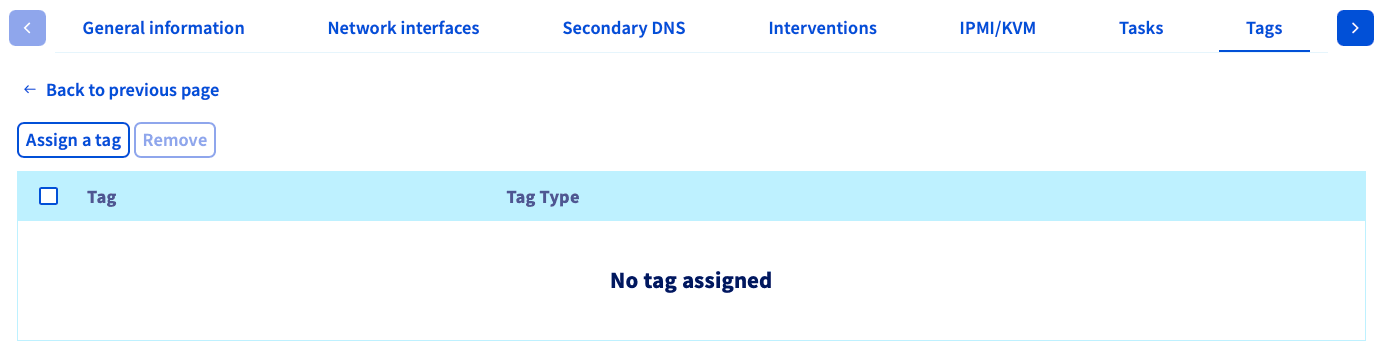
Click the Assign a tag button.
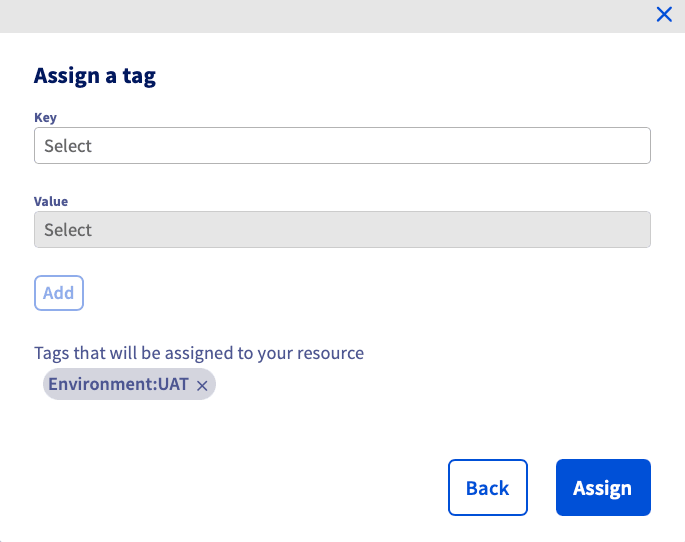
In the window that pops up, click in the Key field to open the dropdown menu, then select the key you want.
Next, click in the Value field and select the appropriate value from the dropdown menu.
If you want to use a key or value that does not yet exist, you can create it by entering it, then clicking Add your-value, where "your-value" corresponds to the text you have entered.
Finally, click the Add button to create the tag, then click the Assign button in the lower right-hand part of the window.
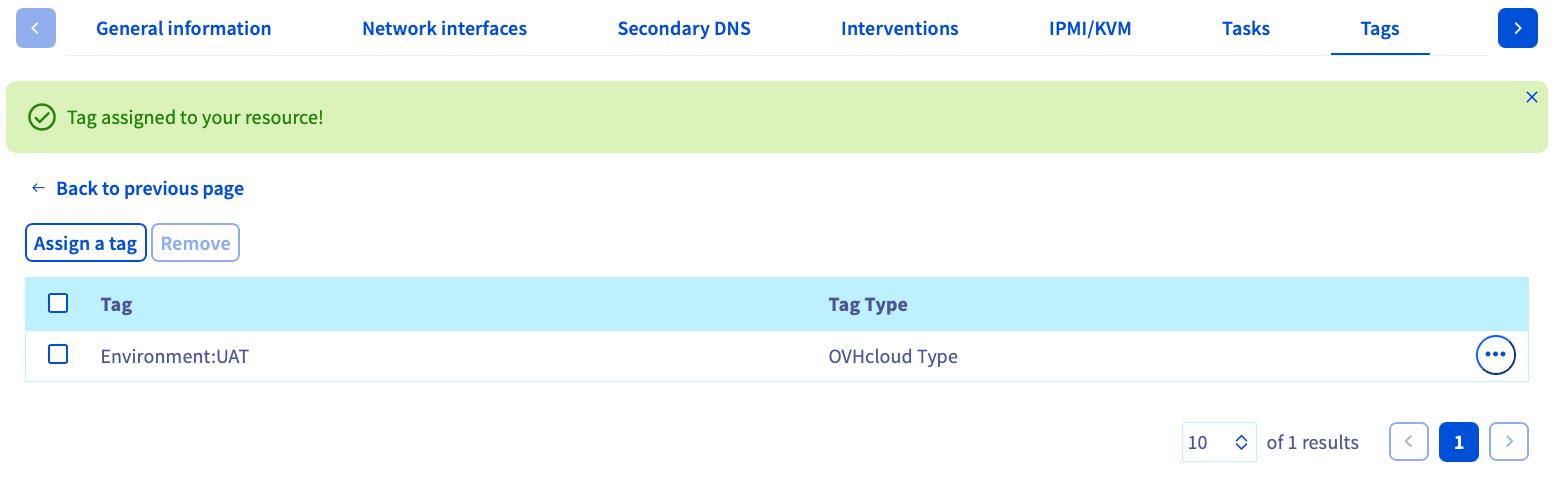
You will receive a green confirmation message, then see the list of tags applied to the chosen server.
Delete a tag on a dedicated server
To find the list of tags assigned to your server:
- Log in to your OVHcloud Control Panel.
- Go to the
Bare Metal Cloudsection. - Click
Dedicated serversand select your server from the list. - Go to the
Tagstab.
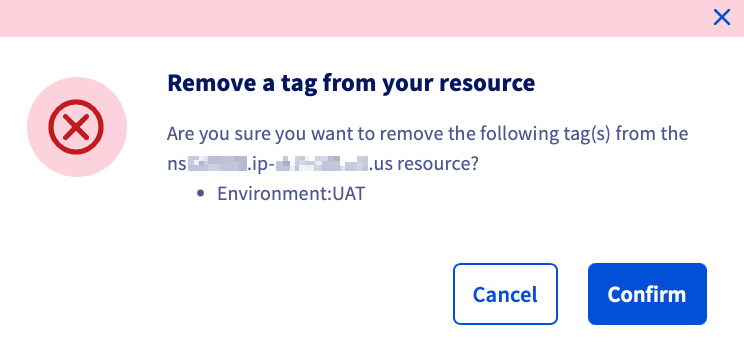
Click the more options ... button, to the right of the tag you want to remove from your server. Choose Remove.

A confirmation window will appear. Click the Confirm button to unassign the tag.
Go further
Browse all the Dedicated Servers guides.
Browse the rest of the OVHcloud US documentation for guides on our other products and services.
Learn more about Dedicated Servers on the OVHcloud US website.