
Public VCF as-a-Service - Backup with Veeam Data Platform
Learn how to back up and restore with the Veeam Plug-in for VMware vCloud Director managed on OVHcloud.
Requirements
- An administrator vCloud Director account with a Public VCF as-a-Service Organization
- A user with the Organization Administrator role to connect to the Veeam Data Platform Self-Service Portal (the new admin user in a virtual data center has the default role)
- You need to have read the following Public VCF as-a-Service guides:
The fundamentals of Public VCF as-a-Service
Logging in to your organization
How to Use the Public VCF as-a-Service user interface - Be familiar with how Veeam Backup works
- An understanding of the financial impact following the various load factors that apply when setting up this solution with VCD (see the pricing grid for Veeam vCD on OVHcloud backups)
If you wish to use the Gold Repository, you will need to enable it from the OVHcloud Control Panel. See more details is the Repositories tab of the Backups and repositories section.
Instructions
Veeam Data Platform supports Public VCF as-a-Service. It uses the Public VCF as-a-Service API to back up the vApps and VMs and restore them directly in the Public VCF as-a-Service hierarchy.
The Veeam Data Platform service is available and ready to use for all three OVHcloud solutions (see the features catalog).
NOTE: For the image processing and guest file system indexing options (compatible with the Veeam application) to work with Windows® virtual machines, the latest VMware tools must be installed. Linux VMs do not support application recognition or guest file system indexing.
If you are using application-aware image processing for MS SQL or Oracle database backups, application-aware and item recovery options will not be supported. A full restore of the virtual machine must be performed; this implies a downtime window for all database users. You cannot manually restart an immutable backup failure. You must run an active full backup or wait for the next scheduled backup to run (see Veeam documentation for more information).
Step 1 - Backup with Veeam Data Platform
The Veeam Data Platform service has a Public VCF-as-a-Service plugin to back up VMs and vApps from any Virtual Data Center (vDC) in the organization. It is available at the organization level for any Public VCF as-a-Service user with the organization administrator role.
Access the Veeam Data Platform administration console
When using VCD Data Protection integration with Veeam to create backup jobs, you can choose any VM instance from any virtual data center in the organization.
Click here for full instructions.
To access the Data Protection Portal with Veeam from Cloud Director, log in to the Public VCF as-a-Service Client Portal with a vCloud Director account with the appropriate rights.
In the left-hand menu, click More and select Data Protection with Veeam.
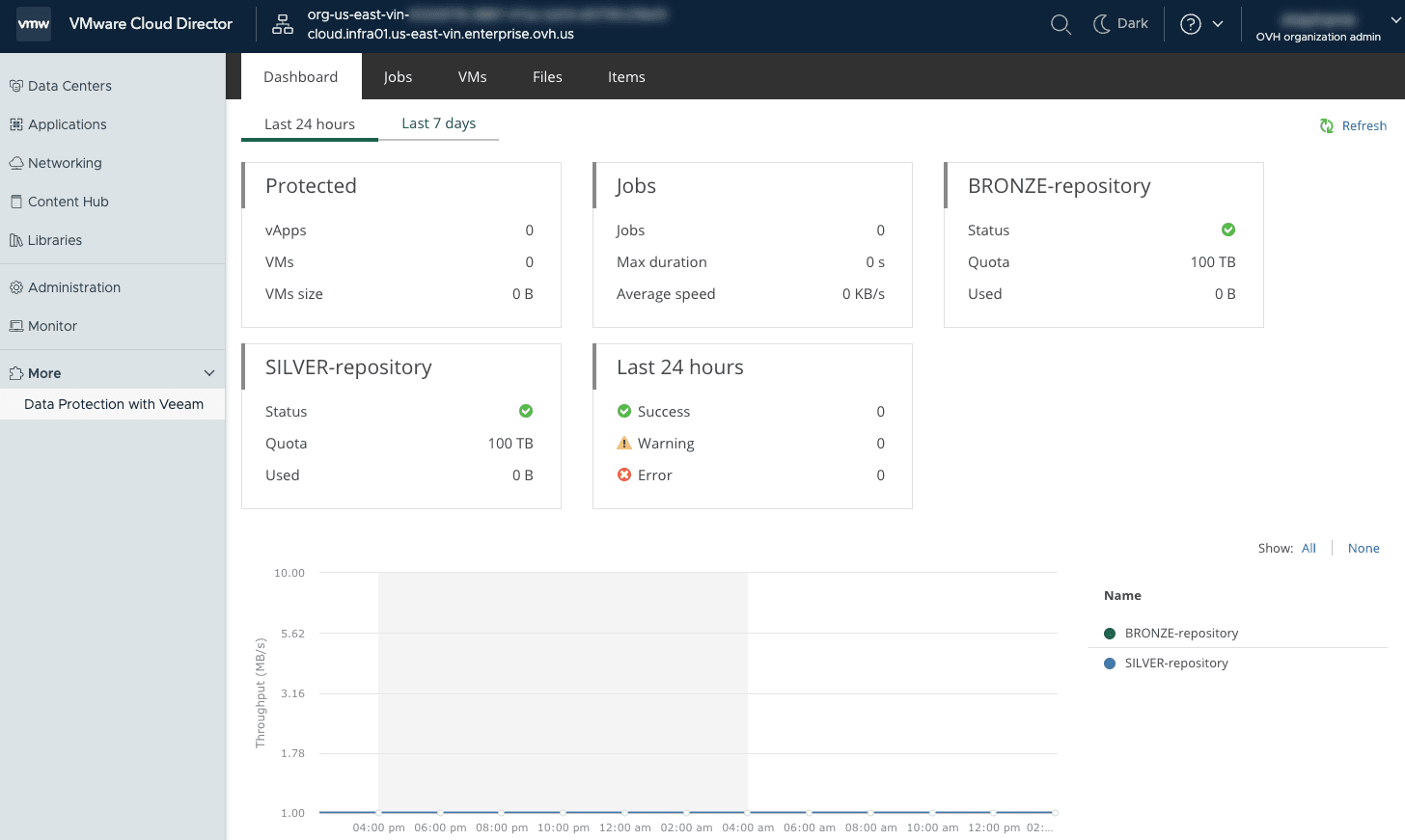
Backups and repositories
Click each tab across the top to view all content.
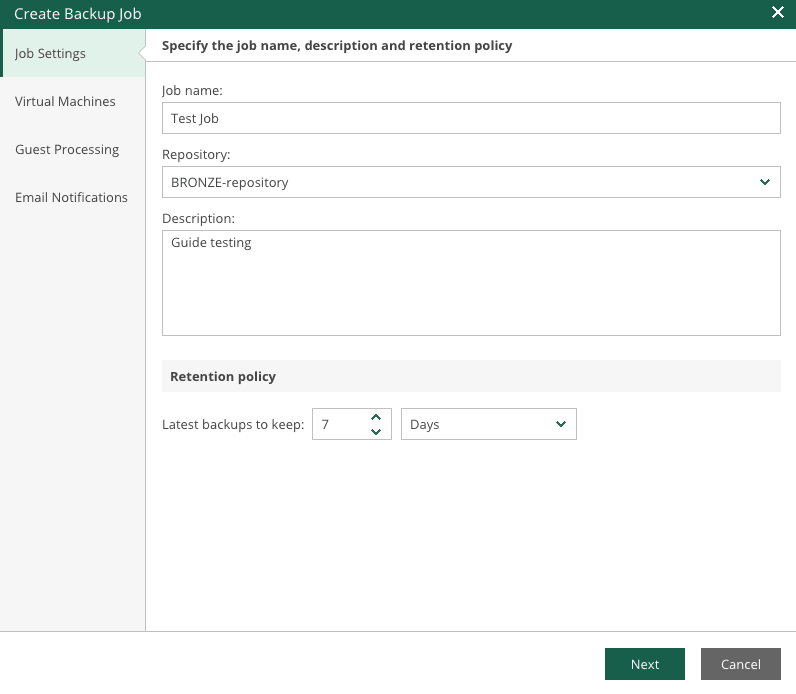
Backup jobs require four default settings:
- Job parameters: Name / Deposit or Quota (Bronze/Silver/Gold: 100TB) / Description / Retention (Days/Restore point)
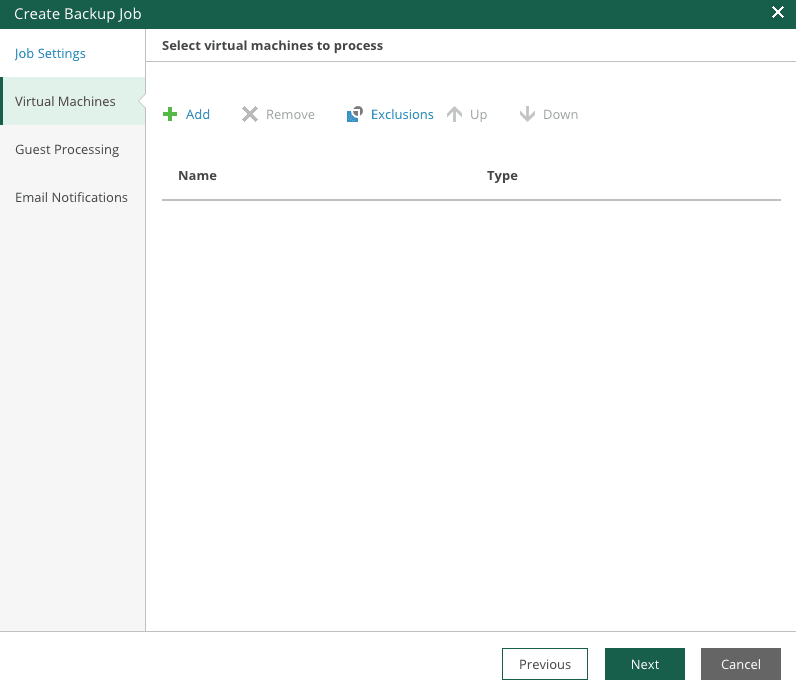
- Virtual machines (VMs): Add or exclude virtual machines/vApp/vCloud Organization
- Guest Processing: Application-aware processing / Guest file system indexing / Guest operating system credentials
- Email notifications: Enabling email notifications
For virtual machines managed by Public VCF as-a-Service, Veeam Backup & Replication offers a special type of backup job: VMware Cloud Director backup jobs. Public VCF as-a-Service backup jobs process VMware Cloud Director objects, ensure their proper recovery, and support specific Cloud Director features.
How do I create a backup job with the Veeam Data Platform?
You can create your first backup job using the Veeam Data Platform Public VCF as-a-Service plugin.
Click here for full instructions.
In the left-hand menu, click More and select Data Protection with Veeam.
Select the Jobs tab, and then the Create button.
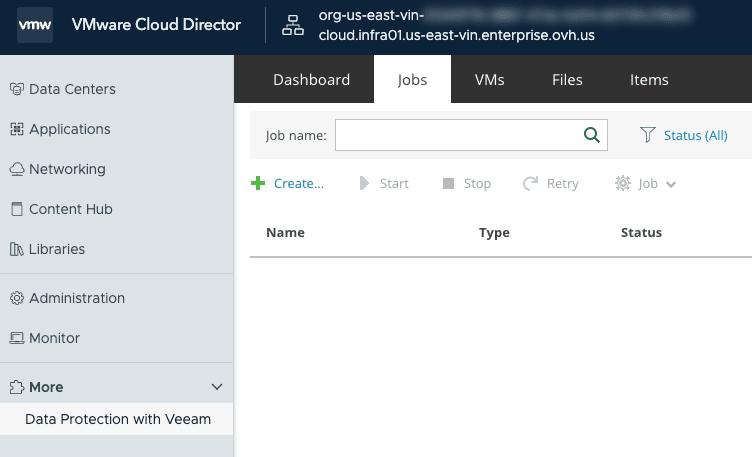
In the window that opens, specify the backup job name, description, and retention policy. Once you have defined the elements, click Next.
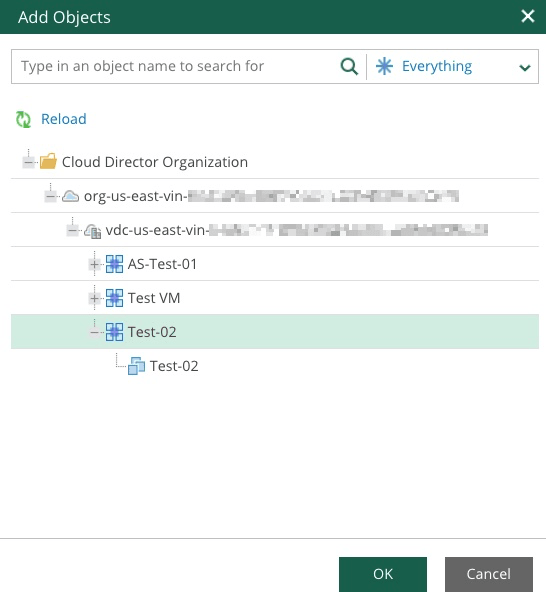
You then need to choose your virtual machine (VM). To do this, click + Add.
Expand the Public VCF as-a-Service organization menu and select your VM.
You can also select a vApp, in which case all VMs within the vApp will be included in the backup job.
Click OK and then Next.
Your virtual machine will then appear in the list.
Click Next.
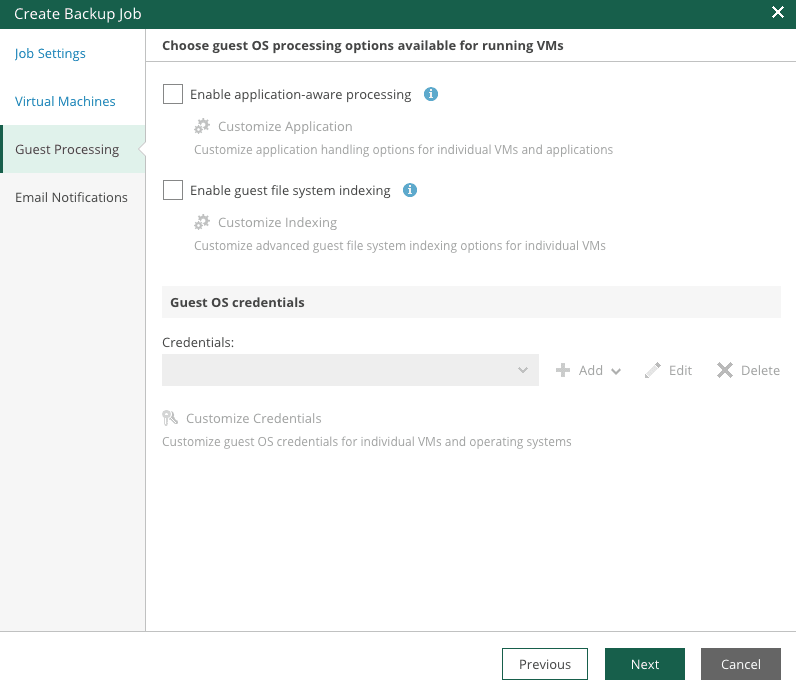
NOTE: The next step is vital, as it involves adding the credentials required for your VM. If you use the "Guest OS processing" settings, you must add your backup user ID and password according to your OS type.
If you have SSH keys to add for Linux, you can do so.
For Windows, you can choose a standard account or a managed service account.
Make your selections according to your OS type and click Next.
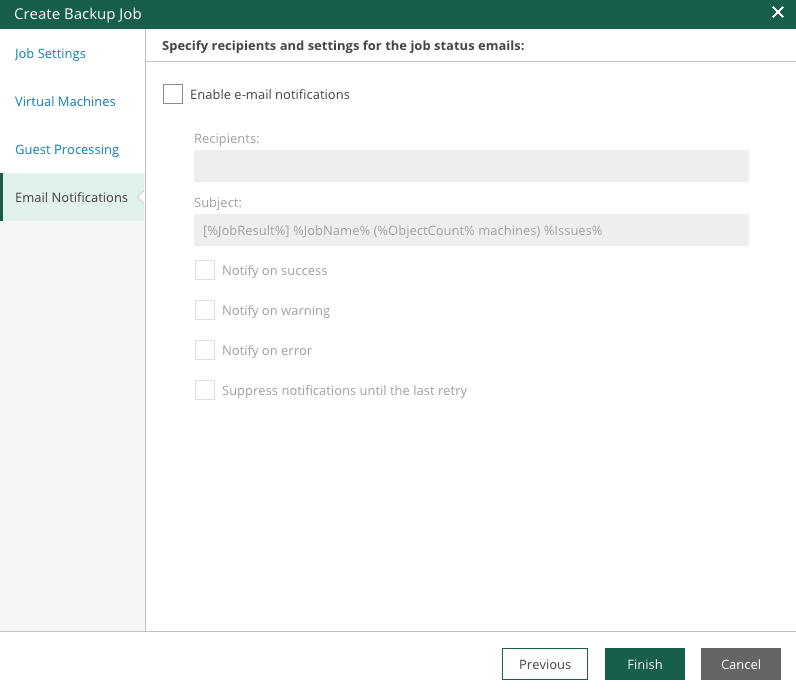
If necessary, you can add monitoring options for your backup tasks. Finally, click Finish.
NOTE: If you add multiple email addresses for monitoring, use a semicolon (;) as a separator between each address.
Example: email1@example.com; email2@example.com
SUCCESS! The backup job is listed.
How do I back up a virtual machine with Veeam?
No agent is required for Veeam Data Platform backups to work from a virtual machine or vApp.
NOTE: To add a backup job from a VM, it must be created beforehand.
Click here for full instructions.
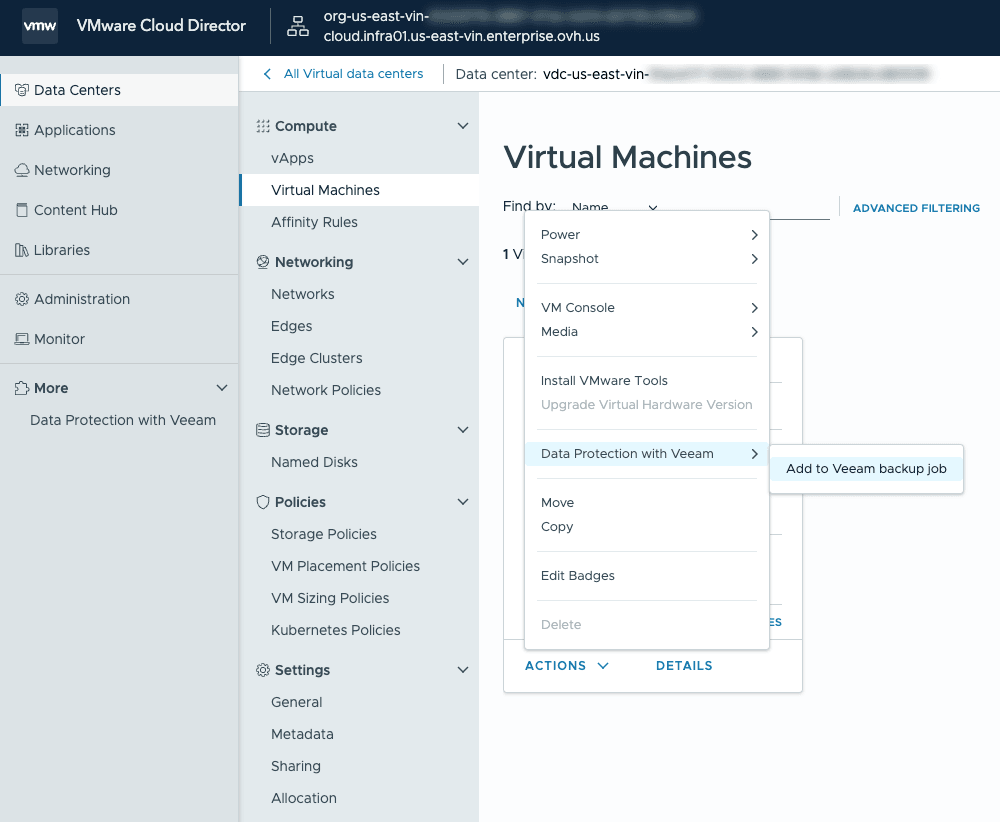
In the left-hand menu, click Datacenter and then Virtual machines.
Choose a VM. Click Actions > Data Protection with Veeam > Add to Veeam backup job.
Step 2 - Restore with Veeam Data Platform
Veeam Backup features
- Application Awareness
- The strategy per VM (Policies)
Data included in restores
Veeam Backup & Replication enables full recovery of VMs to Public VCF as-a-Service. You can restore separate VMs to vApps, as well as VM data.
Restore options
NOTE: Only Entire VM / vApp Restore is available at this time.
- Entire VM / vApp Restore
- Disk-Level Restore
- File-Level Restore
Restoration of a VM
With the OVHcloud Managed Backup service, you can restore standard VMs that are part of vApps, and standalone VMs that have been created in your OVHcloud VMware Cloud Director portal.
When you restore normal or standalone VMs in the vCloud Director hierarchy, the restoration process includes the following steps:
- Veeam uses the captured vApp metadata to define the vApp settings and the original location of the virtual machine in the Public VCF as-a-Service hierarchy.
- Veeam restores the VMs in the backup file to their original location or another location. In addition, Veeam restores all VM settings.
How do I restore a VM using the Veeam Data Platform VCD plugin?
In this case, we will perform a Full restore.
Click here for full instructions.
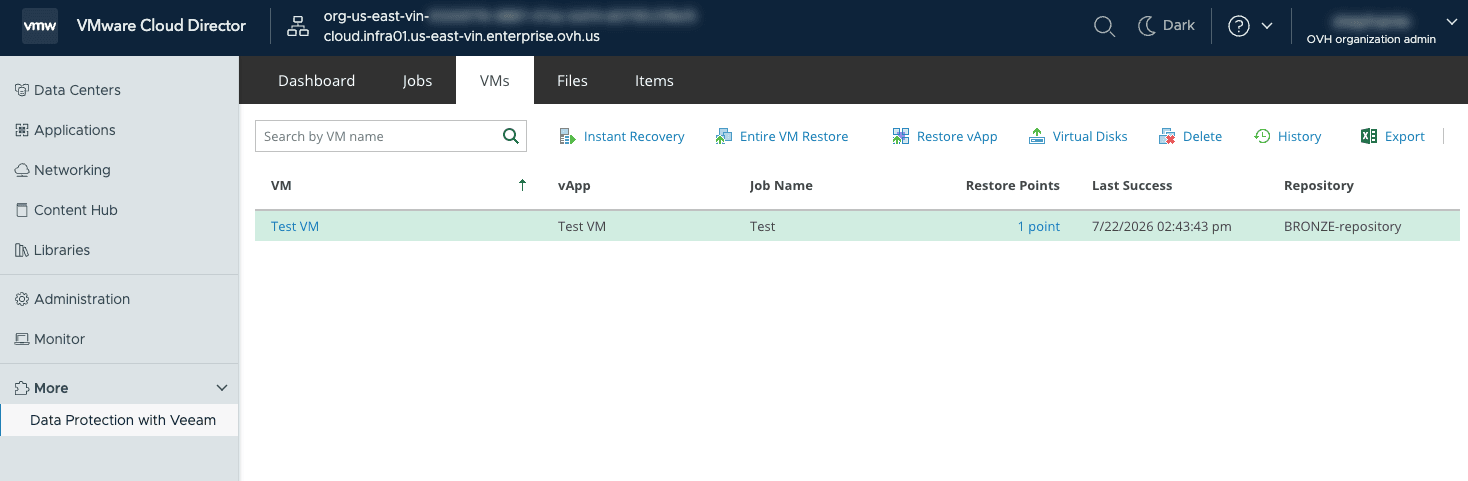
To perform a full restore, select the VMs tab and click Entire VM Restore.
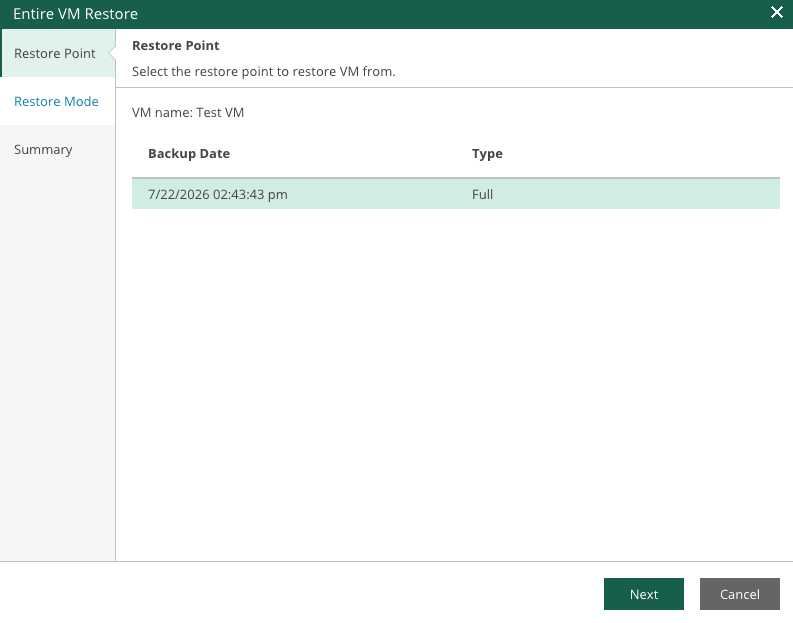
In the window that pops up, select a restore point and click Next.
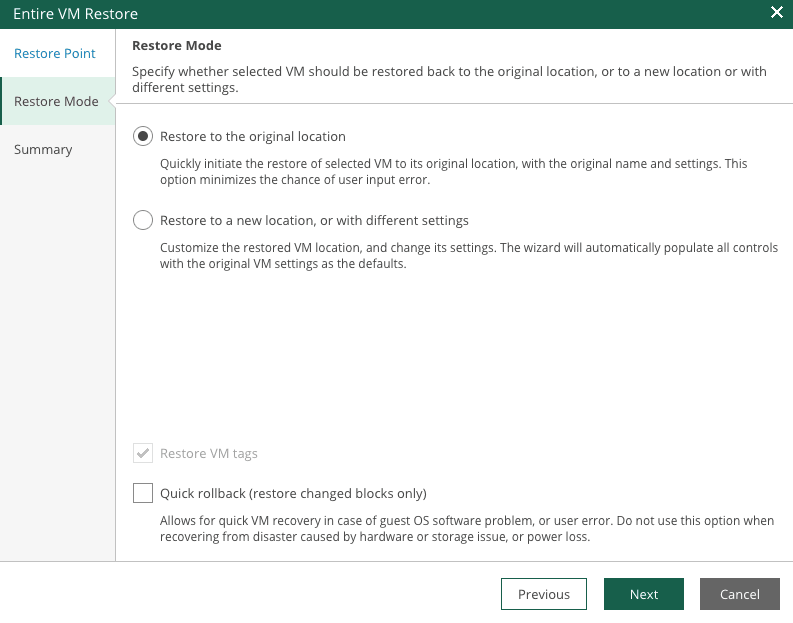
Then, click Restore to the original location to restore a full VM.
Then click Next.
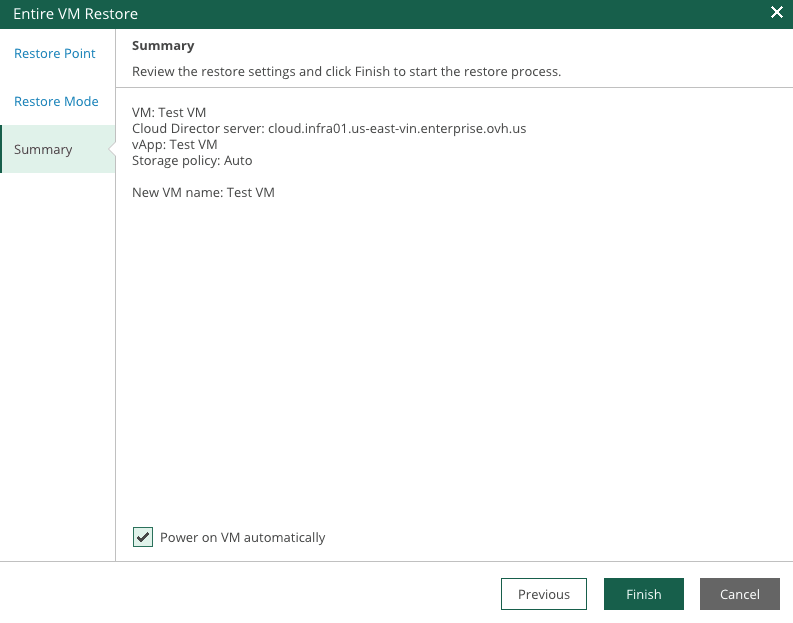
In the final step, click Finish. If you wish, you can also launch the VM by ticking the Power on VM automatically box.
This process is simplified with Public VCF as-a-Service, Veeam, and OVHcloud.
Go further
Browse all the Public VCF as-a-Service guides.
Browse the rest of the OVHcloud US documentation for guides on our other products and services.
Learn more about Hosted Private Cloud on the OVHcloud US website.
If you need training or technical assistance to implement our solutions, contact your sales representative or click on this link to get a quote and ask our Professional Services experts for a custom analysis of your project.