
Introduction to the vRealize Operations - vROps
Learn about the vRealize Operations (also called VMware Aria Operations) interface.
vRealize Operations is an operations management tool that monitors physical, virtual, and cloud infrastructures and allows automation of maintenance tasks.
Requirements
- be the administrative contact of your Hosted Private Cloud infrastructure to receive login credentials
- have a user account with access to vSphere and vROps (created in the OVHcloud Control Panel)
Instructions
Interface access
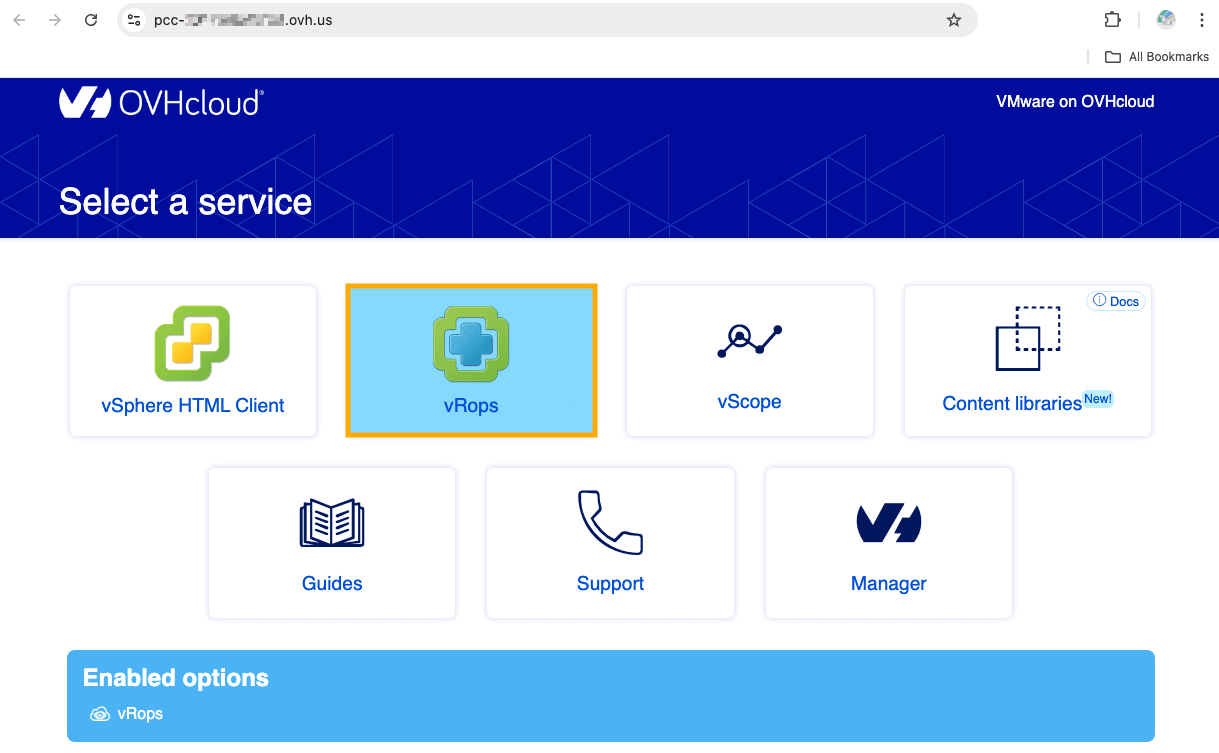
To access vROPS, type in your hosted private cloud address in a browser.
Click the vRops icon.
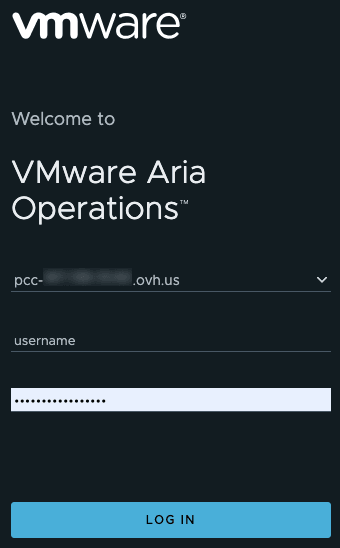
Use your vSphere login or the vROps local user that you own.
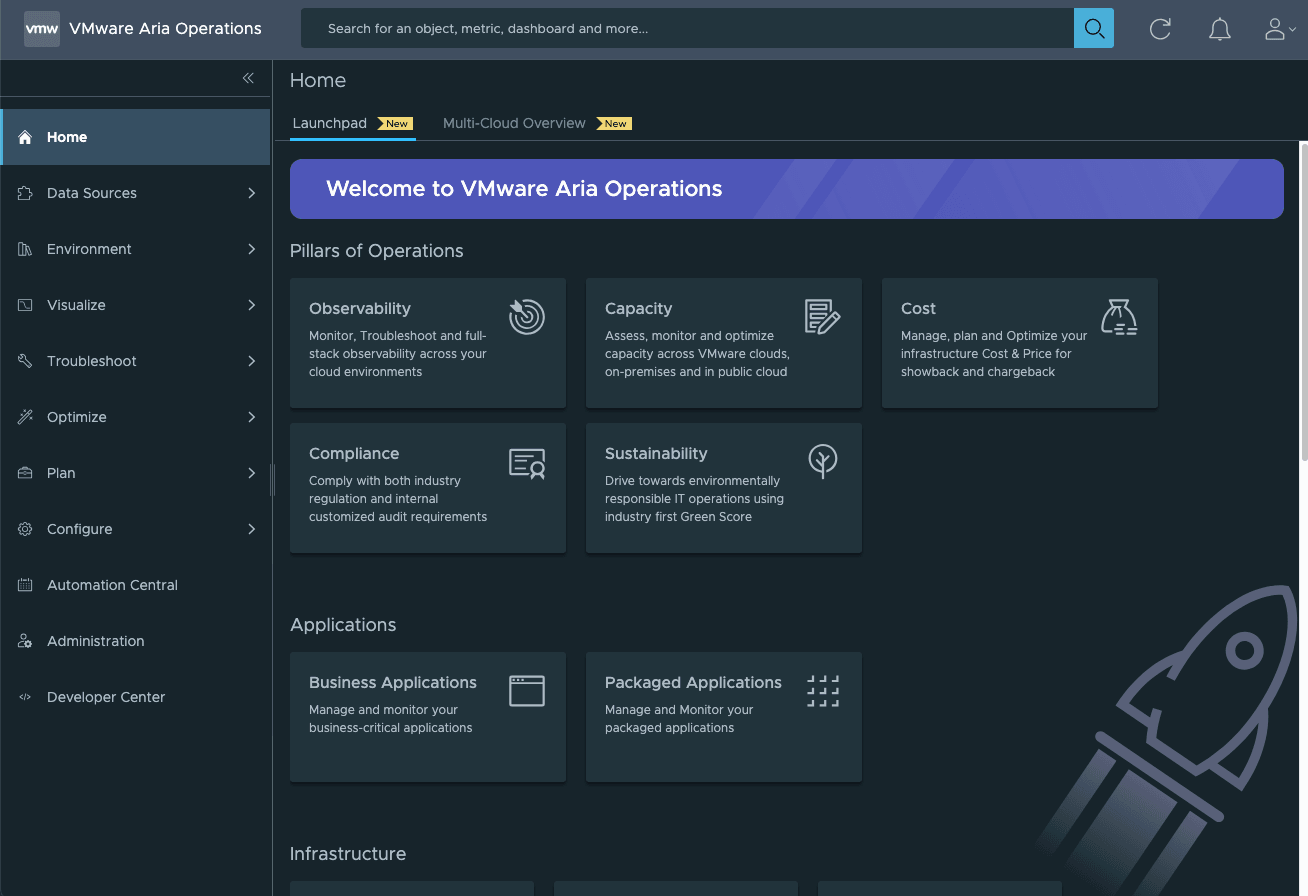
You are now on the vROps Home page with access to all its functionalities.
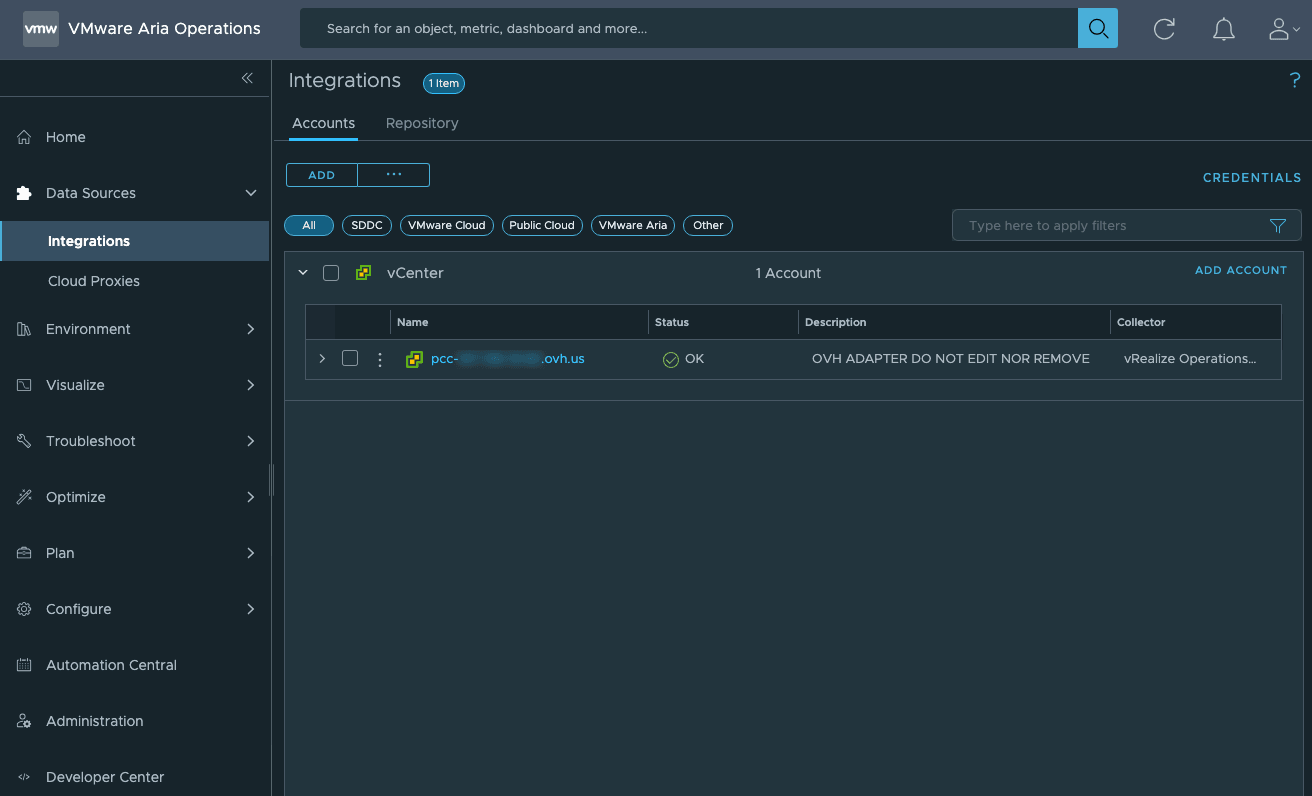
Data Sources
The Data Sources section lists the different spaces monitored by vROps. Your OVHcloud infrastructure is added by default.
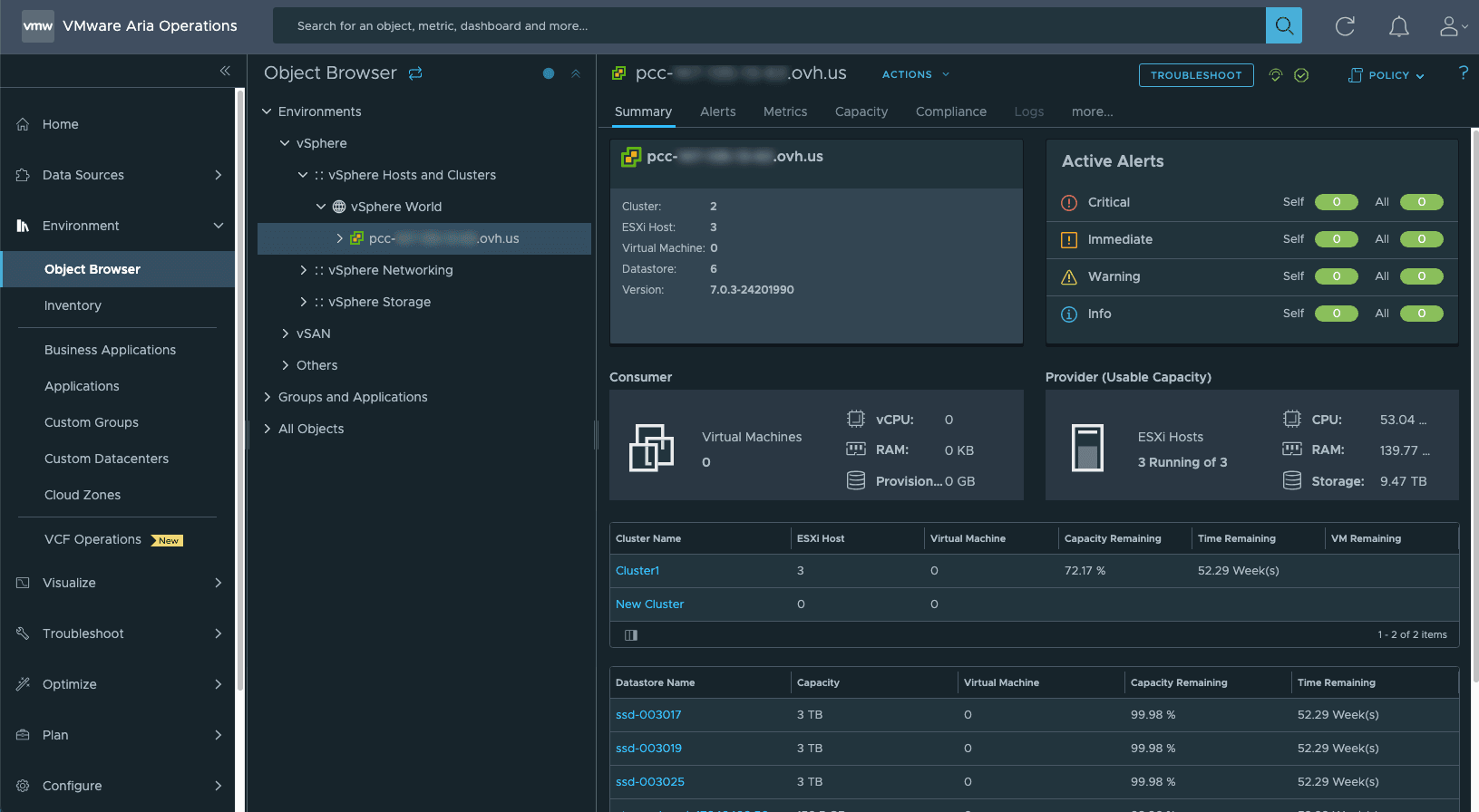
Environments
The Environments section inventories your infrastructure and gives you access to monitoring all your objects. Objects can be Hosts, Network devices, VMs, Applications, etc.
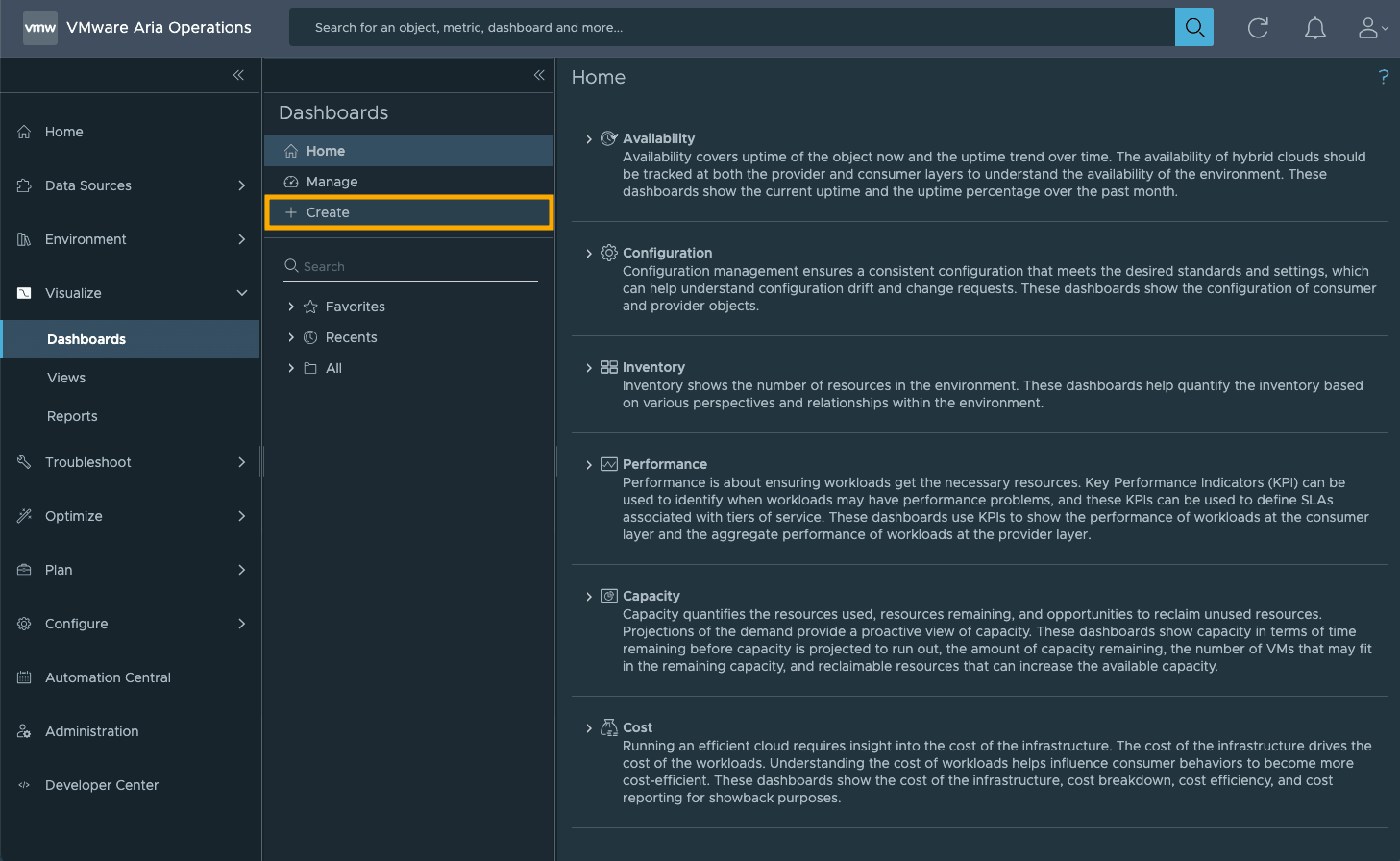
Visualize
The Visualize section holds dashboards and reports. Many premade dashboards will give you quick views of your Infrastructure's health.
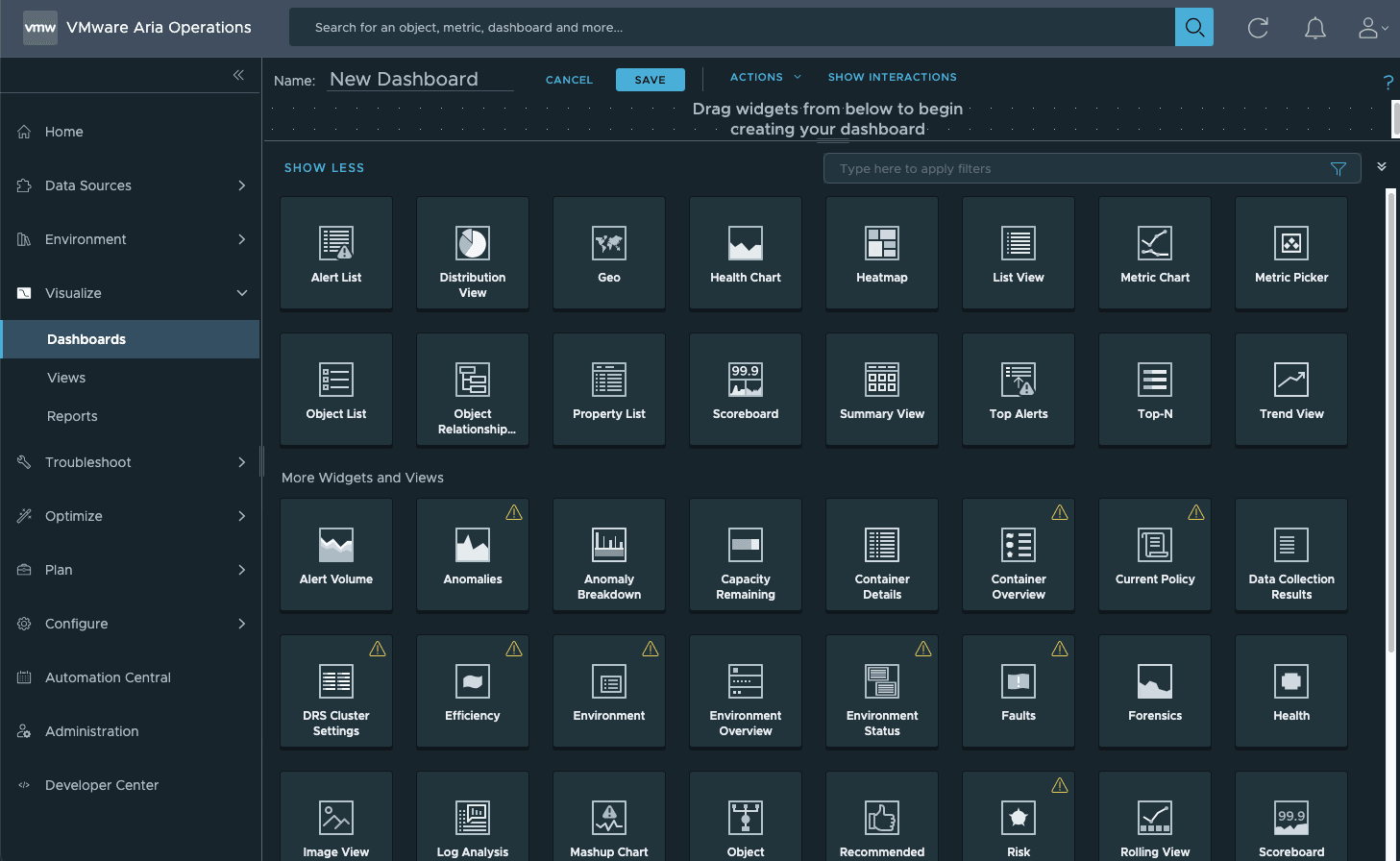
You can still + Create your own Dashboard to get a more specific view that will cater to your specific needs.
You can choose a widget to be displayed.
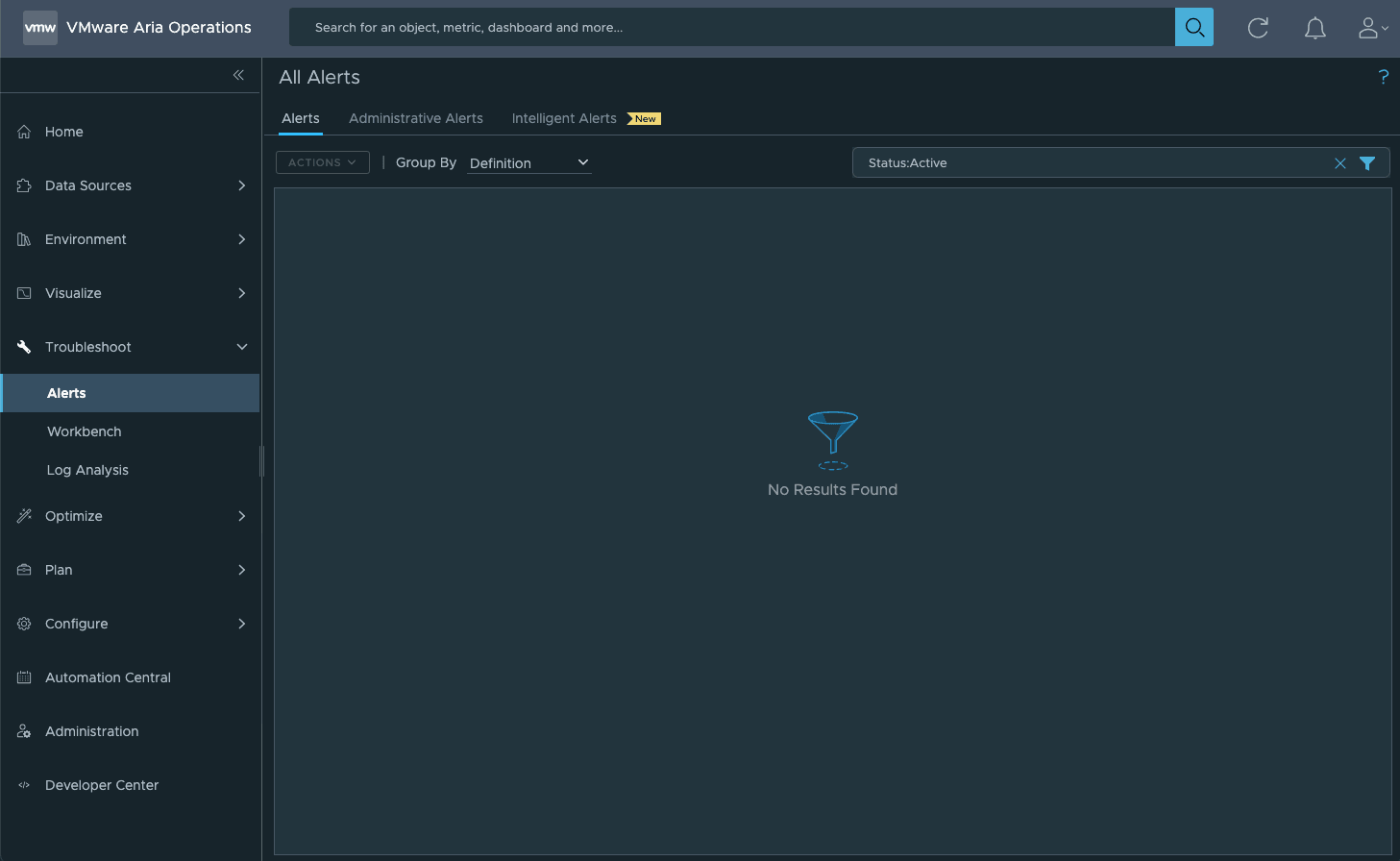
Troubleshoot
The Troubleshoot section is your alert and logs repository. There, you will be able to see and dig into the problems you're experiencing. Contextual links to documentation and fixes are also provided.
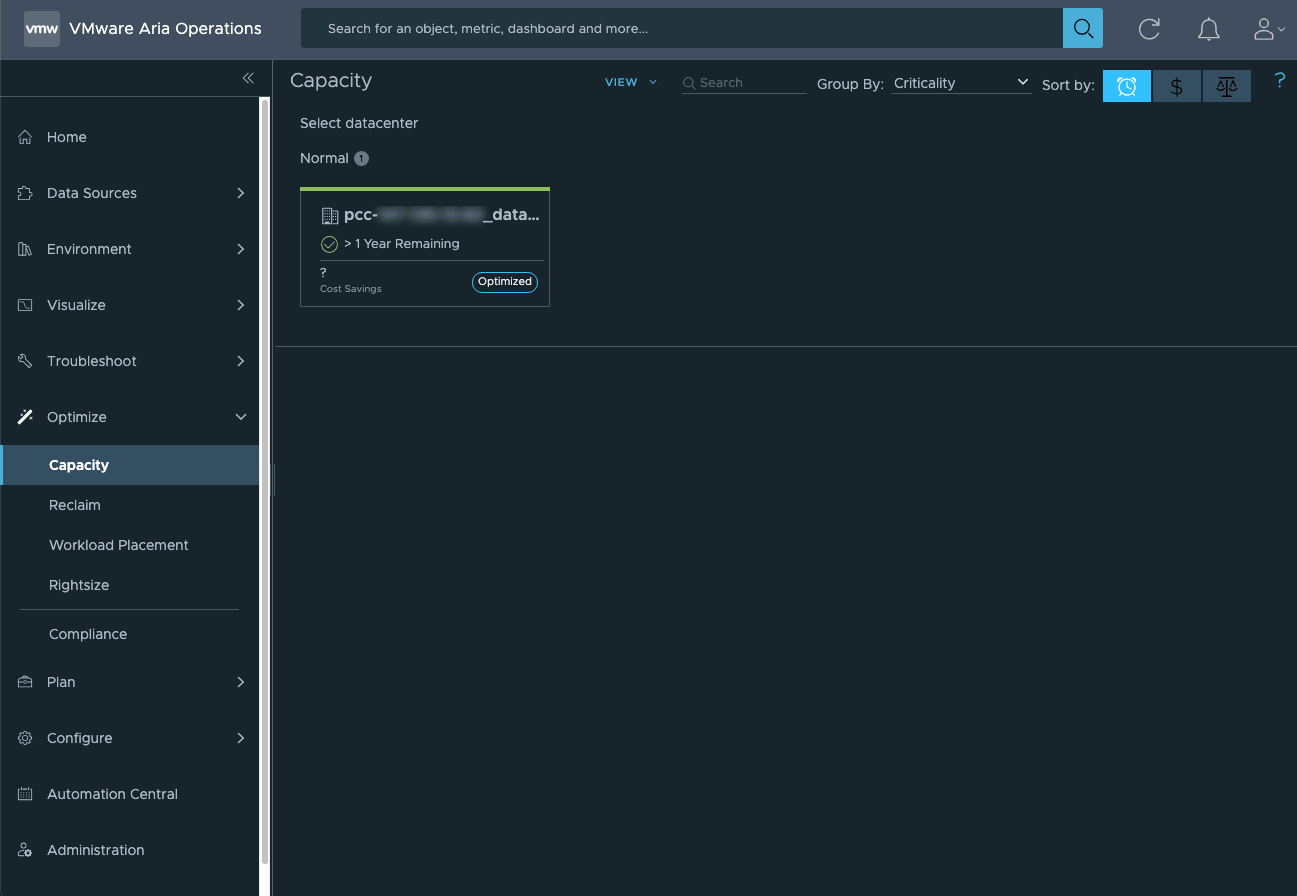
Optimize
The Optimize section gives you insights and recommendations on the capacity of your infrastructure. The monitoring analysis performed by vROps displays usage and right-sizing info to enable you to scale your environment.
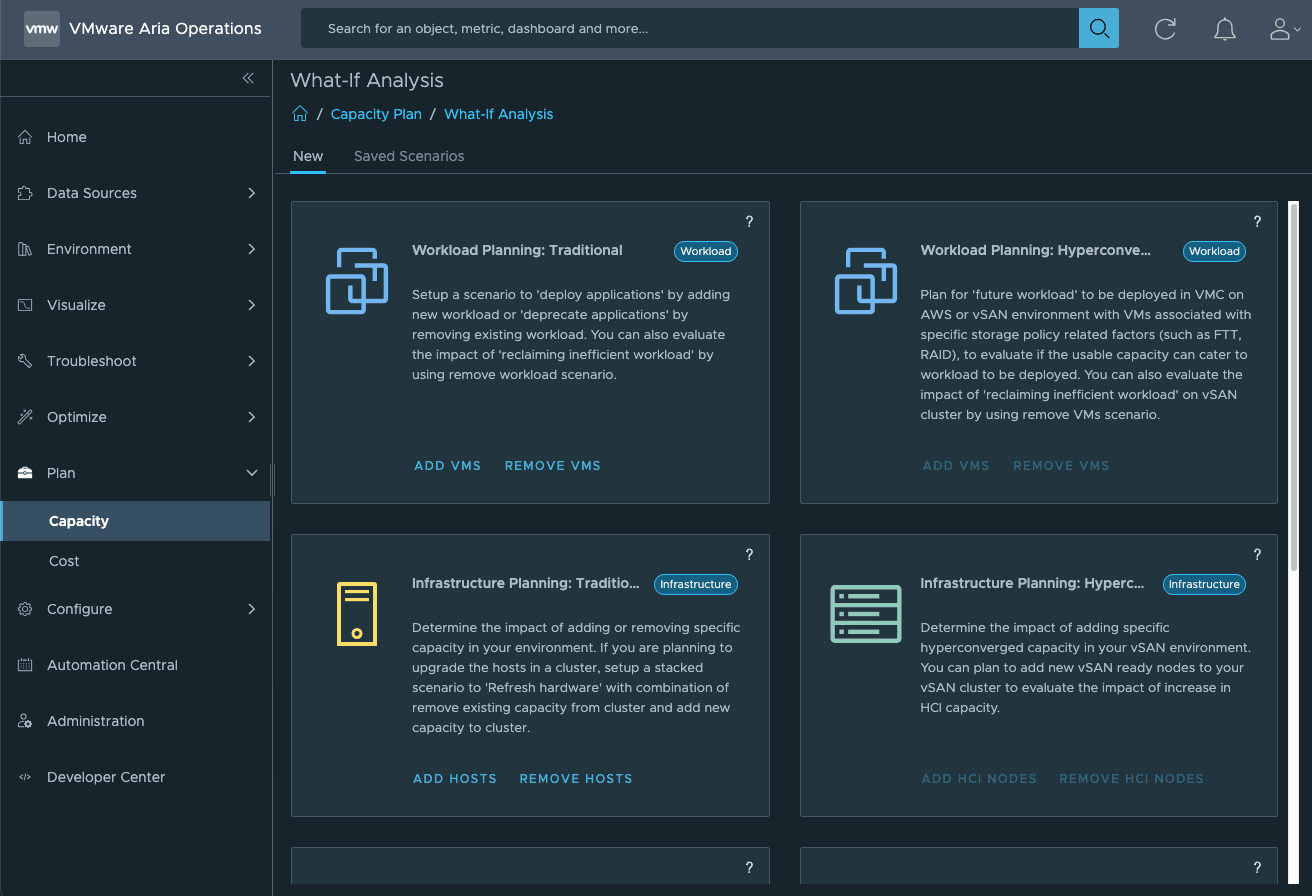
Plan
The Plan section gives you trend and capacity management tools so you can future-proof your infrastructure.
Cost analysis and planning are also helpful for budgeting purposes.
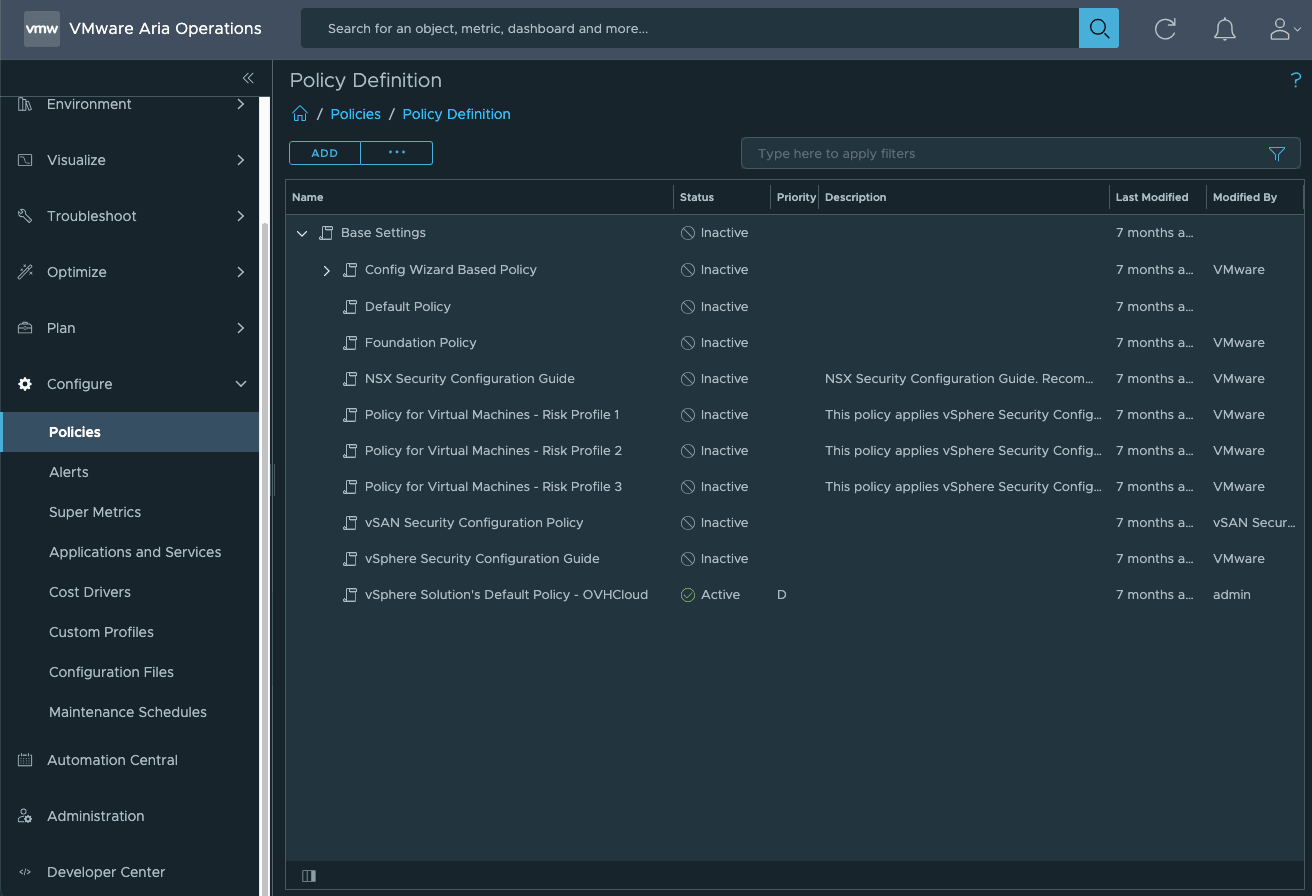
Configure
The Configure section defines your metrics and threshold reactions through policies and alerts.
You will be able to set up groups, profiles, policies and/or alerts, and appropriate responses to tailor your infrastructure needs.
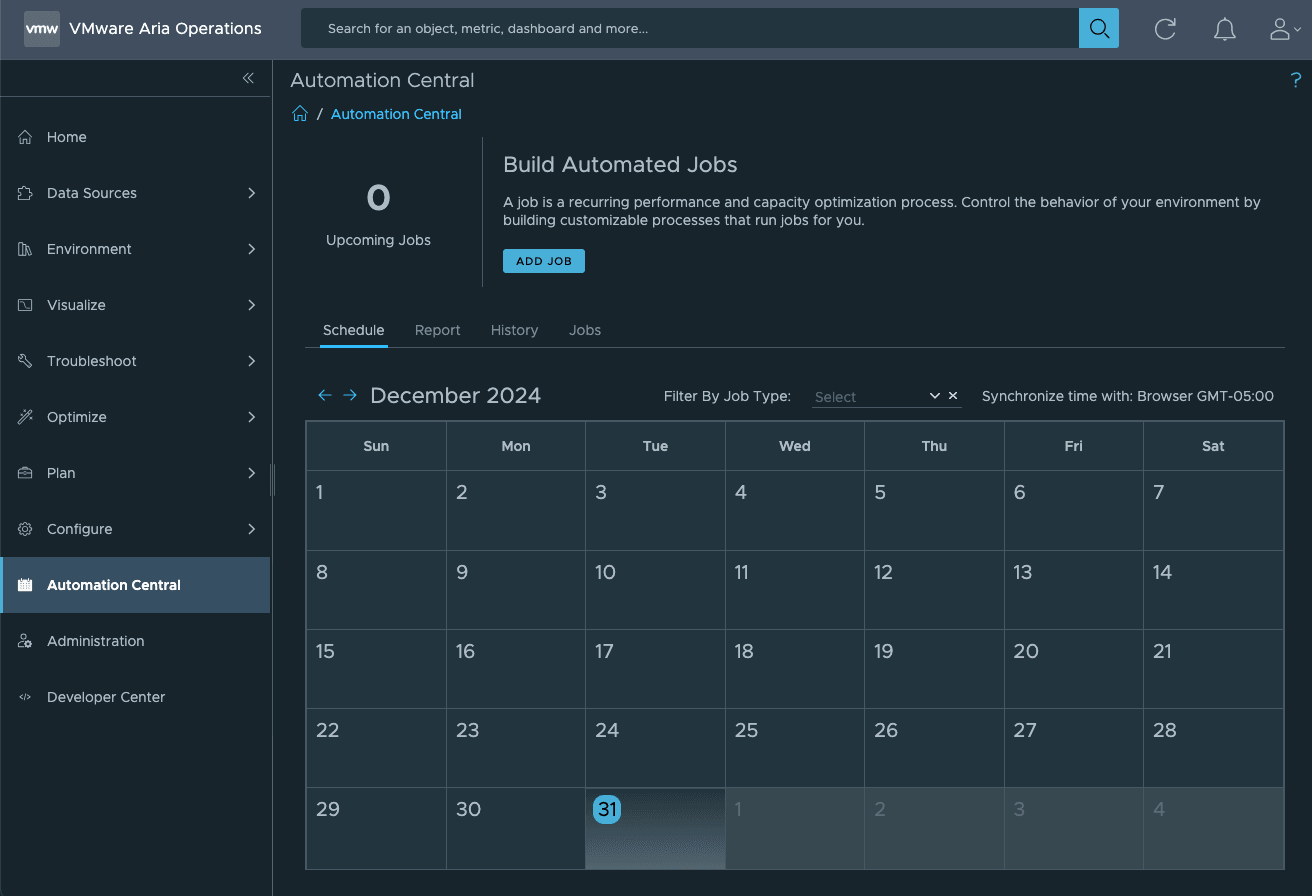
Automation Central
The Automation Central section schedules one-time or scheduled maintenance jobs.
Those jobs can be assigned to single or multiple objects over multiple spaces.
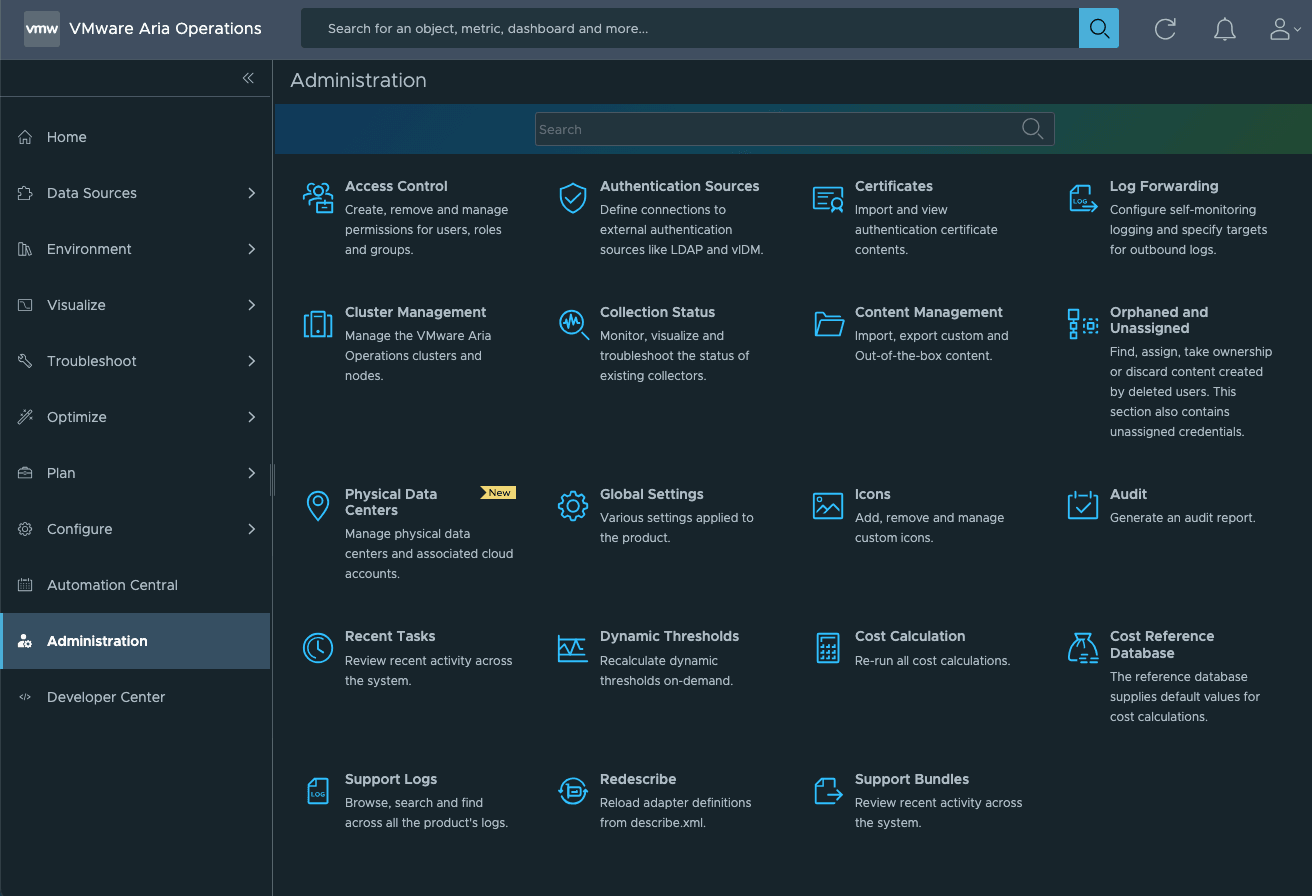
Administration
The Administration section pilots vROps access and data collection.
This is where you can create specific vROps accounts to be used.
Go further
Browse all the VMware on OVHcloud guides.
Browse the rest of the OVHcloud US documentation for guides on our other products and services.
Learn more about VMware on OVHcloud on the OVHcloud US website.