
How to Backup a VM with Veeam Backup & Replication (Enterprise)
This article explores using the Veeam Backup & Replication application to perform a backup of a VM running in an HPC (Hosted Private Cloud) environment.
Prerequisites
- Veeam Backup & Replication Installed and Registered
- Veeam Configured to Interact with an HPC environment
Topics
- Backing Up a VM
Backing Up a VM
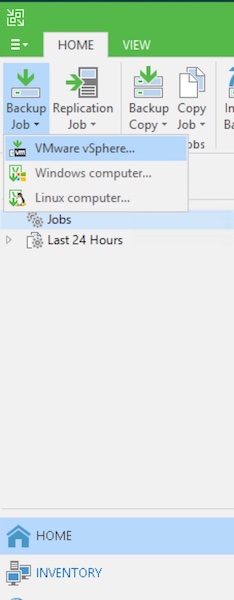
To begin, from the HOME tab, click the Backup Job button and then select the VMware vSphere option as we would like Veeam to display a VM from our HPC environment.
In the first section, "Name", from the "New Backup Job" pop-up window, enter a name and description for the backup job.
Then, click the Next button.
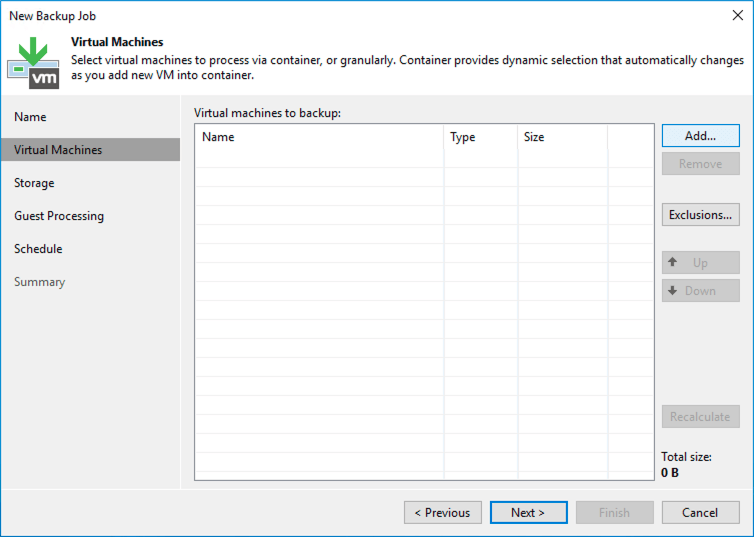
In the next section, "Virtual Machines", click the Add... button.
In the "Add Objects" pop-up window, select the VM(s) to be included in the backup job. In our example, we have chosen a VM running Linux, which is conveniently named "Linux".
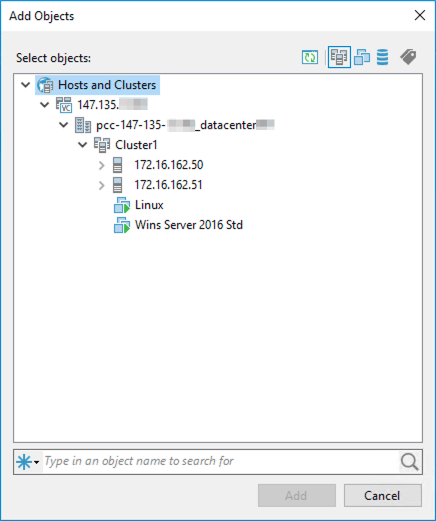
After making your selection, click the Add button to return to the "New Backup Job" window.
Then, click the Next button.
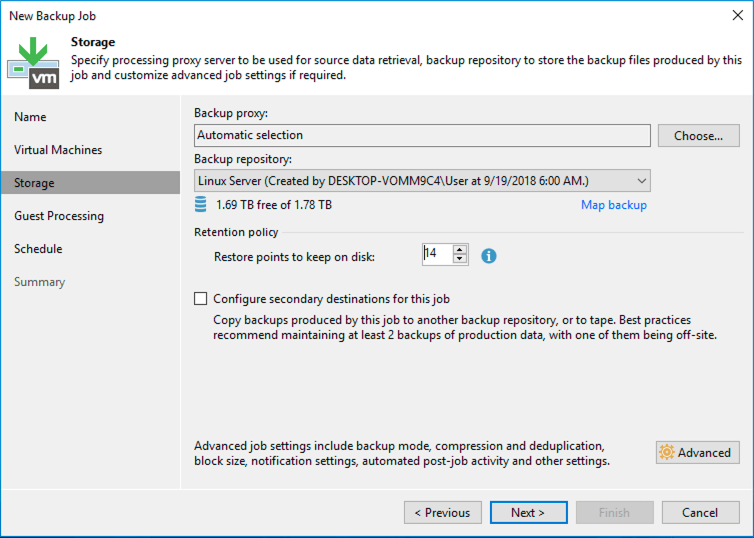
In the next section, "Storage", choose the backup repository.
After selecting a repository, click the Next button.
Note: Click the Next button again to skip the "Guest Processing" section as no configurations are needed. If you would like to learn more about this section, please consult the User Guide for VMware vSphere provided by Veeam.
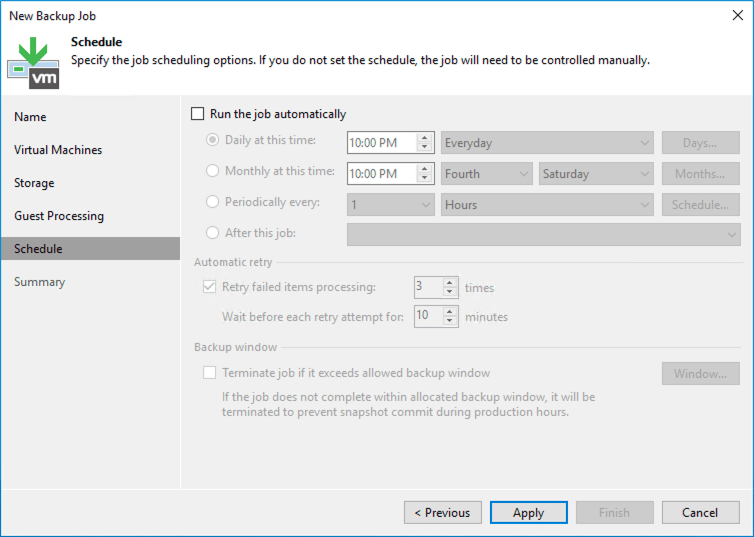
In the next section, "Schedule", you can click the Run the job automatically if you would like to configure the backup job to be reoccurring. For the purposes of this article, we will be executing the backup manually. So, we will click the Apply button to proceed.
Review the "Summary" section to ensure everything is correct.
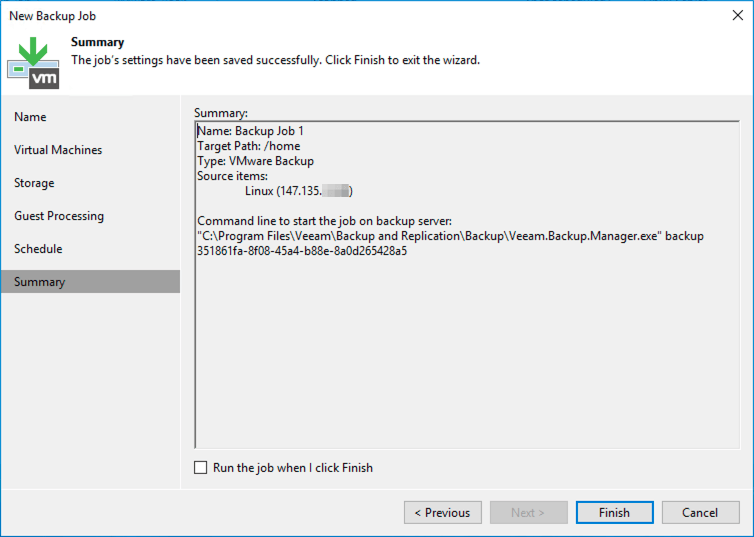
Note: To run the job immediately, select the Run the job when I click Finish checkbox prior to clicking the Finish button.
Lastly, click the Finish button to conclude setting up the backup job.
To view the progress of the backup, double-click the backup job. This will open a new window where you can view the details of the backup being performed.
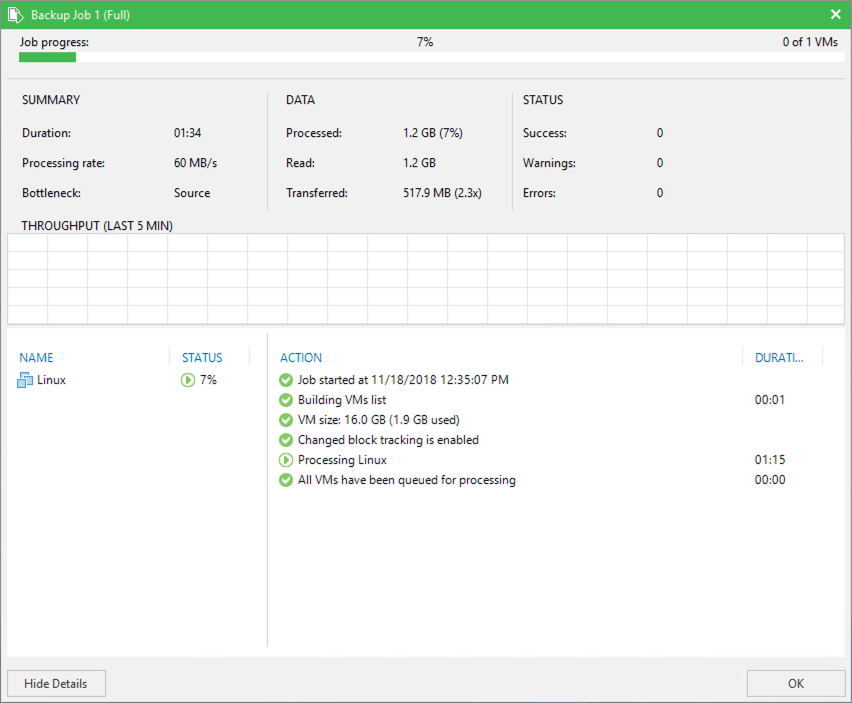
After the job completes, you have successfully created a backup of a VM.
Conclusion
Whether it is a hardware failure or someone accidentally deletes an important file, maintaining frequent backups is extremely important and can save you countless hours of unnecessary work. Having read this article, you should have a clear understanding of how to back up a VM using Veeam Backup & Replication. For information about restoring a VM, please check out our How to Restore a VM with Veeam Backup & Replication (Enterprise) article.