
Updating a Load Balancer size via the Horizon interface
Learn how to change the size of your Public Cloud Load Balancer using the Horizon interface.
Find more information about the different Load Balancer sizes and their capacities on our Load Balancer page.
Requirements
- Access to the OVHcloud Horizon interface
- A Load Balancer already created and available
- User privileges to modify the Load Balancer settings
Instructions
Access the Horizon interface
Go to the OVHcloud Horizon interface and log in with your credentials. For more information on how to connect to Horizon, read the Introducing Horizon guide.
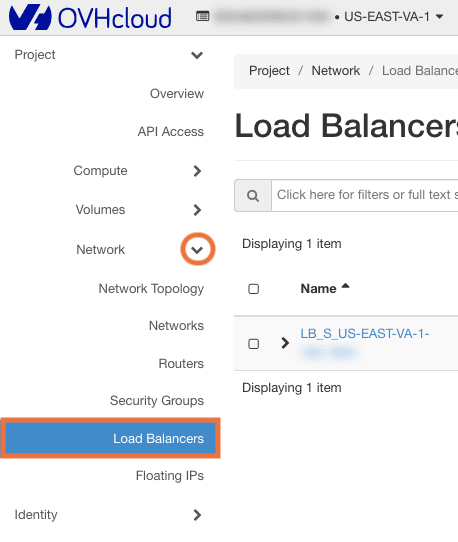
Once you are logged in, find your existing Load Balancer by selecting Network from the left-hand menu and clicking Load Balancers.
Resize your Load Balancer
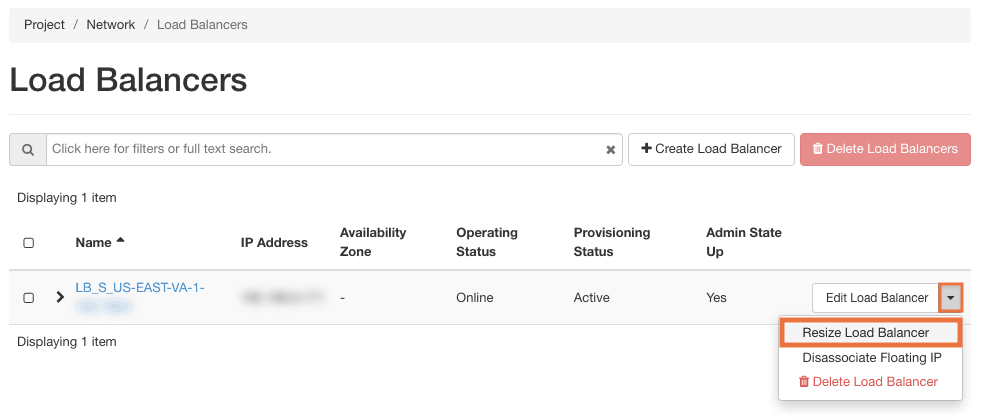
To the right of your Load Balancer's name, open the drop-down menu and select Resize Load Balancer.
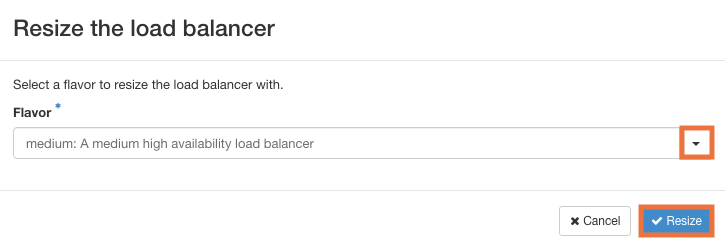
A window will prompt you to select a new size (small, medium, large, or XL) for your load balancer.
Once the new flavor is selected, click ✔️ Resize to update the size of your Load Balancer.
Go further
Browse all the Networking guides.
Browse the rest of the OVHcloud US documentation for guides on our other products and services.
Learn more about Public Cloud Network on the OVHcloud US website.