
Using the OVHcloud Network plugin
The OVHcloud Network plugin was developed to allow for more focused management of the IP addresses linked to your VMware on OVHcloud service.
Requirements
- A VMware on OVHcloud infrastructure
- An IP address block linked to your VMware on OVHcloud infrastructure
- Access to the vSphere interface
Instructions
Once you are logged in to the vSphere client, select your data center from the left-hand menu and switch to the Configure tab.
Next, click on Network under "OVHcloud" in the left-hand tab navigation to display the "Network summary" section.
Your IP blocks are displayed here along with some basic information about them. Click on an IP block to see all of its IP addresses listed in a table overview.
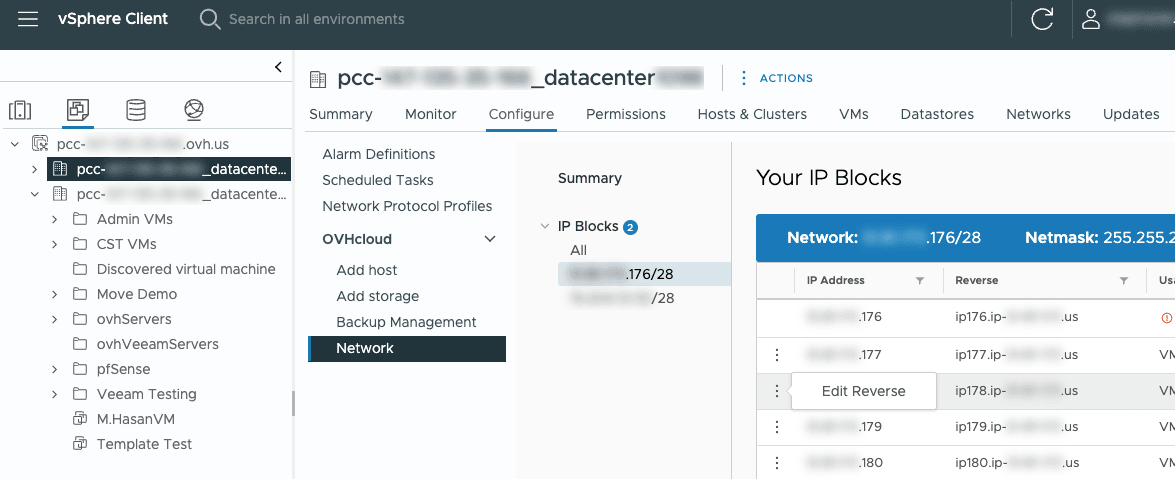
You can verify the reverse of each address and its purpose. Some of them will be marked as "Reserved". Make sure not to use these five IPs that are reserved for the block's configuration and high availability, namely:
- the first IP, which announces your block on the router
- the last IP, which is for broadcast
- the second-to-last IP, which is your gateway
- the two IPs before the gateway, which are used as HSRP (Hot Standby Router Protocol) on the routers
To inform the OVHcloud plugin that your public IP addresses are actually in use, you need to send an ARP request (arping) from the virtual machine(s) using these IPs.
NOTE: Some configurations with a virtual firewall do not allow for tracing back MAC addresses if the ARP protocol is not authorized.
You can then customize your reverse IPs in this table (when configuring an email server, for example). Click on the three vertical dots to the left of the IP address, then on Edit Reverse.
Enter the reverse and validate by clicking Confirm.
The new reverse will then be displayed in the table.
This configuration process is also accessible via the OVHcloud Control Panel and the OVHcloud APIs.
Go further
Browse all the VMware on OVHcloud guides.
Browse the rest of the OVHcloud US documentation for guides on our other products and services.
Learn more about VMware on OVHcloud on the OVHcloud US website.