
Configuring a vROps alert by the SMTP protocol
Learn how to configure your SMTP server to automate sending alerts and reports by email to vROps.
Requirements
- A working SMTP server
- STMP flows allowed between your SMTP server and your vROps instance
Instructions
Open the flow
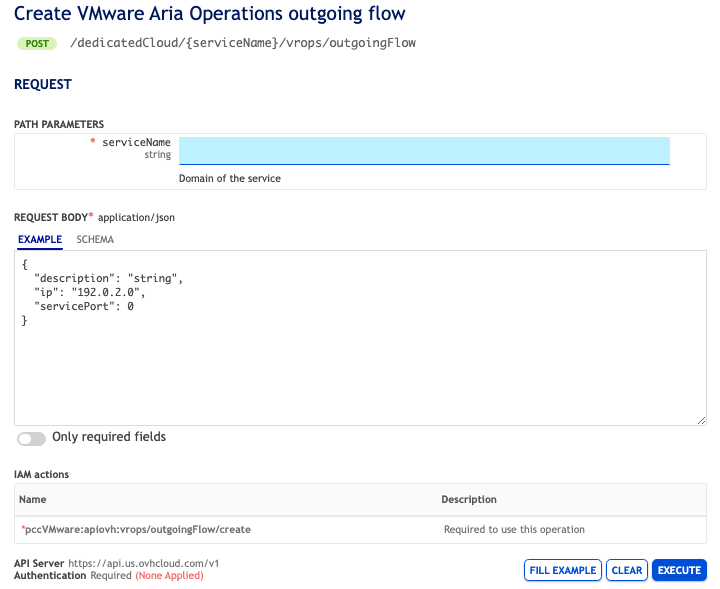
The first step is to open a flow on the OVHcloud API to enable vROps to communicate with your SMTP server.
You can check that the flow has been opened using the OVHcloud API.
To do this, use the following API call:
Fill in the API call fields. If the results are not as expected, check your server port openings.
Configuring vROps alerting
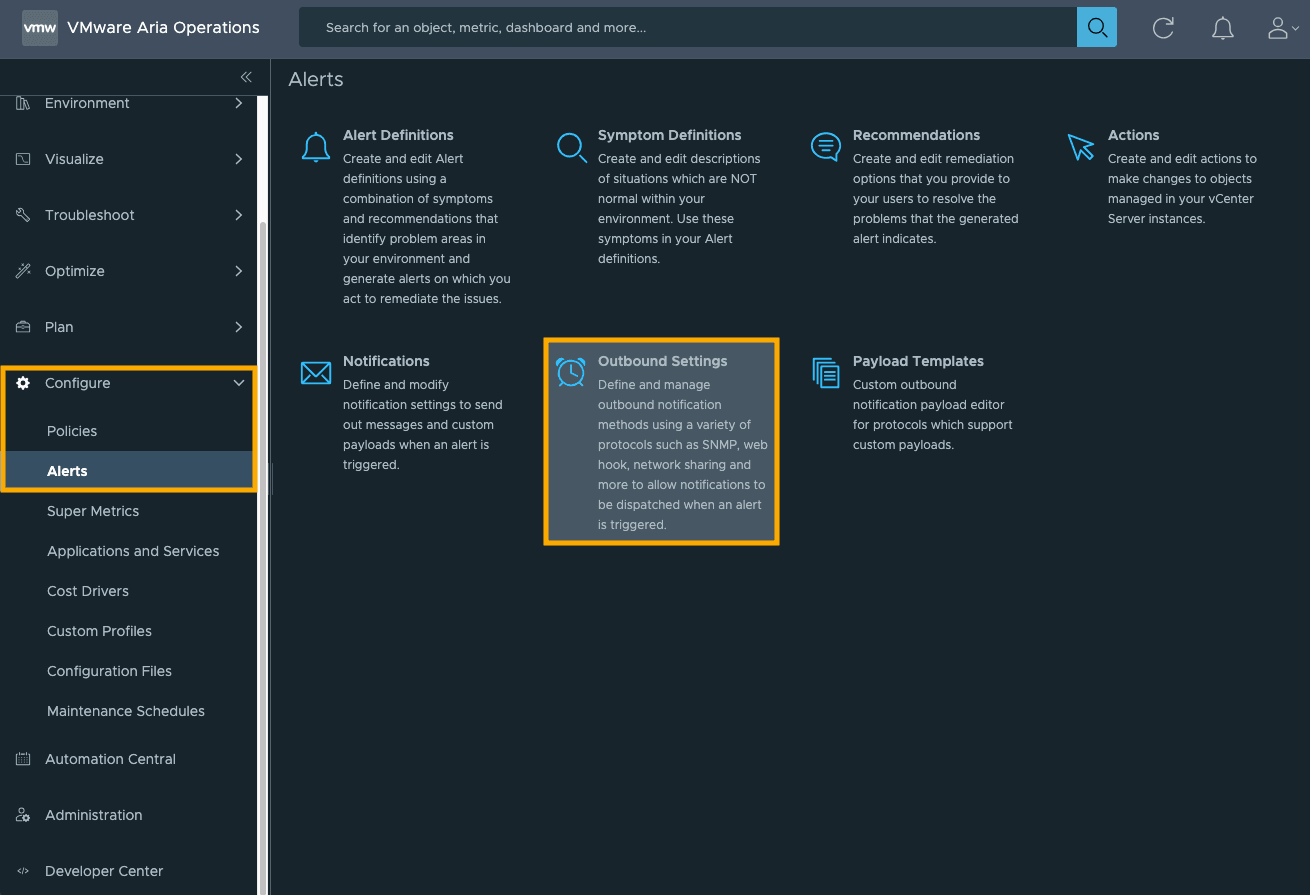
Once the flow has been opened, you need to configure the email alert on your vROps. To do this, go to the Configure section, then the Alerts section. Several types of alerts are available. Select Outbound Settings.
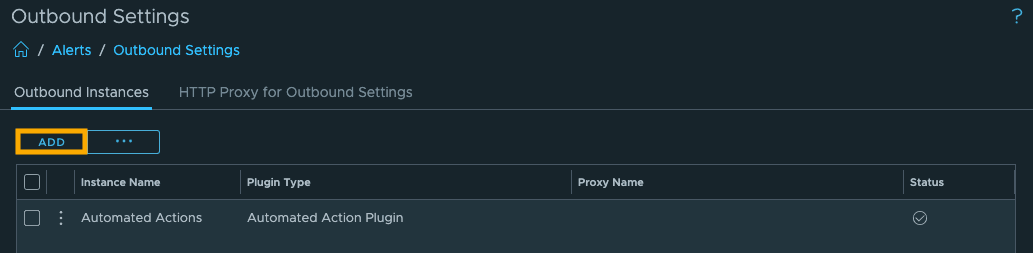
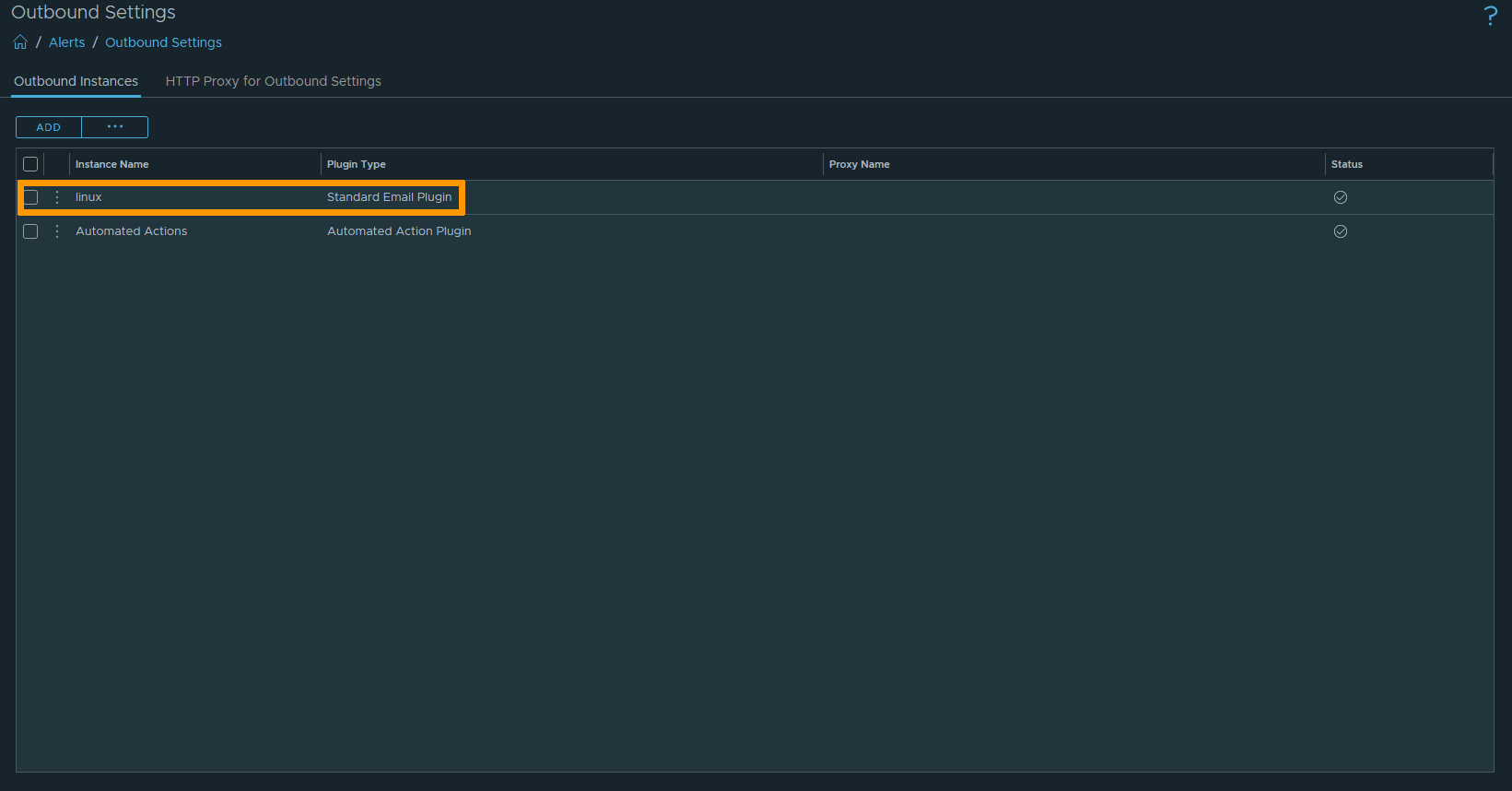
The page shows a summary of all your Outbound Settings. Click on the ADD button.
In the Plugin Type option, select Standard Email Plugin. A series of options will appear; fill in the fields.
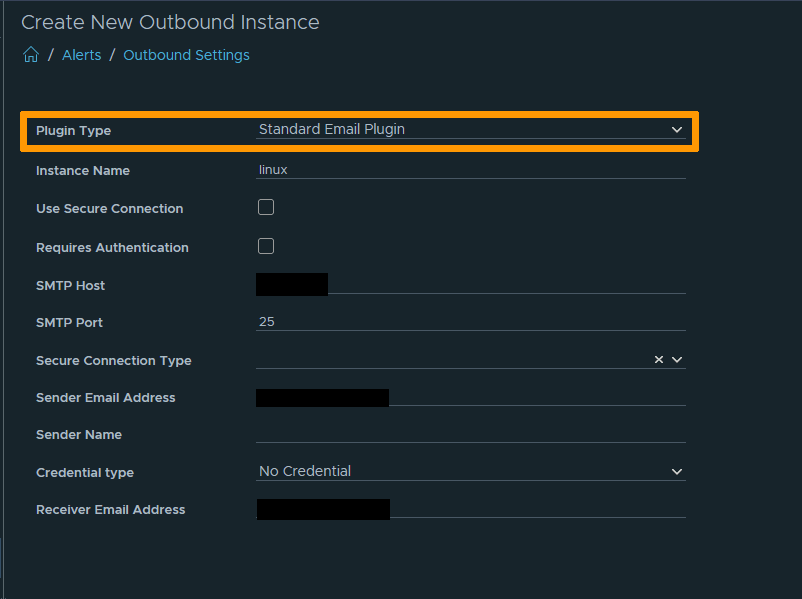
NOTE: For the sake of this documentation, no authentication has been configured on the SMTP server. However, for obvious security reasons, we strongly advise you to do so!
You can test your configuration using the Test button at the bottom of the page.
Once these operations are complete, you will find the details of your alert configuration in the previous summary.
Finally, check that your alert is working properly by verifying that the emails are received correctly.
Modification of an existing alert
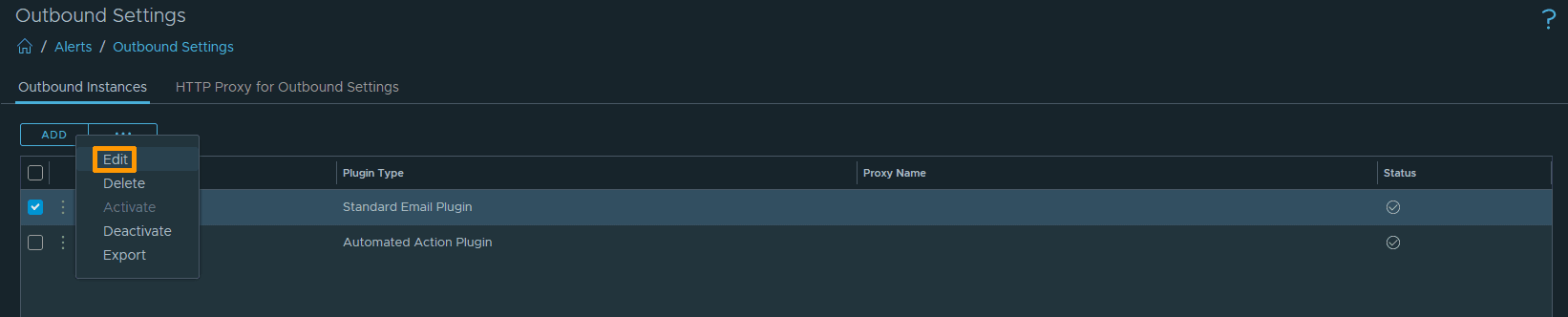
You can modify an existing alert by selecting ☑️ the alert, clicking the more options ... button, and selecting Edit.
Go further
Browse all the VMware on OVHcloud guides.
Browse the rest of the OVHcloud US documentation for guides on our other products and services.
Learn more about VMware on OVHcloud on the OVHcloud US website.
If you need training or technical assistance to implement our solutions, contact your sales representative or click on this link to get a quote and ask our Professional Services experts for a custom analysis of your project.