
Modifying virtual machine resources
Once you have created your virtual machine (VM), its resources are not permanently set. They can be reallocated to make your infrastructure more agile, with some restrictions.
Requirements
- A virtual machine, created on a Hosted Private Cloud infrastructure
- A user account with access to vSphere (created in the OVHcloud Control Panel)
Instructions
Content overview:
All the modifications described below must be made from the vSphere Web Client by right-clicking on a VM, then on Edit Settings....
In this menu, you can increase your virtual machine's resources.
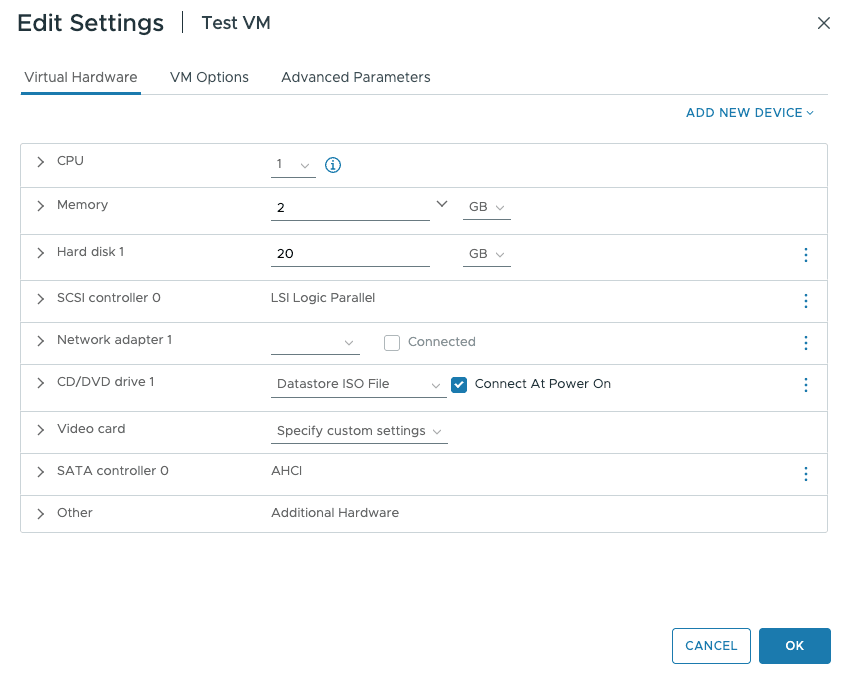
For more information on adding a device, please refer to the Adding a Device section below.
The processor (CPU)
The number of CPUs available to you will be limited to the number of slots available on the host.
If your virtual machine migrates to a host with fewer processors than those allocated to your machine, the "CPU ready" status of the VM will rise, which will result in performance loss.
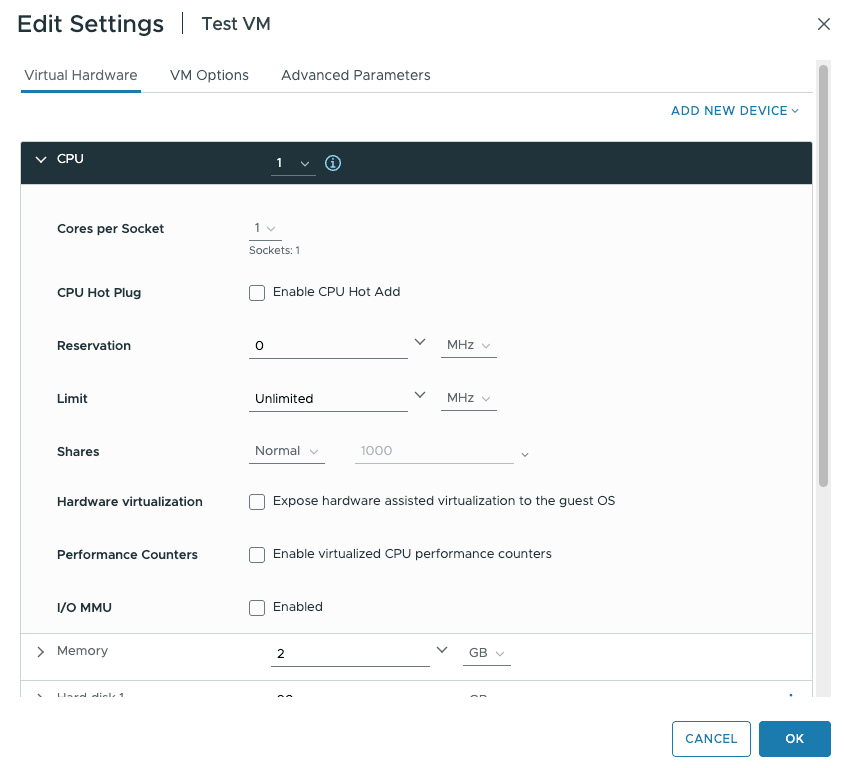
You can also set a specific frequency (minimum and maximum) and choose the number of cores per socket.
If you check the Enable CPU Hot Add box, you can modify these values while the VM is running.
Depending on the OS you are using, hot adding may not work and could cause a malfunction on the host.
You can also assign a minimum number of MHz to your VM.
The limit, which is unlimited by default, allows you to restrict your VM's processor to a specific value in MHz. You can, for example, limit a developer VM.
Memory (RAM)
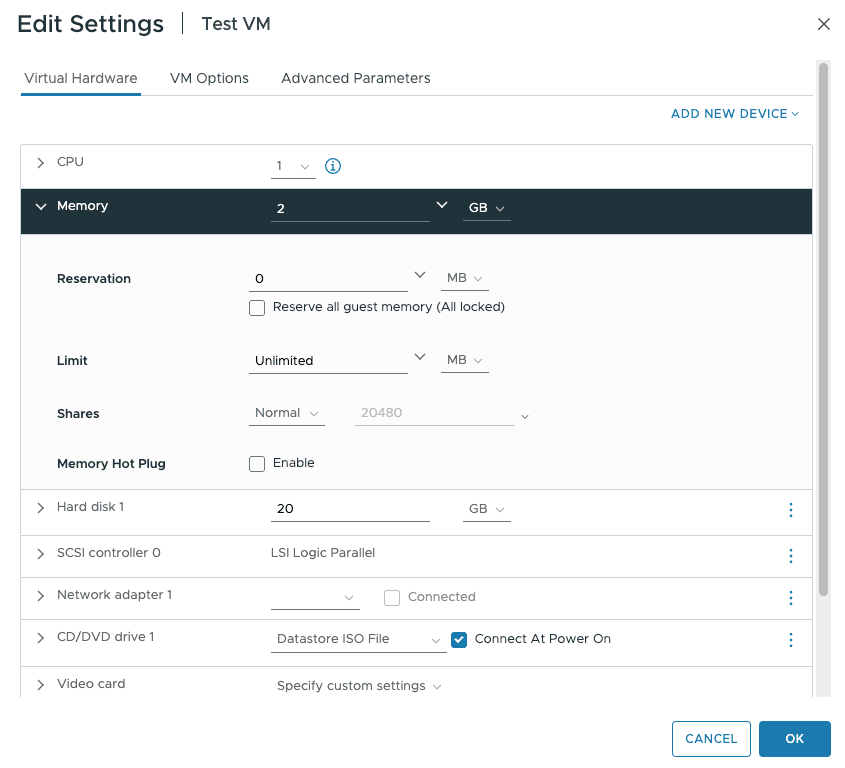
As with the CPU, the RAM capacity is limited to the host's resources.
You can assign RAM so that your virtual machine always has a minimum amount of RAM reserved.
The hard disk
You can increase the hard disk size according to the space left in the datastore used by the virtual machine.
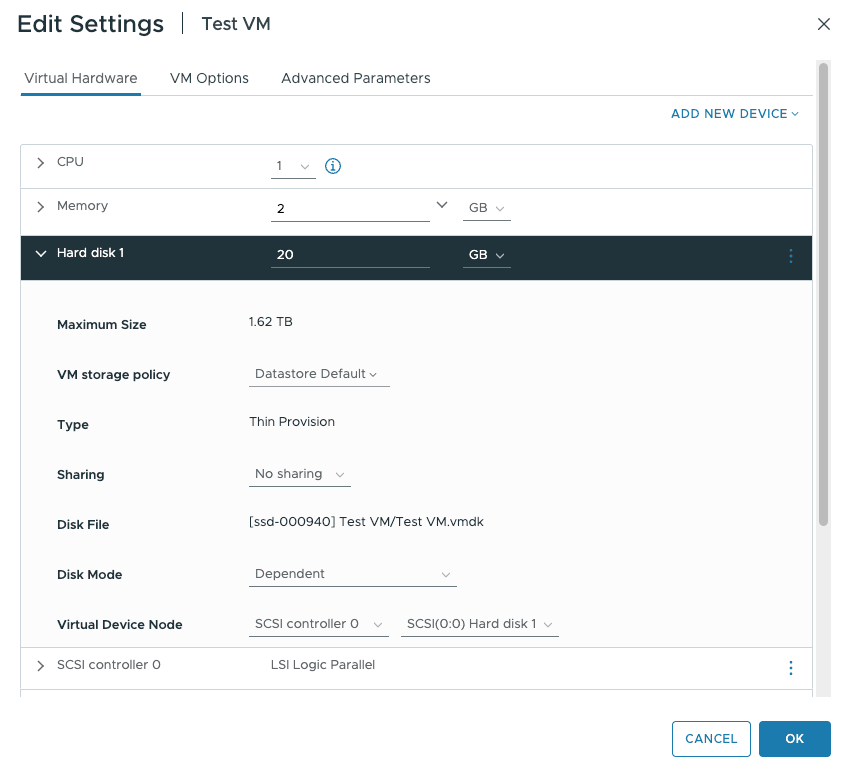
We recommend that you use SCSI disk controllers rather than IDE ones, as you cannot, for example, perform backups via Veeam with IDE controllers.
You can also select the disk mode:
Dependent: includes the disk during snapshotsIndependent - persistent: allows you to store data when you reboot a machine, but this is not taken into account during a snapshot.Independent - non-persistent: is unique in that it does not save data; if you reboot the machine, all the data will be deleted.
The network adapter
You can modify your VM's network adapter, the connection to the adapter when starting up the virtual machine, and the adapter type. You can also verify the port ID and your MAC address.
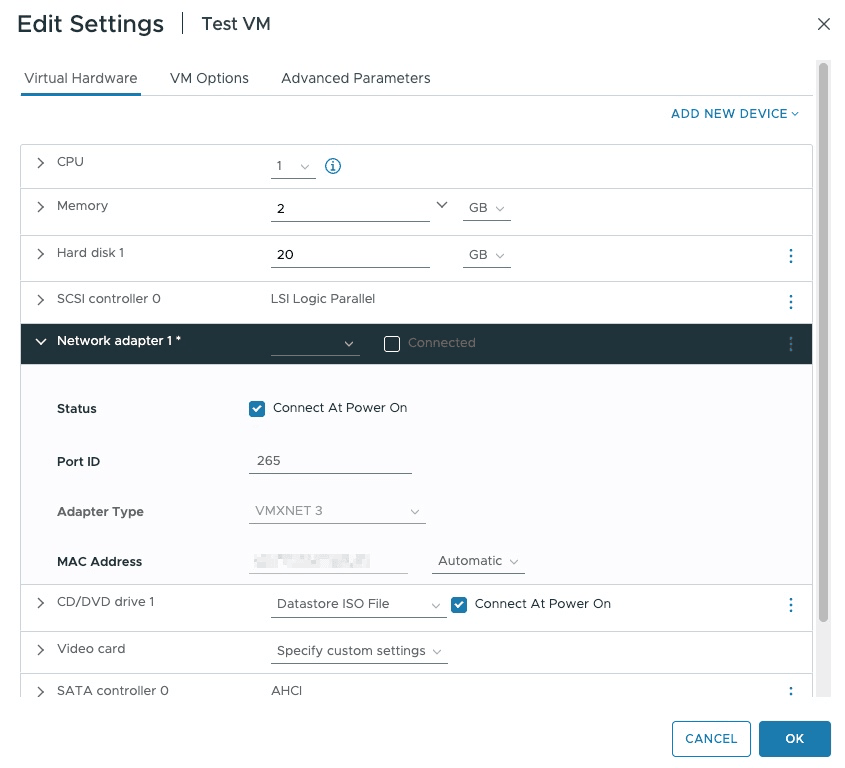
This interface is useful in the event of a network malfunction. You can verify that the port ID corresponds to the ID listed in the Networking and Ports tabs for that adapter.
The CD/DVD drive
A virtual CD/DVD drive allows you to mount ISO images on your virtual machine.
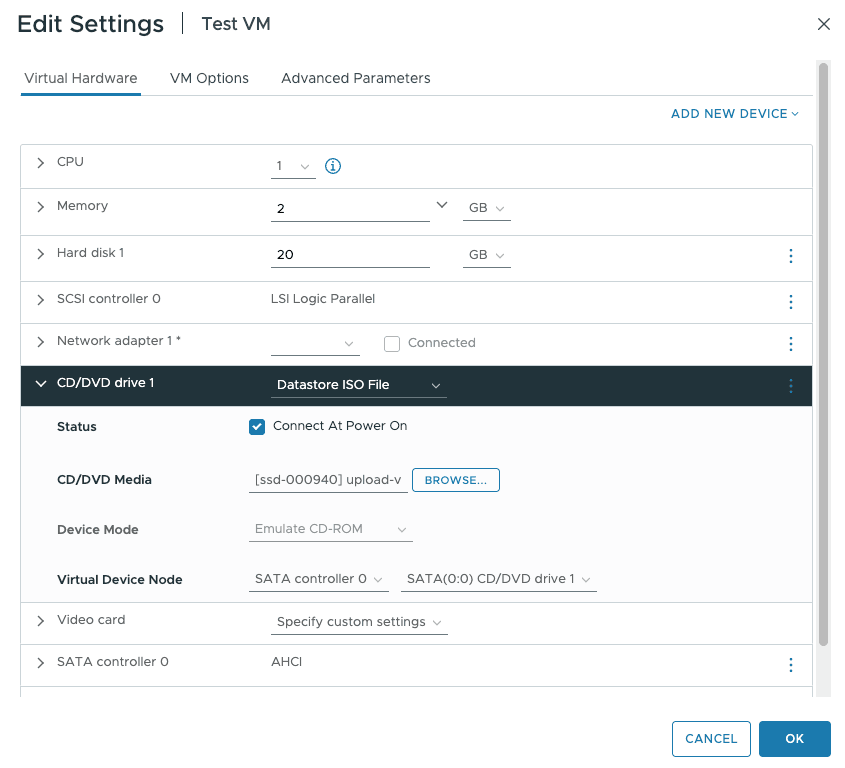
We recommend that you delete the CD/DVD drive after using it, as it could prevent the virtual machine from being moved.
Adding a device
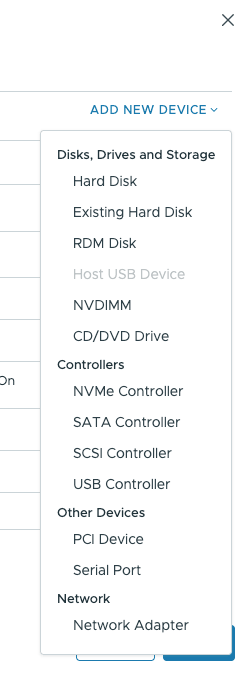
At the bottom of this window, you can add additional devices.
You can add disks from another datastore or network adapters, if you need to use several private networks.
Go further
Browse all the VMware on OVHcloud guides.
Browse the rest of the OVHcloud US documentation for guides on our other products and services.
Learn more about VMware on OVHcloud on the OVHcloud US website.