
Managing OVHcloud bills
Learn about your OVHcloud bills and the features available to view and manage them from the OVHcloud Control Panel.
Requirements
- Access to the OVHcloud Control Panel as the administrator
Topics
Instructions
Accessing your bills
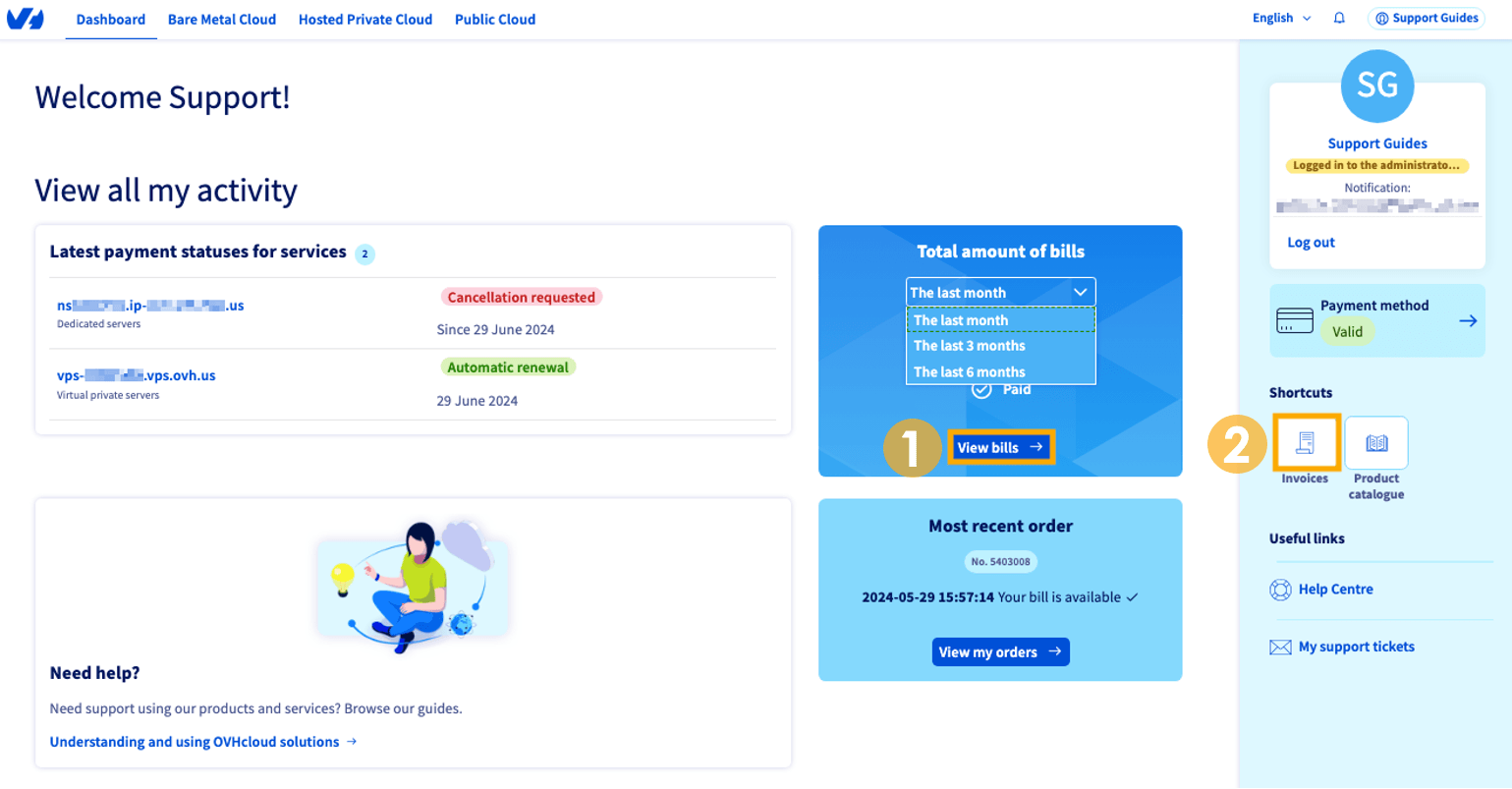
When you log in to the OVHcloud Control Panel there are two ways to quickly access your bills: (1) The View bills → button or (2) the Invoices button.
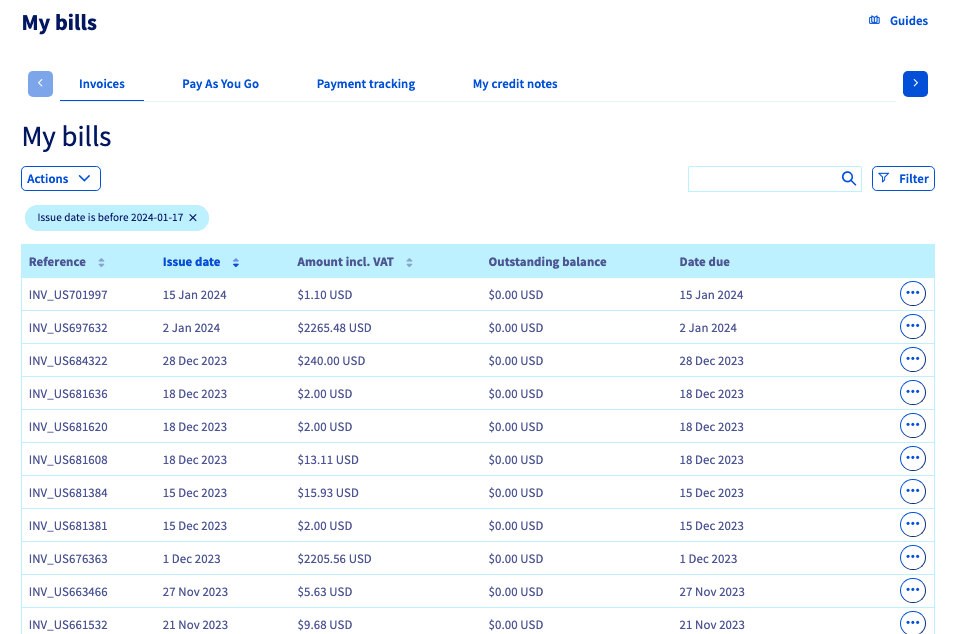
You will then land on a page summarizing your bills. The table displays:
- the Reference, or invoice
- the Issue date
- the invoice Amount including VAT
- the Outstanding balance
If the total amount appears in red, then this means that the bill is pending payment. The date on which the bill is due will show whether the payment needs to be made immediately.
- the Date due
If "Information not available" appears, this means that the bill is not linked to an automatic renewal.
NOTE: As of April 1, 2026, Public Cloud services invoices are issued separately from Bare Metal or Hosted Private Cloud services.
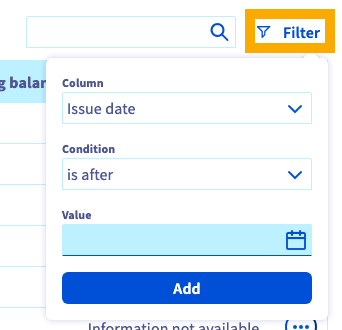
If you are looking for a particular bill, you can use the filter button to narrow your search by date or use the search field 🔍 to enter a Reference number.
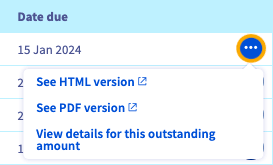
Clicking the more options ... button to the right of any of these bills will provide you with three other actions:
- See HTML version: The bill will open in a new tab in your web browser.
- See PDF version: A PDF file will be generated, which you can then download.
- View details for this outstanding amount: You can view a log of the operations performed on this bill.
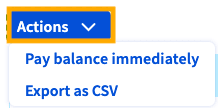
Clicking the Actions button allows you to:
- Export as CSV: An Excel file in .csv format will download to your device. It will show all the information displayed in the Control Panel as well as the order number.
- Pay balance immediately: A purchase order for all bills pending payment will be generated. Once payment has been made, your outstanding balance will be $0.00.
Track your payments
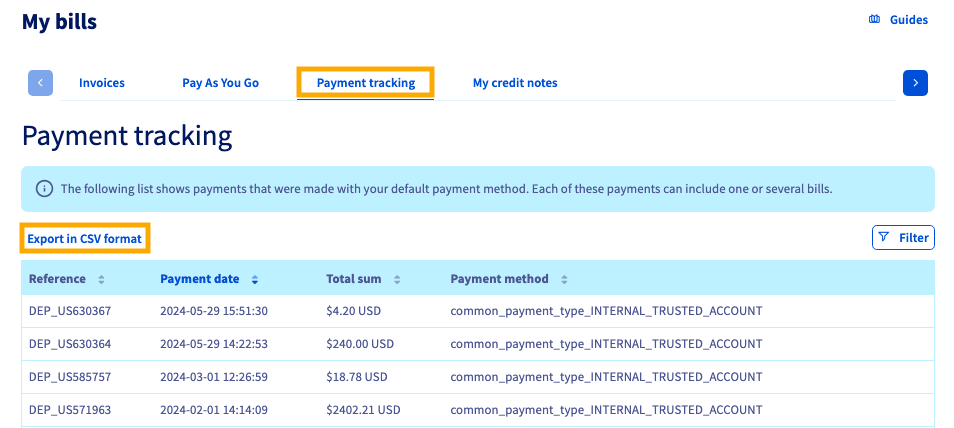
You can track all payments made by selecting the Payment tracking tab.
This section allows you to see which payments and bills are linked to one another. If you notice a discrepancy between a payment amount and the total listed on a bill, this means that something, such as a credit on the account, automatically reduced the payment amount.
You can also Export in CSV format.
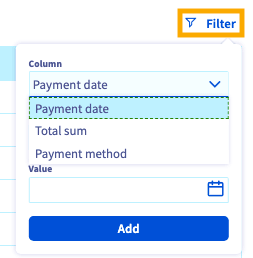
Using the Filter button, you can limit the information by the date, sum, or payment method.
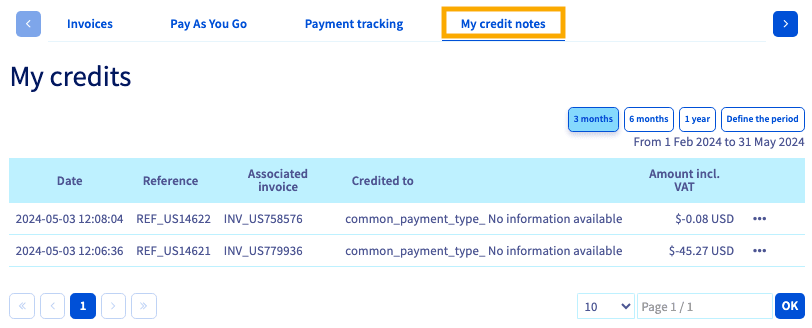
Selecting the My credit notes will show you any credits applied to the payment method on file.
Understanding your bill
You are sent a bill when you pay for your order and when your service is automatically renewed. It summarizes the products you have paid for (or are awaiting payment), their renewal periods, and the total charged for the services. A bill reference always starts with two letters.
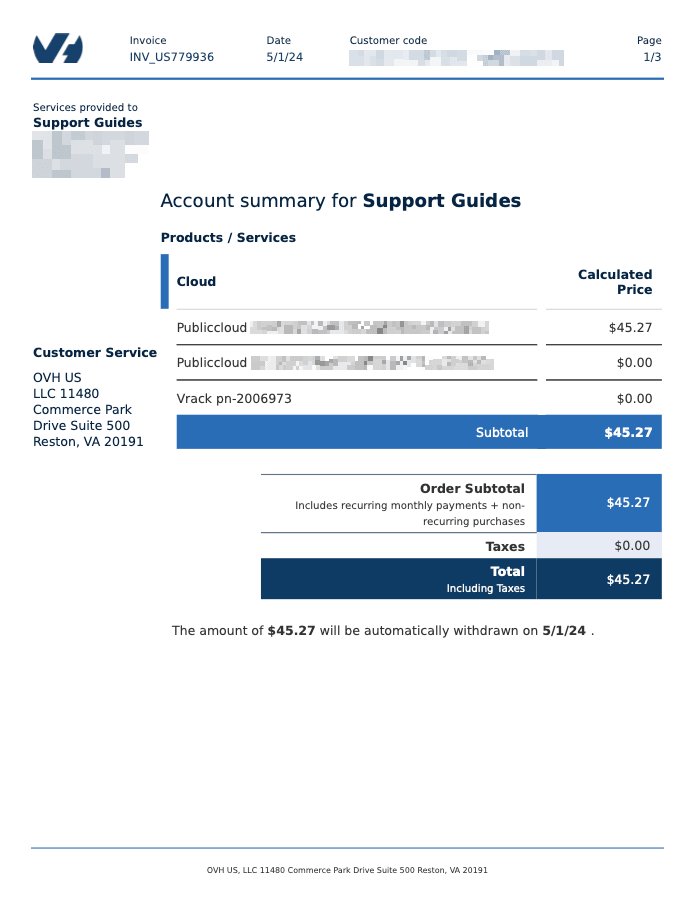
On the following page(s), you will see details of the services for which you have been billed:
- Cloud: A description of the service and the period billed for.
- Quantity: The number of units of the service billed for. The number of hours used, in the case of hourly resources.
- Price excl. Taxes: The price of the service before taxes are applied.
- Price incl. Taxes: The price of the services including any applicable taxes.
If “Account statement” appears as the payment method used, this means that the service has been renewed automatically. The payment method used will be the default payment method saved in the OVHcloud Control Panel.
Go further
Browse all the Managing billing, payments, and services guides.
Browse the rest of the OVHcloud US documentation for guides on our other products and services.