
Managing payment methods
Learn how to save and manage different payment methods in the OVHcloud Control Panel.
NOTE: If you experience problems adding a new payment method, please add an exception to your ad-blocker for us.ovhcloud.com, or log in using incognito mode on your browser, then try again. We never display ads in the OVHcloud Control Panel. Please know that your ad-blocker may interfere with our payment system.
Requirements
- access to the OVHcloud Control Panel
- a valid payment method
Instructions
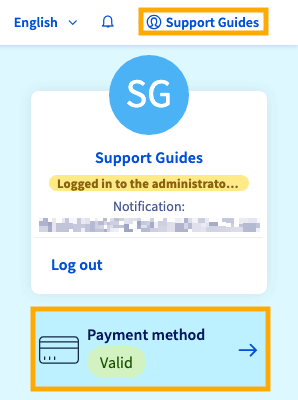
In the OVHcloud Control Panel, click your name in the top right-hand corner and click Payment method.
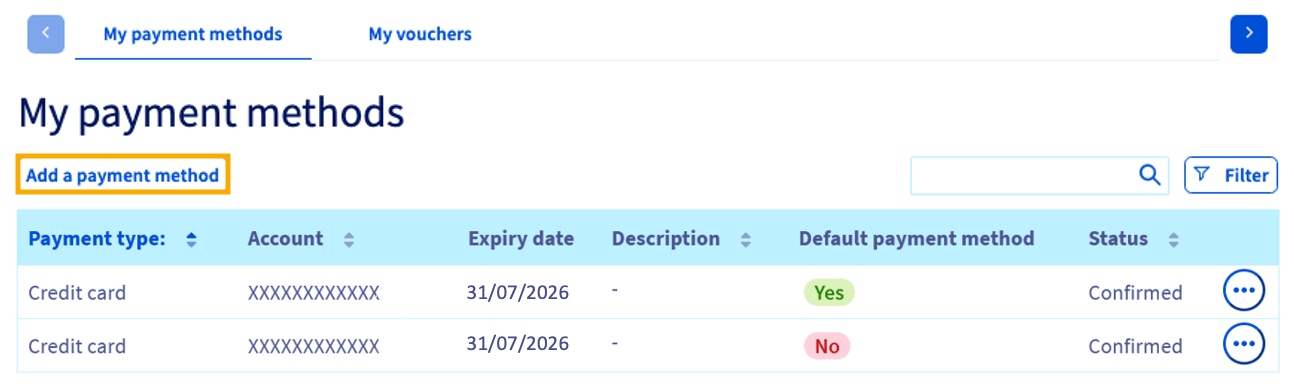
On the following page, you will see a table listing the payment methods saved to your customer account. From there you can:
- Add a payment method,
- Change your default payment method,
- Delete a payment method, or
- View your vouchers.
Add a payment method
This section does not apply to Enterprise accounts. For information about billing for Enterprise, please contact your Account Manager.
When you place your first order, you are asked to save a payment method to ensure that your service can be renewed via automatic payments.
This payment method is then used by default for all of your renewals and if offered to pay for new orders.
You can save other payment methods so that they are suggested when you place new orders and used by default for future payments.
The payment methods we accept are:
- Credit Card - VISA, MasterCard, American Express
- PayPal
- Wire Transfer (Hosted Private Cloud)
- Accepted currencies (Hosted Private Cloud): USD, GBP, EUR
To add a payment method, click Add a payment method.
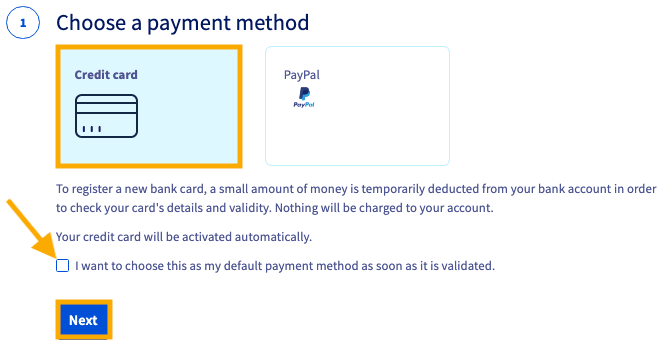
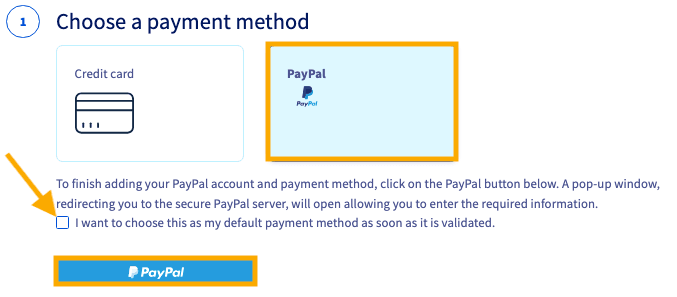
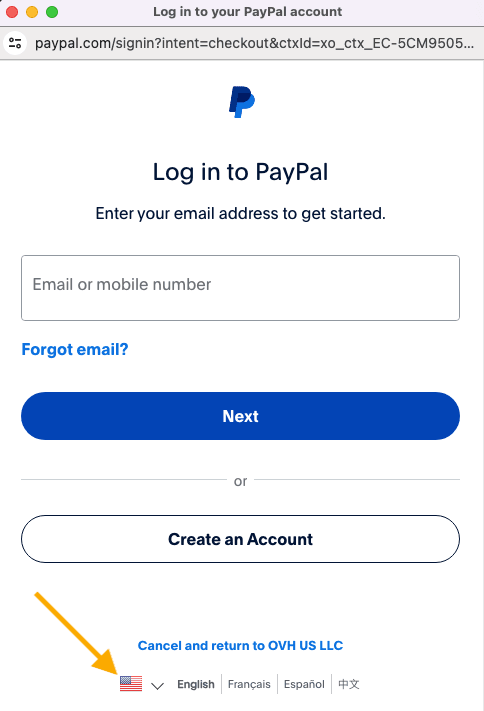
Choose the payment method you want to use:
Select Credit card as your payment method and click Next.
You also have the option to check the box ☑ to set this payment method as your default.
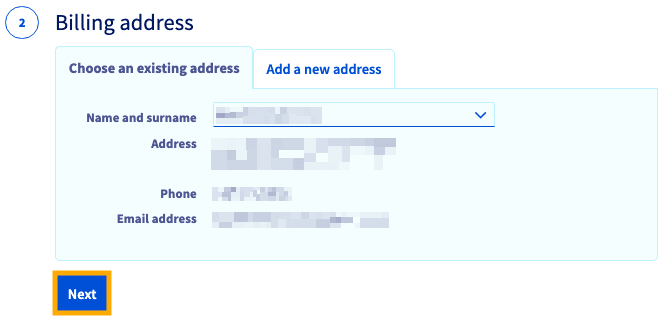
Verify your billing address and click Next. You can add a new billing address if needed.
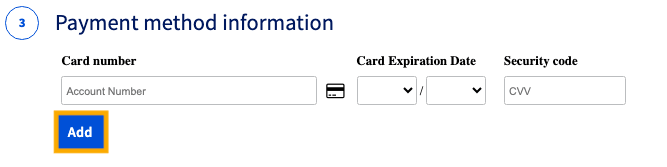
Enter your credit card information and click Add.
Change your default payment method
This section does not apply to Enterprise accounts. For information about billing for Enterprise, please contact your Account Manager.
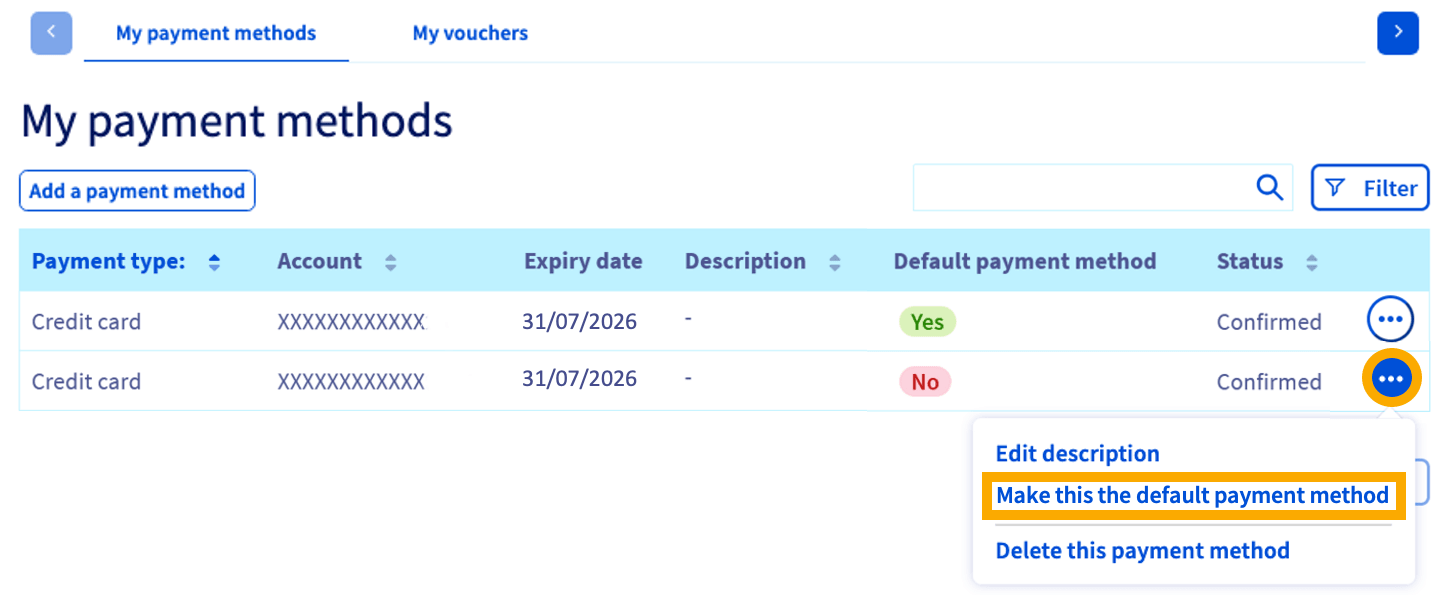
Payments for your services’ renewal bills are always taken via your default payment method. If you would like to change it, you will need to add a new payment method in the OVHcloud Control Panel.
To do this, click more options ... button to the right of the new payment method, then Make this the default payment method.
You can also add more details to differentiate your payment methods by clicking Edit description.
Delete a payment method
NOTE: If you only have one payment method on your account, you will not be able to delete it as it will be used for future billing.
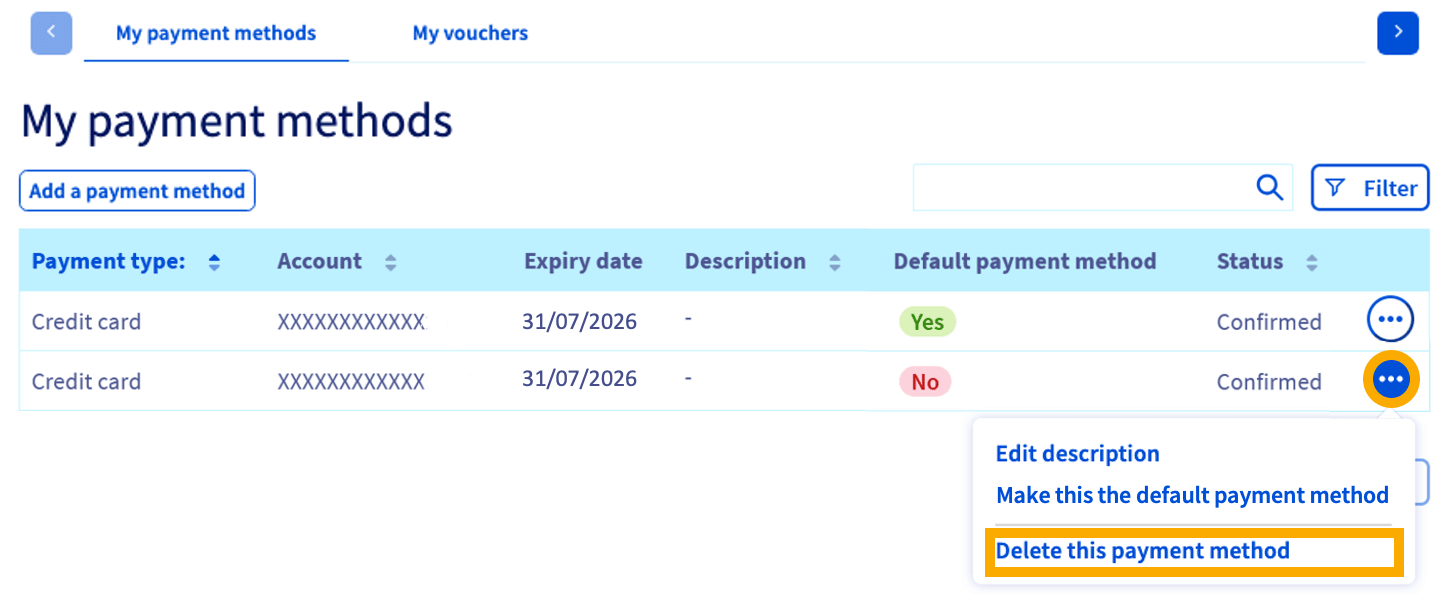
If you no longer want to use one of your payment methods, you can delete it by clicking on the more options ... button to the right of it. Then click Delete this payment method.
Delete a payment method via the OVHcloud API
You can also delete a payment method via the OVHcloud API.
Start by getting the payment method’s ID:
Then delete the payment method using the ID you obtained in the previous step:
For more information about using the OVHcloud API, please refer to our guide First Steps with with the OVHcloud API.
View your vouchers
Select the My vouchers tab at the top of the screen to see any credits that have been applied to your account.
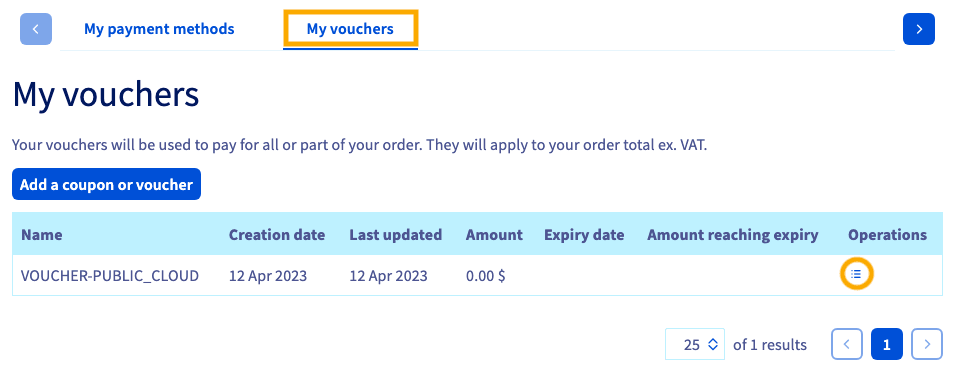
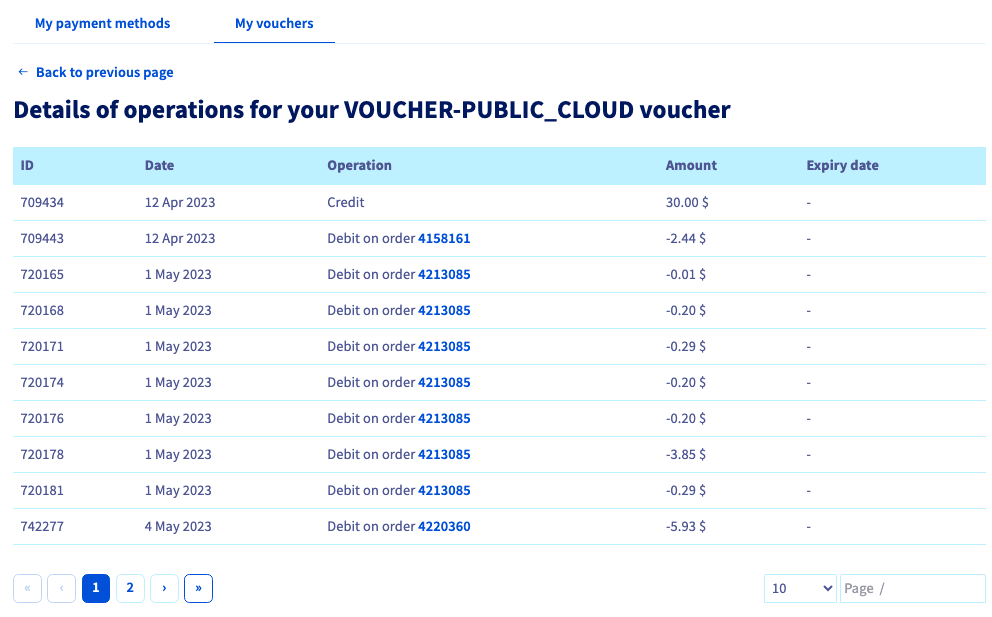
Clicking the Details of operations ☷ button will show you a list of transactions that debited your voucher.
NOTE: If you wish to use a voucher on a new order, you will need to create but not finalize an order and then reach out to customer support to let us know to apply your voucher to that order.
Go further
Browse all the Managing billing, payments, and services guides.
Browse the rest of the OVHcloud US documentation for guides on our other products and services.