
Creating an alert
Requirements
- Being an administrative contact of your VMware on OVHcloud infrastructure (to receive login credentials)
- A user account with access to vSphere (created in the OVHcloud Control Panel)
Instructions
To create an alert, right-click on the data center or any other item you want to monitor, and then click on Alarms and New Alarm Definition.
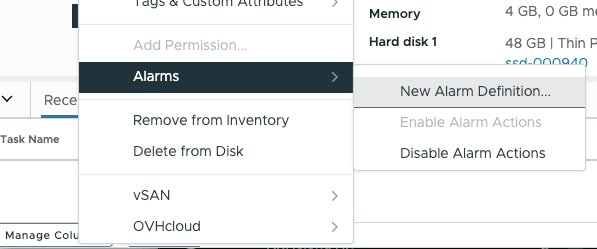
On the following screen, you will be able to configure your alerts.
-
Name and targets: Name the alert and set its target. You can add a description as well.
-
Alarm Rule 1: Define the rules of the alert actions it triggers.
The
IFfield allows you to set an alert trigger from a selection of variables. Depending on the variable chosen, a list of arguments will be offered.The
THENfield allows you to indicate that the alert is triggered with a certain degree of criticality and will result in actions such as sending an email, executing a script, or shutting down a VM.This allows you to monitor the RAM of a host, for example, by specifying a maximum threshold before an alert is generated, and you receive a warning email.
InfoYou can add several rules to your alert by clicking
ADD ANOTHER RULE. -
Reset Rule 1: Set the criteria for ending the alert and new actions to trigger.
-
Review: Review the summary of your alert settings. You can enable or disable this alert using the
Enable this alarmslider.InfoYou can also enable or disable alarm actions by right-clicking your VM and opening the
Alarmsmenu.
Go further
Browse all the VMware on OVHcloud guides.
Browse the rest of the OVHcloud US documentation for guides on our other products and services.
Learn more about VMware on OVHcloud on the OVHcloud US website.