
Uploading your own image
Learn the steps to upload your own images to your project.
OVHcloud offers ready-to-go images for Public Cloud instances. However, we also enable customers to use their own images.
The new version will not be reflected in OVHcloud Control Panel, OVHcloud API, Horizon, or OpenStack API when you upgrade the operating system instead of reinstalling it.
NOTE: At this time, this feature is not supported on Local Zones instances.
Requirements
- A Public Cloud instance in your OVHcloud account
- Your own RAW/QCOW2 (recommended formats) image
- An OpenStack user
- An OpenStack CLI ready environment (if using CLI)
Instructions
Before starting
It is advisable to either use cloud-ready images already provided by the distribution vendor or build your own image using solutions such as Packer OpenStack builder.
Cloud-ready images can be found here:
- https://cloud.centos.org/centos/
- https://cloud.debian.org/images/cloud/
- https://cloud-images.ubuntu.com/releases/
- https://alt.fedoraproject.org/cloud/
Other operating systems tend to offer ISO images which are also applicable when building images with Packer such as QEMU and VirtualBox builders.
We recommend ensuring the following is installed on your images for them to be cloud-ready:
- QEMU Guest Agent: this will provide better snapshot experience as it will allow the host to communicate to the instance for live snapshots. Not all operating systems are compatible with this package but most of them are.
- cloud-init: this will allow you to bootstrap your instance on the first boot, such as adding SSH keys and configuring network. Most operating systems are compatible with this.
Finally we recommend images to be either in RAW or QCOW2 format. As best practice, keep the size of the image as small as possible so that you are billed less per month and spawns of your instances are quicker.
Uploading your image
With OpenStack there are two ways of uploading your own image. You can either upload it via the OpenStack command line interface or with the Horizon web interface.
Using CLI
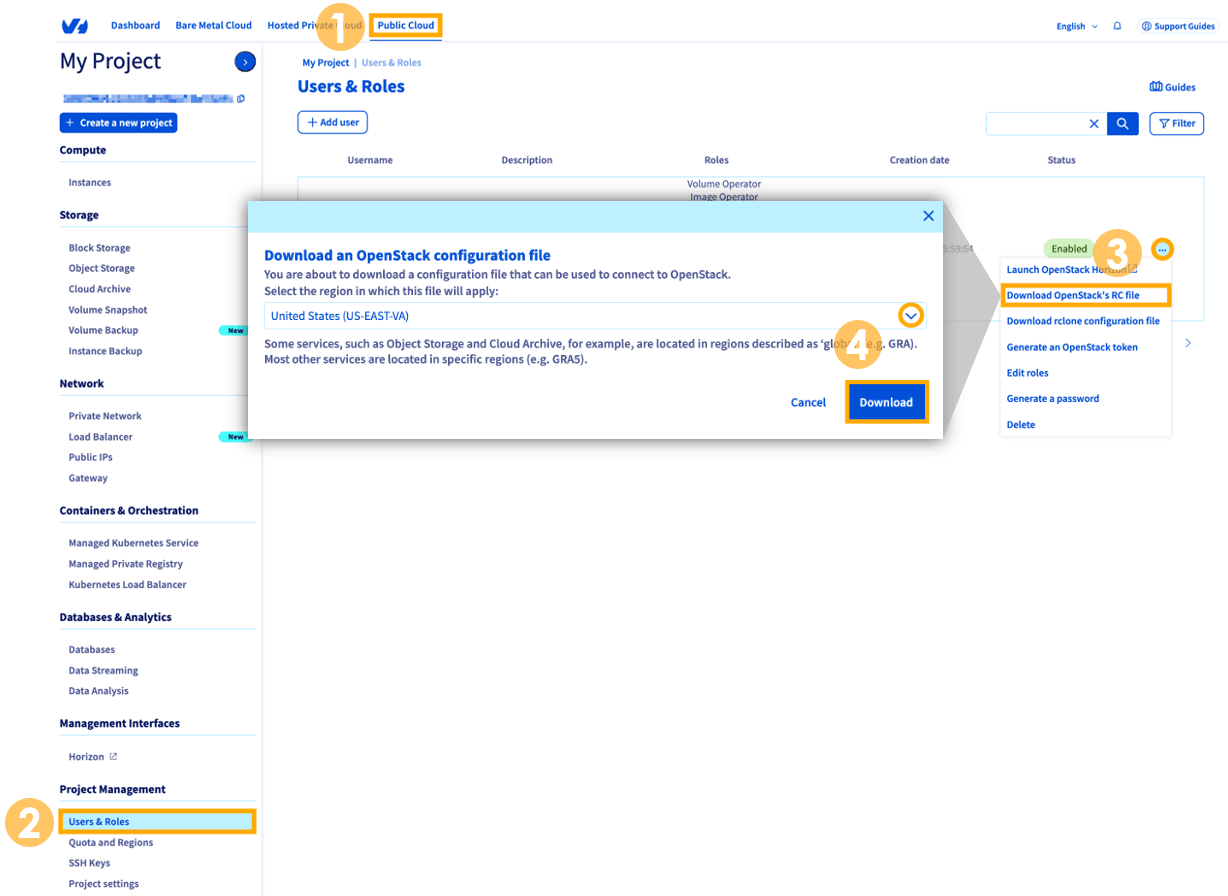
Once your image is ready to upload, you can use the following steps to upload it using the OpenStack CLI. From the OVHcloud Control Panel:
- Select
Public Cloudfrom the top navigation bar. - On the left, under Project Management, click
Users & Roles. - To the right of your OpenStack user, click the more options
...button and selectDownload OpenStack's RC file. - Select the region you want to upload it to and click
Download.
Source the openrc file:
Once the file is sourced, you will be asked to enter the password for the OpenStack user. Enter your password.
Now you can upload your image. This example command will do the following:
- Disk format is "RAW"
- Upload an image from the current path called "debian9.raw"
- Call the image "Debian 9 - My Image"
- Set the image to private state
- Set properties which are recommended to set. Set optimal configuration which allow features like live-snapshot and cloud-init to work (requires the username to be used)
Using Horizon
Once your image is ready to upload, you can use the following steps to upload it using the OpenStack Horizon interface.
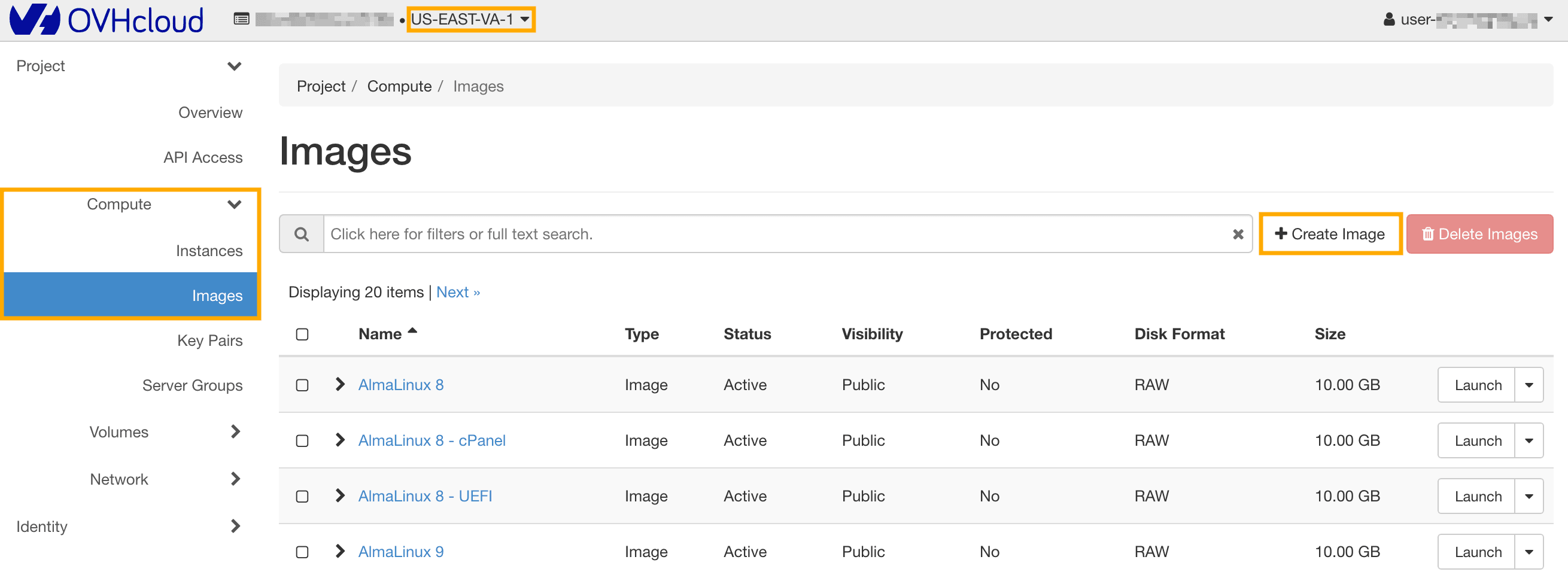
At the top left, select the region to which you want to upload your image.
In the left-side menu, click Compute and then Images, and click on + Create Image.
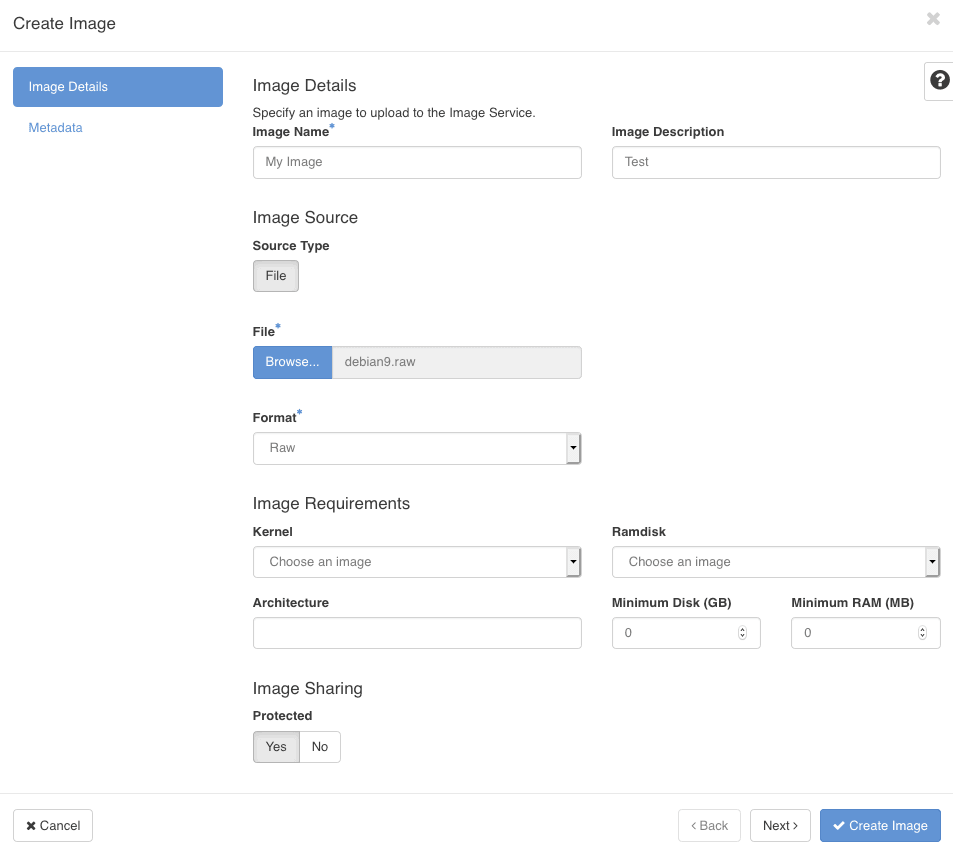
Enter the details of your image and select the file from your computer.
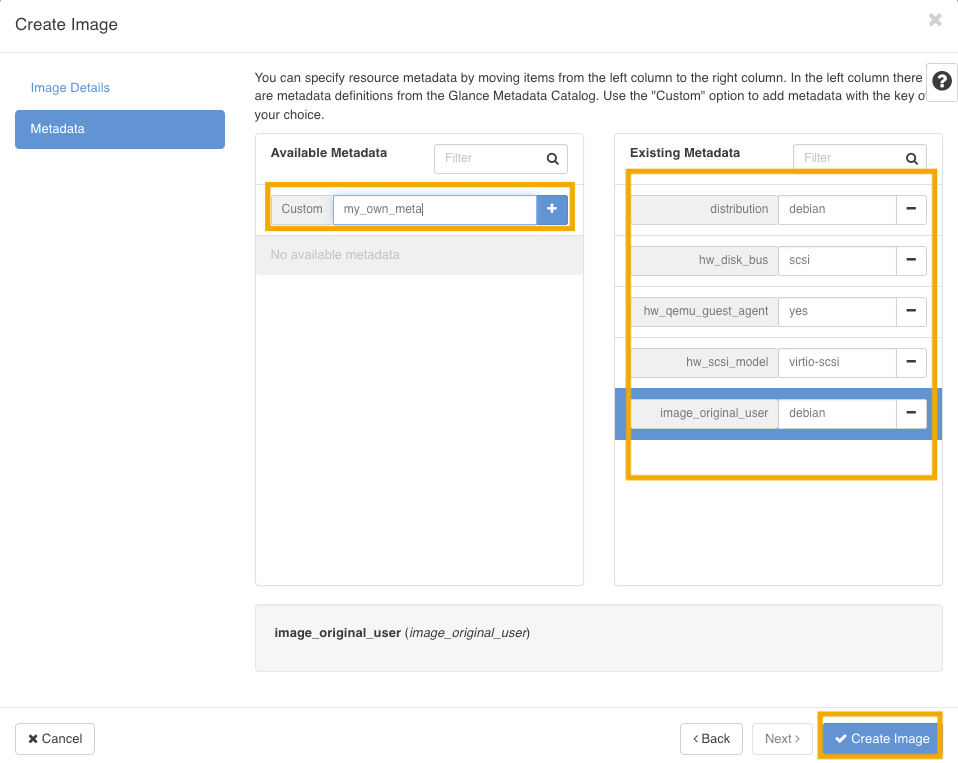
Enter the instance metadata (any custom ones you may have you can also add) and then click Create Image.
Go further
Browse all the Compute guides.
Browse the rest of the OVHcloud US documentation for guides on our other products and services.
Learn more about Public Cloud Compute on the OVHcloud US website.