
Object Storage - Use Object Storage with WinSCP
Learn how to configure WinSCP to manage your buckets and objects.
WinSCP is an open-source free SFTP client, FTP client, WebDAV client, S3 client, SCP client, and file manager for Windows.
Requirements
- A bucket
- A user with the required access rights on the bucket
- Your Object Storage credentials (
access_keyandsecret_access_key; see our Getting started with Object Storage guide)
Instructions
Start WinSCP. The login dialog will appear. Fill in the fields as follows:
-
Make sure the
New Sitenode is selected.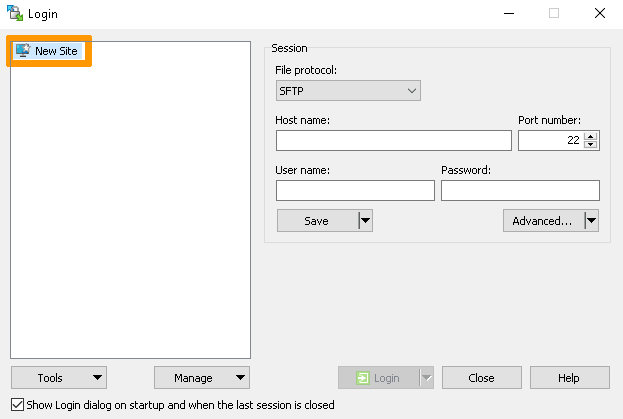
-
On the
New Sitenode, selectAmazon S3protocol.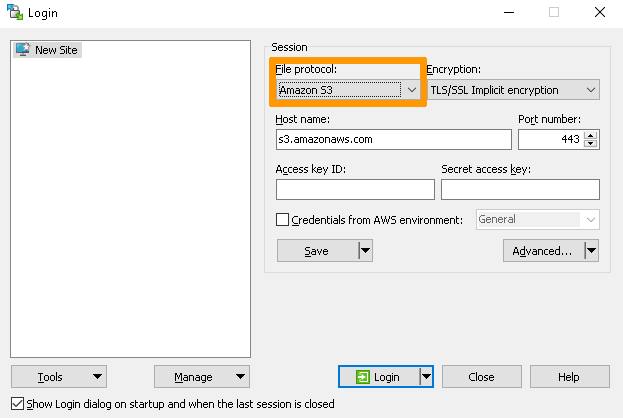
-
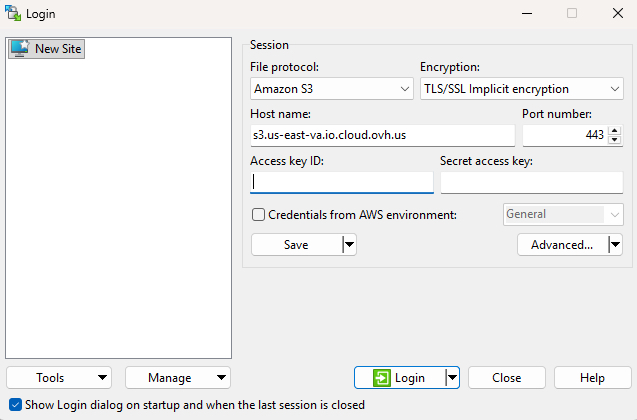
Enter your endpoint (without
https://) corresponding to your storage class and set thePort numberfield to443.InfoTo identify your endpoint corresponding to your storage class, please refer to this guide: Endpoints and Object Storage Geoavailability.
-
Enter your user's
access_key.To respect best practices, please fill in only the
Access key IDfield at this stage.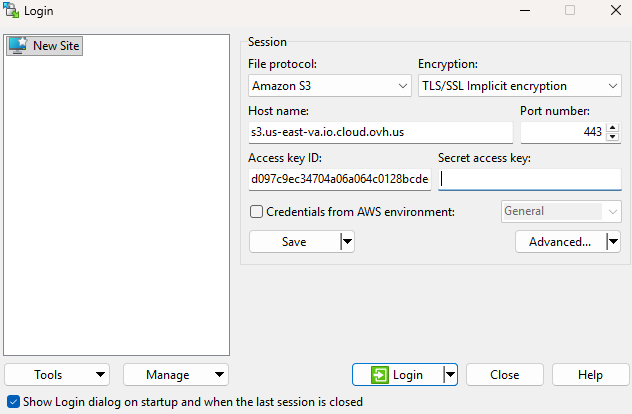
-
Save your site settings using the
Savebutton.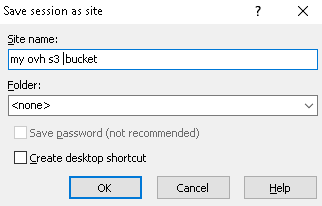
-
Log in using the
Loginbutton.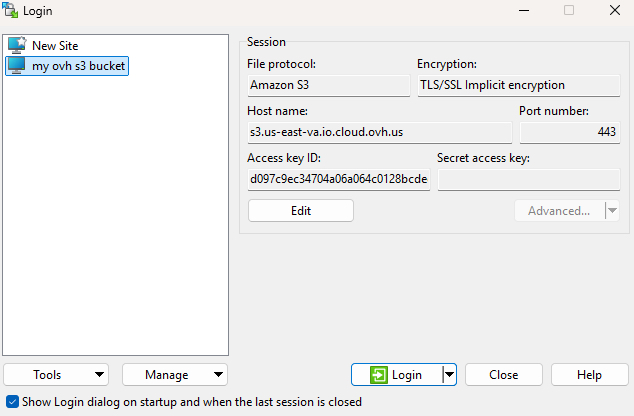
Then enter your
secret_access_key.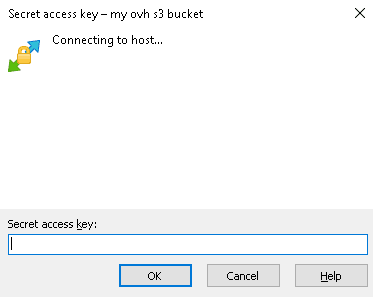
-
Once you are connected, you will see a list of your S3 buckets as folders in the root folder.
WarningNOTE: The
Create directorycommand in the root folder creates a new bucket.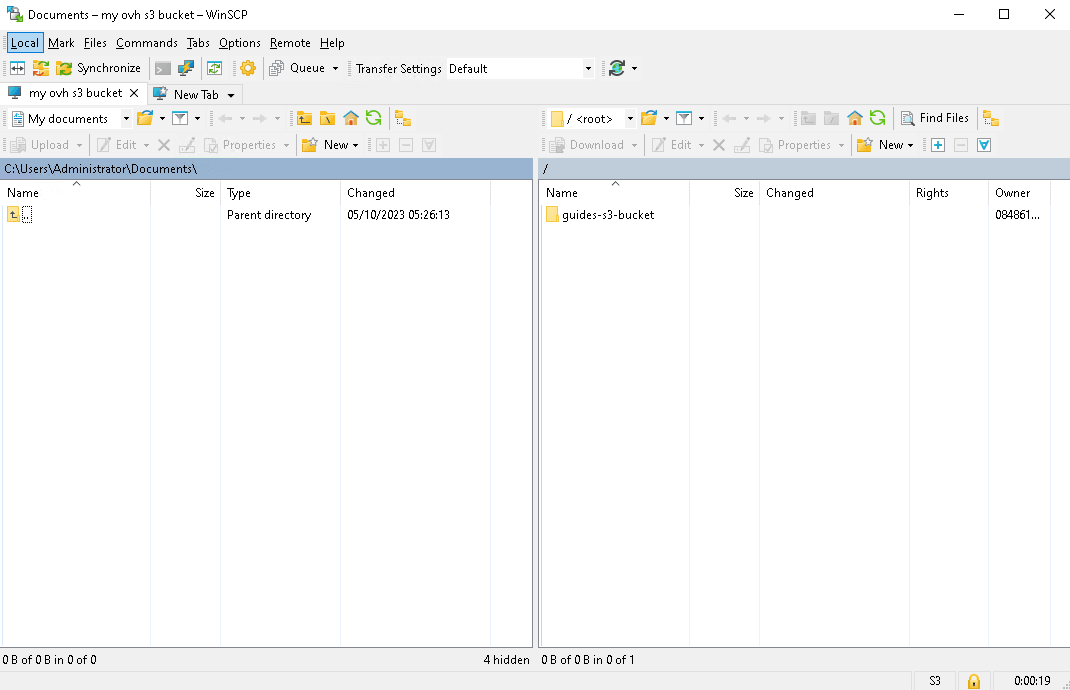
Go further
Browse all the Object Storage (S3™-compatible) guides.
Browse the rest of the OVHcloud US documentation for guides on our other products and services.
Learn more about Object Storage on the OVHcloud US website.