
How to Use Private Cloud within a vRack
The OVHcloud vRack feature makes it possible to connect different cloud services with each other, within one or more secure private networks (VLANs).
This guide explains how to set the solution up with a Hosted Private Cloud infrastructure.
Requirements
- A vRack service in your account or order one if needed
- Being an administrative contact of your Hosted Private Cloud infrastructure to receive login credentials
- A user account with access to vSphere (created in the OVHcloud Control Panel)
Instructions
OVHcloud Control Panel
After your Hosted Private Cloud infrastructure is delivered, it will be displayed in the vRack section in your OVHcloud Control Panel.
To access it:
- Go to the
Bare Metal Cloudsection. - Click on
Network. - Then click on
vRack.
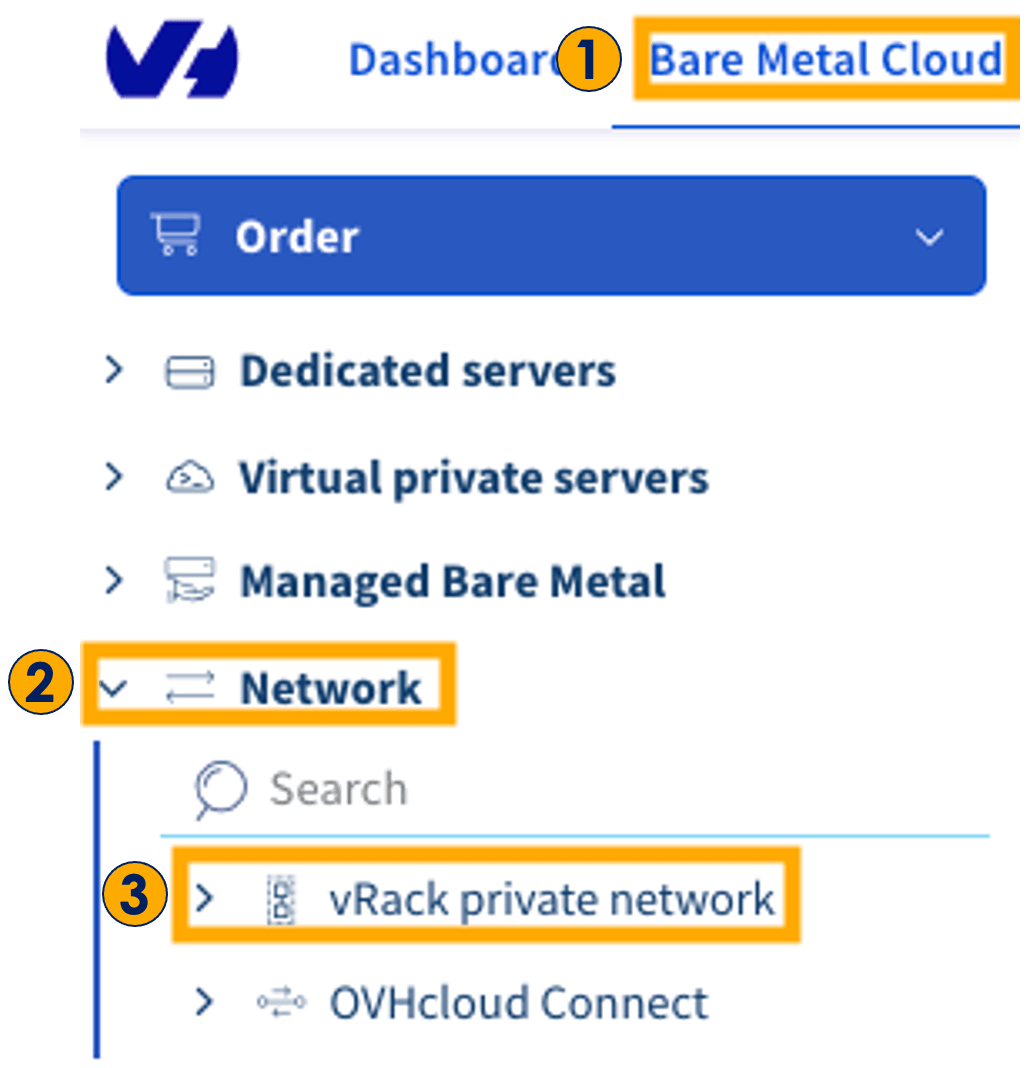
Select your vRack from the list and the "datacenter" will be automatically included into a vRack.
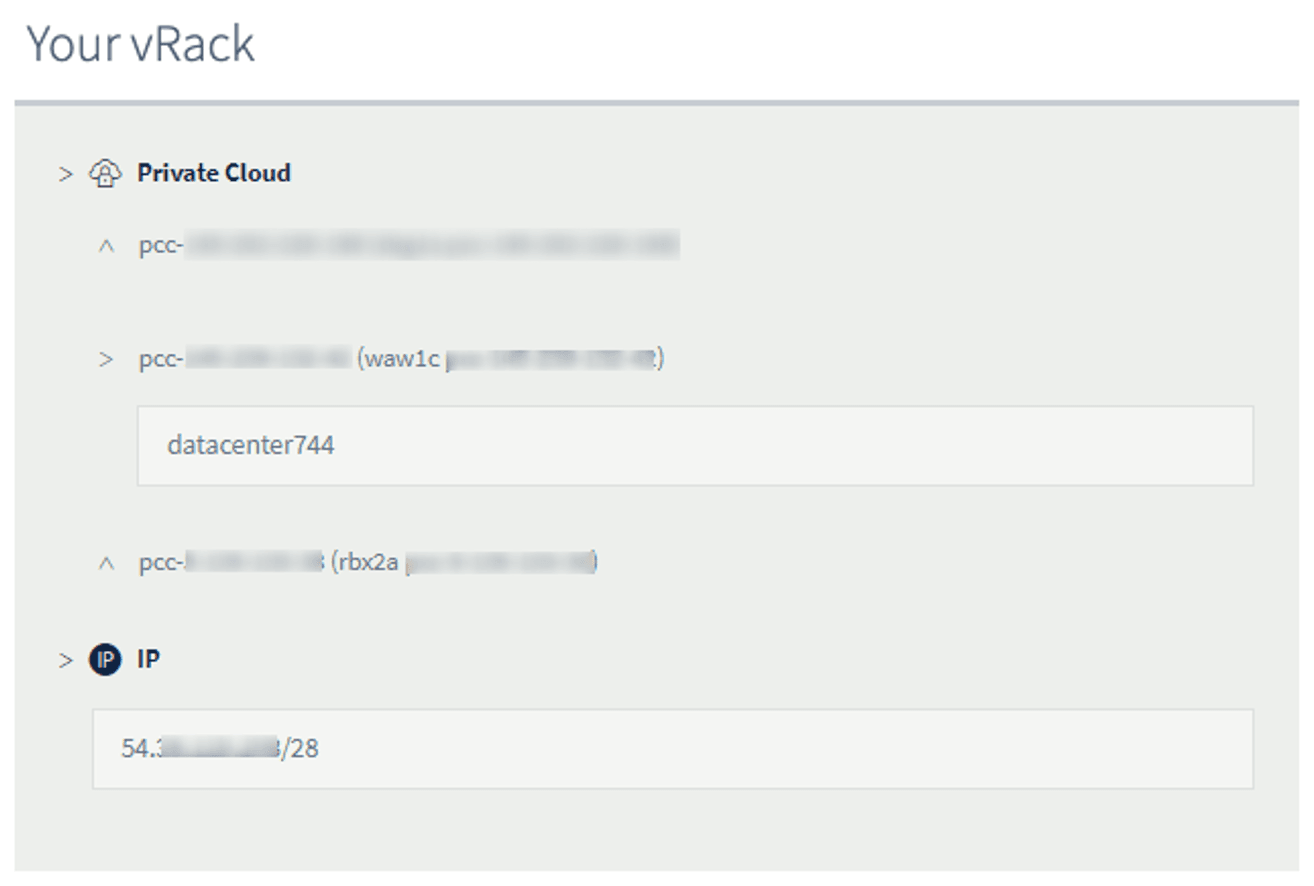
You can move the "datacenter" of your Private Cloud to another vRack by selecting it and clicking on the Move button.
vSphere client
In the vSphere client, you can find vRack-capable VLANs in the Networks section, located in the vrack folder.
By default, OVHcloud delivers an infrastructure with 11 VLANs included (VLAN10 to VLAN20).
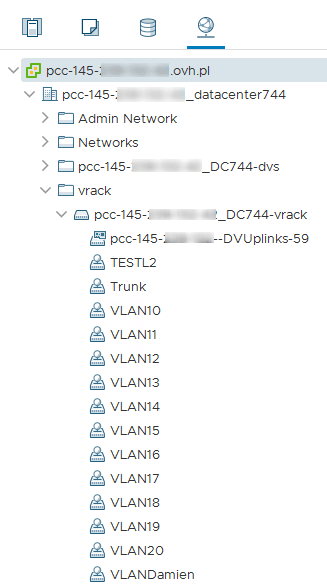
You can change their settings or create them again by following this guide.
You can then assign these Distributed Port Groups to the network interfaces of your virtual machines.
Go further
Browse all the VMware on OVHcloud guides.
Browse the rest of the OVHcloud US documentation for guides on our other products and services.
Learn more about VMware on OVHcloud on the OVHcloud US website.