
Managing hosts and storage
Learn how to add and remove hosts and datastores via the OVHcloud Control Panel and vSphere for a Hosted Private Cloud environment.
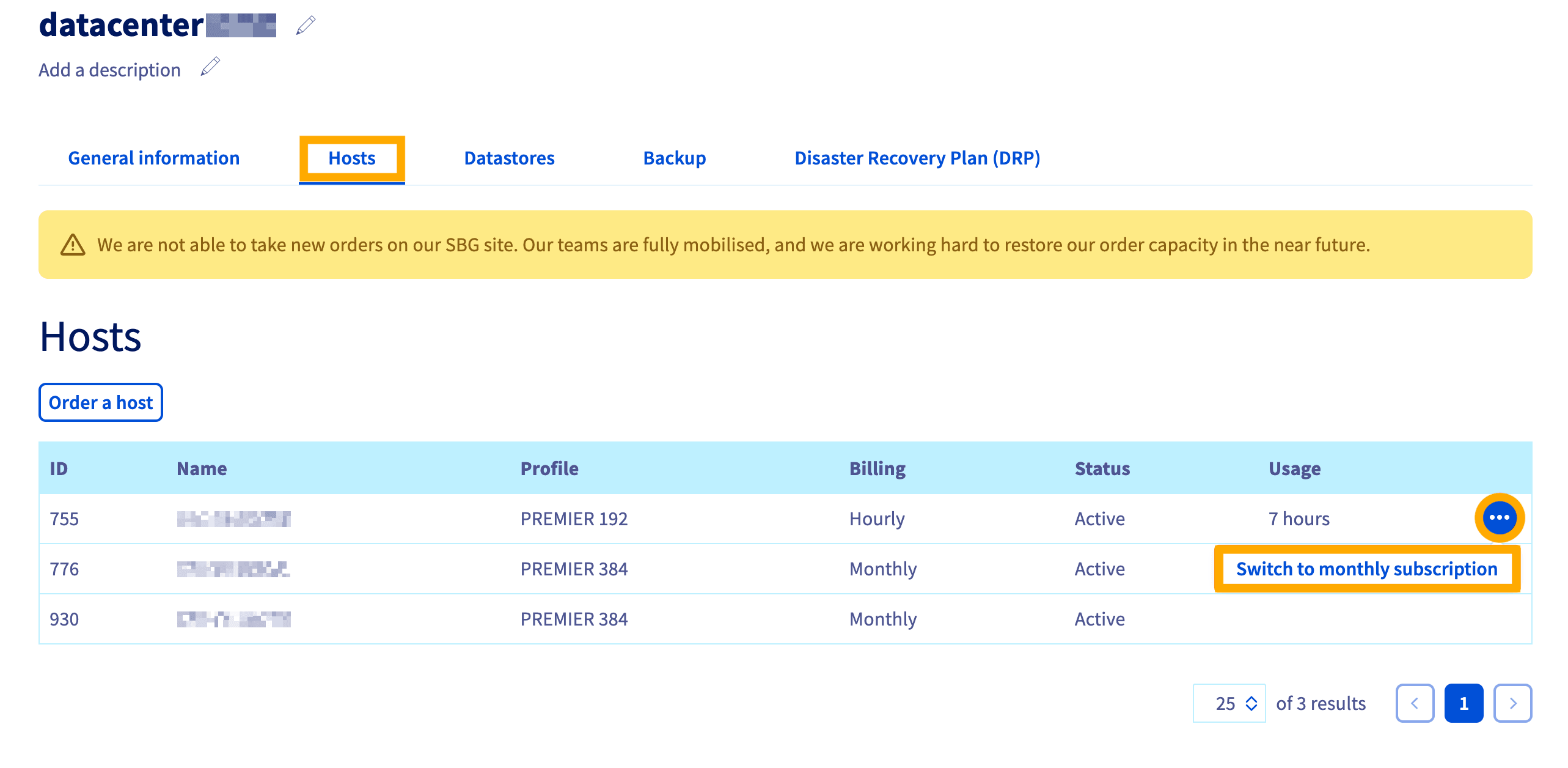
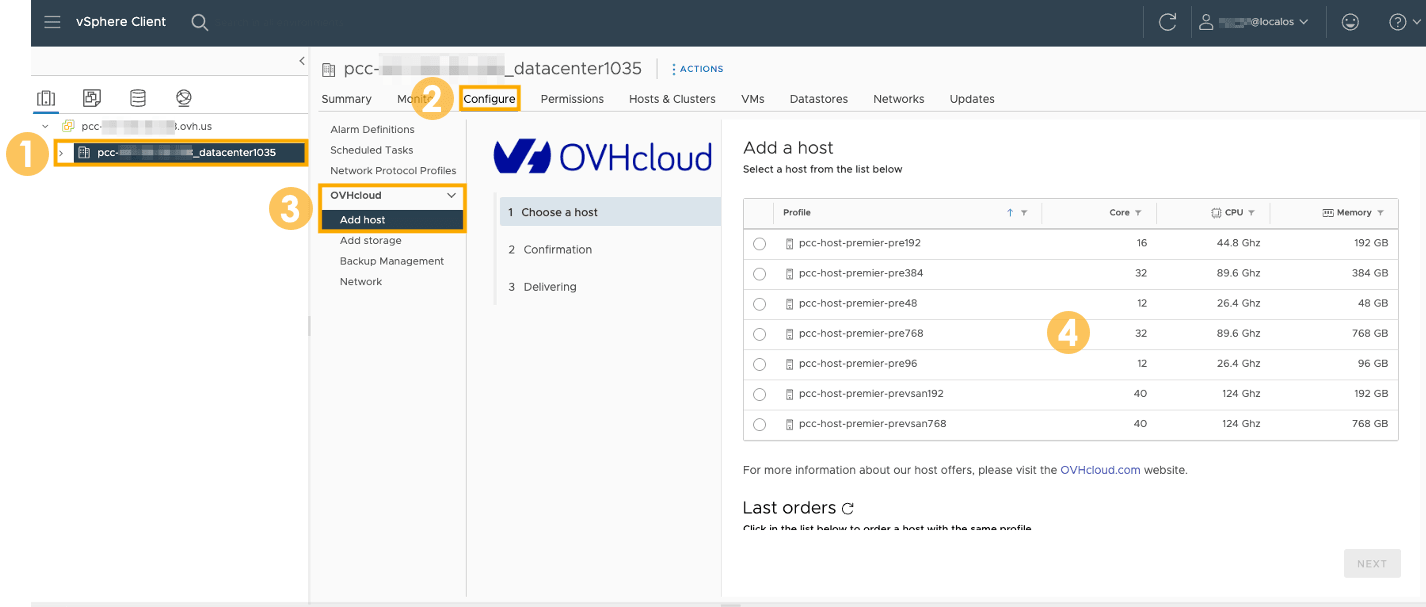
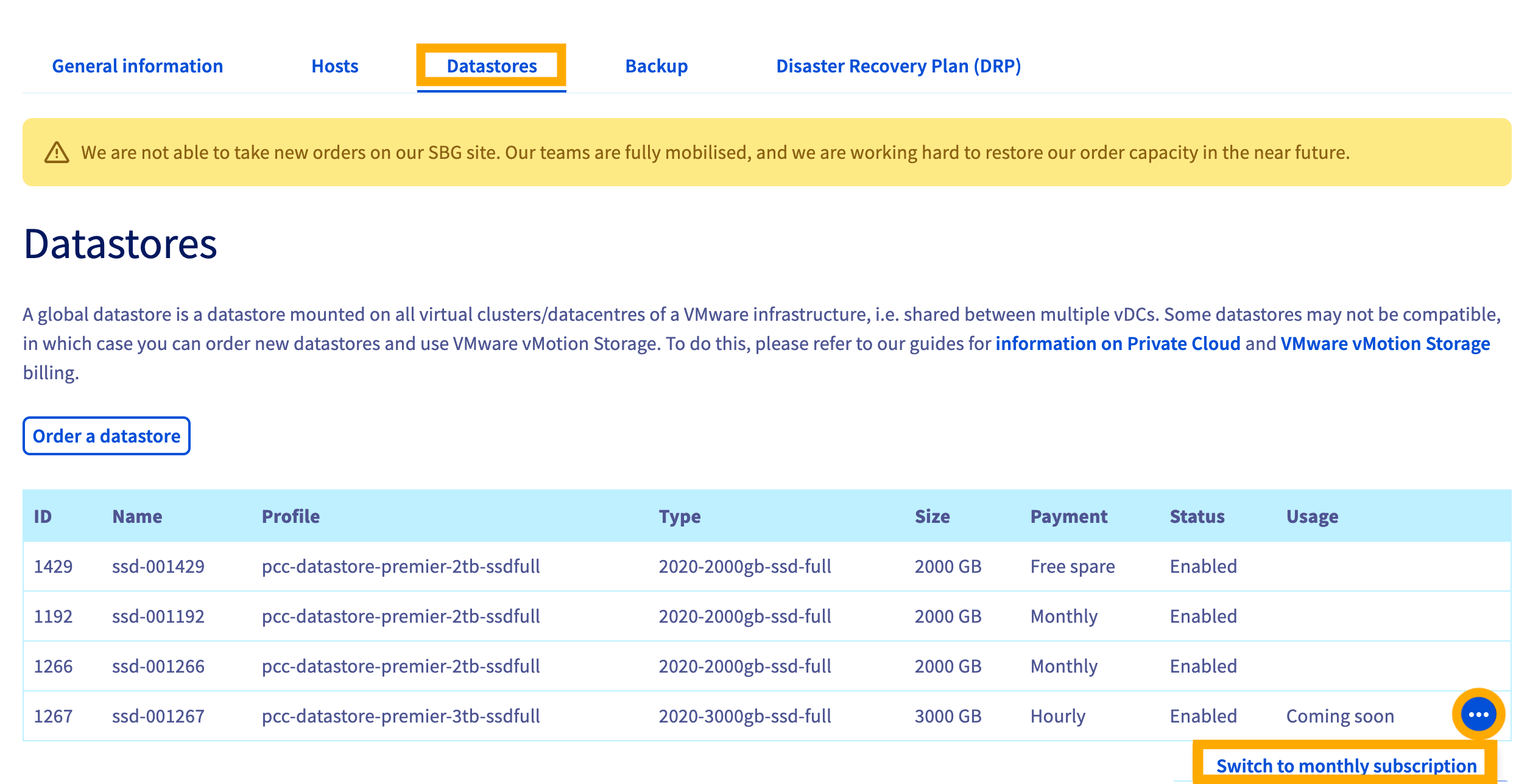
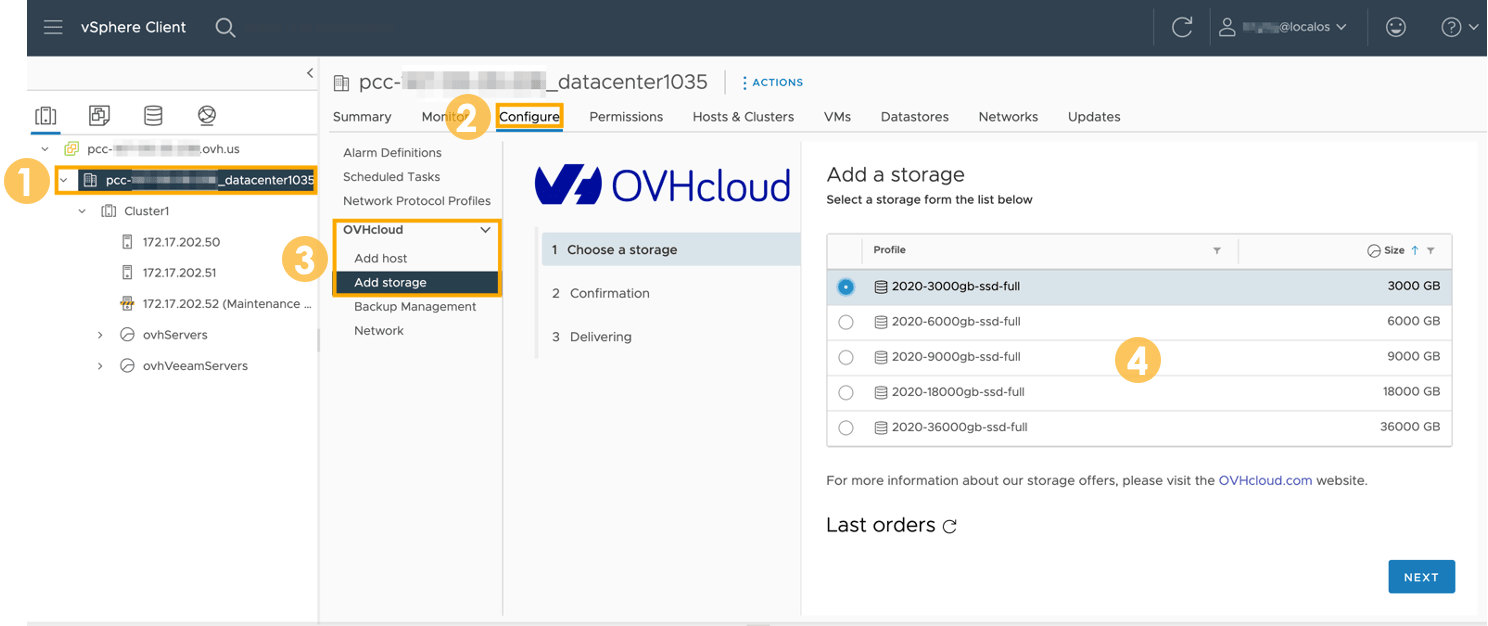
Resources will be billed monthly if added through the OVHcloud Control Panel. Resources added through vSphere will need to be modified in OVHcloud Control Panel to monthly billing.
Instructions
Adding a host
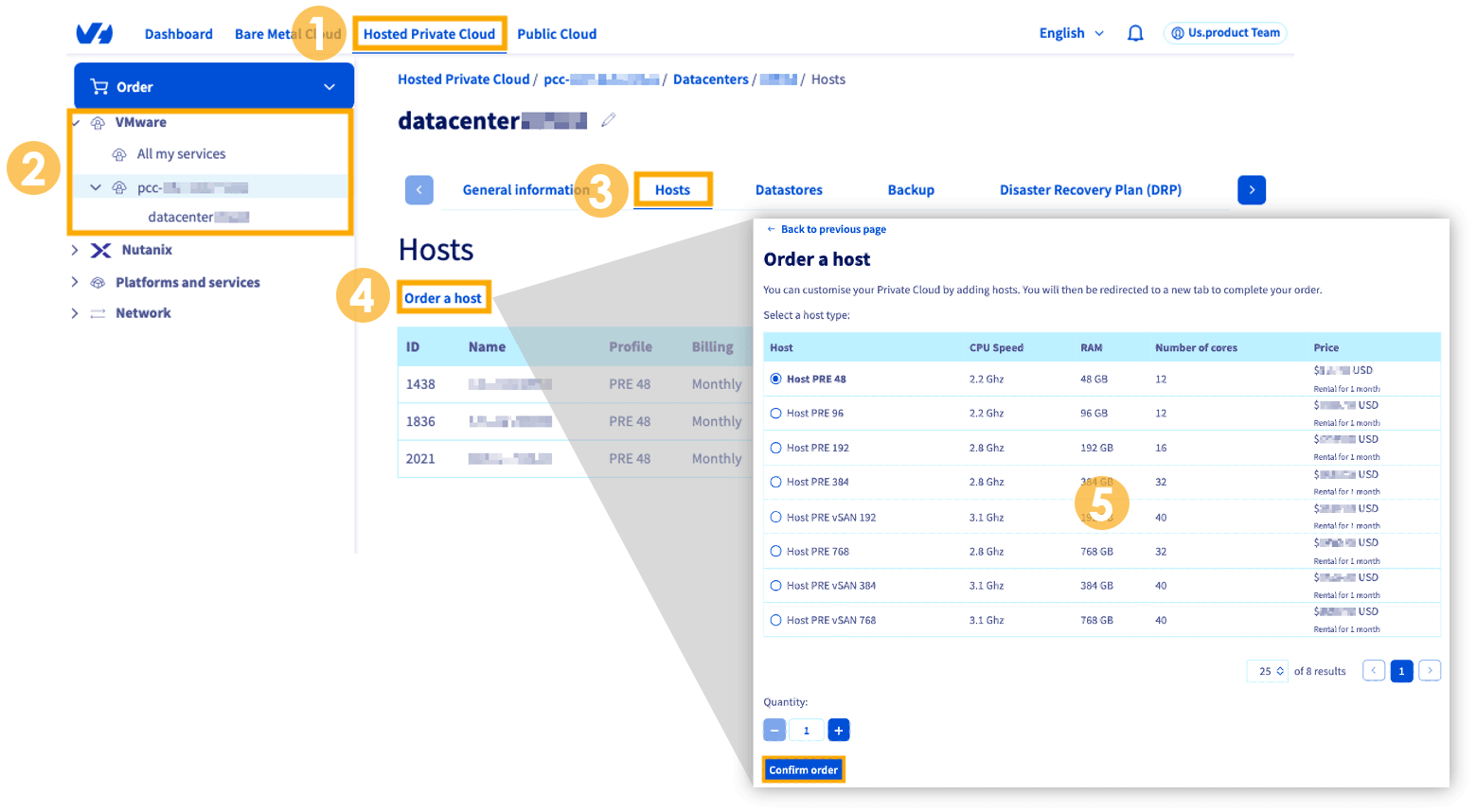
To add a host in the OVHcloud Control Panel:
- Select
Hosted Private Cloudfrom the top navigation bar. - In the left-hand menu, select
VMware, your PCC, and then the datacenter to which you want to add a host. - On the next screen, choose the
Hoststab. - Click the
Order a hostbutton. - Select your host and quantity, and click
Confirm order.
Adding a datastore
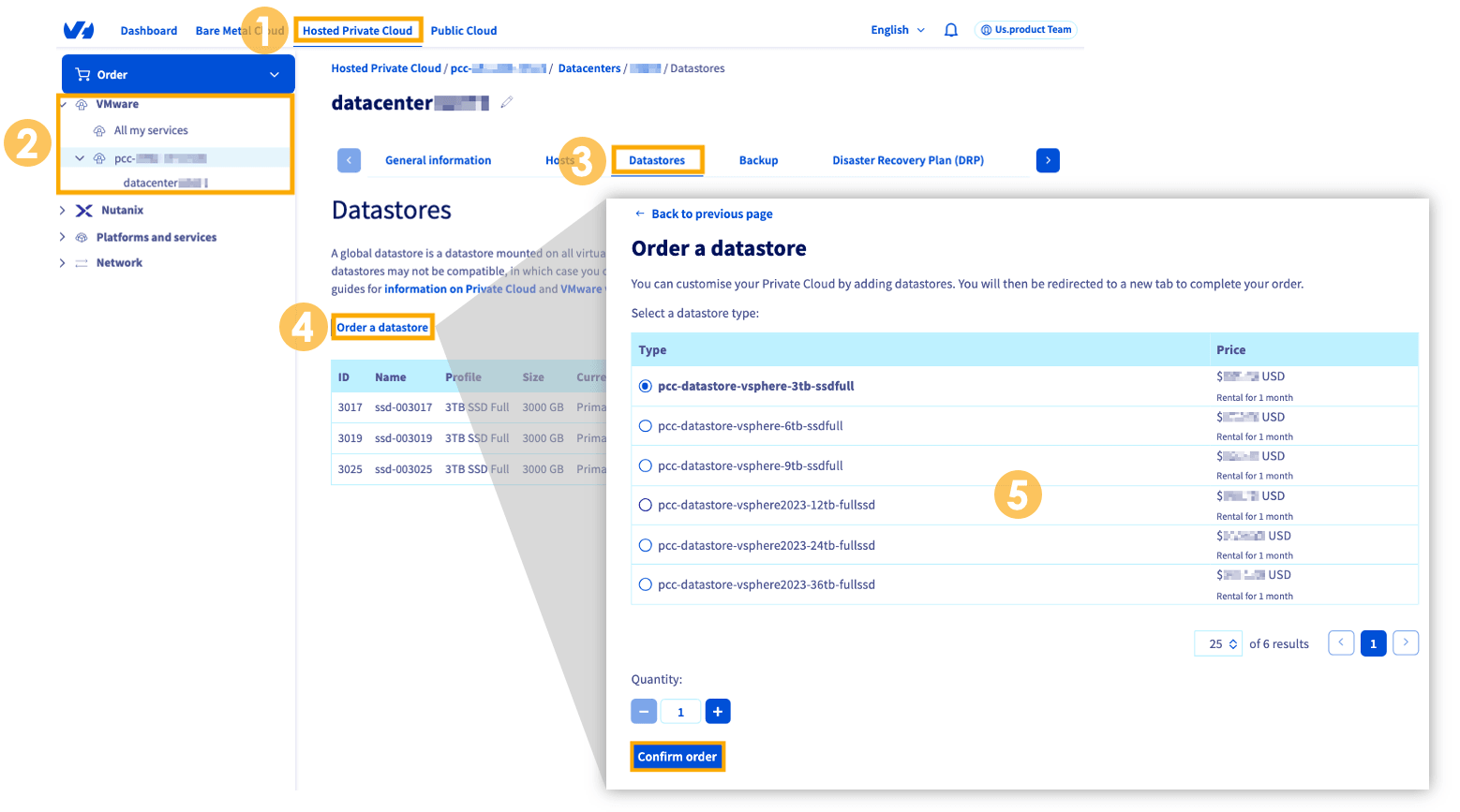
To add a datastore in the OVHcloud Control Panel:
- Select
Hosted Private Cloudfrom the top navigation bar. - In the left-hand menu, select
VMware, your PCC, and then the datacenter to which you want to add a host. - On the next screen, choose the
Datastorestab. - Click the
Order a datastorebutton. - Select your type and quantity, and click
Confirm order.
Removing a host
On the Host and Clusters screen, right-click the host you would like to remove. Choose Maintenance Mode and select Enter Maintenance Mode.
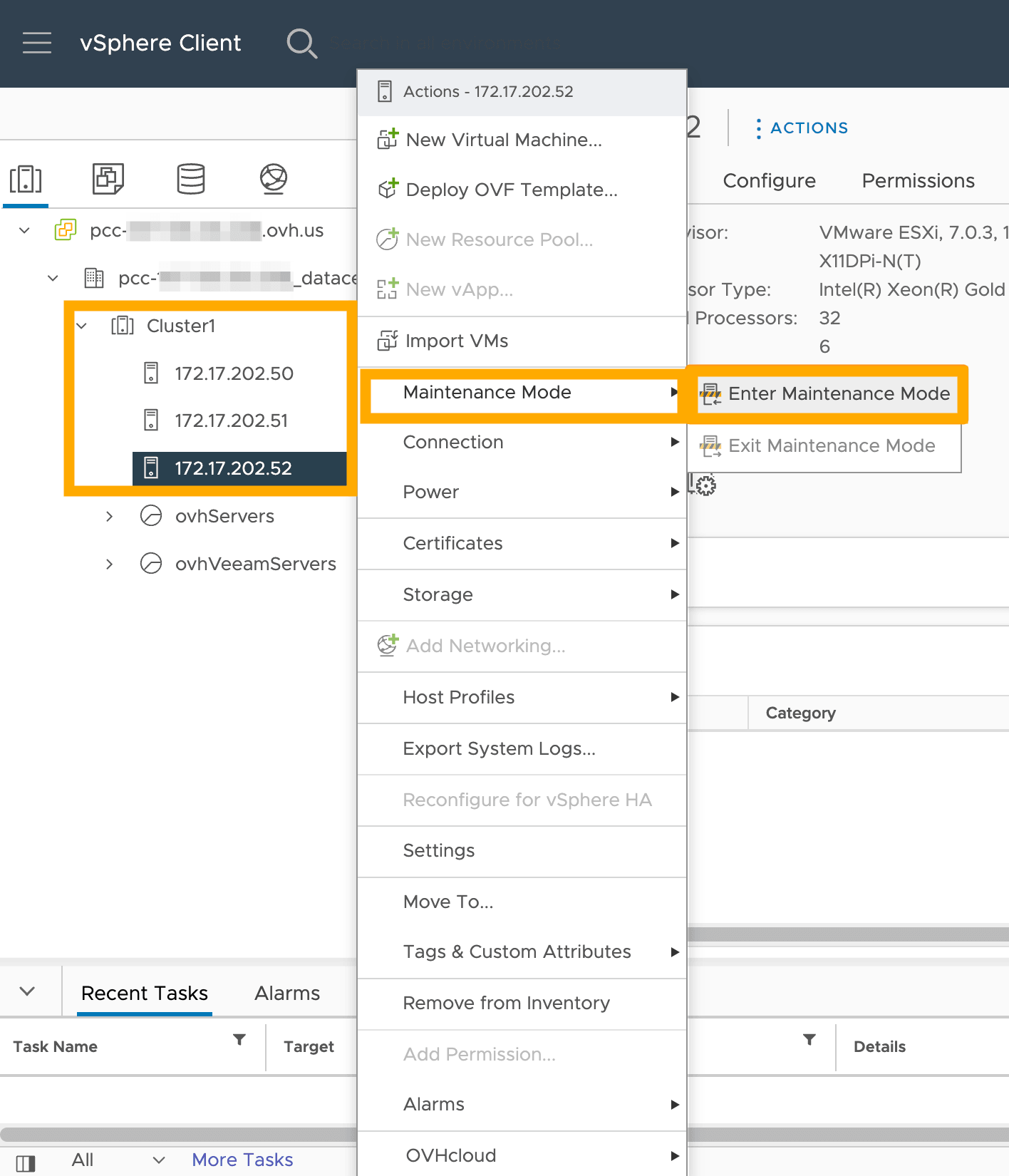
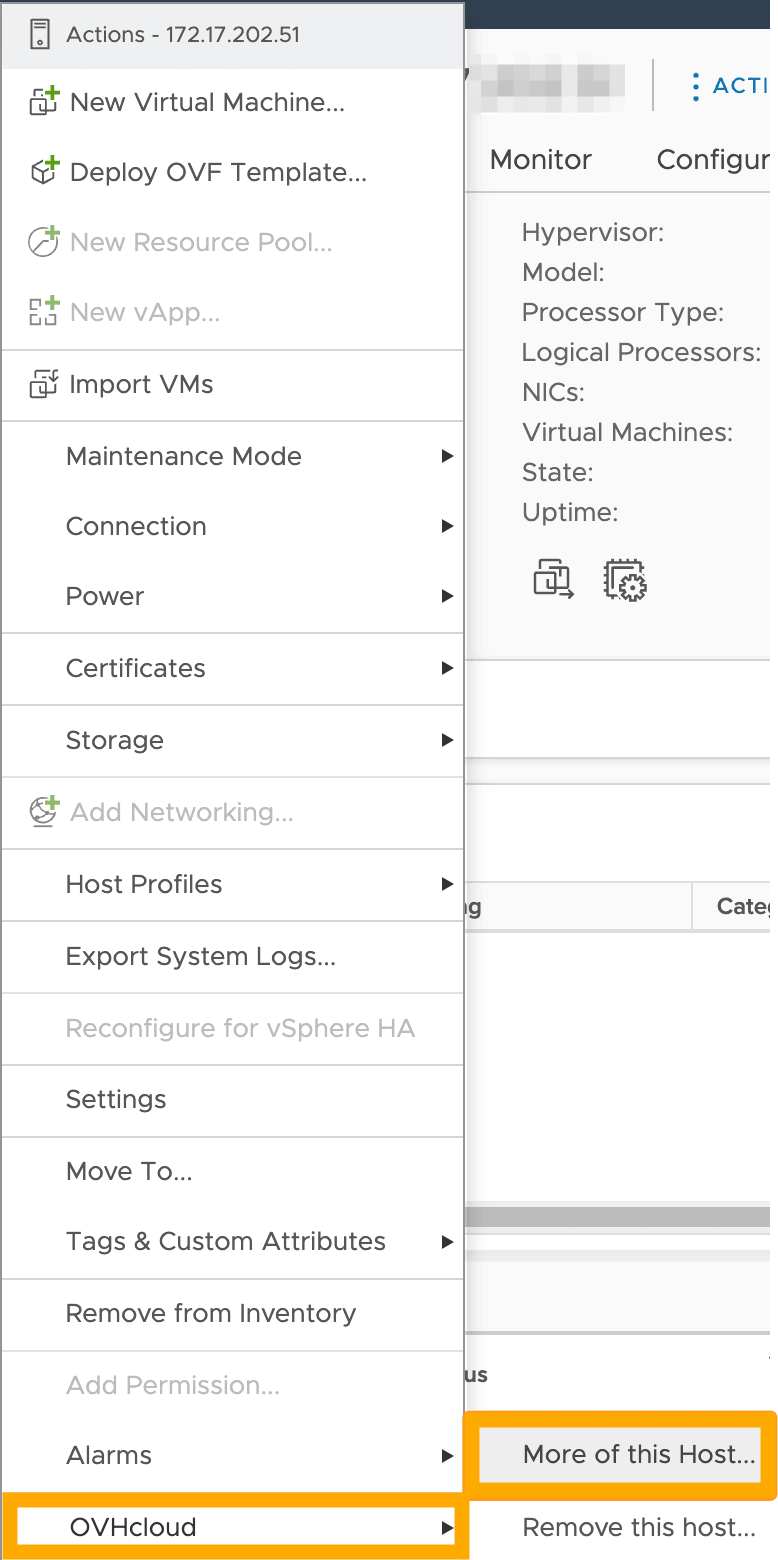
Once in maintenance mode, right-click the host again, choose OVHcloud, and select Remove this host....
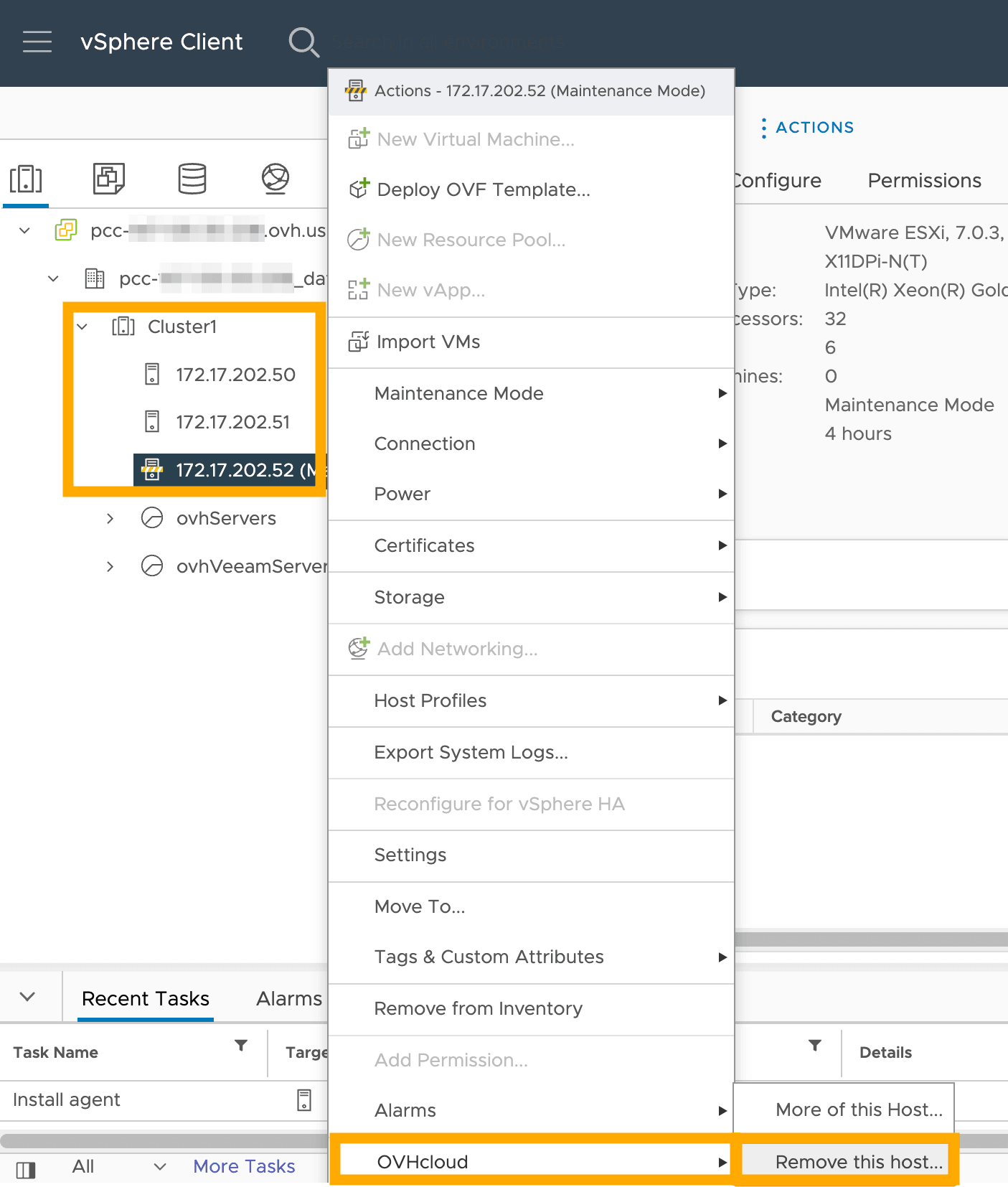
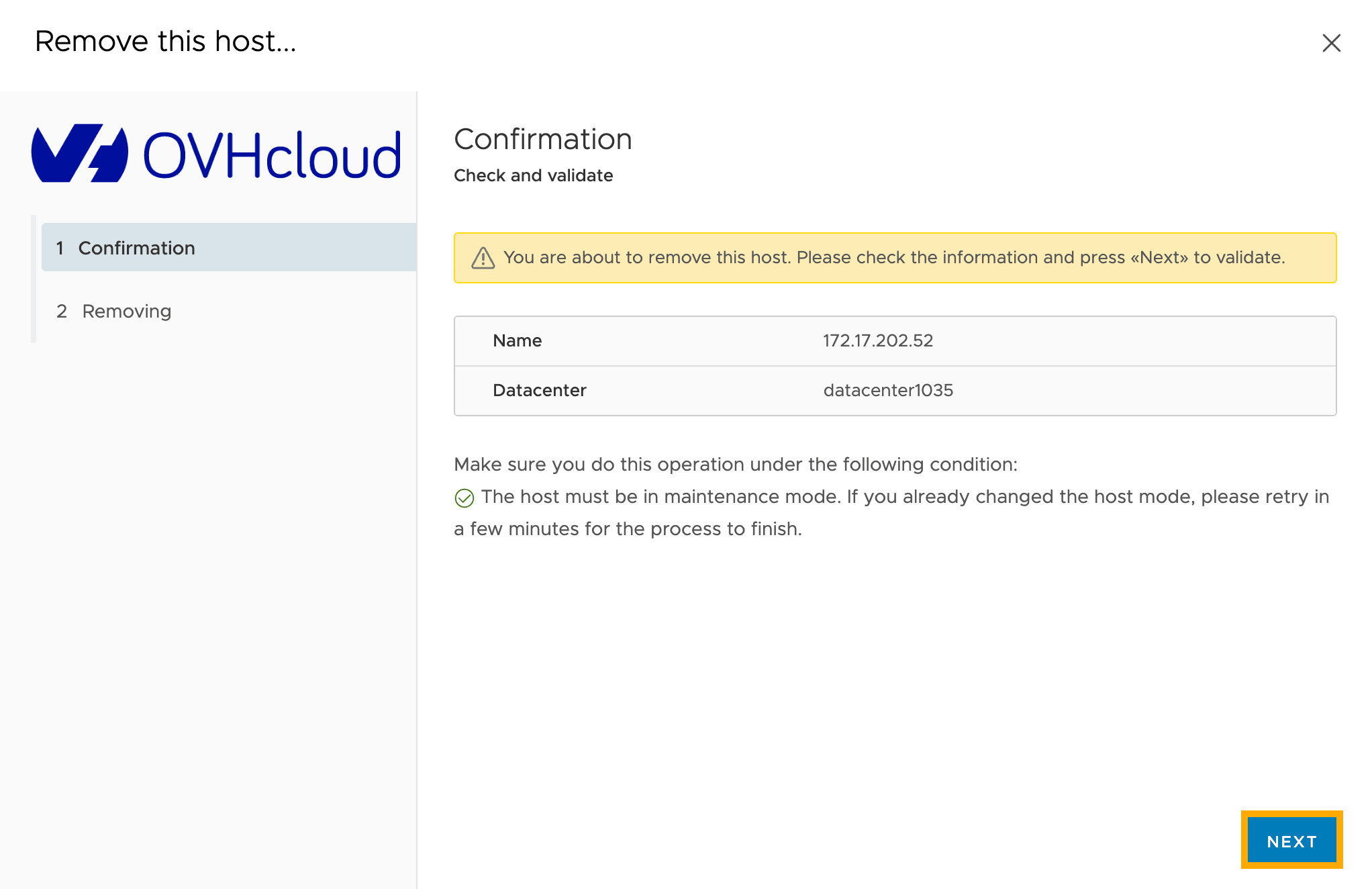
Once the task is completed, you will see a confirmation page. Confirm that this is indeed the host you wish to remove and click NEXT to remove it.
Removing a datastore
NOTE: For security reasons, the removal request will be blocked if you have virtual machines (VMs) on the datastore concerned (they will be listed in the confirmation window).
Also check that none of the following remain:
- ISO or snapshot attached to a VM;
- template present on the datastore;
- residual file or directory;
- vCLS file.
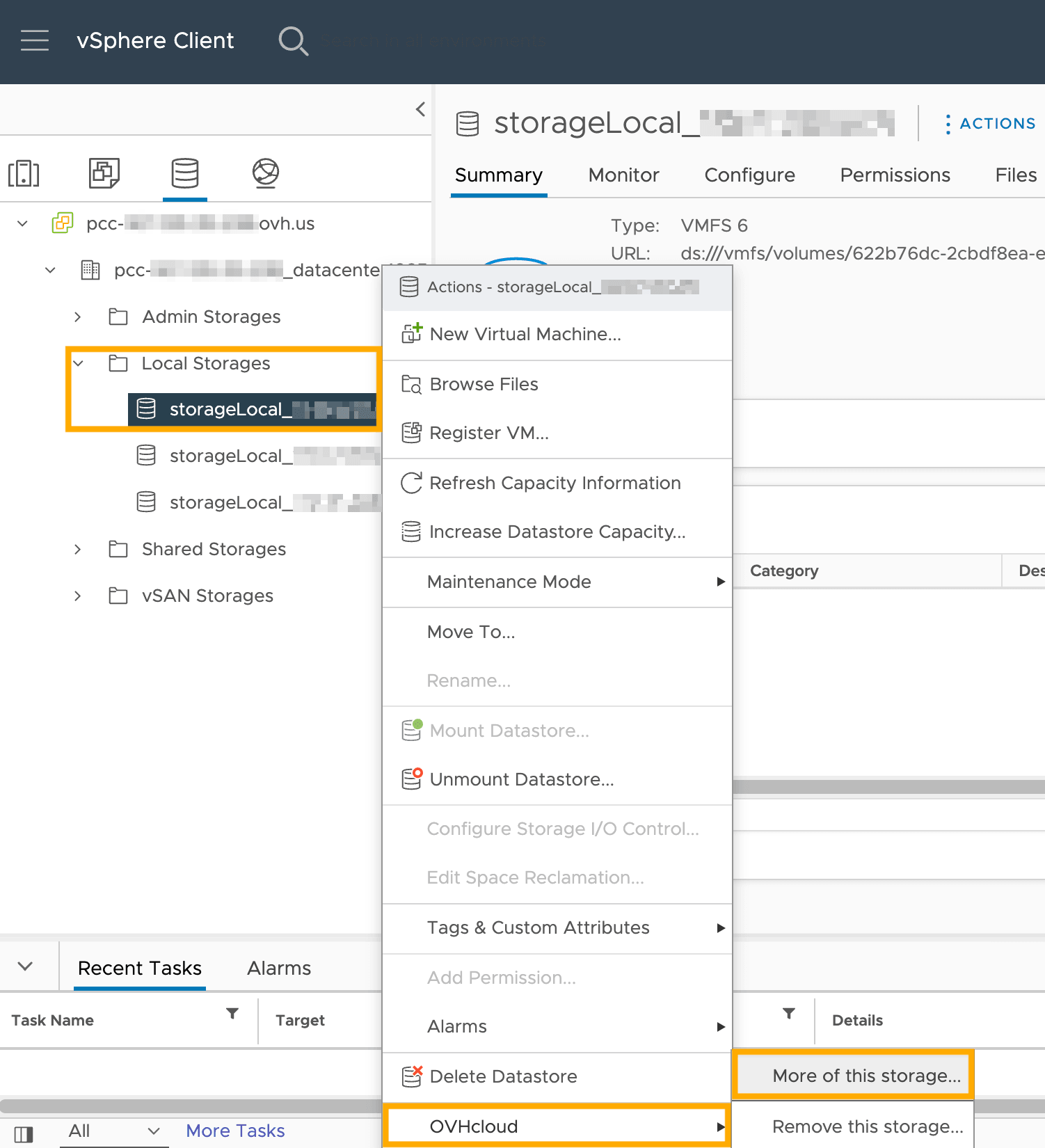
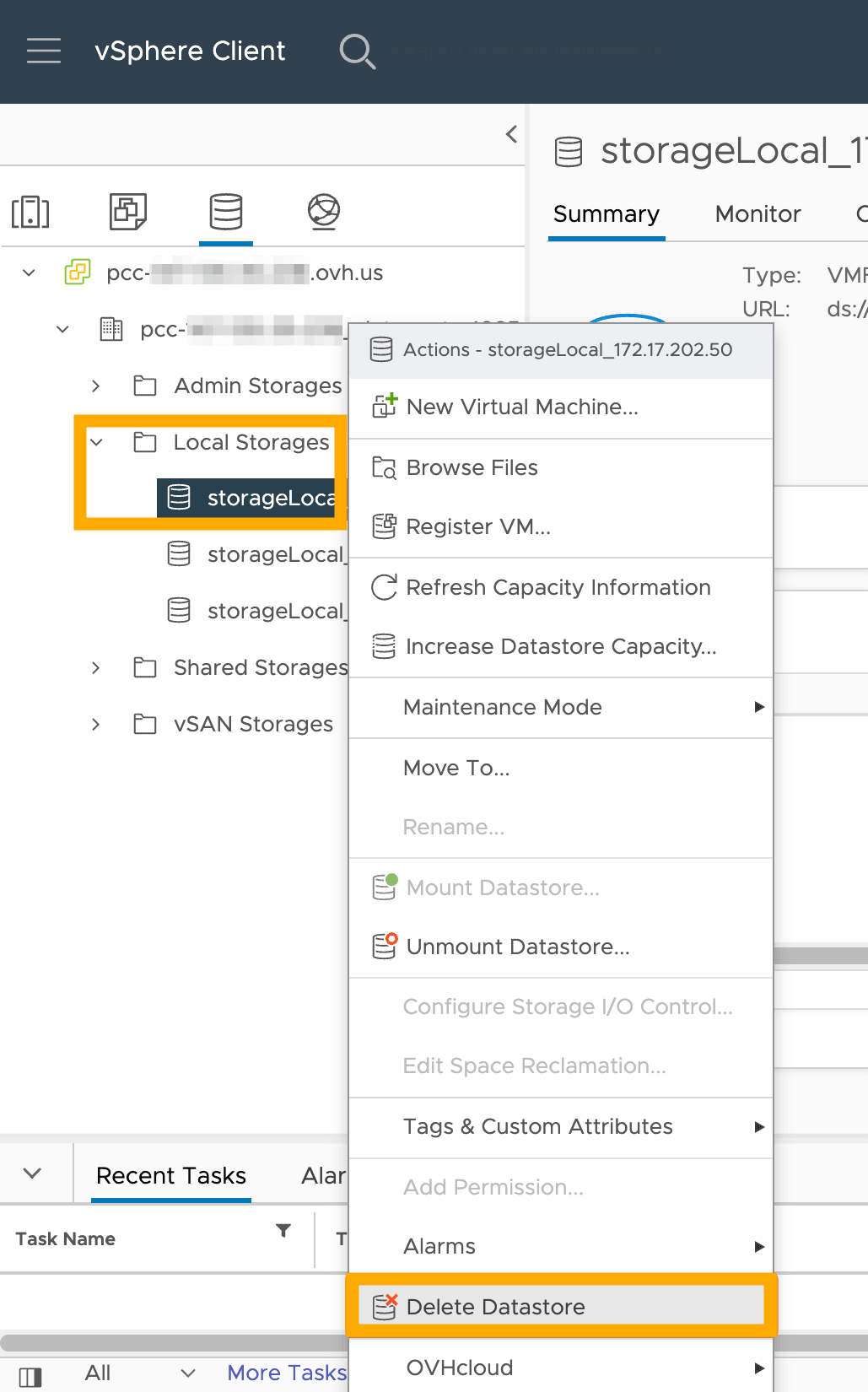
WARNING: Do not select Unmount Datastore... when attempting to remove storage. The datastore will no longer be accessible in your HPC environment, but will still appear in your OVHcloud Control Panel and will still be billed.
To remove a datastore, navigate to the Datastores tab. Next, right-click the datastore you would like to remove and click Delete Datastore.
On the pop-up window, confirm that the datastore has no VMs attached to it and select the NEXT button. Your datastore will be removed in a few moments.
Go further
Browse all the VMware on OVHcloud guides.
Browse the rest of the OVHcloud US documentation for guides on our other products and services.
Learn more about VMware on OVHcloud on the OVHcloud US website.