
How to Access Your Windows Server on a VPS
When you install Windows Server 2019 on a VPS, you will need to configure your own credentials in the KVM console. In this article, we will walk you through how to gain access to your Windows Server in the KVM.
Topics
- Accessing Your Windows Server on a VPS
Accessing Your Windows Server on a VPS
To access your Windows Server, first log into the KVM on your VPS. If you do not know how to access your KVM, please check out our How to Use the KVM on a VPS article and follow the steps.
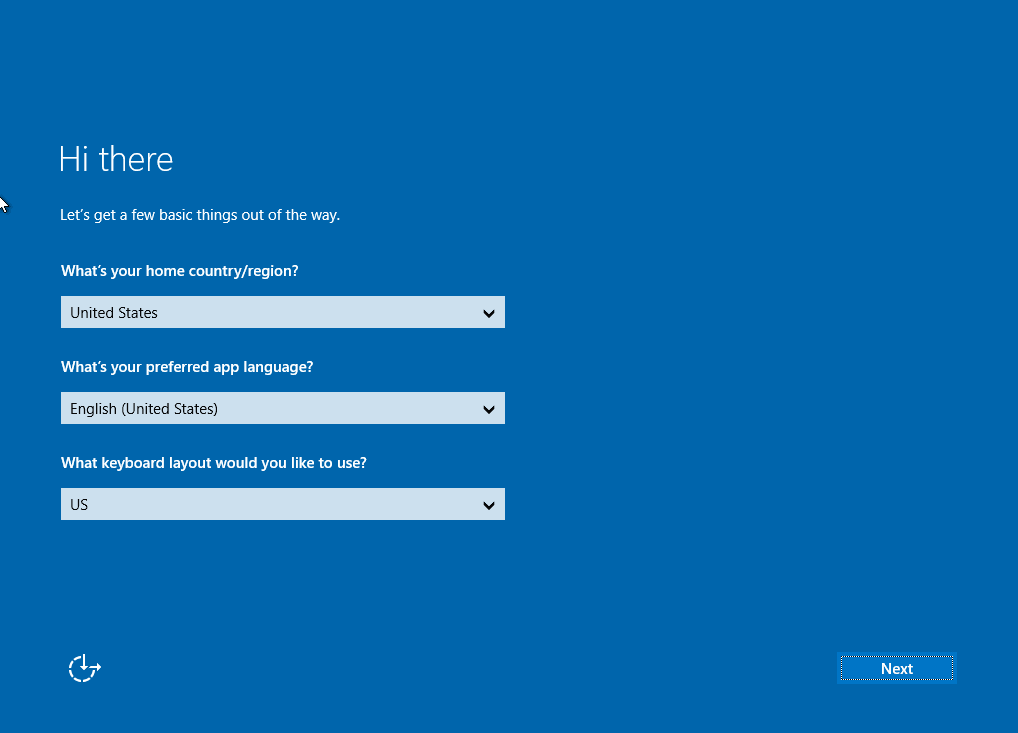
In the first setup screen, you will need to configure the settings for your Country/Region, Language, and Keyboard layout. When you have done this, click Next.
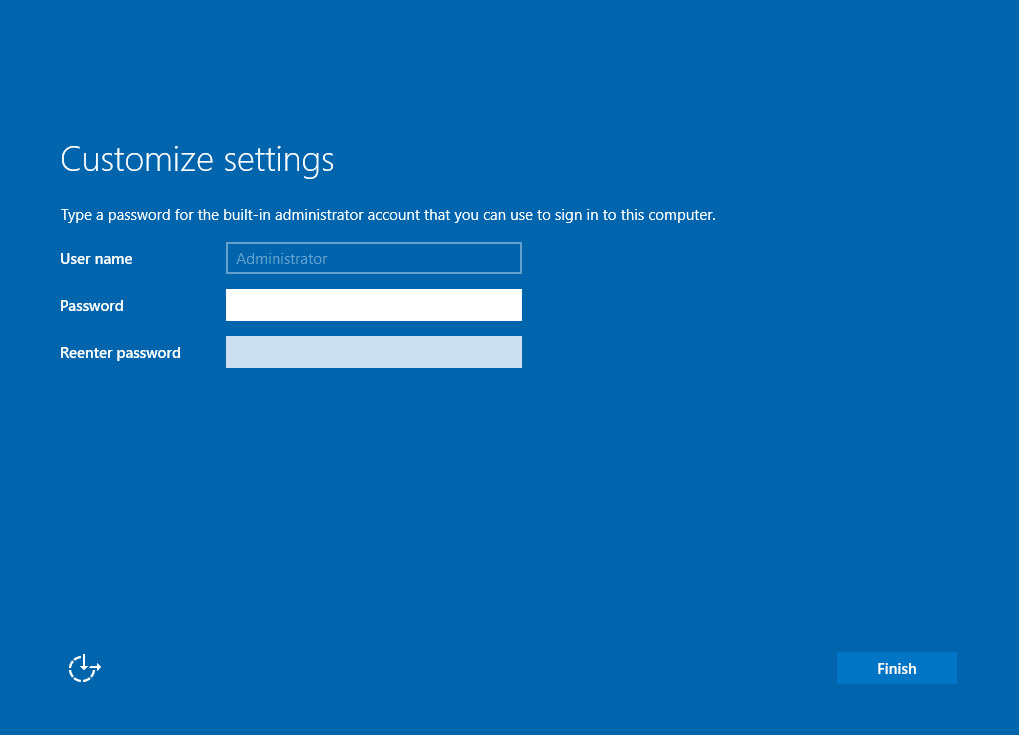
Next, choose a password for your administrator account. Enter it twice. Then click Finish.
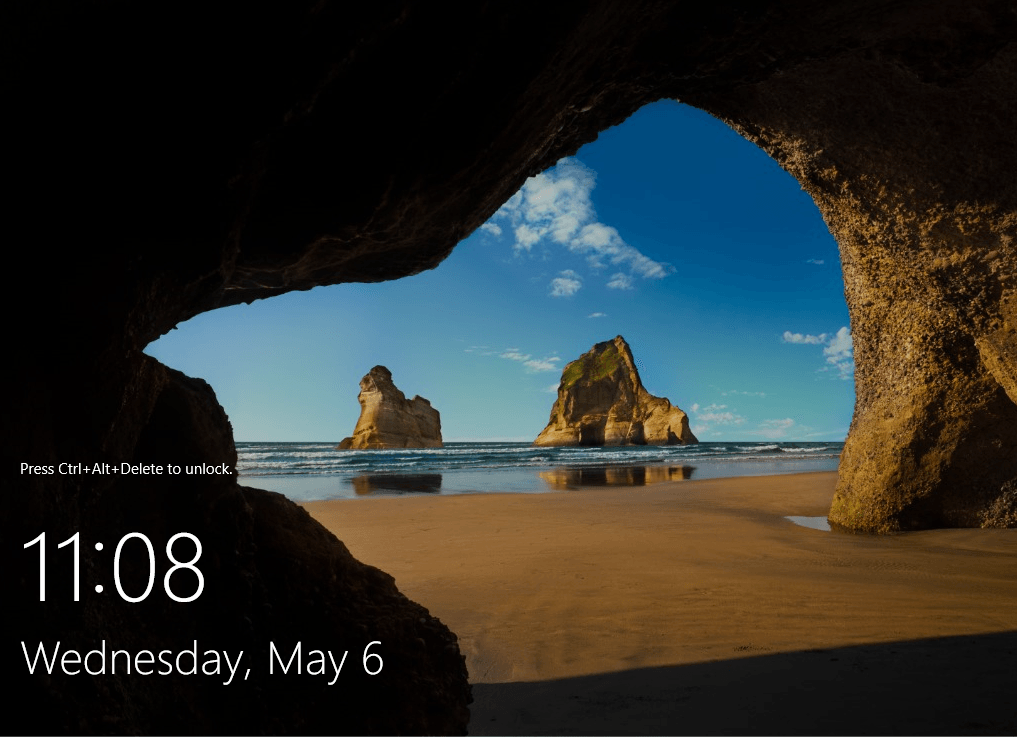
Windows will now apply your settings. When this is done, you will see the following screen. At this point, you will need to click the Send Ctrl+Alt+Del button to sign in.
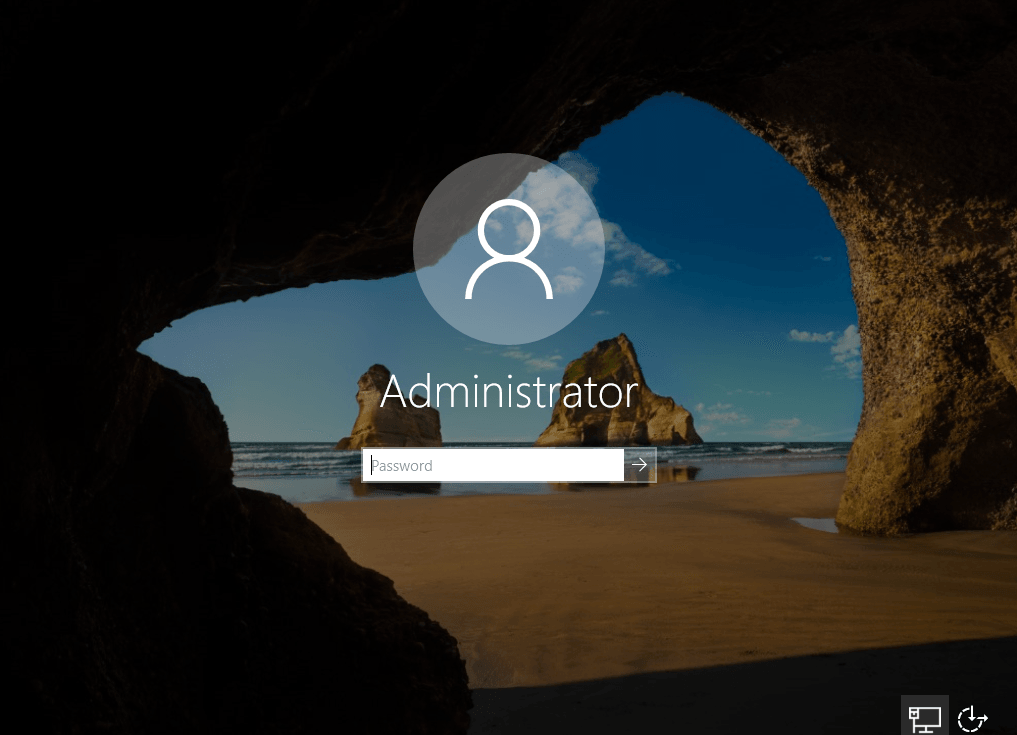
On the sign-in screen, enter the password you created for your Administrator account and hit the ENTER key on your keyboard.
You will now have access to your Windows Server over RDP.
Conclusion
Now that you have read this guide, you should be able to access your Windows VPS over RDP.