
Installing Plesk on an instance
Learn how to install Plesk on an OVHcloud Public Cloud instance.
Plesk is an easy-to-use hosting control panel. You can install and use it on OVHcloud Public Cloud instances.
NOTE: OVHcloud provides services for which you are responsible for their configuration and management. You are therefore responsible for their proper functioning.
This tutorial is designed to help you as much as possible with common tasks. If you are having difficulty performing these actions, please contact a specialized service provider. OVHcloud cannot provide you with technical support in this regard.
Requirements
Instructions
Step 1: Install Plesk
Plesk can be installed easily via an SSH connection. To do this, download and launch the Plesk installation script using the command that best suits your situation below.
Depending on your instance's OS, the sudo command alone may not be sufficient. If you encounter an error, switch to superuser mode before starting the installation:
-
For a default, non-custom Plesk installation:
-
For a custom Plesk installation:
Then wait for the installation process to complete.
Step 2: Finalize configuration and add a license
Once the installation is complete, the command-line interface (CLI) will display the following information:
-
Two URLs are generated:
- One with the server’s IP address (HTTPS with a self-signed SSL certificate, which may trigger a security warning in most browsers).
- Another with a Plesk domain (HTTPS with a signed SSL certificate, which will not trigger any warnings).
- Both are secure, but it is recommended to use the second one.
-
A message states: "You can also log in as 'root' using your 'root' password.". However, by default, no root password is generated. If needed, customers can follow this guide to enable the root user and set a password.
Once on the Plesk page, follow the on-screen instructions to complete the setup.
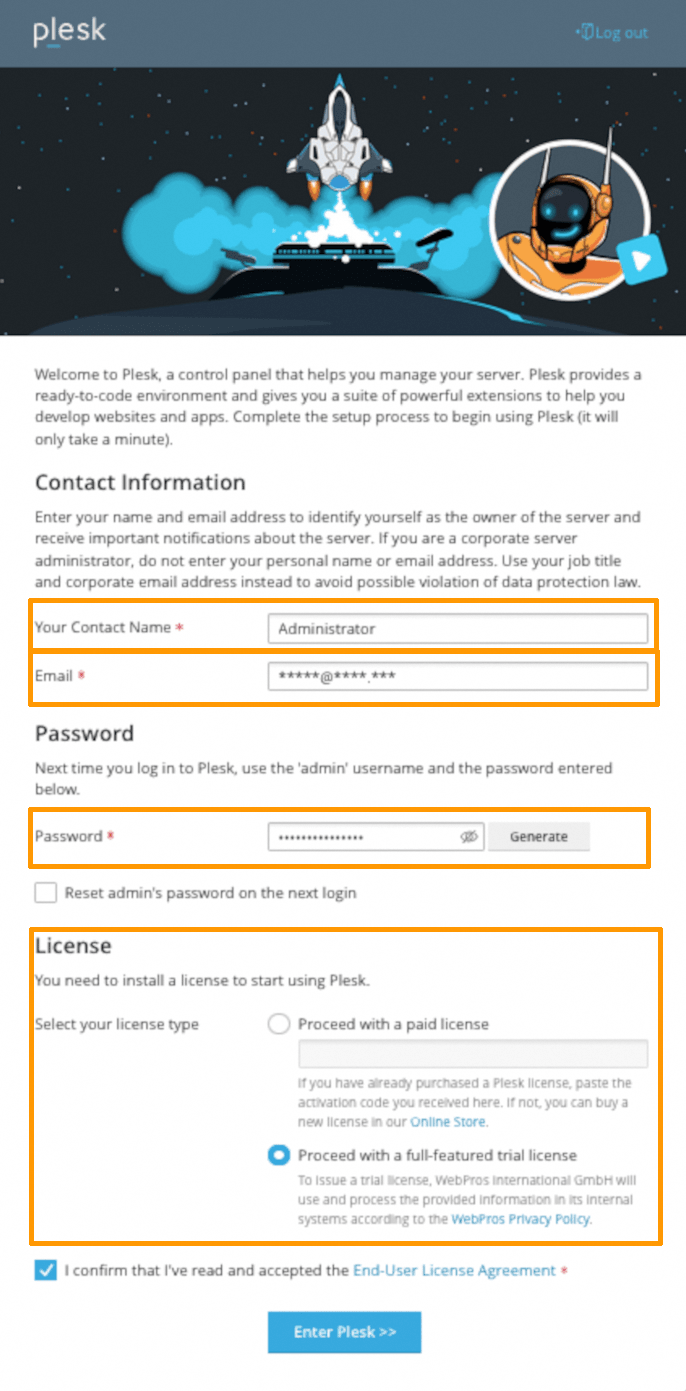
To add your Plesk licence, take the key that was sent to you by your service provider.
We do not sell Plesk licences for our Public Cloud solutions. However, you can order one from the Plesk website.
Want to change your licence, replace a test key, or change your solution, for example? From the Plesk interface, go to the section Tools & Settings. Then go to the Plesk section, and select License information.
Go further
Browse all the Compute guides.
Browse the rest of the OVHcloud US documentation for guides on our other products and services.
Learn more about Public Cloud Compute on the OVHcloud US website.