
VMware Storage vMotion
The Storage vMotion allows you to change the storage location of a virtual machine's files while keeping the VM powered on. VMs can be moved completely or disk by disk.
Requirements
- Being an administrative contact of your VMware on OVHcloud infrastructure (to receive login credentials)
- A user account with access to vSphere (created in the OVHcloud Control Panel)
Instructions
Moving a VM disk
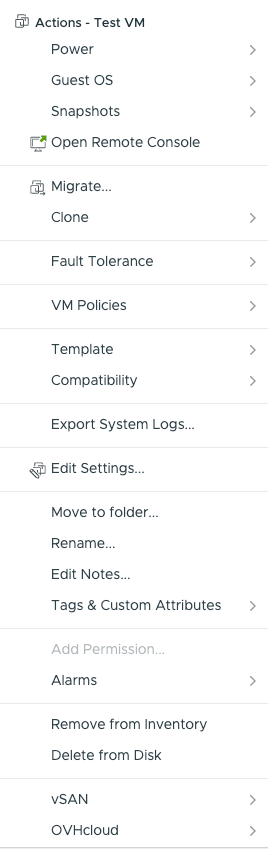
To move a virtual machine’s files to another datastore, right-click on the virtual machine and select Migrate....
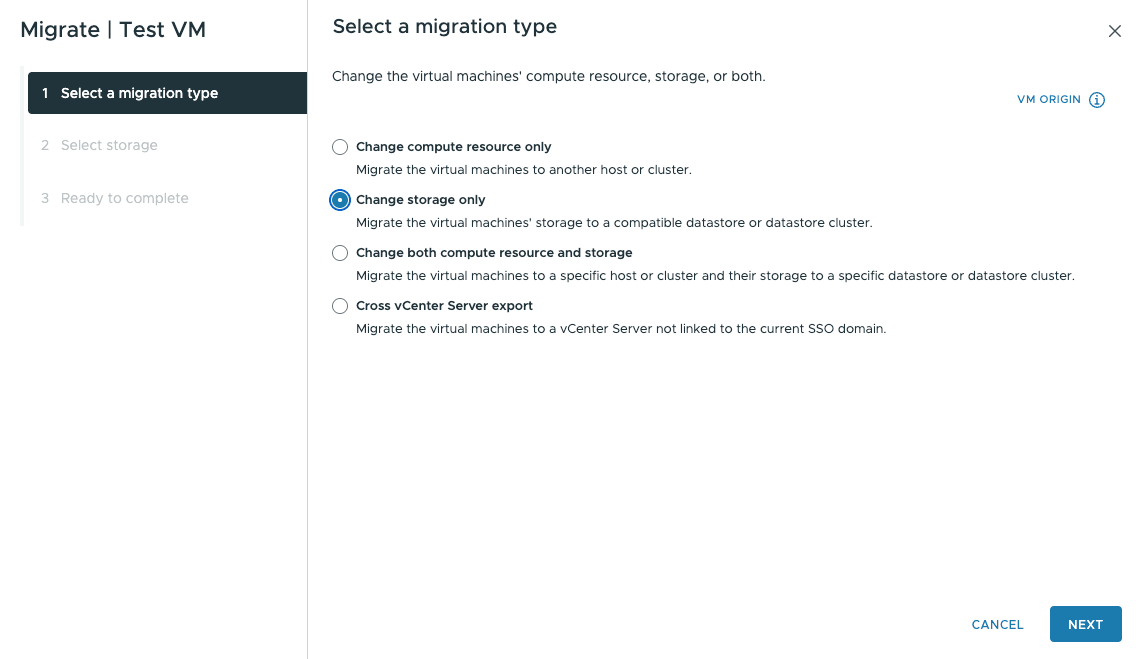
Choosing a migration type
The menu offers several options for vMotion.
The option Change compute resource only allows for migrating the VM to another host.
In this example, we will migrate the VM storage to another datastore by selecting [action]Change storage only[/action].
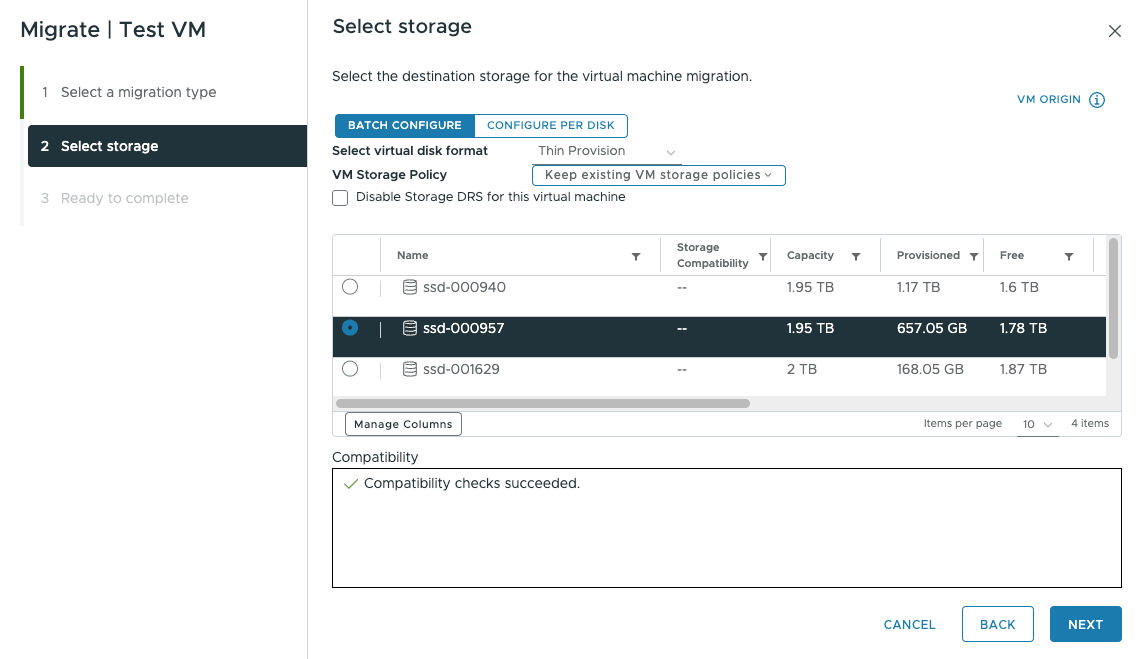
Choosing a datastore
Choose which storage to migrate the data to. You can also change the storage policy during this operation.
For example, you can apply the storage policies created if you have vSAN storage or the VM encryption option.
If you have several virtual disks on the same machine, you can also move only one disk of the VM by using the Configure per disk button.
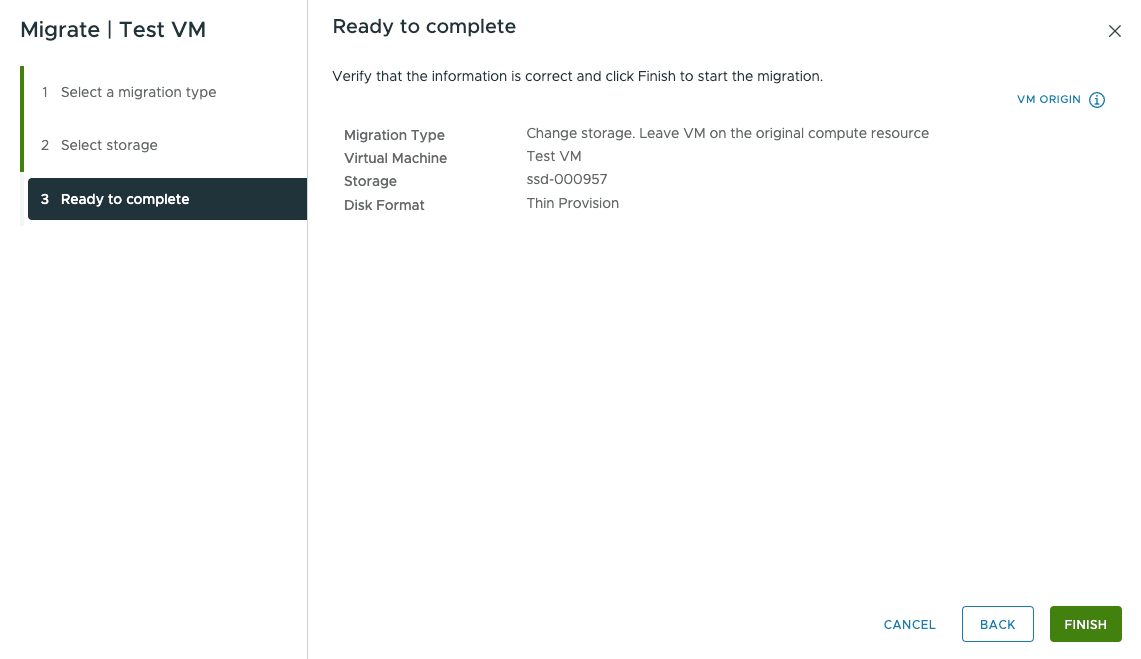
Finalizing the operation
Click on FINISH to launch the migration task.
You can track the status of the migration in the Recent Tasks panel at the bottom of the screen.
Go further
Browse all the VMware on OVHcloud guides.
Browse the rest of the OVHcloud US documentation for guides on our other products and services.
Learn more about VMware on OVHcloud on the OVHcloud US website.