
Shelve or pause an instance
As part of the configuration of a high-availability infrastructure, you may need to cut access to your instances to perform different tests. OpenStack allows you to suspend, turn off, or pause your instance. In each case, your IP is maintained.
NOTE: The naming of these options in the OVHcloud Control Panel is different from the naming in OpenStack/Horizon. If you are doing this via the OVHcloud Control Panel, make sure you select the correct option.
Requirements
- An OVHcloud Public Cloud instance
- Access to the OVHcloud Control Panel or Horizon interface
- Knowledge of OpenStack API and OpenStack variables
Instructions
Scope: This guide applies to all Public Cloud instances billed hourly or monthly. Behavior can differ by instance type; instances with local NVMe passthrough disks (e.g., T2-180) lose the data on those disks when shelved. See the warning in the Suspend (shelve) section.
Monthly billing: An instance that remains shelved for the entire month will not be billed. As soon as the instance is unshelved, even briefly, the full month's billing applies.
NOTE: You will be billed for an instance as long as it is not deleted.
The table below allows you to differentiate the options available on your instances. Continue reading this guide by clicking on the option of your choice. The terminology used in the Horizon interface is in parentheses.
Content Overview
- Suspend (shelve) an instance
- Reactivate (unshelve) an instance
- Turn off (suspend) an instance
- Pause an instance
Suspend (shelve) an instance
WARNING: Shelving an instance with local NVMe passthrough disks (e.g., T2-180) removes it from the host and permanently erases the data on those disks. The snapshot created by shelving includes only the root disk, not the NVMe passthrough data. Manual snapshots of the instance do not include this data either. Copy any data you need to Object Storage or Block Storage before shelving.
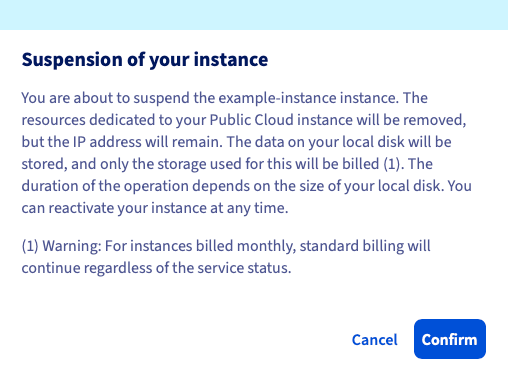
This option releases the resources dedicated to your Public Cloud instance, but the IP address will remain. The data on your root disk will be stored in a snapshot automatically created once the instance is shelved. Data stored in the memory and elsewhere will not be retained.
From the OVHcloud Control Panel, navigate to the Public Cloud section, select your project, and click on Instances in the left side menu.
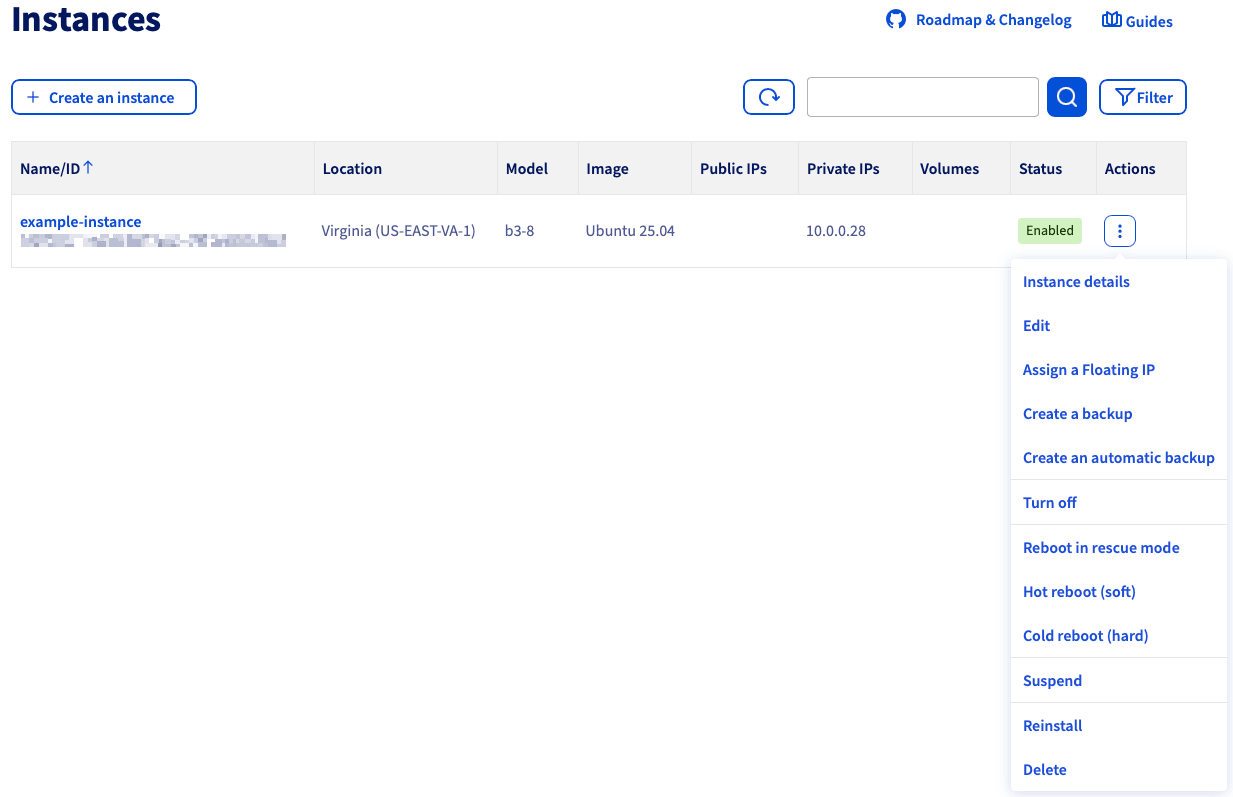
Click on the more options ⋮ button to the right of the instance you want to suspend, then click on Suspend.
In the pop-up window, take note of the message and click on Confirm.
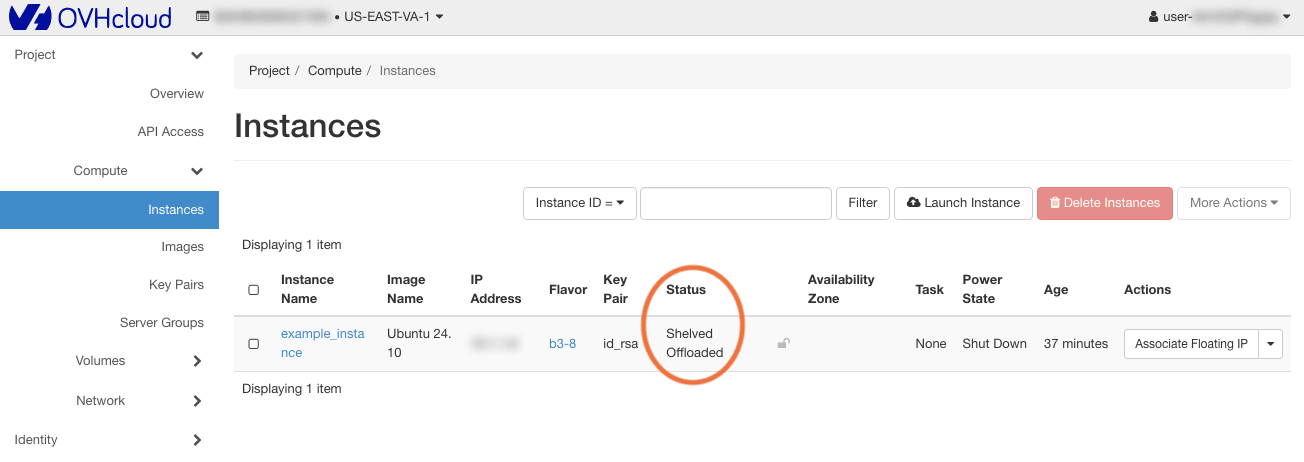
Once the process is completed, your instance will now appear as Suspended.

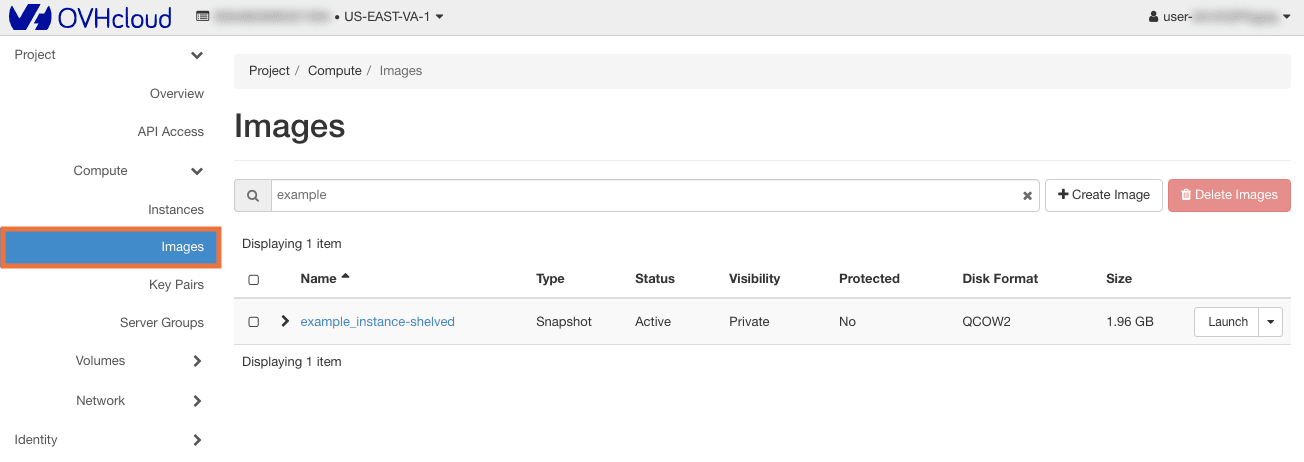
To view the snapshot, go to the left side menu and click on Instance Backup. A snapshot named xxxxx-shelved will now be visible:

Reactivate (unshelve) an instance
This option will allow you to re-up your instance so that you can continue using it. Please note that once this is done, the regular billing will resume.
WARNING: Any actions on the snapshot other than unshelve can be very dangerous for your infrastructure in case of misuse. Once you unshelve an instance, the snapshot is automatically deleted. It is not recommended to deploy a new instance from any snapshot created as a result of shelving (suspending) an instance.
In the OVHcloud Control Panel, select your project from the Public Cloud section and click on Instances in the left side menu.
Click on the more options ⋮ button to the right of the instance, then click on Reactivate.
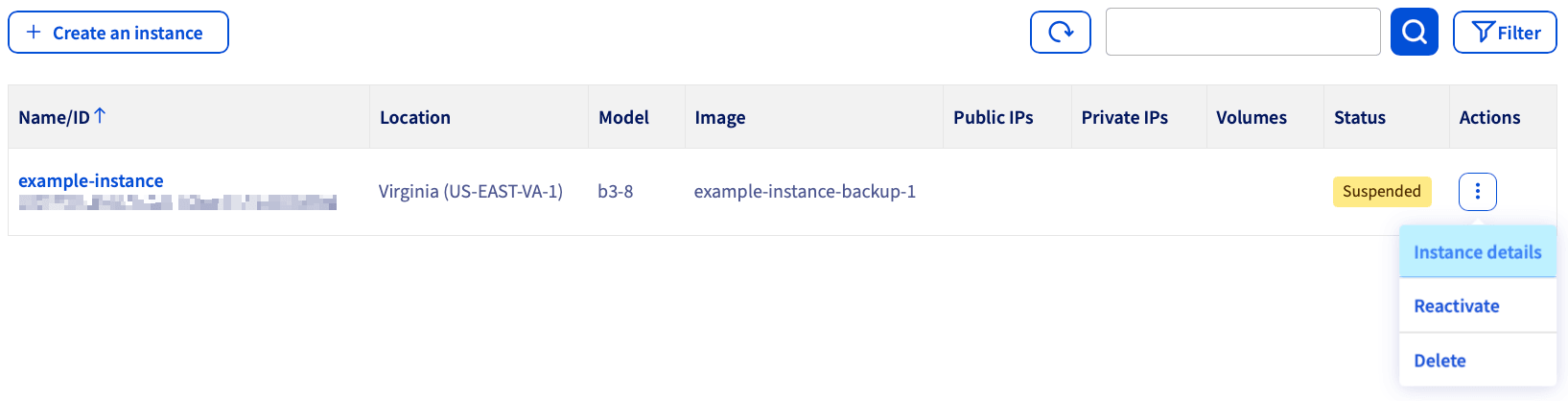
In the pop-up window, take note of the message and click on Confirm.
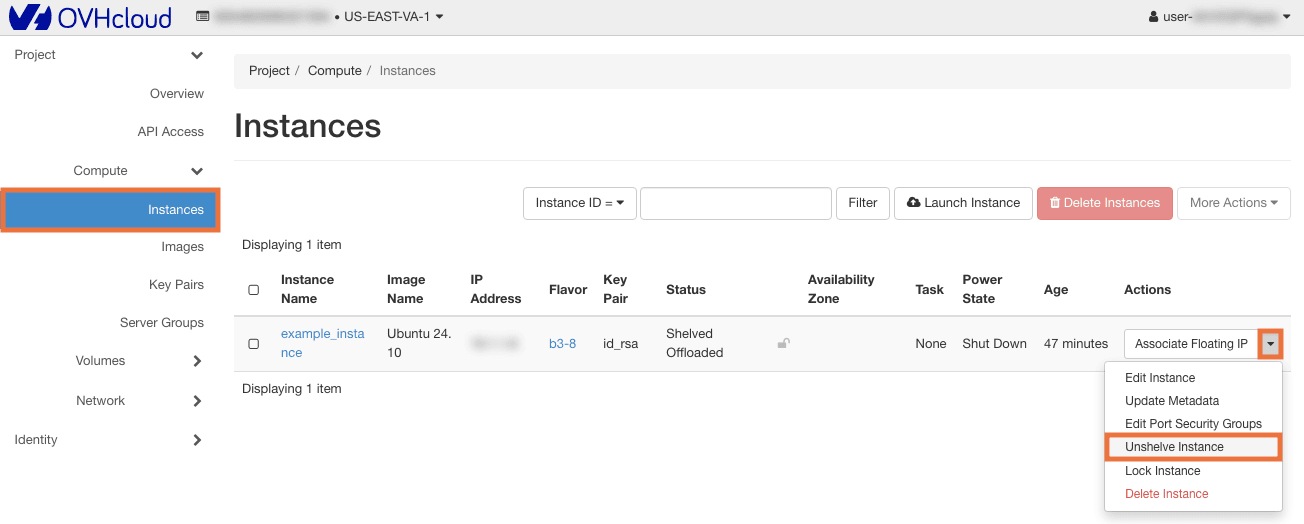
Once the process is completed, your instance will now appear as Enabled.
Turn off (suspend) an instance
This option shuts down your instance and stores the VM state on disk, including memory.
In the OVHcloud Control Panel, select your project from the Public Cloud section and click on Instances in the left side menu.
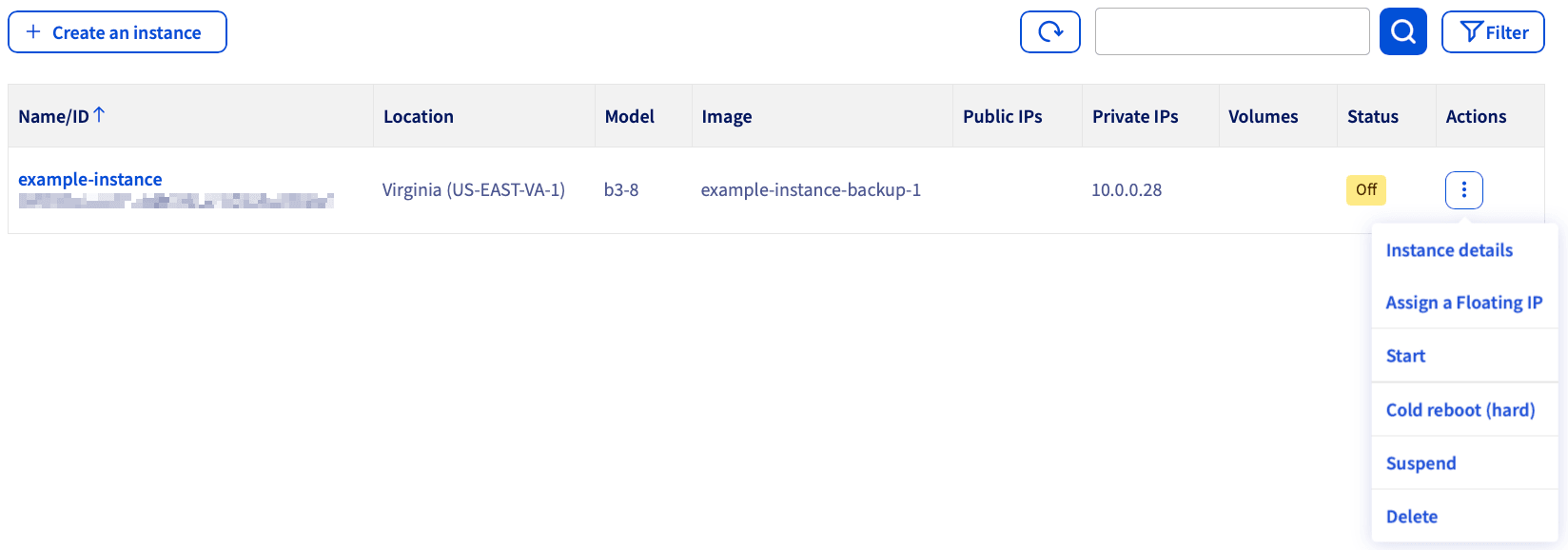
Click on the more options ⋮ button to the right of the instance you want to stop, then click on Turn off.
In the pop-up window, take note of the message and click on Confirm.
Once the process is completed, your instance will now appear as Off.
To resume the instance, perform the same steps as mentioned above. Click on the more options ... button to the right of the instance and select Start. In some cases, you might need to do a cold reboot.
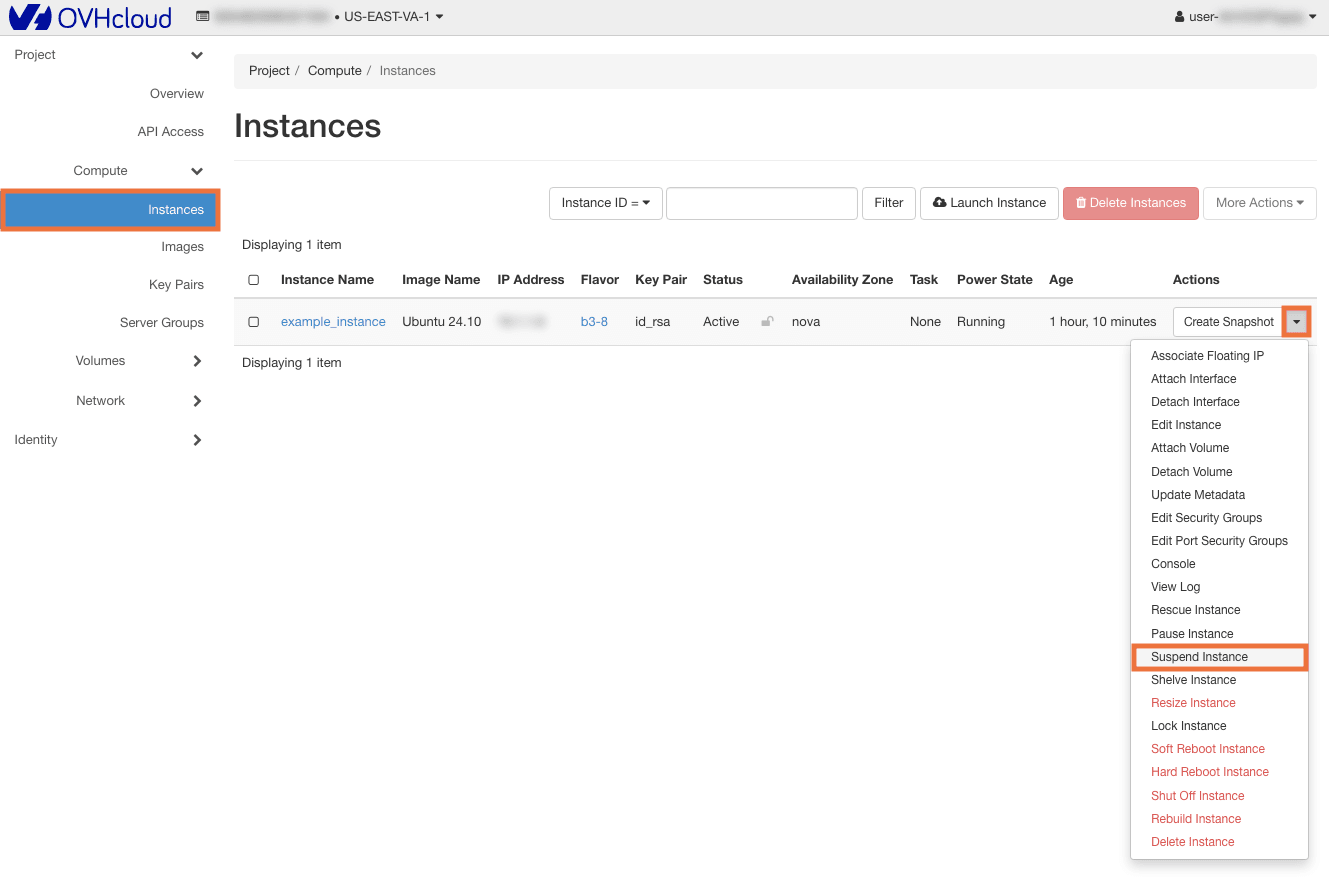
Pause an instance
This action is only possible in the Horizon interface or via the OpenStack/Nova API. It allows you to freeze your instance.
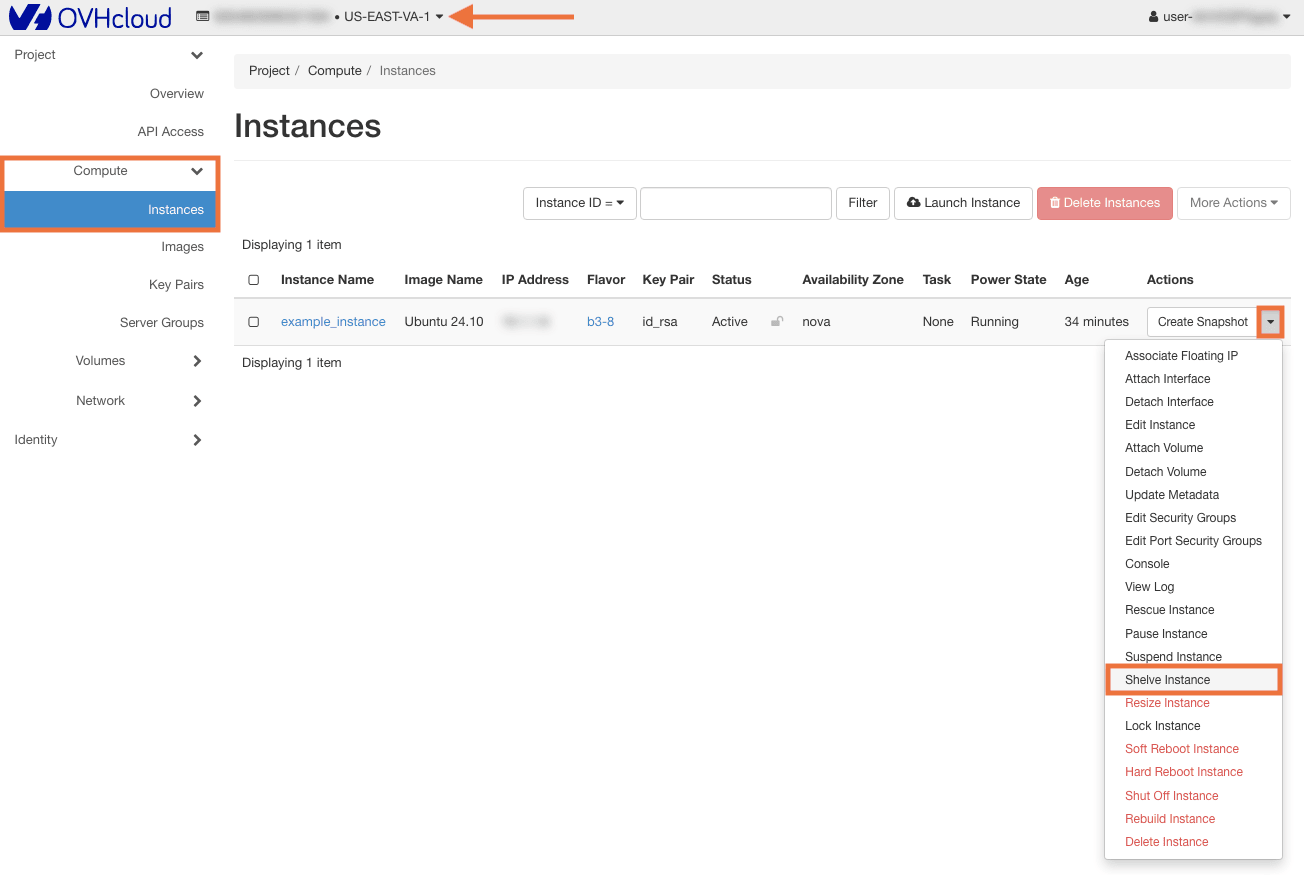
In the Horizon interface, click on the Compute menu on the left and then select Instances. Select Pause Instance in the drop list for the corresponding instance.
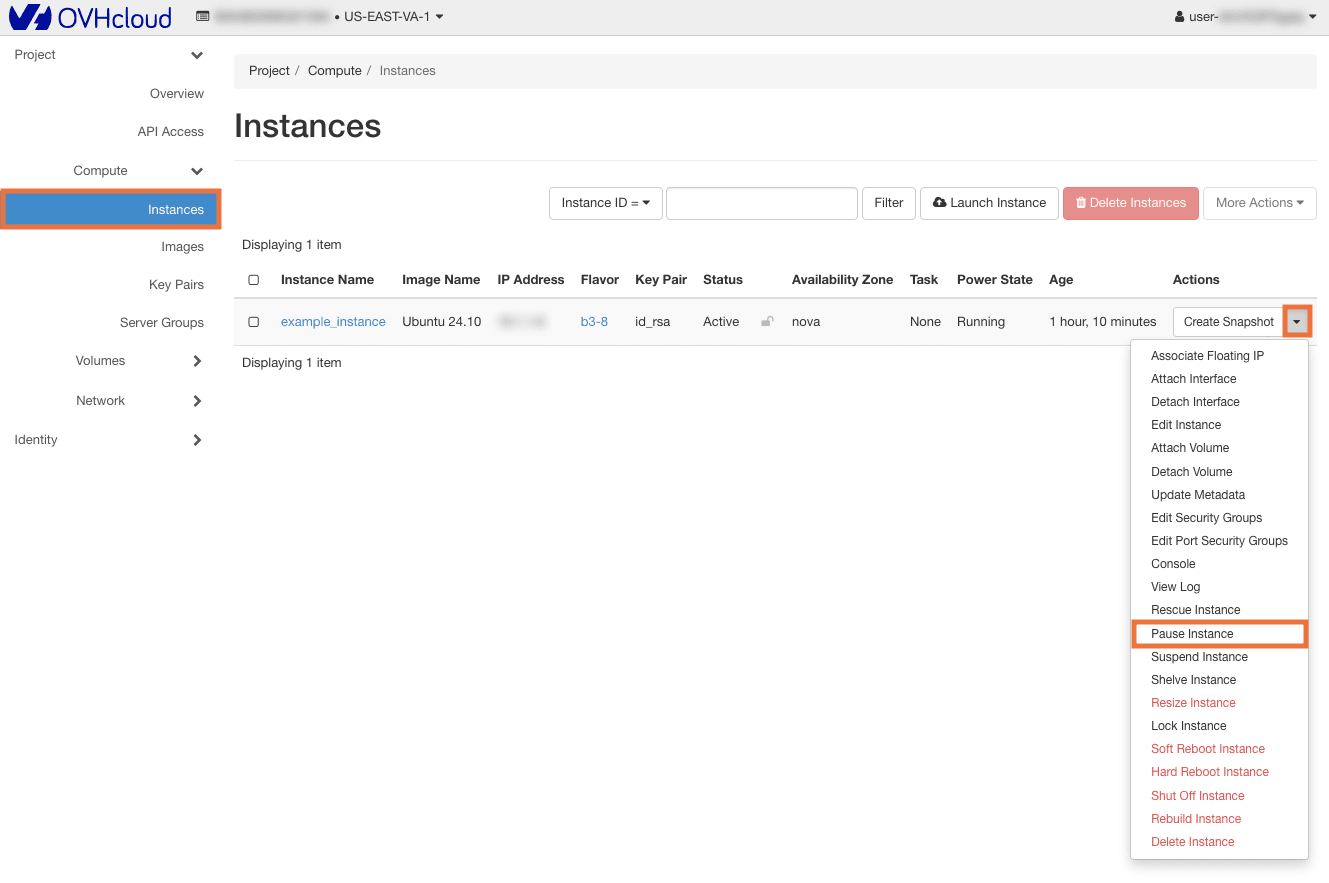
The confirmation message will appear, indicating that the instance has been paused.
To unpause the instance, perform the same steps as mentioned above. In the drop list for the corresponding instance, select Resume Instance.
Go further
Browse all the Compute guides.
Browse the rest of the OVHcloud US documentation for guides on our other products and services.
Learn more about Public Cloud Compute on the OVHcloud US website.