
Moving an Additional IP
Learn how to move an Additional IP in your OVHcloud Manager or via the OVHcloud API.
Additional IP addresses can be moved between the services you use. This provides an advantage since you can maintain your IP reputation and SEO and improve the continuity of service of your applications and systems.
With this technology, you can switch IP addresses from one solution to another in less than a minute, with virtually no interruption to services for your users. It is useful for service migrations (e.g., moving projects from development to production) or when switching to a backup server during a technical issue.
Requirements
- A dedicated server in your OVHcloud account
- An Additional IP address
- Access to the OVHcloud Control Panel
NOTE: This feature might be unavailable or limited on servers of the Eco product line.
Please visit our comparison page for more information.
NOTE: If the Additional IP address, or one of the block IP addresses, has a virtual MAC attached, the target server must support the vMAC functionality. Please see this guide for details.
Otherwise, the virtual MACs must be removed from the Additional IPs before the transfer.
Instructions
When an IP block containing unique virtual MAC addresses is moved between two servers, those addresses are temporarily suspended. They will appear on the new server once the move is complete.
On the other hand, blocks containing duplicate virtual MAC addresses cannot be moved. You must first delete the duplicate virtual MAC address on the block to be moved.
If an IP block is moved/added to the vRack, it is no longer linked to a physical server. In this case, any virtual MAC address will be lost during the transfer.
Moving an IP from the OVHcloud Control Panel
NOTE: Only a single size block (/32) can be moved from a dedicated server to a VPS.
From the OVHcloud Control Panel, select the Bare Metal Cloud tab at the top of the page. In the left-hand navigation menu, click Network and choose IP. Then, select the Additional IP tab.
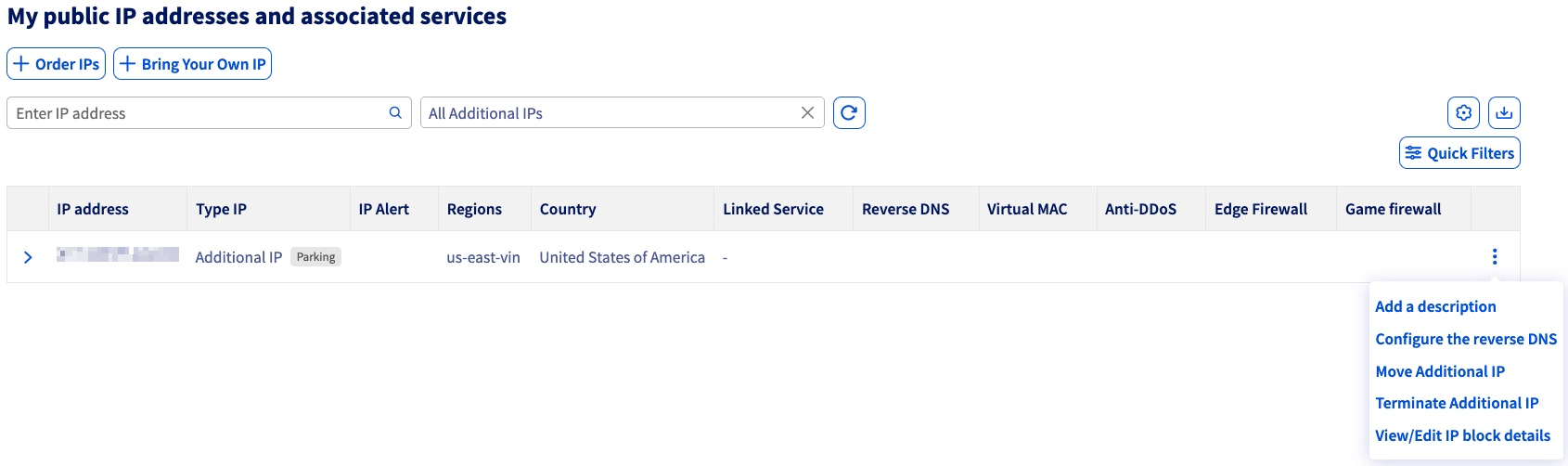
Click the more options ... button to the right of the IP address you want to move and choose Move Additional IP.
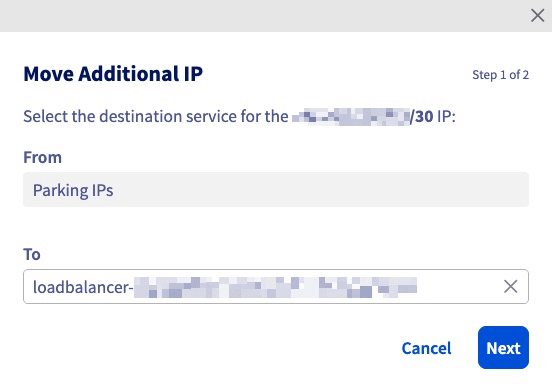
In the pop-up window, select the service to move the IP address from the menu.
Click Next.
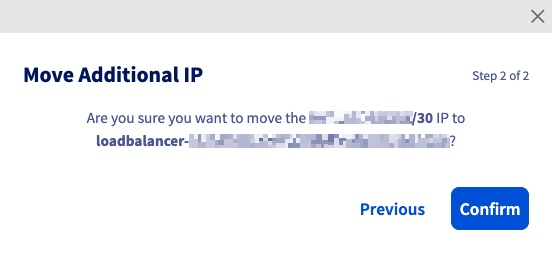
On the following screen, click Confirm.
Go further
Browse all the Dedicated Servers guides.
Browse the rest of the OVHcloud US documentation for guides on our other products and services.
Learn more about Dedicated Servers on the OVHcloud US website.