
How to Manage Events and Alerts in Nutanix
This guide details how to view alerts and events and create custom alerts.
Requirements
- A Nutanix cluster in your OVHcloud account
- Access to the OVHcloud Control Panel
- You must be connected to the cluster via Prism Central
Defining alerts, events, and tasks in Prism Central
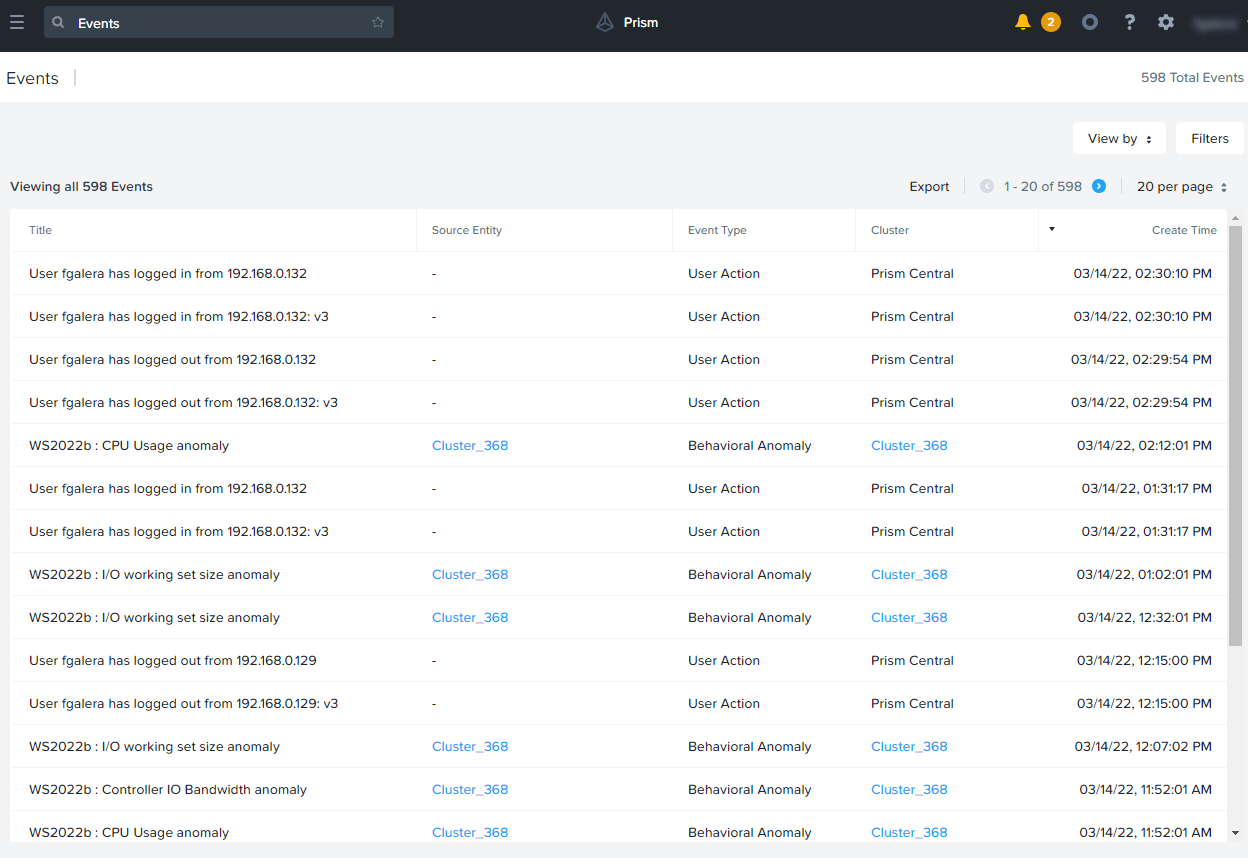
Everything that happens in a cluster associated with Prism Central is recorded in the events.
When an anomaly occurs, such as excessive CPU usage on a virtual machine, alerts are triggered automatically.
Prism Central alerts are in addition to Prism Element alerts.
You can add custom alerts to increase sensitivity on an item in the cluster.
Alerts can be sent to recipients through e-mail.
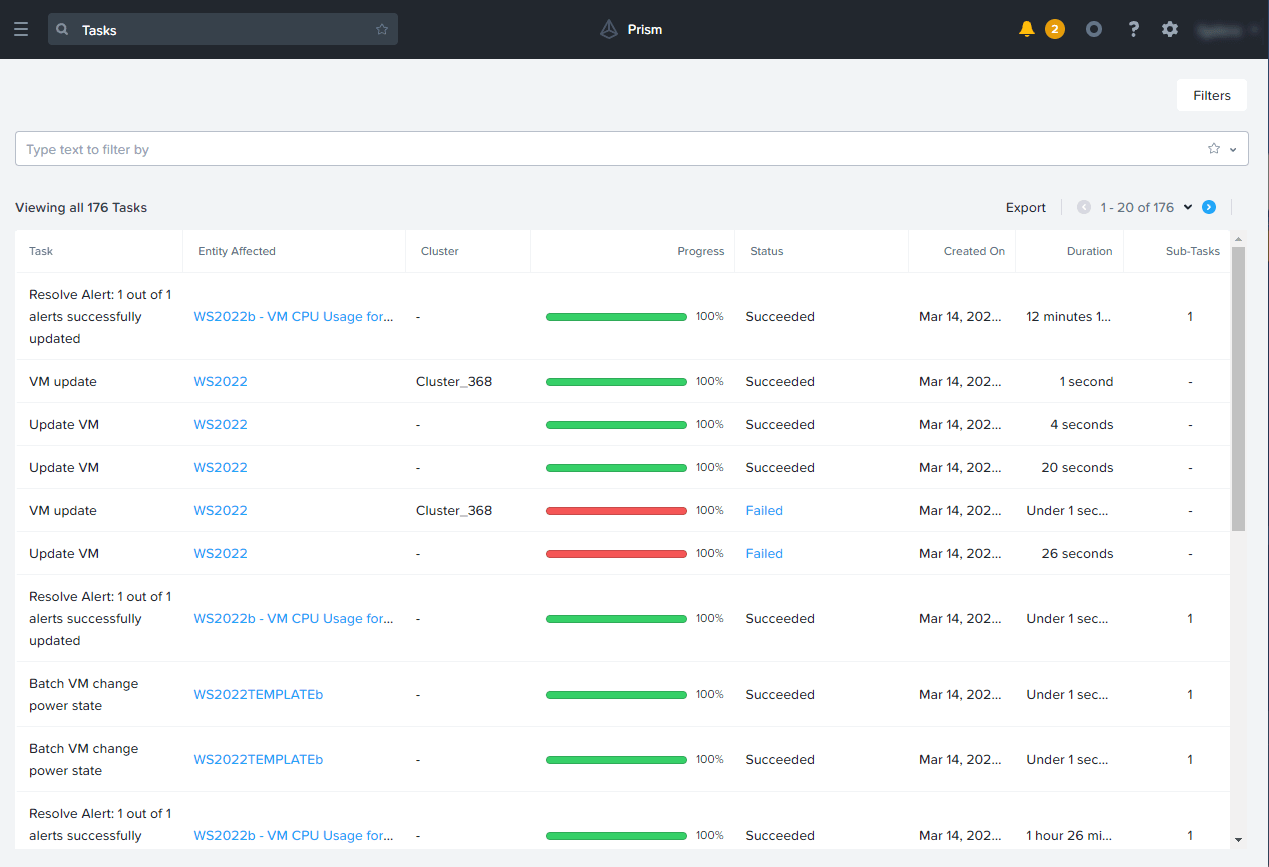
Each action that a Prism Central user performs appears as a task and is listed with a complete, in progress, or in error status.
Instructions
Configuring SMTP Server in Prism Central
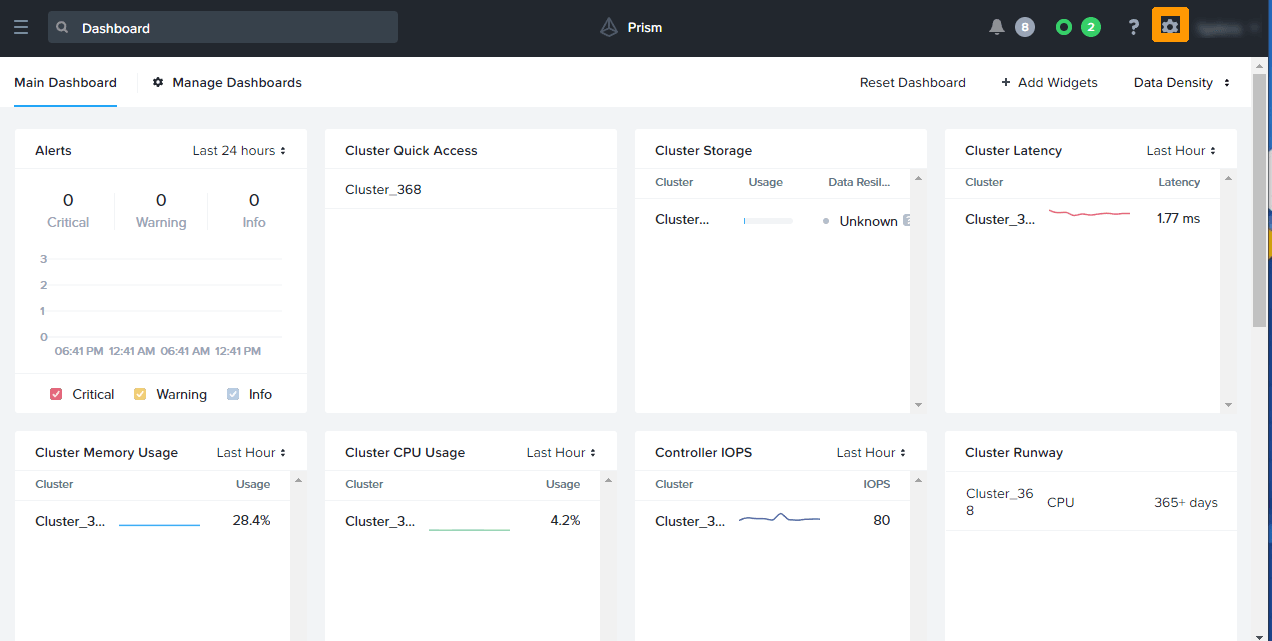
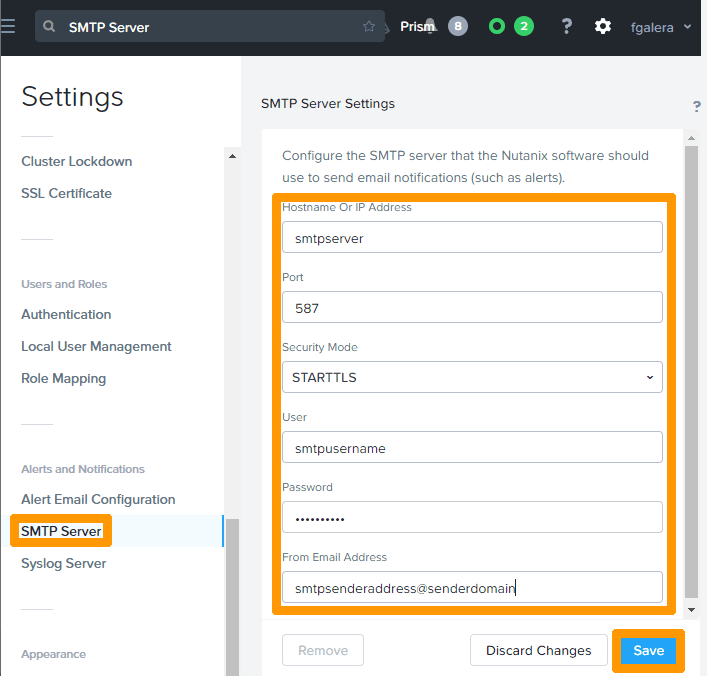
For Prism Central to send alerts, you must configure an SMTP server.
Click the Gear icon in the top right of the Prism Central interface to configure it.
In the left-hand menu, click SMTP Server.
Enter the SMTP server sending settings and click Save.
Managing alerts
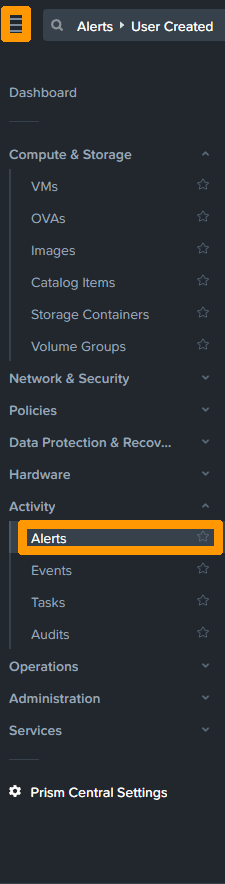
Open the main menu in the top left-hand corner.
Select Alerts from the Activity menu.
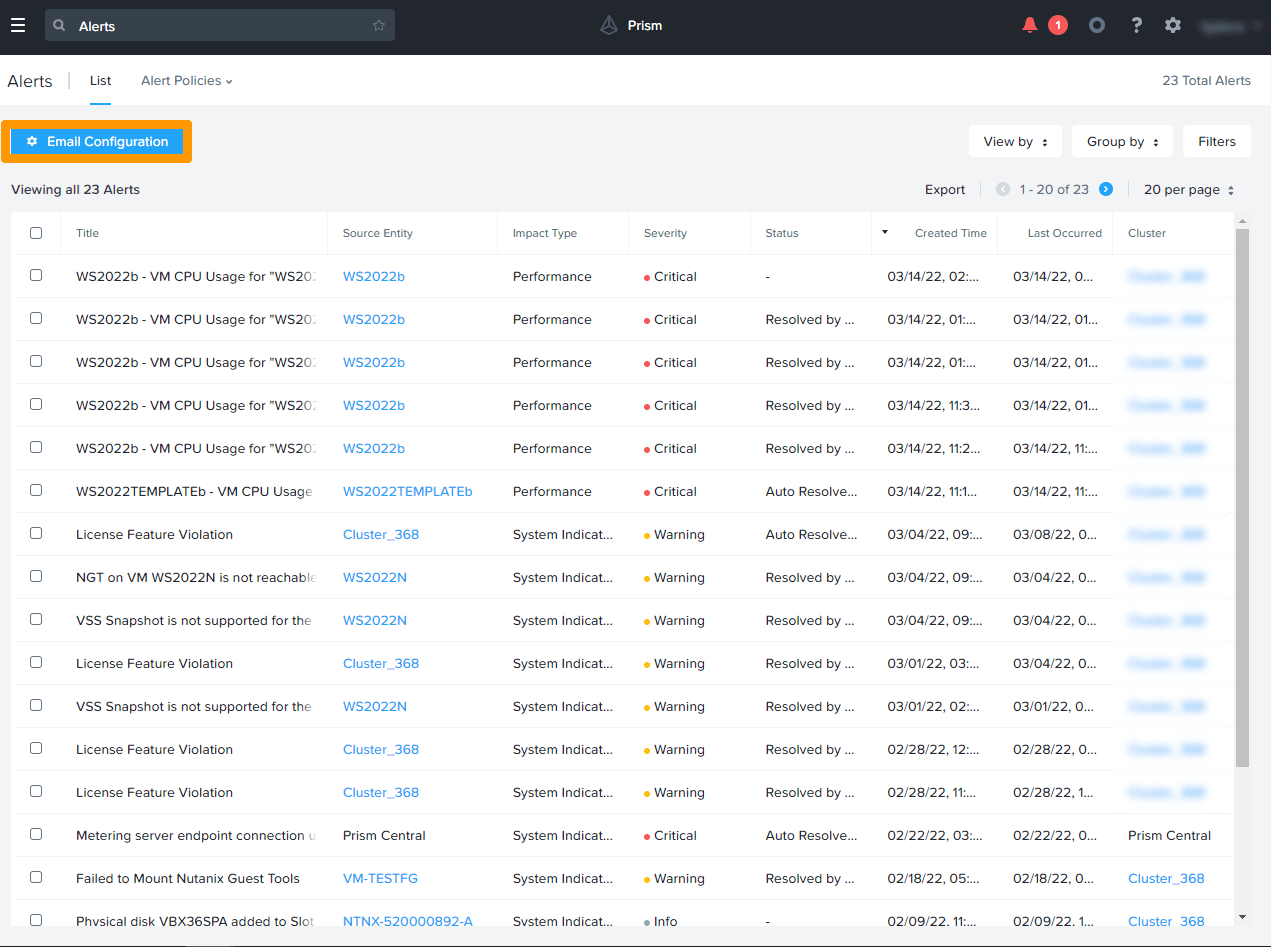
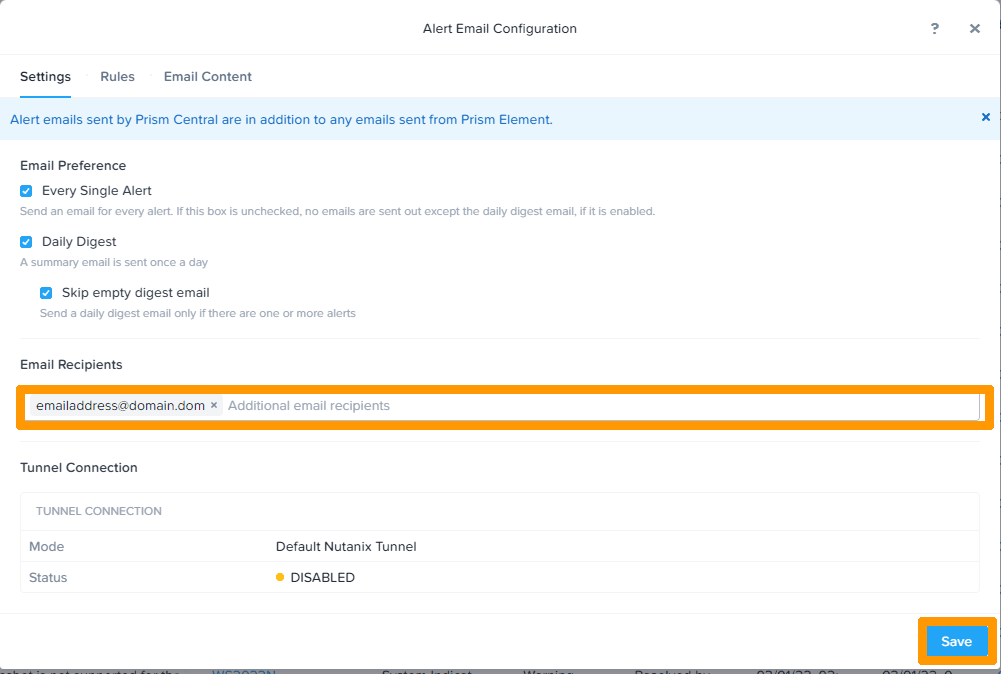
The list of triggered alerts appears. Configure recipients by clicking Email Configuration.
Enter recipient names in the "Email Recipients" input box and click Save.
Creating a custom alert
To create a custom alert with different trigger thresholds, click Alerts Policies and select User Defined.
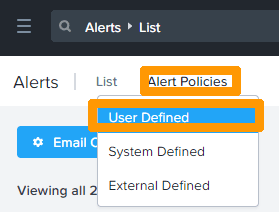
Then click Create Alert Policy.
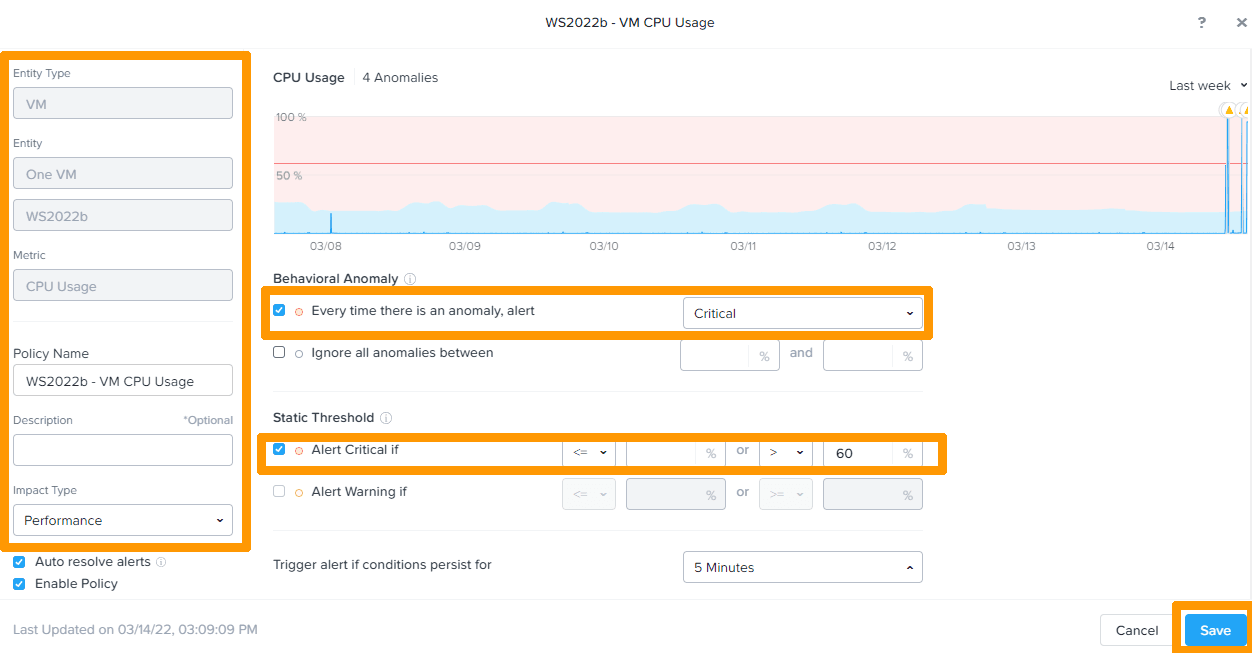
On the left, select the settings you want to monitor, such as, in the example below, CPU usage on a single virtual machine.
Next, modify the Behavioral Anomaly settings by ticking Every time there is an anomaly, alert, and choosing Critical.
Change the "Static Threshold" settings by ticking Alert Critical if and choosing a threshold higher than 60%.
Click Save to save the custom alert.
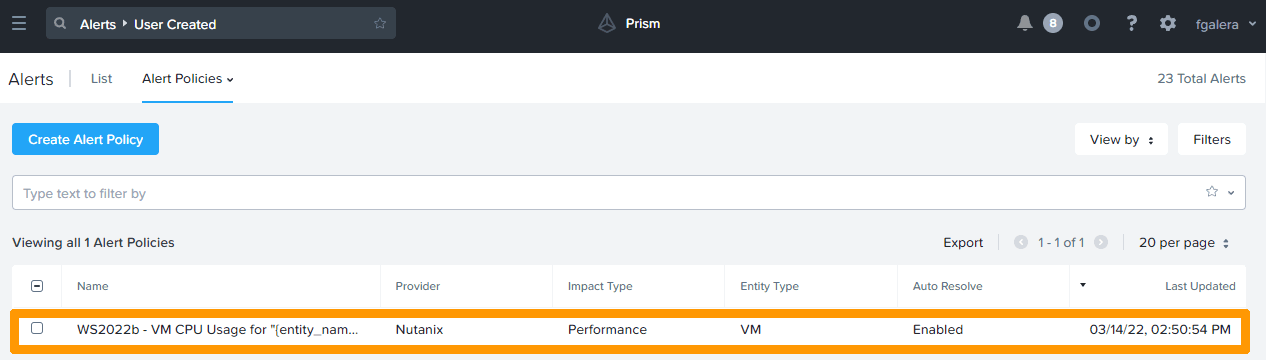
The alert you have created will then appear in the list.
Resolving an alarm
In Prism Central, when an alarm is triggered, a red circle appears in the top right next to a bell. This alert will disappear after 180 minutes if the threshold has returned to normal.
The trigger threshold may return to normal within 180 minutes. In this case, you can delete the alert manually.
To delete an alert manually, click the red numbered circle.

The raised alarm appears.
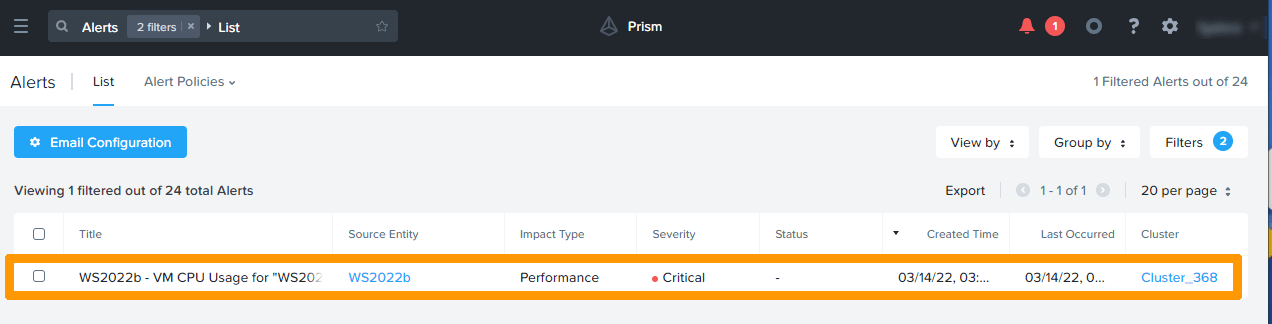
Select the alarm and click Resolve.

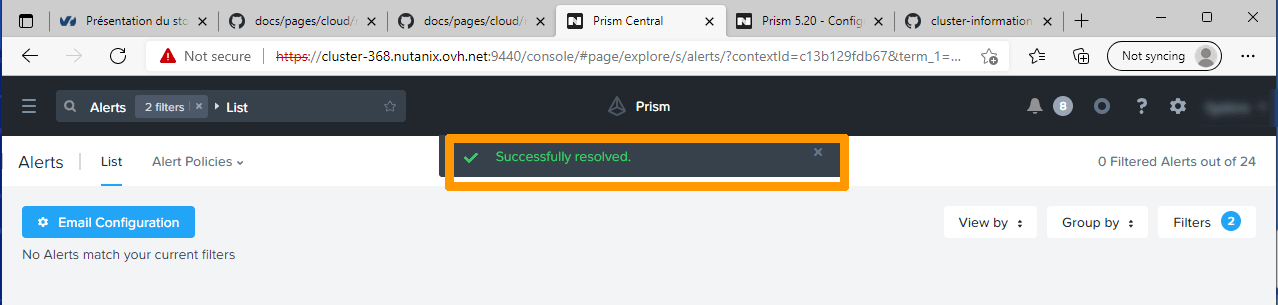
The alarm is then resolved and no longer appears in the Prism Central dashboard.
Viewing Events
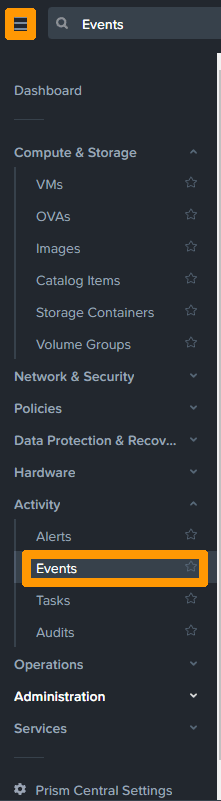
Click on the main menu in the top left-hand corner.
Select Events from the Activity menu.
The list of events is displayed.
Viewing Tasks
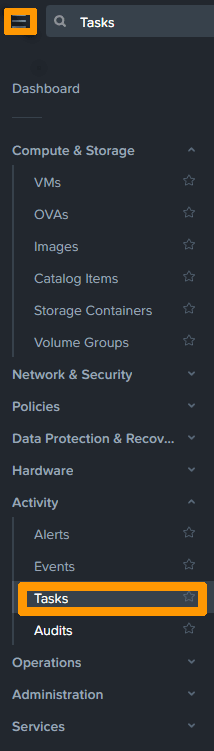
Click on the main menu in the top left-hand corner.
Select Tasks from the Activity menu.
The task list appears.
Go further
Browse all the Nutanix guides.
Browse the rest of the OVHcloud US documentation for guides on our other products and services.
Learn more about Nutanix on OVHcloud on the OVHcloud US website.