
Public VCF as-a-Service - Creating network components from the Public VCF as-a-Service control panel
Learn how to create, configure, and effectively manage your network (IP spaces, Edge gateways and providers, and private network) from the Public VCF as-a-Service control panel.
Requirements
If you are unsure how to log in to your organization's web portal, first refer to this guide.
- A web browser
- A Public VCF as-a-Service account with sufficient rights
- Have read the Public VCF as-a-Service guides:
Public VCF as-a-Service - Network concepts and best practices
Public VCF as-a-Service - The fundamentals of Public VCF as-a-Service
Public VCF as-a-Service - Logging in to your organization
Instructions
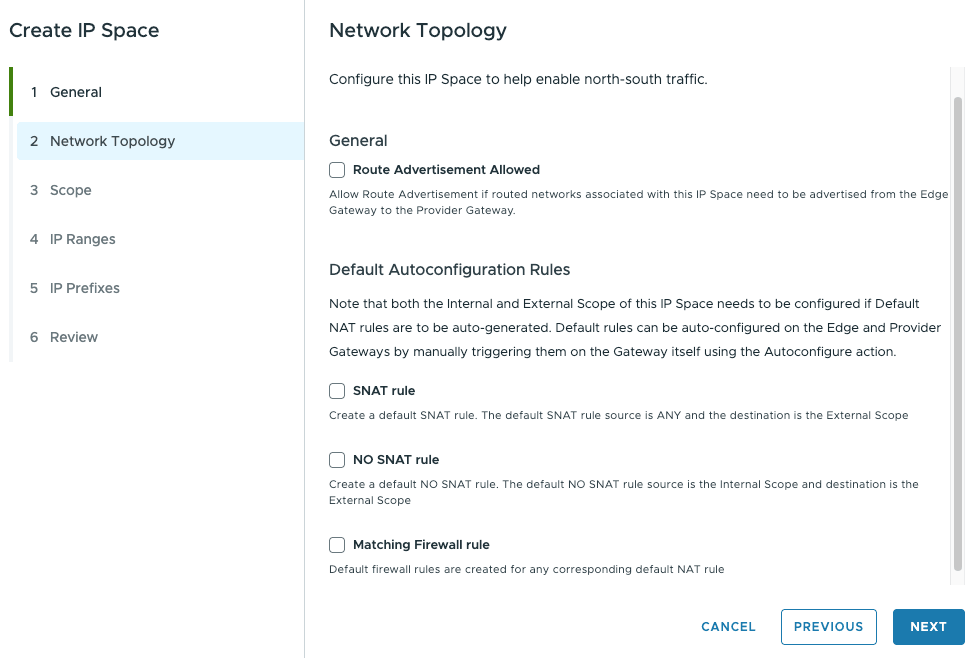
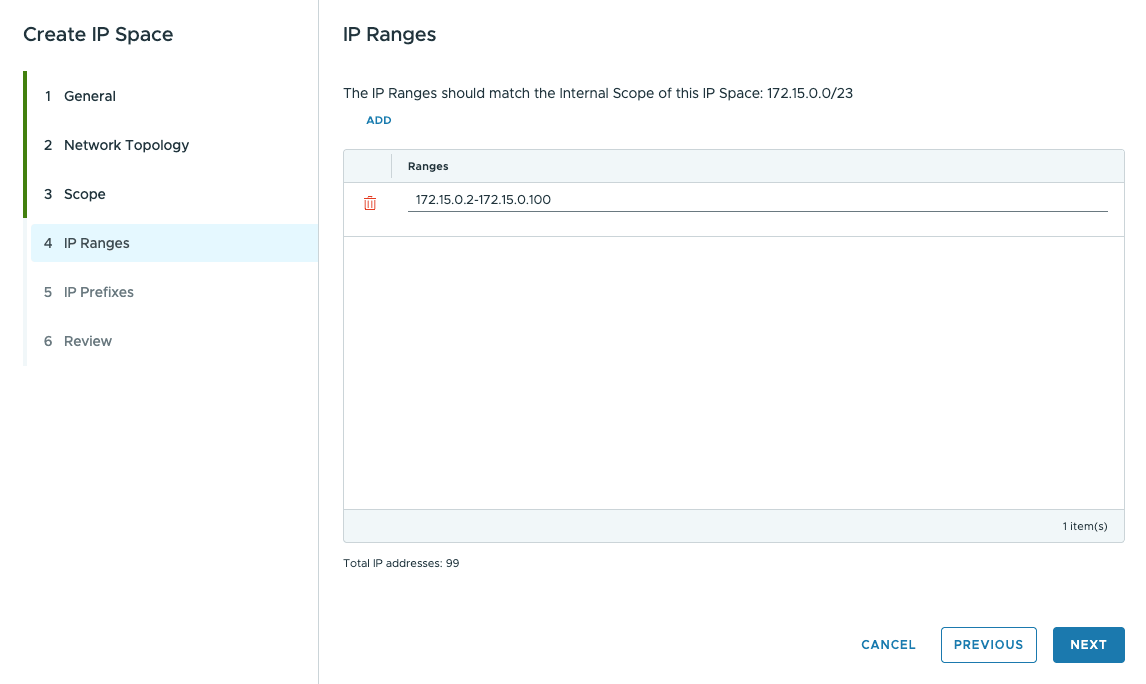
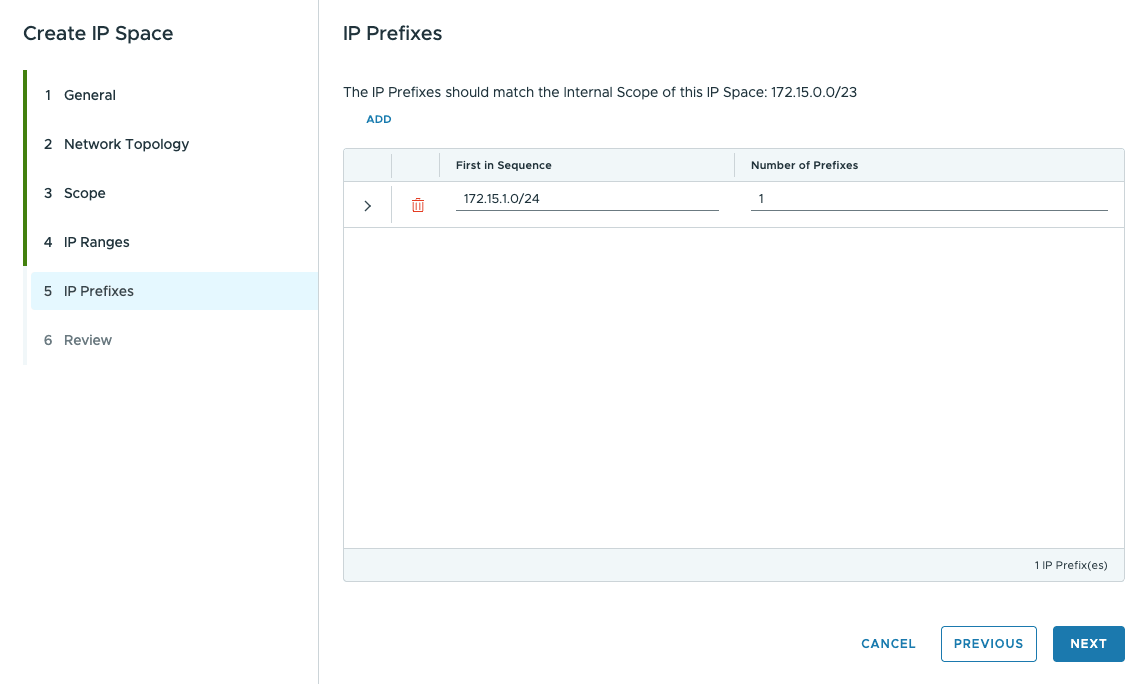
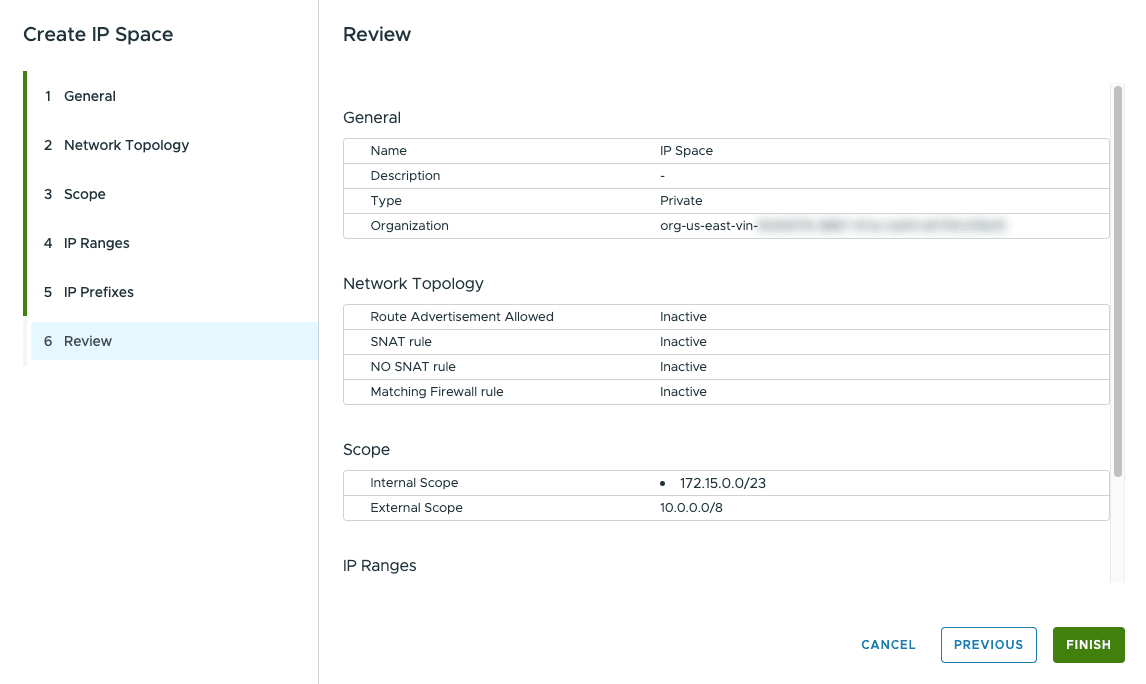
Before creating a network, the main concept to understand with Public VCF as-a-Service is the IP space. For example, consider the default one created with your Public VCF as-a-Service organization:
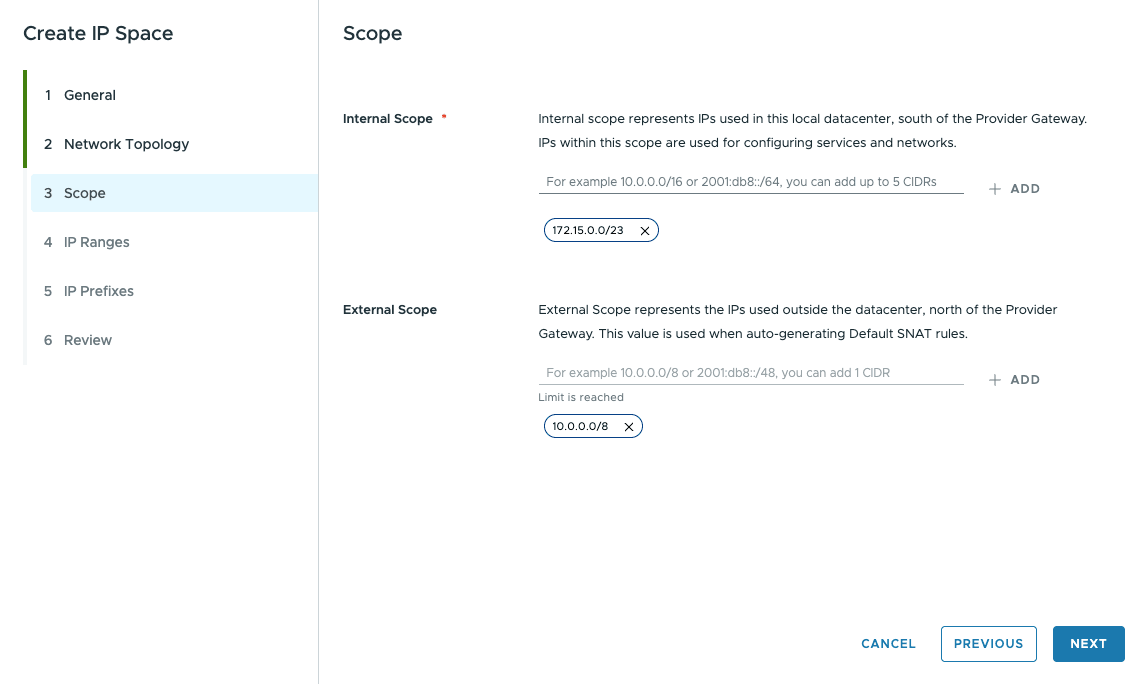
The internal scope represents the entire IP of your future network, e.g., 192.168.0.0/24.
- IP ranges are IPs that you can request individually for your services (VMs not using DHCP, for example).
- IP prefixes are the IP subnet that you can use in your Edge Gateway, for example.
- IP ranges and IP prefixes cannot overlap and must be within the Internal Scope.
Create the IP space (recommended)
You can use a new method of managing your IP space in Public VCF as-a-Service with the new IP space management subsystem.
To connect to your Public VCF as-a-Service environment, follow this guide.
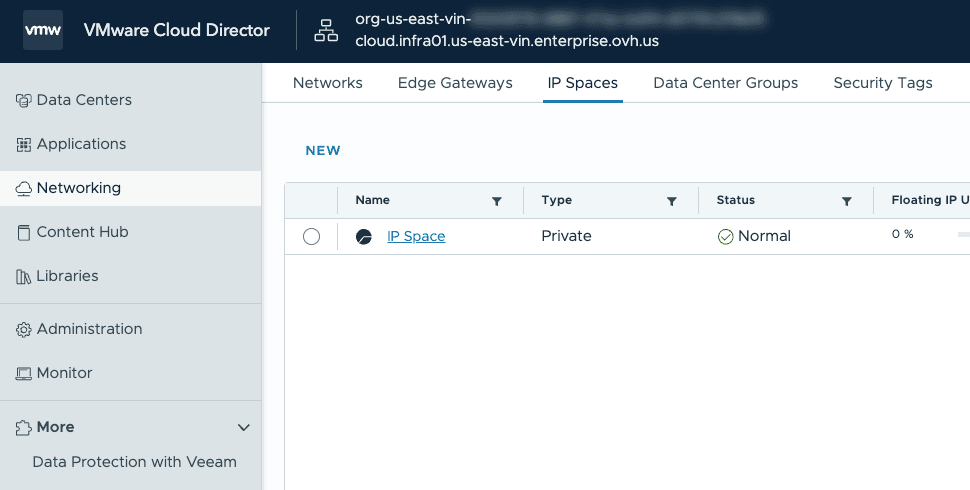
Under the Networking section, select the IP Spaces tab and click NEW.
General
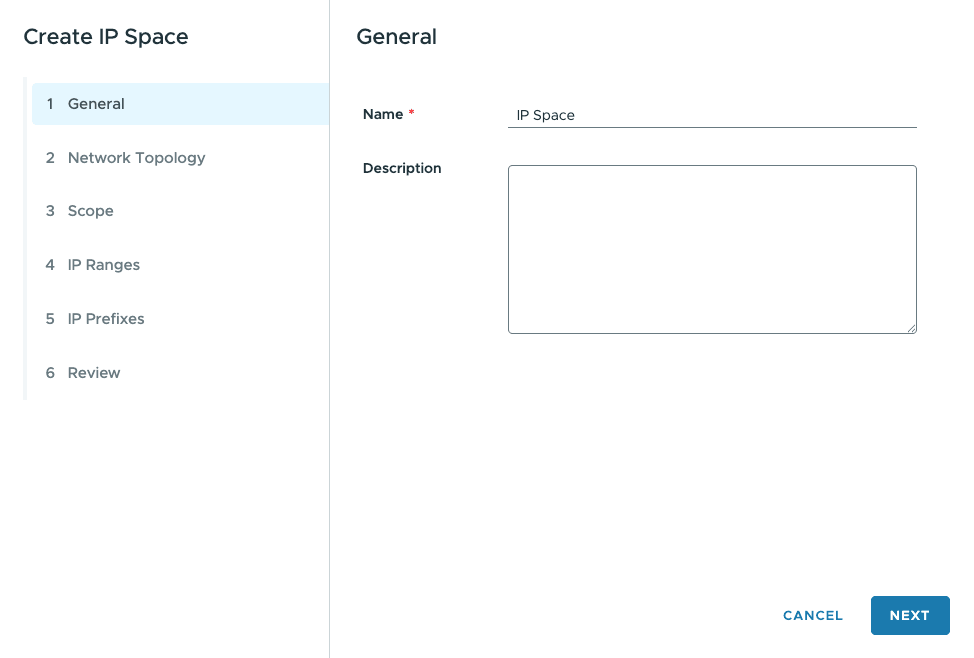
The Create IP Space window will appear, where you can choose a name for your space and add an optional description.
Click NEXT to continue.
Create a data center group (optional)
This step is optional but recommended for the vast majority of use cases (e.g. when two VDC networks need to add up).
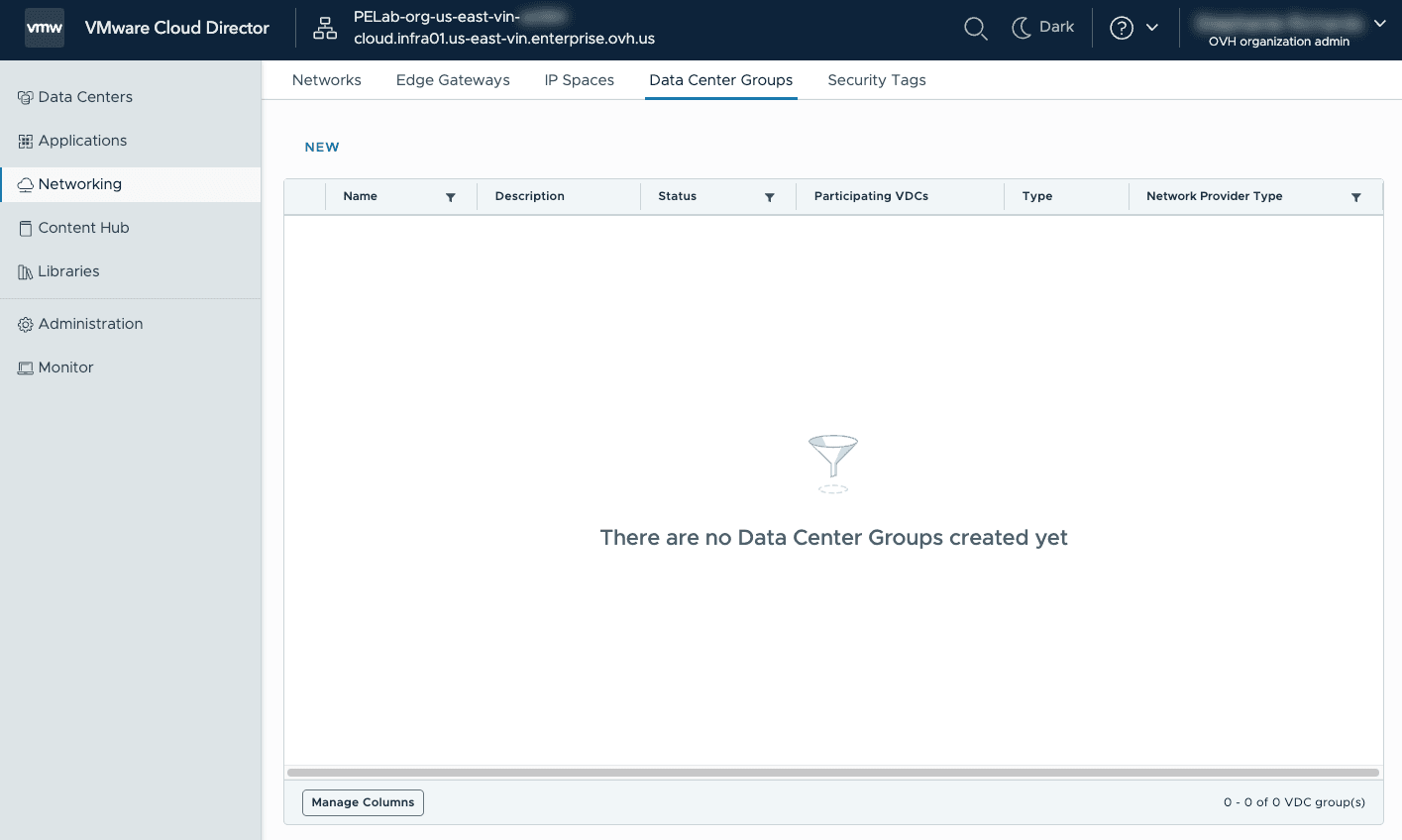
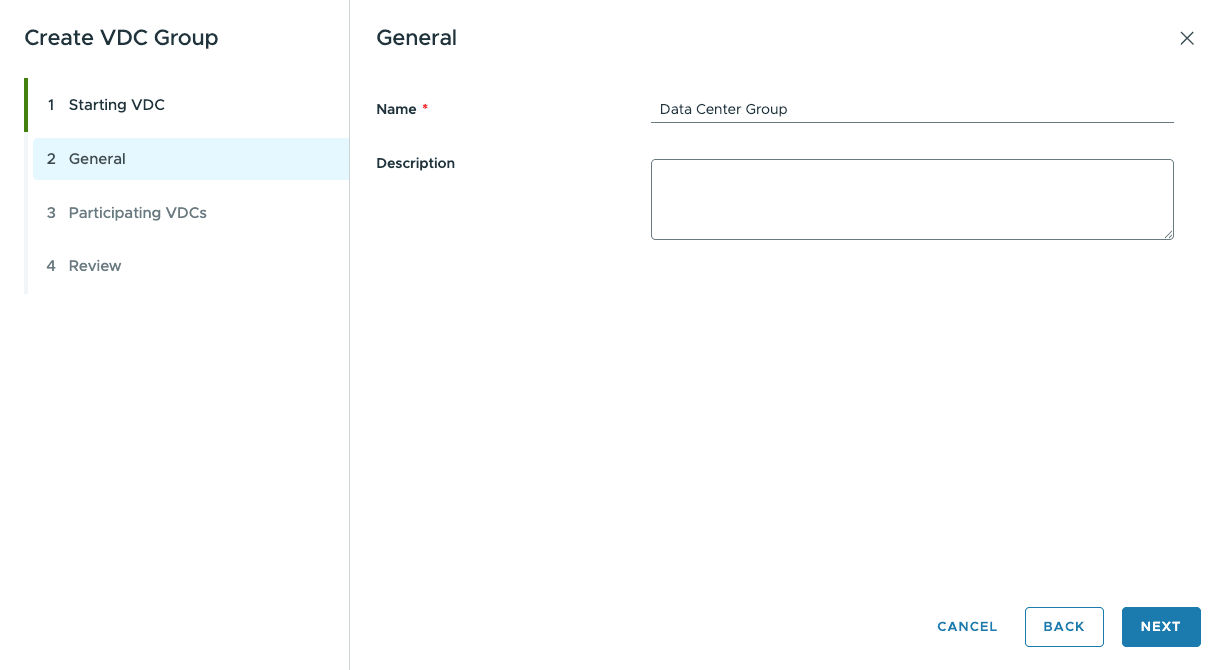
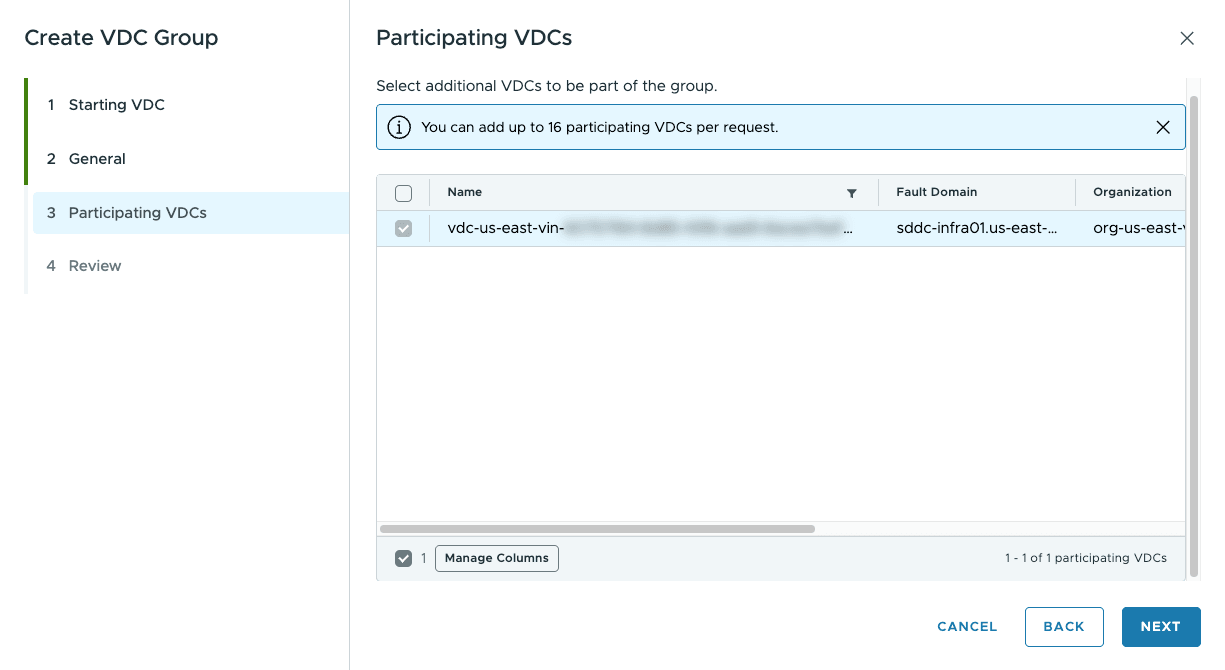
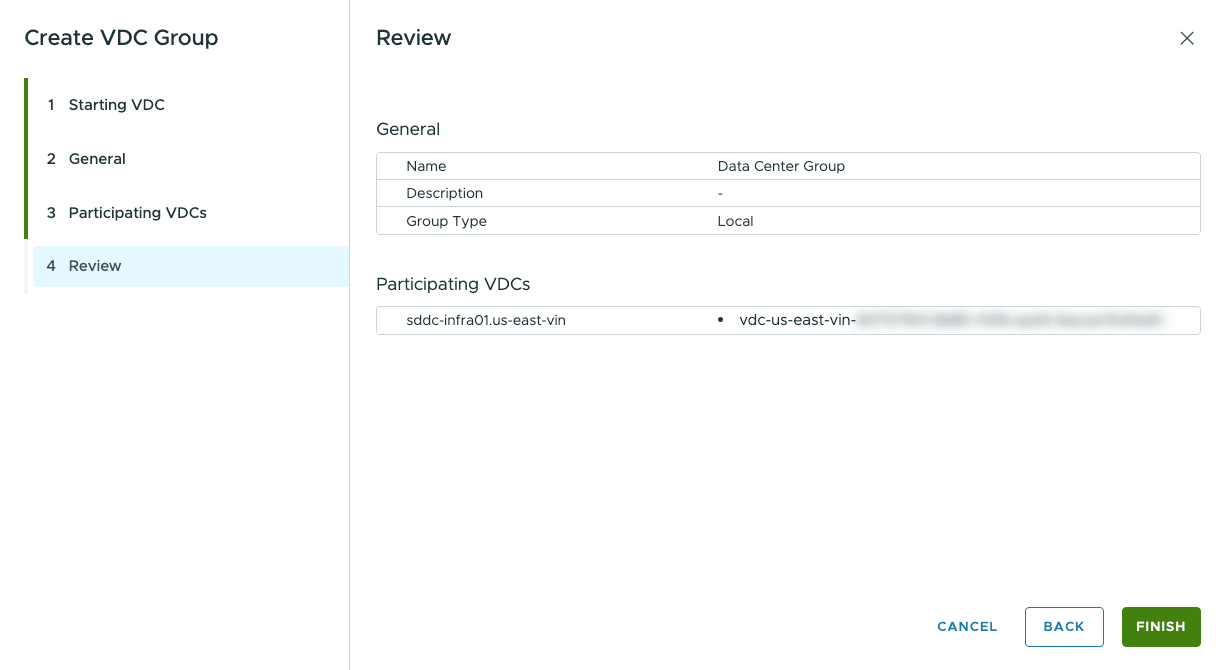
We will now create a data center group to optimize the management of our network with this new Public VCF as-a-Service feature.
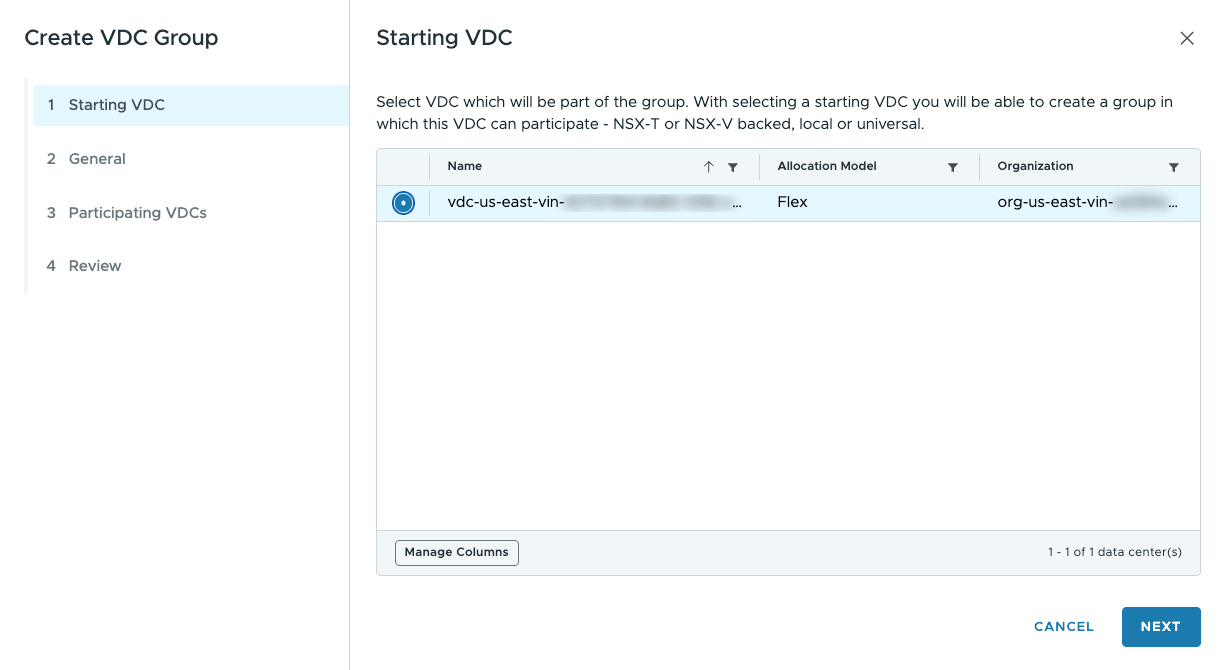
Go to the Networking section, choose the Data Center Groups, tab, and click NEW.
Starting VDC
Select a vDC that will be part of the group. When you select a startup vDC, you can create a group in which this vDC can participate. Then, click on NEXT.
Create an Edge Gateway (optional)
NOTE: At this time, it is not possible to create an Edge Gateway.
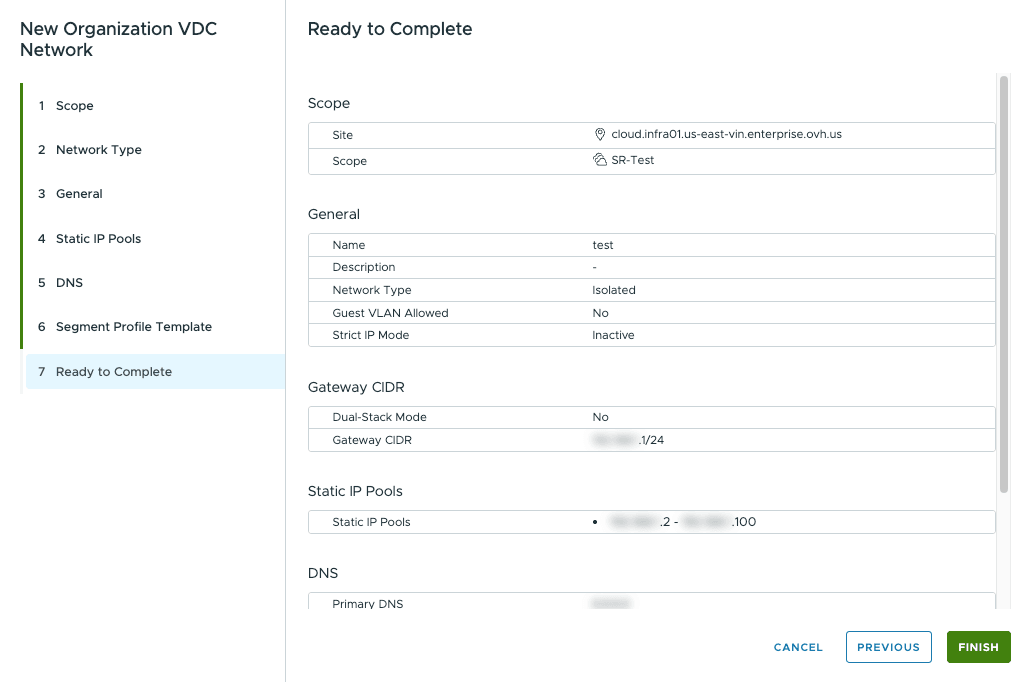
Create a private network
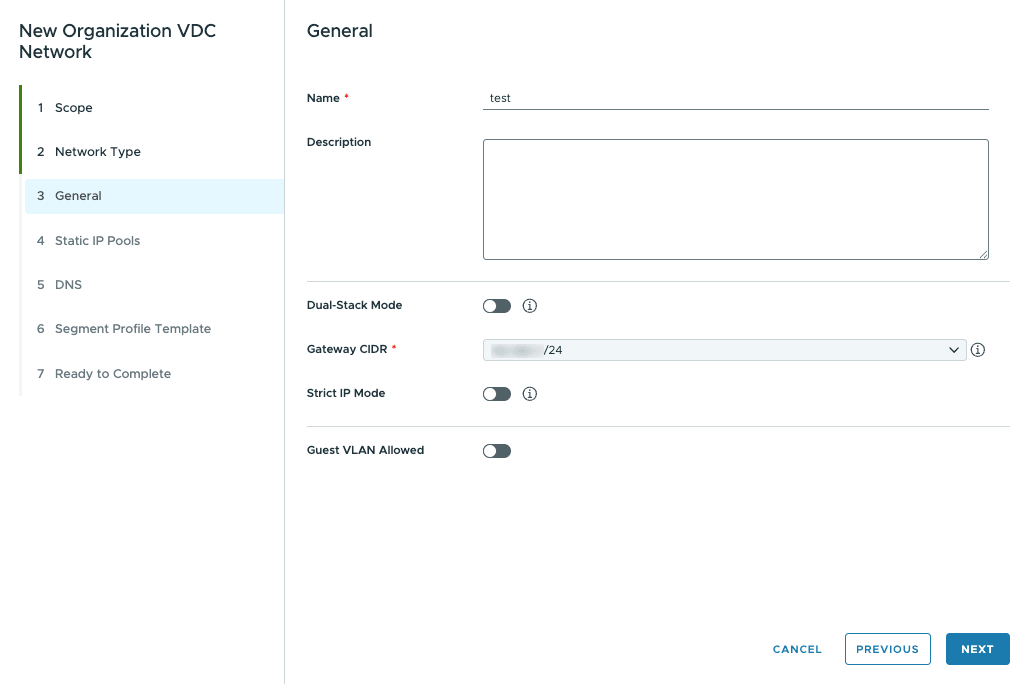
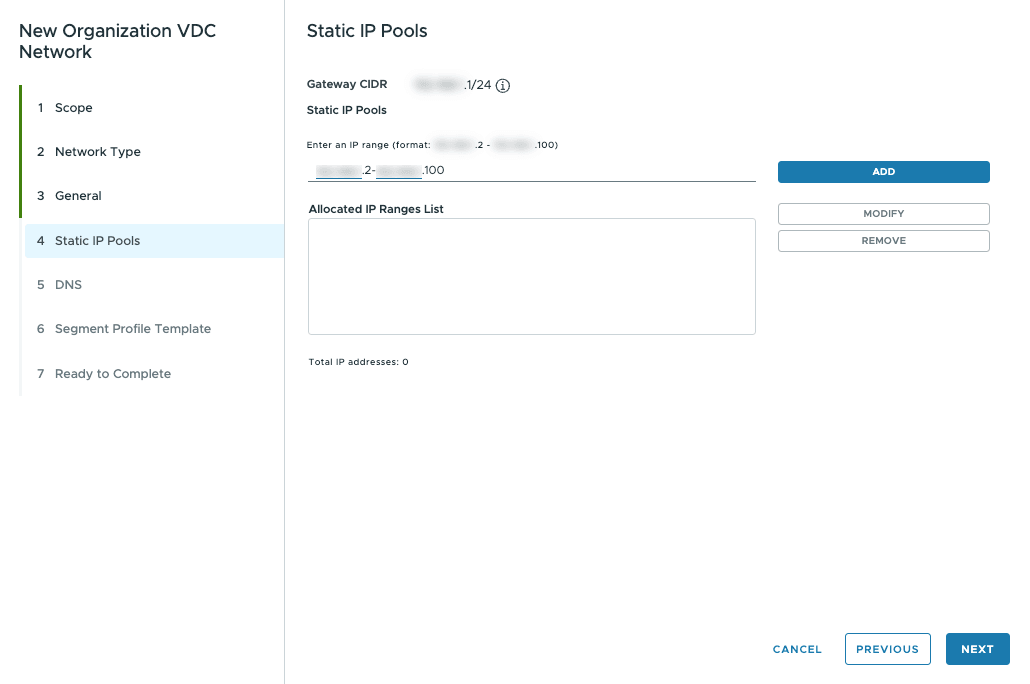
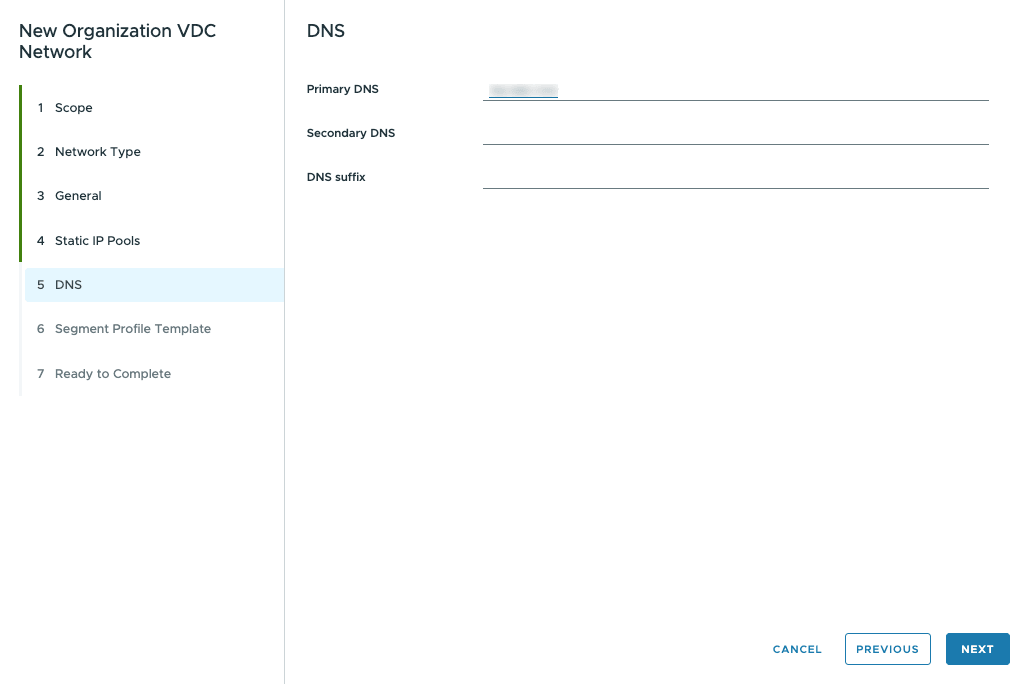
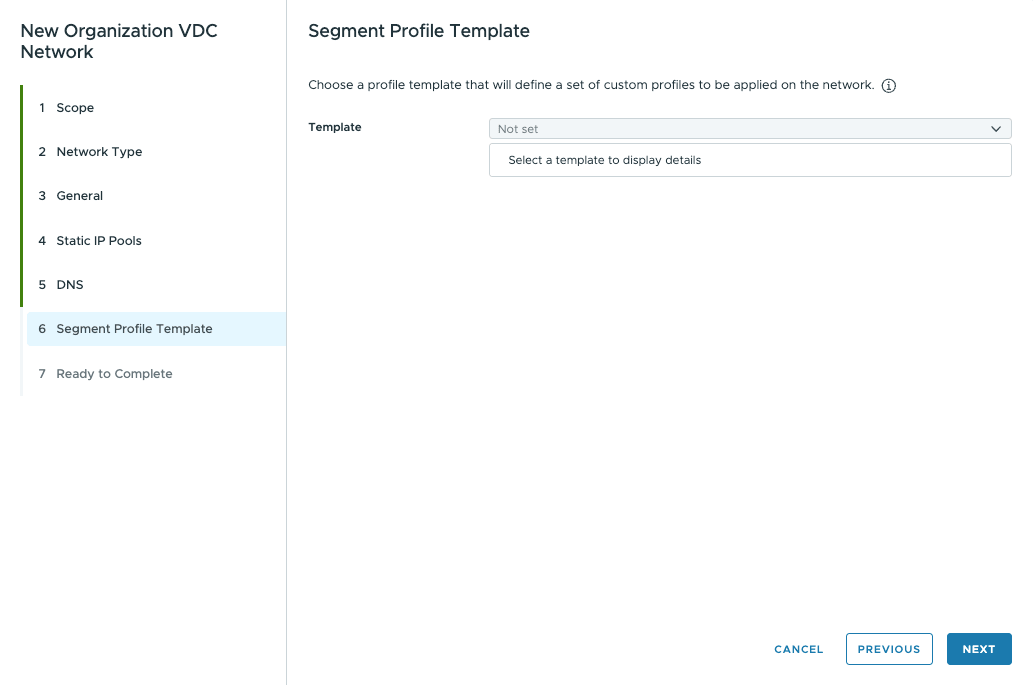
We will now create a new network and attach our preconfigured settings.
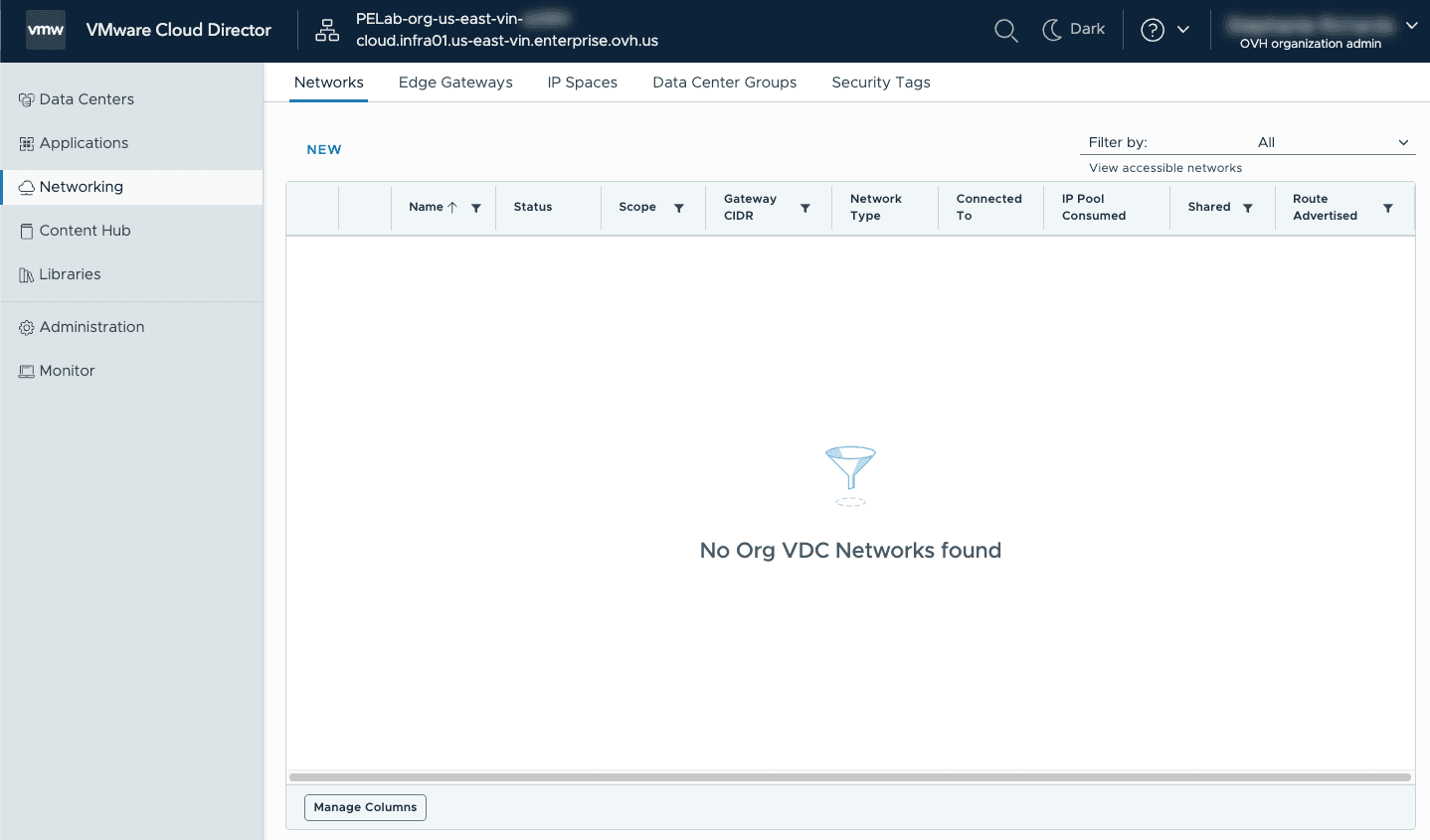
Choose the Networking section, select the Networks, tab, and click NEW.
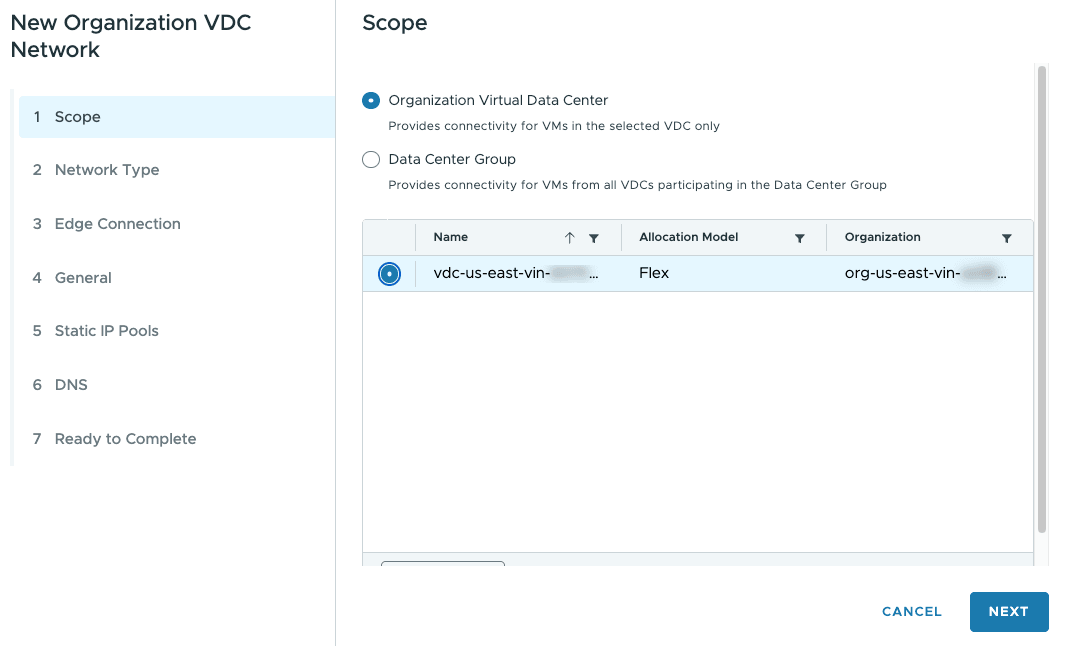
Scope
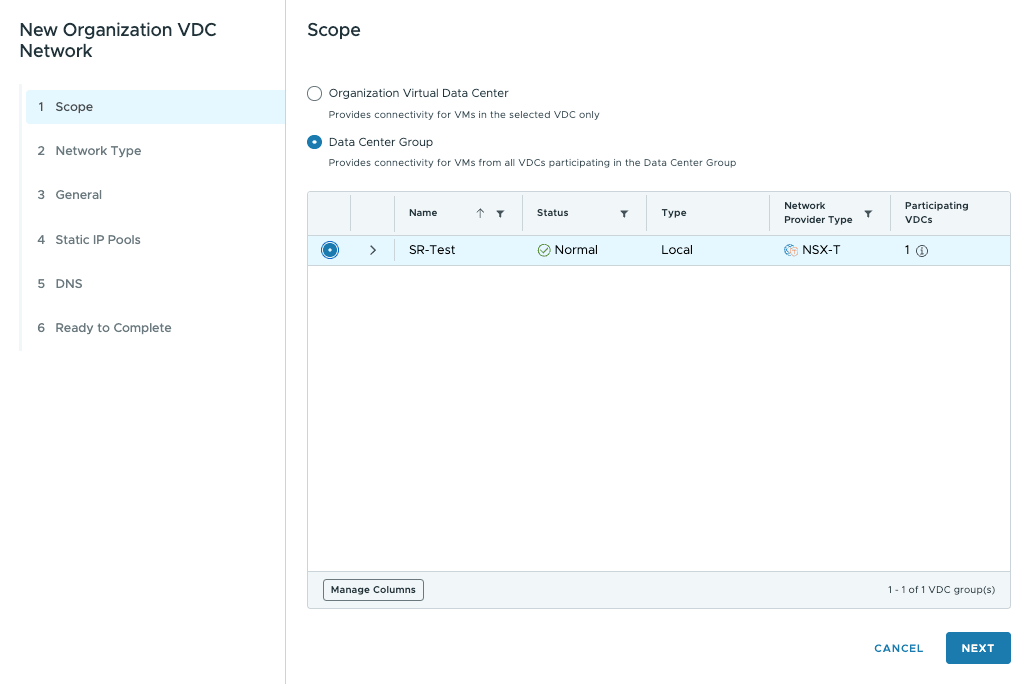
- Organization Virtual Data Center: Provides connectivity for VMs in the selected vDC only.
- Data Center Group: Provides connectivity for the VMs of all virtual domain controllers participating in the data center group.
Select the Organization Virtual Data Center or the Data Center Group in which you want to create your network and click NEXT.
Go further
Browse all the Public VCF as-a-Service guides.
Browse the rest of the OVHcloud US documentation for guides on our other products and services.
Learn more about Hosted Private Cloud on the OVHcloud US website.
If you need training or technical assistance to implement our solutions, contact your sales representative or click on this link to get a quote and ask our Professional Services experts for a custom analysis of your project.