
Getting Started - Backing Up a Bare Metal Server with Veeam Enterprise
Learn how to prepare to back up your Bare Metal Server using Veeam Backup and Replication (Enterprise).
Requirements
- a Bare Metal server
- a Veeam Enterprise Backup solution
- OVHcloud Standard Object Storage (optional)
Introduction
Backing up a Bare Metal server with Veeam Enterprise involves several applications and services to work together. The process may also change based on your configuration and preferences. Steps 1 through 3 below are meant to give you a bird's eye view of the process and provide you with links to the guides necessary for your unique backup experience.
Step 1: Setting up hardware and software
The instructions below will cover the purchase and setup for:
- a Dedicated Server
- Veeam Enterprise
- Object Storage (optional for use as a repository)
Step 2: Back up
Back up your environment using the Linux or Windows (as appropriate) guide below:
- For Linux: Backing Up a Bare Metal Linux Server with Veeam Enterprise
- For Windows: Backing Up a Bare Metal Server Using Veeam Agent for Windows
Step 3: Restore (optional)
To restore a Bare Metal Server or an individual file, follow the process in our Restoring a Bare Metal Server with Veeam Enterprise guide.
Instructions
Setting up your Dedicated Server
OVHcloud Dedicated Servers can be viewed and purchased through our website or the OVHcloud Control Panel (follow this guide).
Install and configure your Bare Metal server. Our Getting Started with a Dedicated Server guide and the other Dedicated Server support guides can help you through this process.
You can also configure your Dedicated Server to use the private network by following the steps in this guide.
Setting up your Veeam Enterprise backup server
Purchase Veeam Enterprise
The Veeam Enterprise backup solution can be purchased through our website.
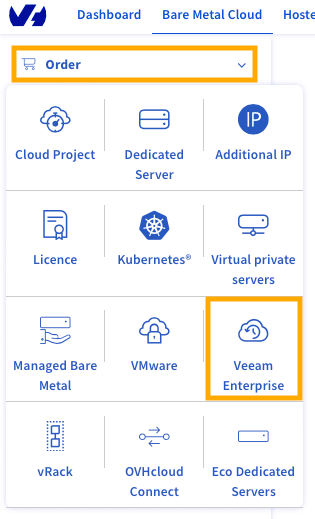
Alternatively, from the OVHcloud Control Panel, you can purchase Veeam by clicking the Order button and selecting Veeam Enterprise.
Download, install, and license Veeam Enterprise
Download, install, and license your Veeam Enterprise backup server using this guide.
From here, you can keep reading to learn how to set up Object Storage as your repository or return to Step 2 (above).
Setting up your Object Storage
NOTE: If you do not already have a Public Cloud project, you will need to create one before continuing.
You can view and purchase the OVHcloud Object Storage options on our website or through the OVHcloud Control Panel by following the steps below.
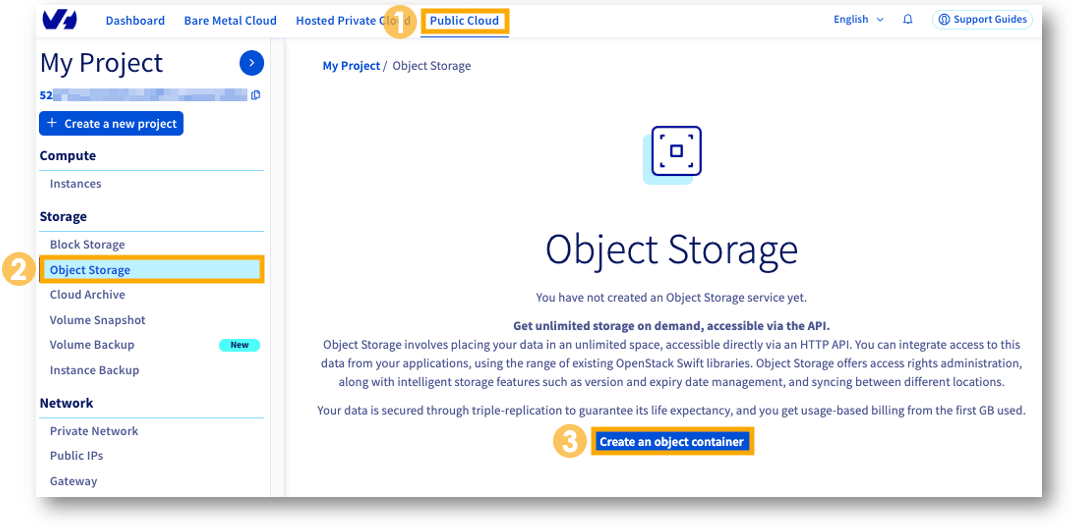
- Select
Public Cloudfrom the top navigation bar. - Under Storage select
Object Storage. - Click
Create an object container.
NOTE: When ordering an Object Storage container from OVHcloud, only order Standard Object Storage or the High Performance Object Storage. These containers support the Amazon S3® * protocol fully and are designed for use as backup repositories.
Create an object container using one of OVHcloud's Object Storage solutions (Standard or High Performance). Standard is recommended since this backup usually does not require High Performance storage.
Give the Object Storage user rights to the container by copying and pasting the text below into a JSON file.
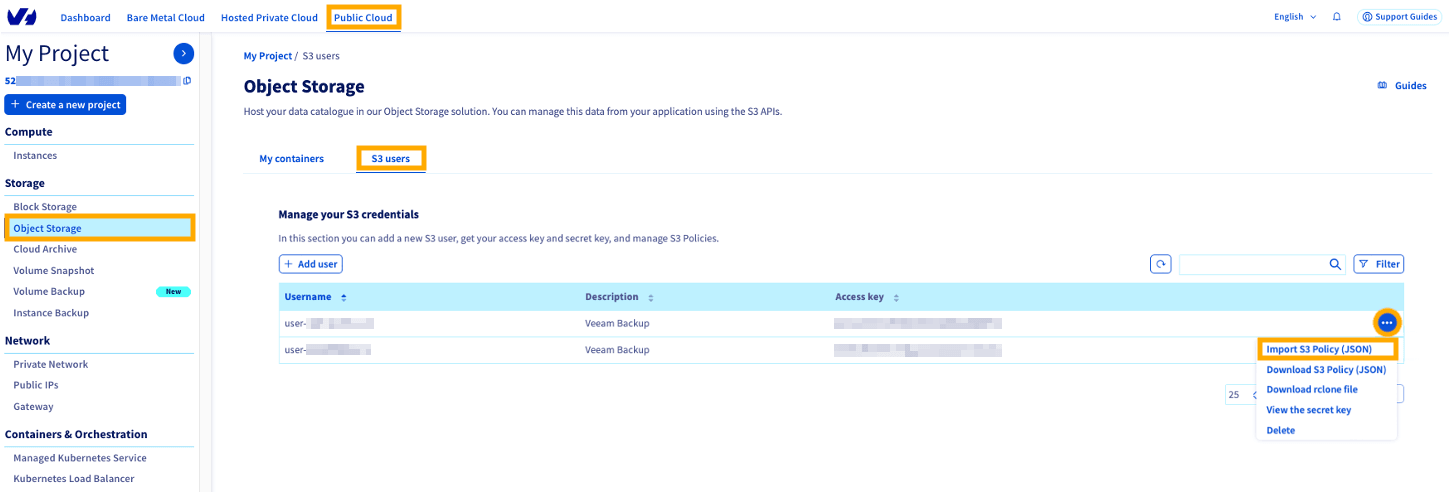
From the OVHcloud Control Panel, select Public Cloud and then Object Storage under the Storage section. Click the Object Storage users tab and then the more options ... button to the right of the Object Storage user and choose Import Policy (JSON).
Select the JSON file you just edited and click Import.
Configuring the Object Storage repository in Veeam Enterprise
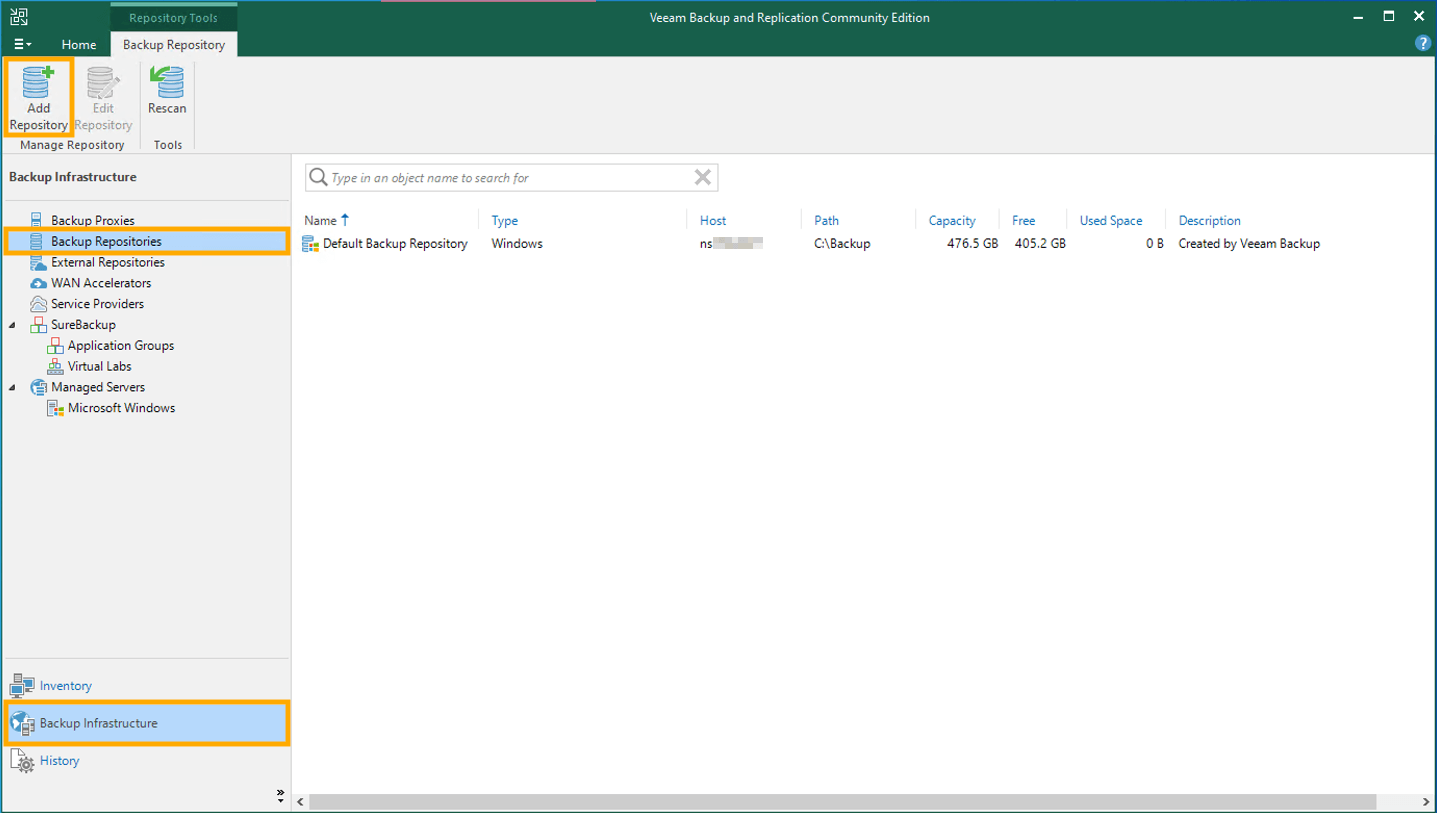
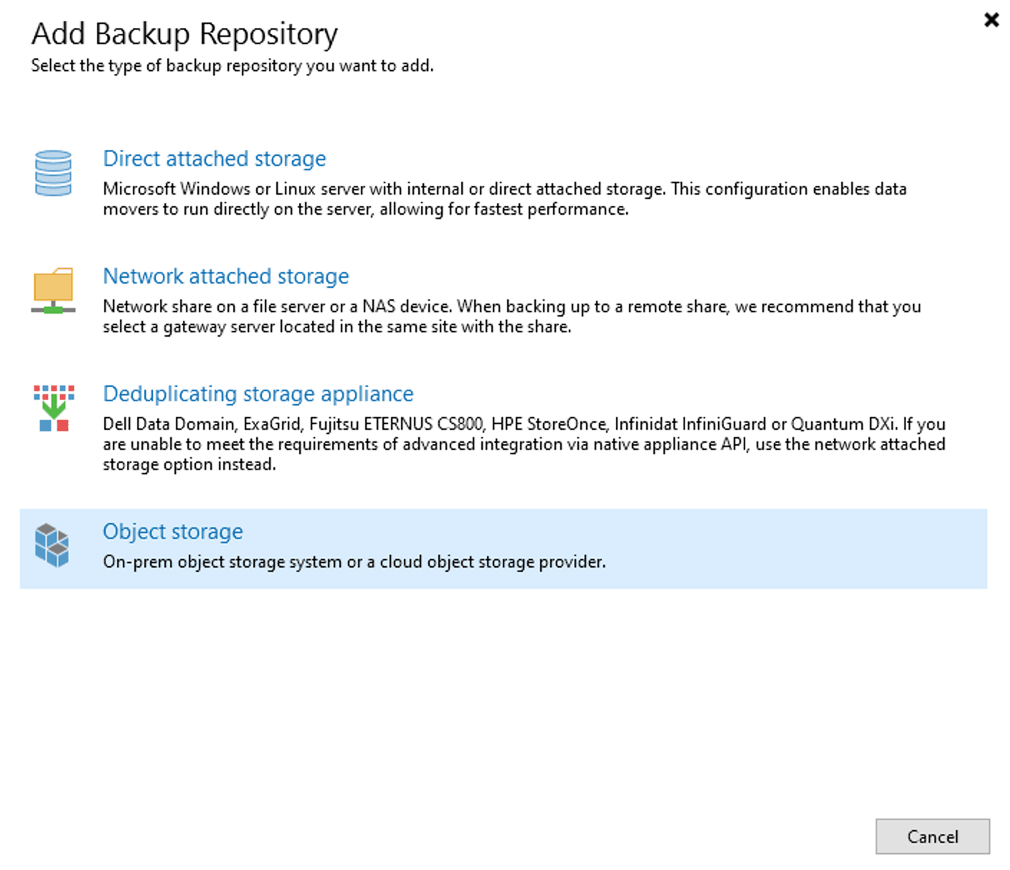
From the Veeam application, select Backup Infrastructure, Backup Repositories, and Add Repository.
Select Object storage as the repository type.
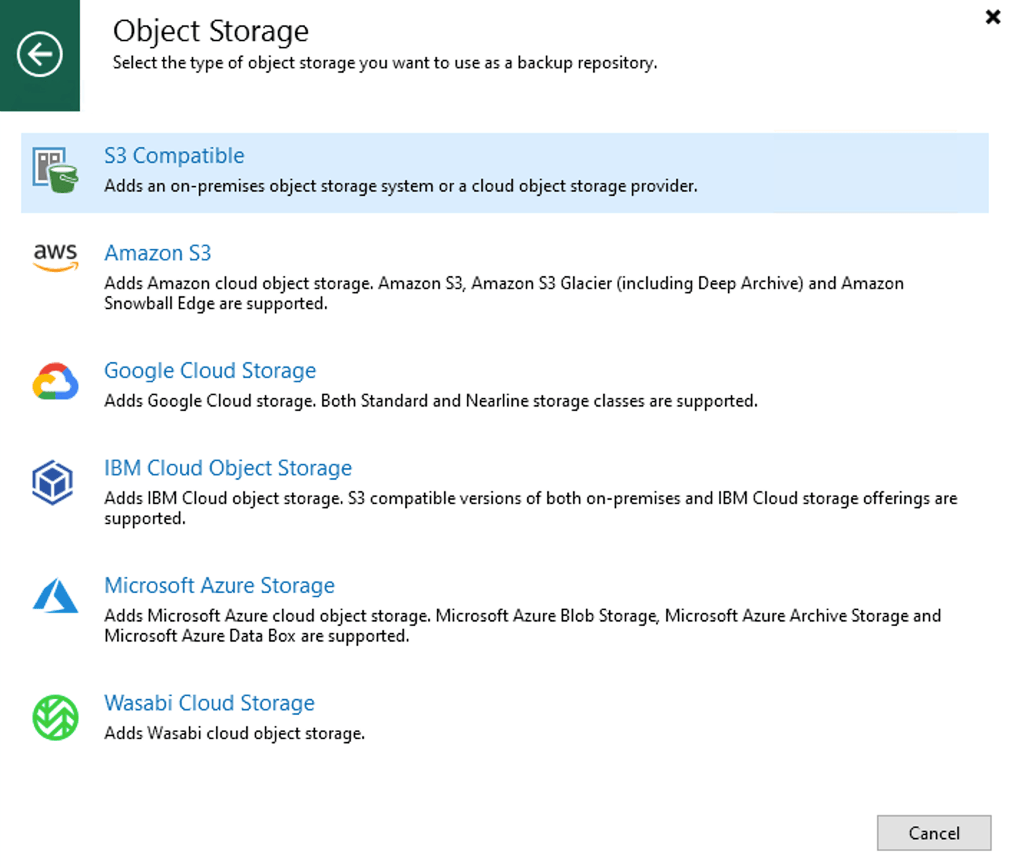
Select S3 Compatible.
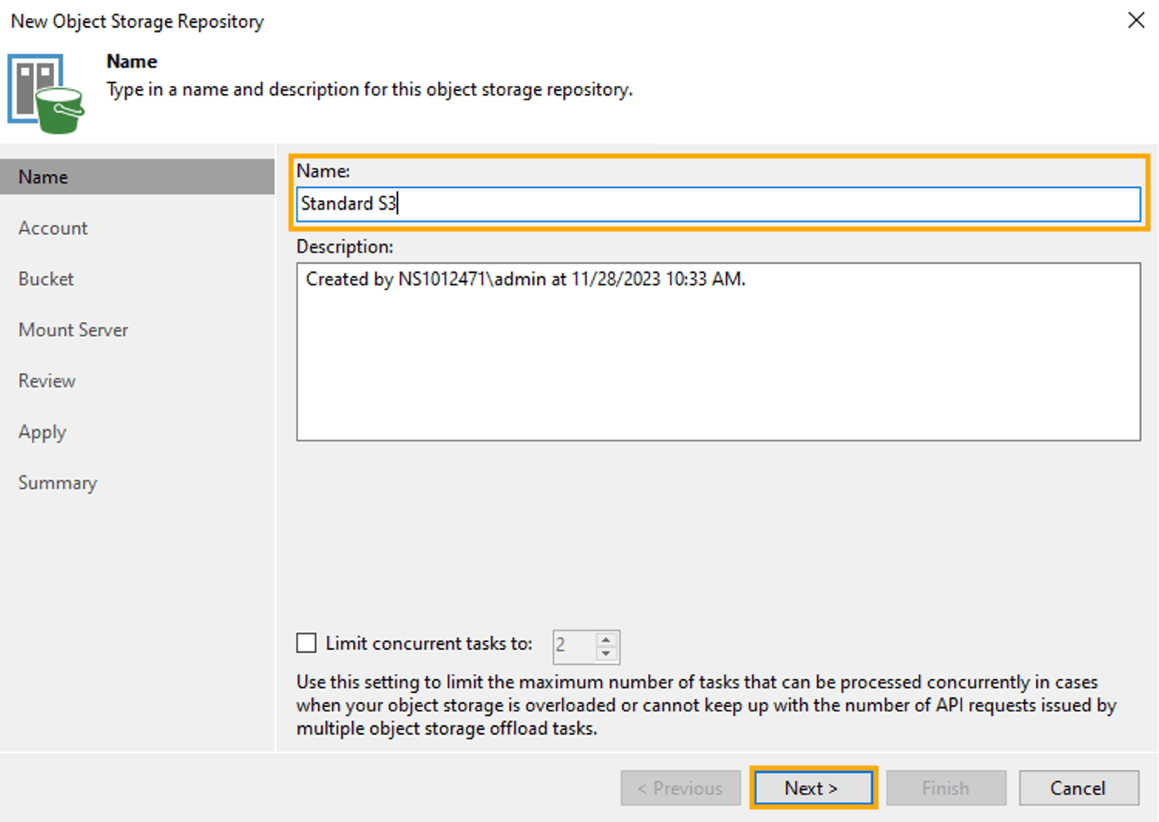
Give the new repository a Name and click Next.
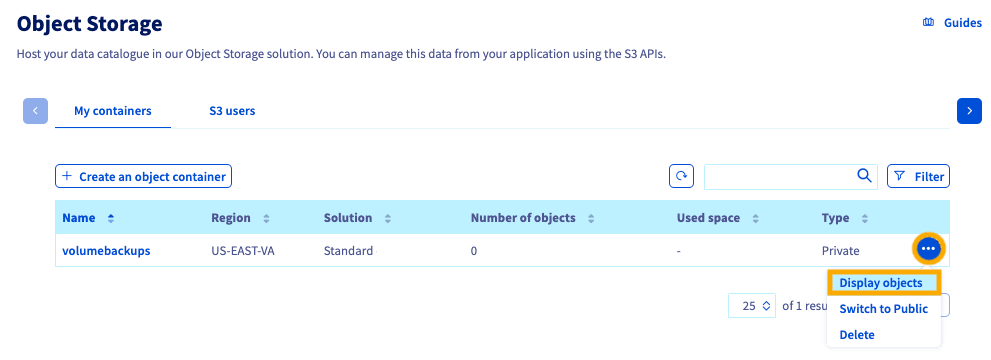
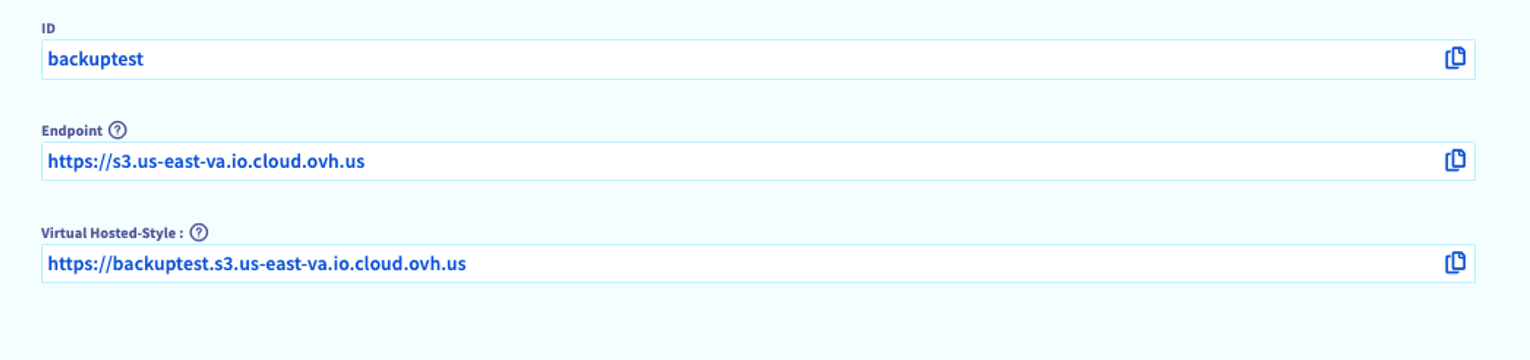
Enter the Service point (Endpoint) and Region information for your Object Storage service.
You can find this information in the OVHcloud Control Panel by clicking the more options ... button in the row of the container and then Display objects.
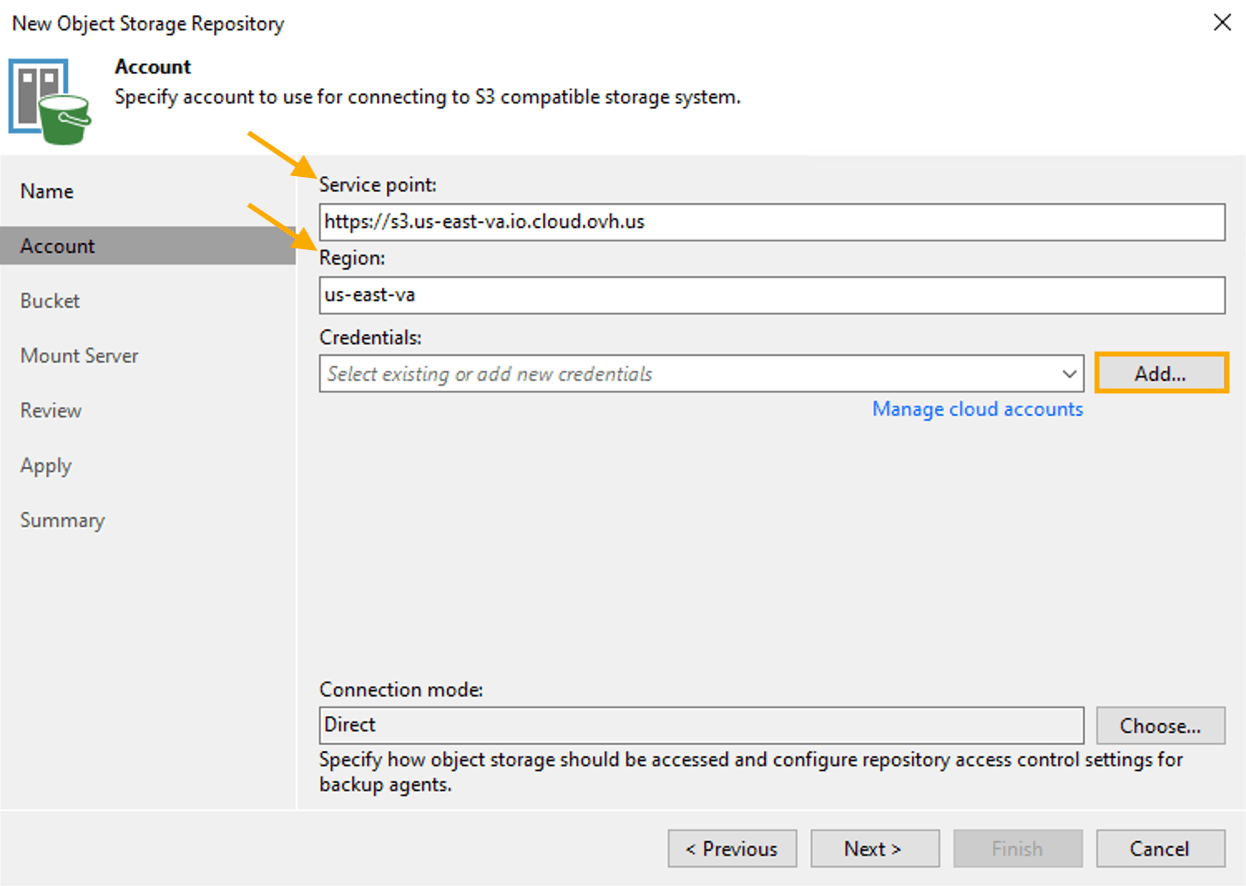
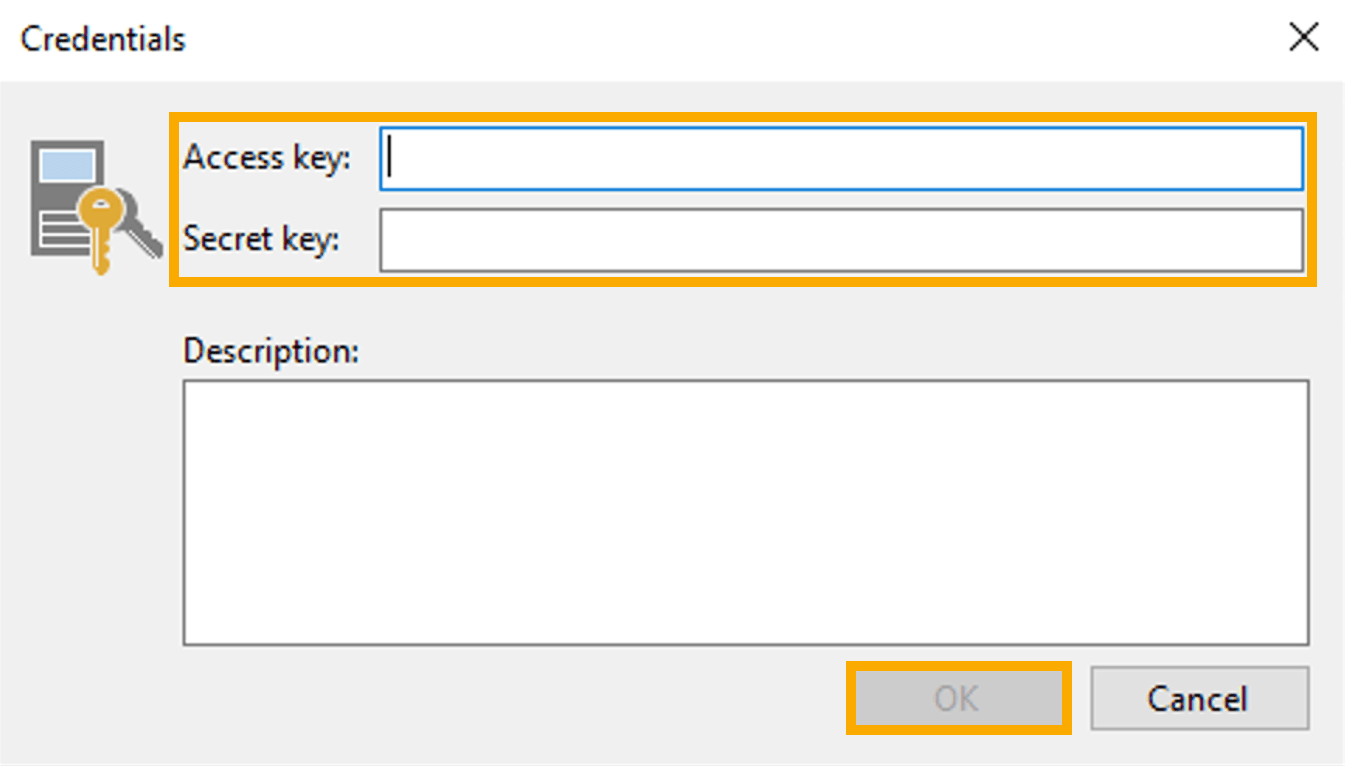
Click Add to enter your credentials. Enter your Access key and Secret key and then click OK.
This information is available in the OVHcloud Control Panel under the Object Storage Users tab. The Access key is visible on the main page. The Secret key can be found by clicking the more options ... button and selecting View the secret key.
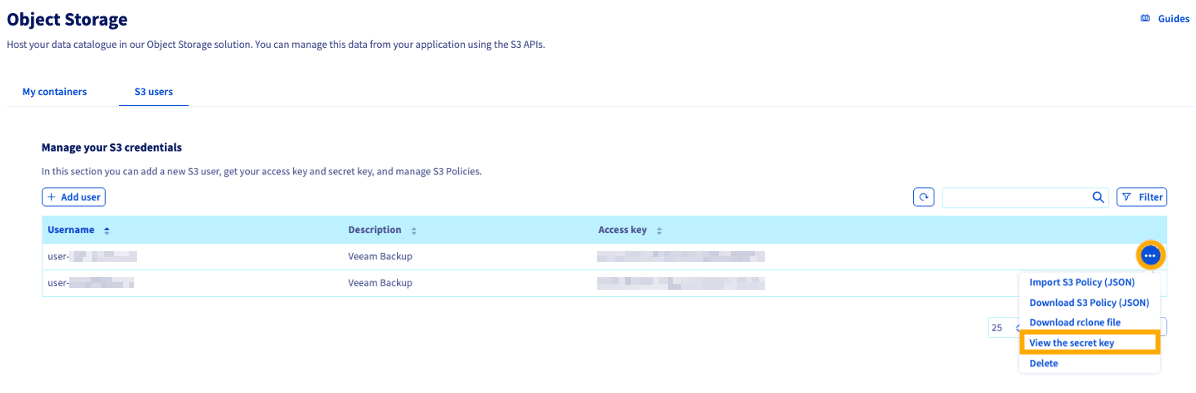
Click Browse... to select the Bucket.
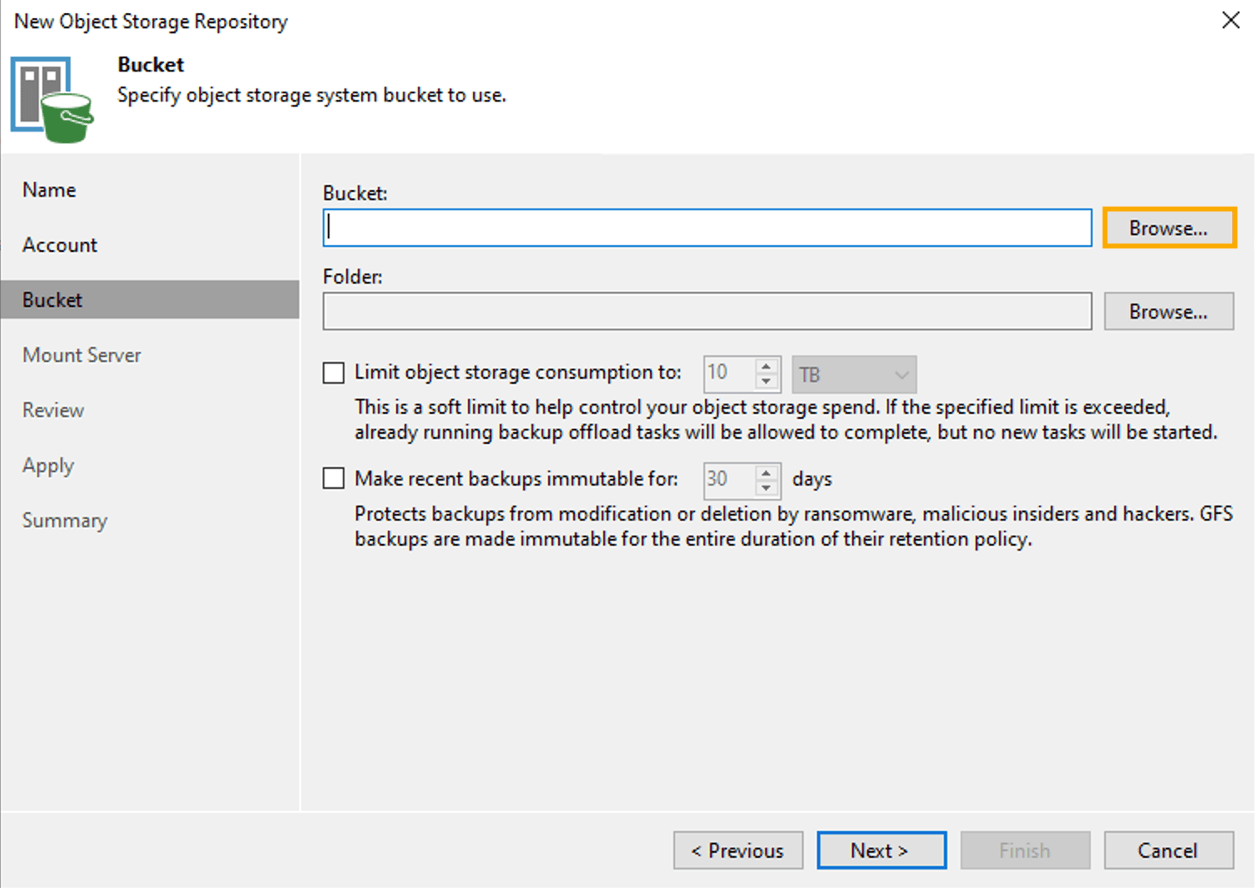
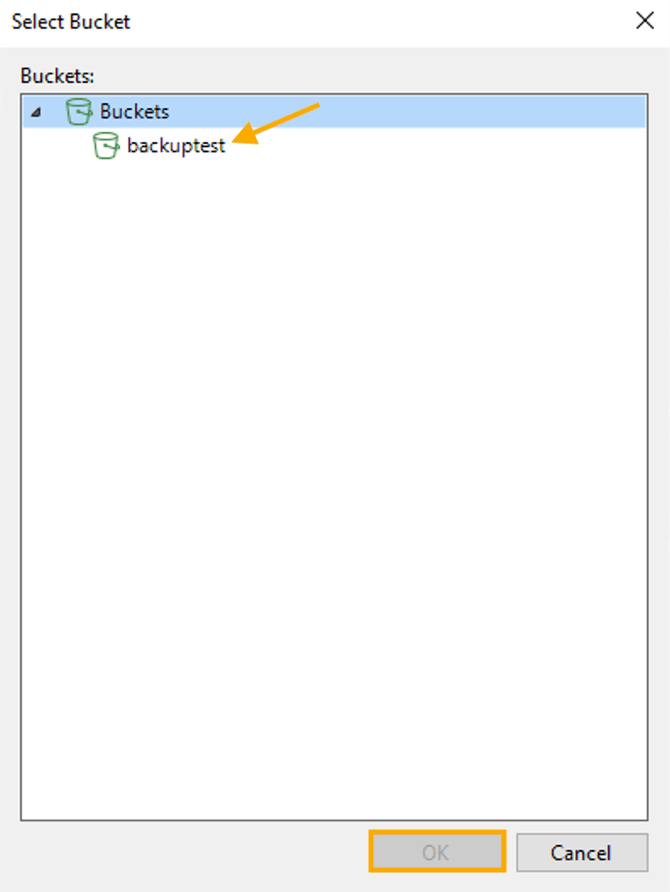
Select the bucket and click OK.
Click Browse... to select the Folder.
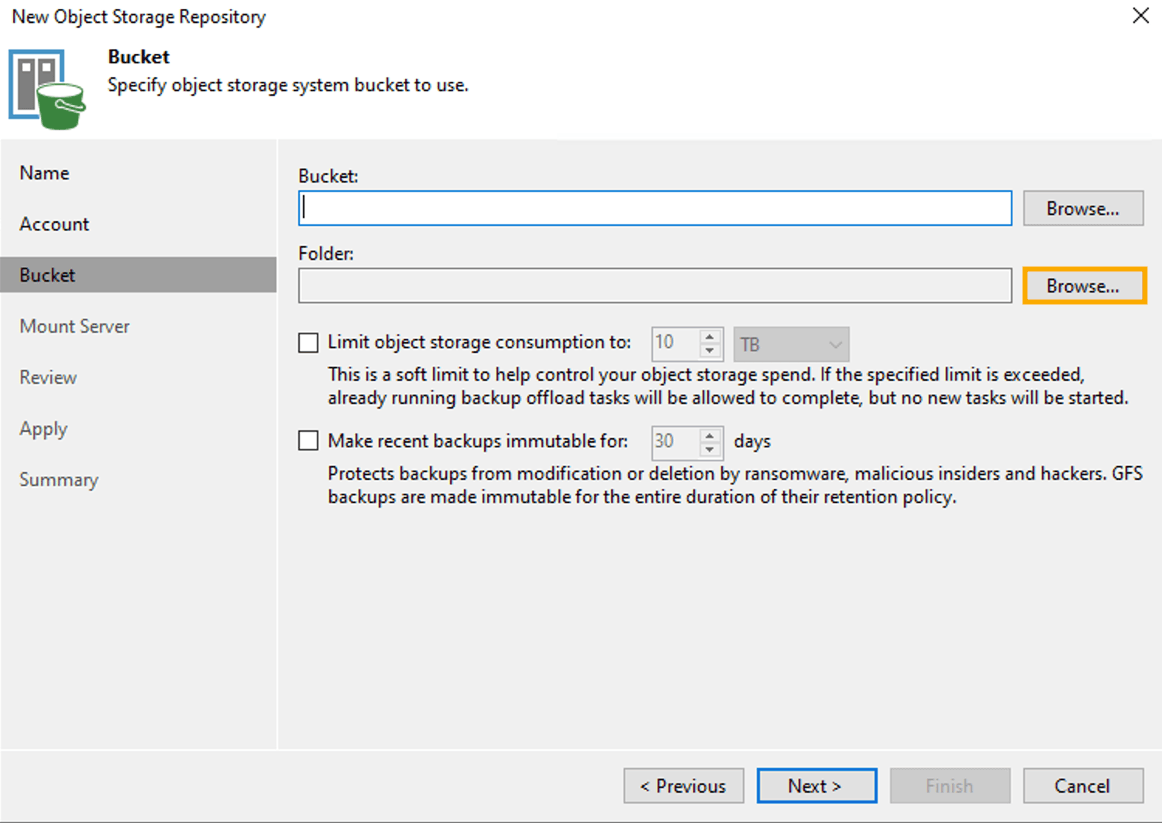
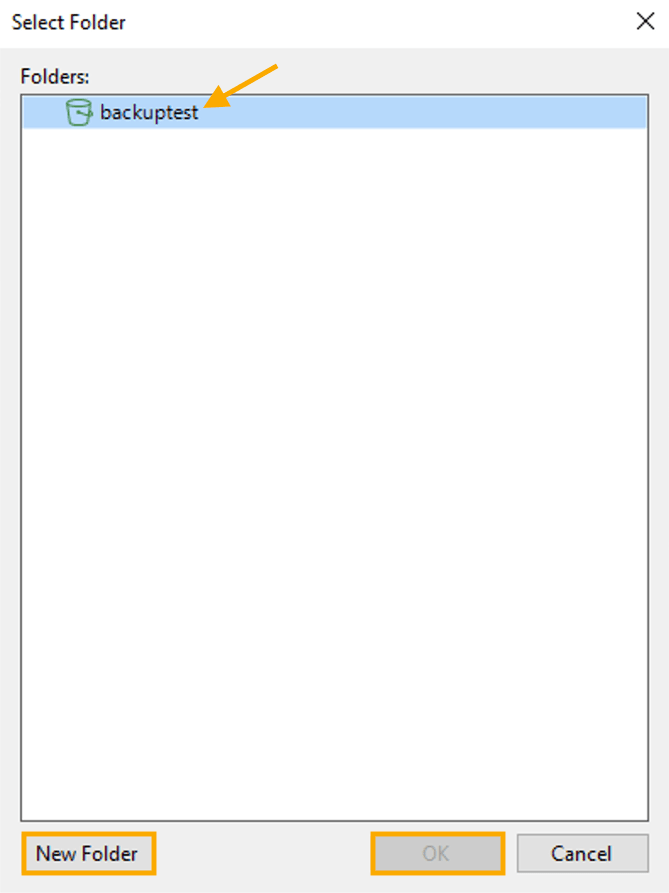
Click New Folder, enter a name for the folder, select it, and then click OK.
On the Mount Server screen, click Next.
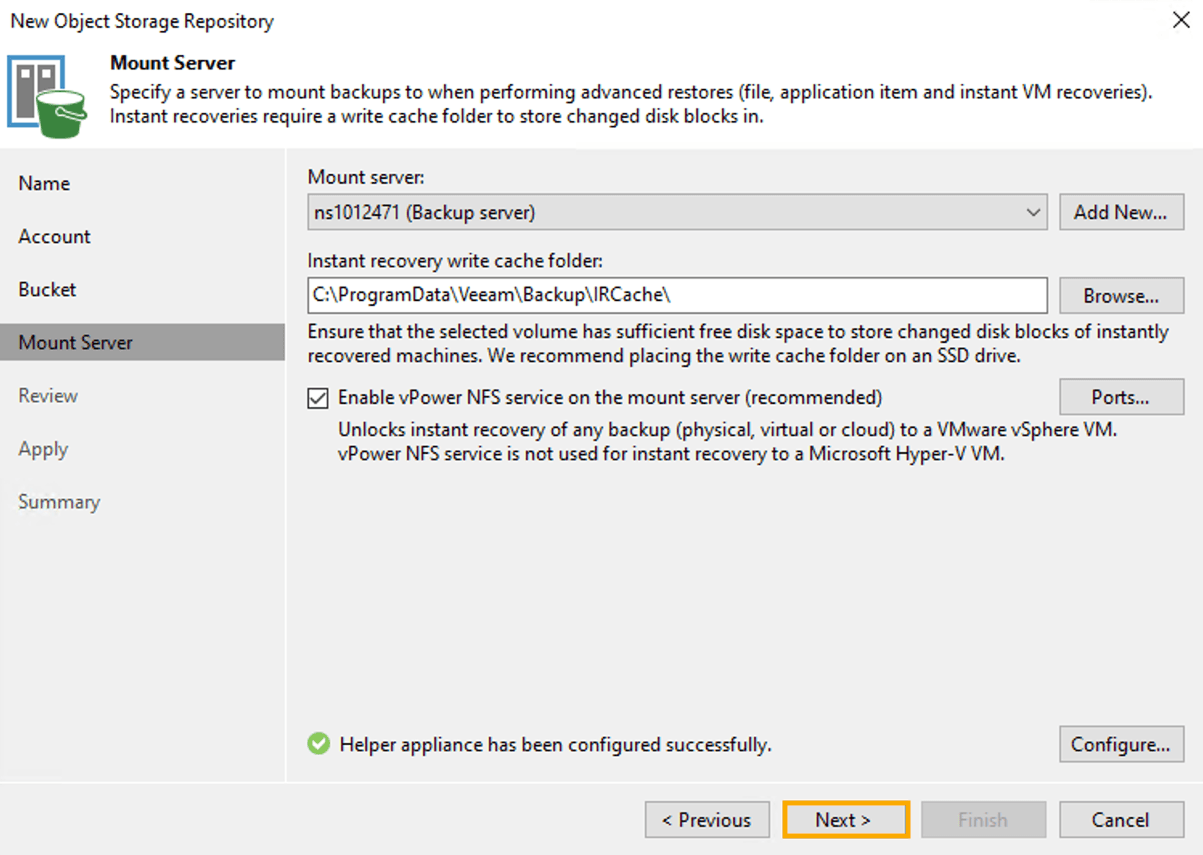
On the Review screen, click Apply.
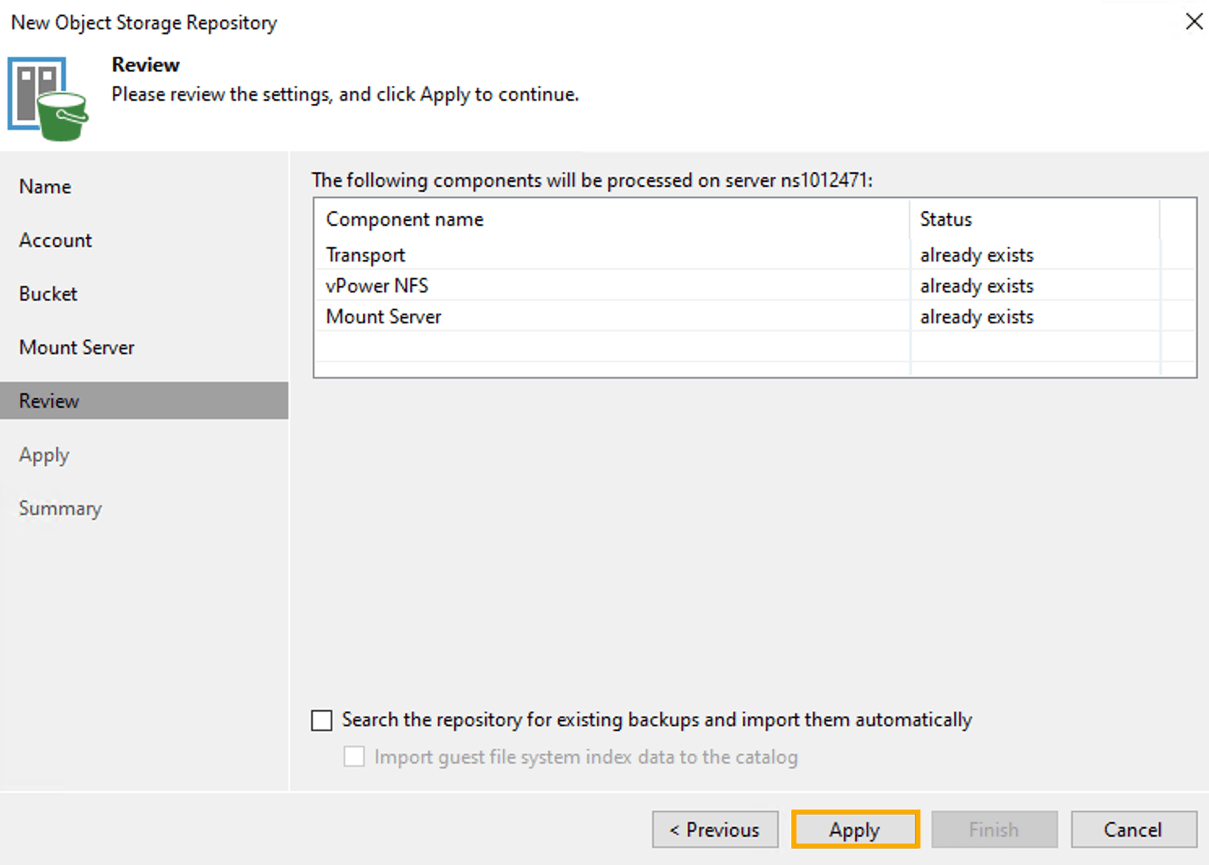
After the processes run successfully, click Next.
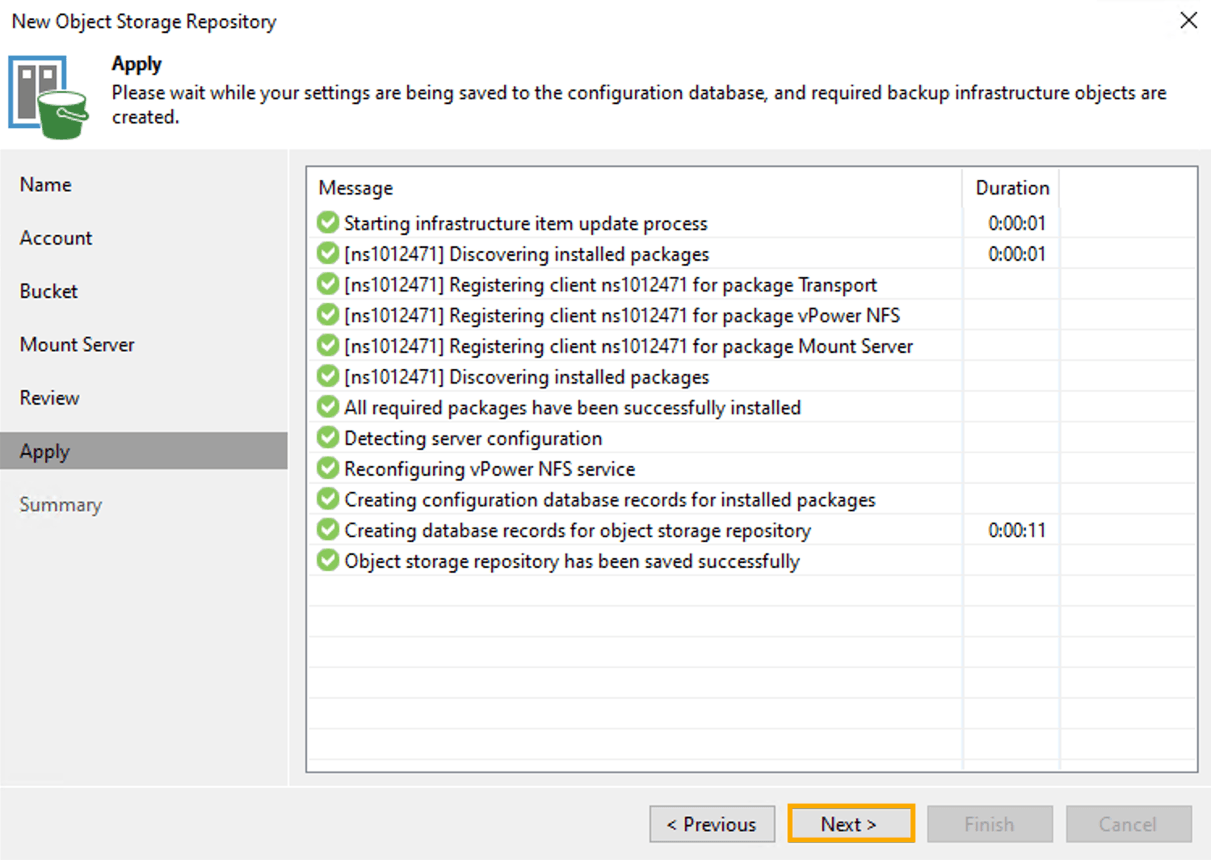
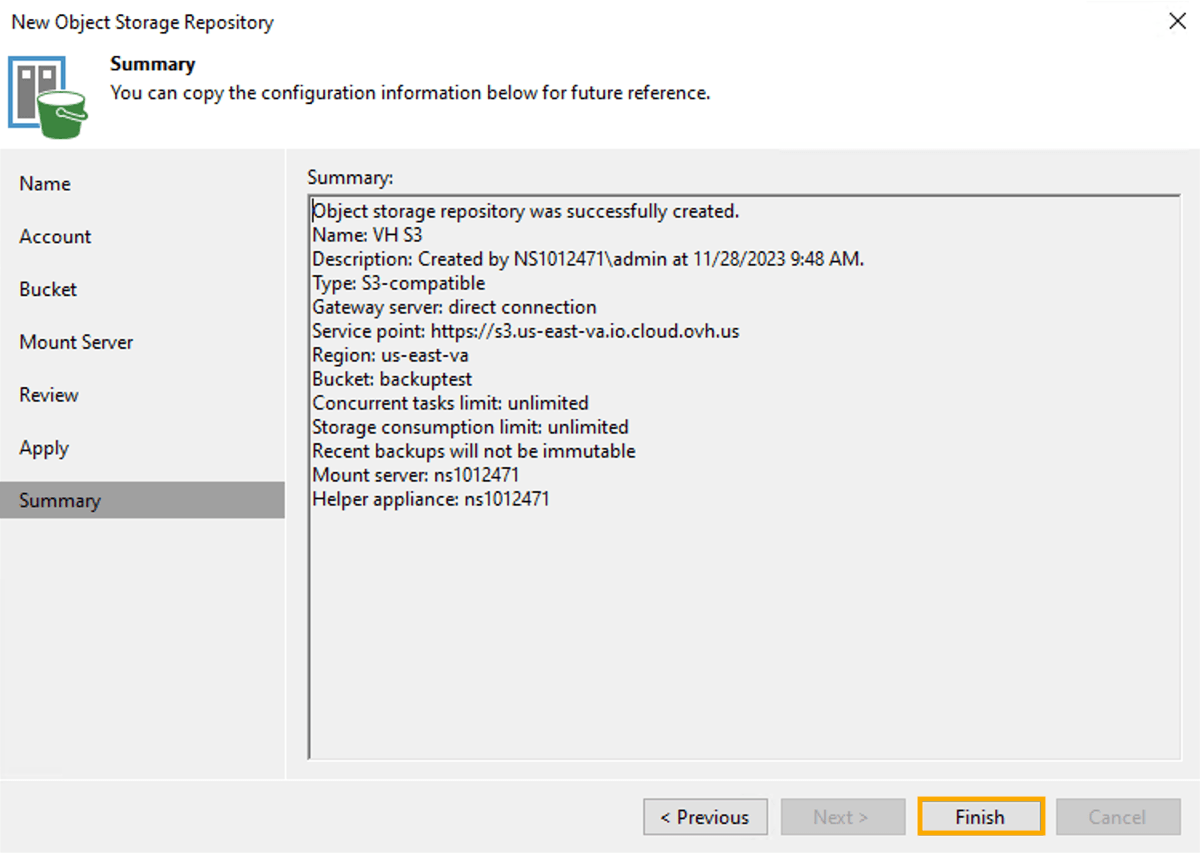
Review the Summary page and click Finish.
The Backup Repositories should now look similar to this:
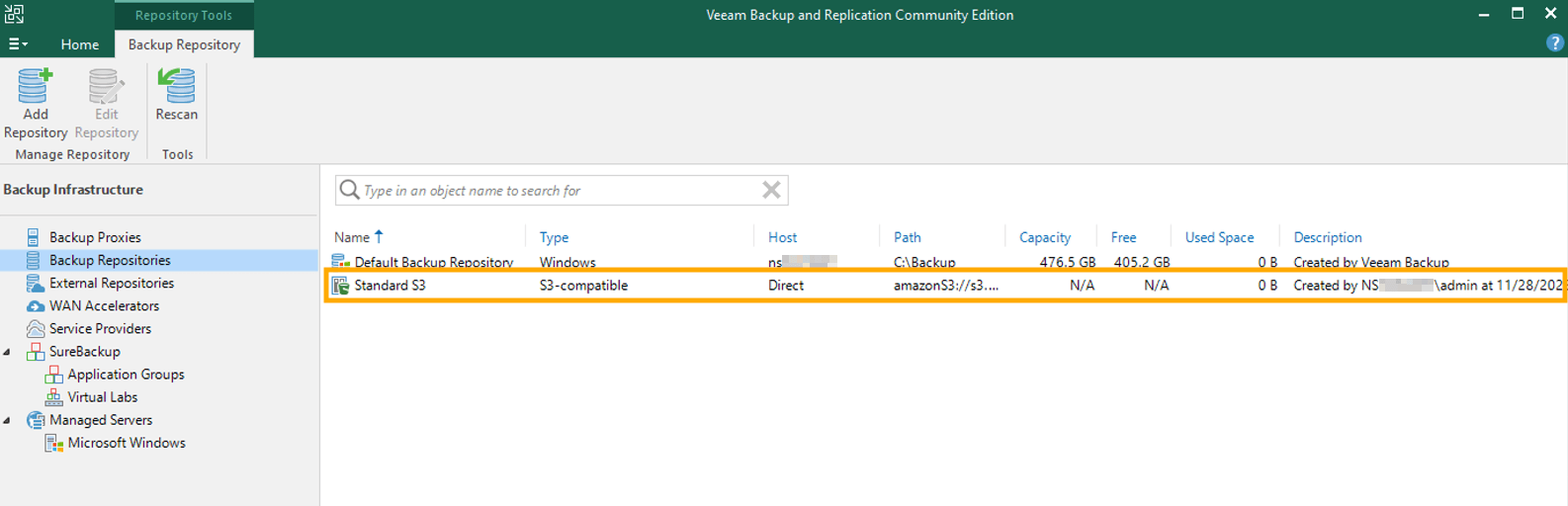
SUCCESS! From here, you can continue to Step 2 (at the top of this guide) to begin your backup.
Go further
Browse all the Dedicated Servers guides.
Browse the rest of the OVHcloud US documentation for guides on our other products and services.
Learn more about Dedicated Servers on the OVHcloud US website.
*S3 is a trademark filed by Amazon Technologies, Inc. OVHcloud's service is not sponsored by, endorsed by, or otherwise affiliated with Amazon Technologies, Inc.